


Introduction
Sensitive data can leave a Microsoft 365 tenant through everyday tools such as Teams, Power Automate, SharePoint, OneDrive, and email. Many organizations believe their existing security controls are enough, but in practice, those controls often cover only one surface while leaving gaps across collaboration, automation, and external sharing.
The risk usually starts with routine action. A sales user may paste a payment card number into a Teams chat. A developer may build a Power Automate flow that sends SharePoint data to an unmanaged location. A contractor may forward a confidential file to the wrong recipients. Different channels, same root cause: no DLP policy was in place to detect, warn, block, encrypt, or govern the action before the data moved.
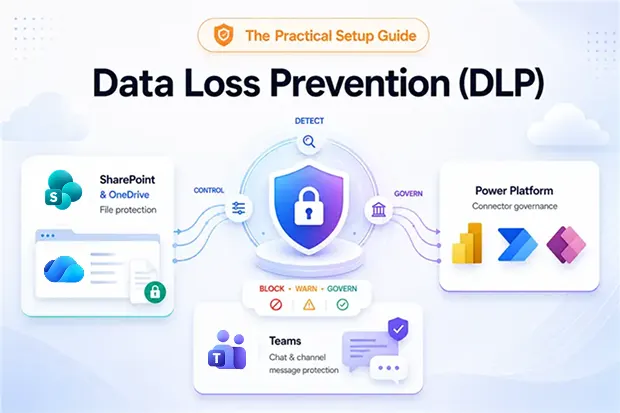
SharePoint, Teams, Exchange, and the Power Platform do not rely on one single DLP model. Each has its own protection layer, admin experience, licensing requirements, and policy behavior. That is why configuring only one DLP policy is rarely enough for a real Microsoft 365 environment.
This guide explains how SharePoint DLP, Teams DLP, Microsoft Purview Message Encryption, and Power Platform DLP policies work together. It also gives you a practical 30-day rollout plan to improve protection without disrupting users or breaking business workflows.
- What DLP really means inside Microsoft 365
- SharePoint DLP: data loss prevention for the document layer
- Teams DLP: protecting chat and channel messages
- Messages protected by Microsoft Purview Message Encryption
- Power Platform DLP policy: a completely different model
- How the layers fit together
- A 30-day rollout plan that won’t break the business
- Common mistakes to avoid
- Conclusion: DLP is a product, not a project
What DLP really means inside Microsoft 365
In Microsoft Purview, a DLP policy answers four questions :
- What is sensitive? Credit cards, PII, source code, custom keywords, or sensitivity labels.
- Where do I watch? Exchange, SharePoint, OneDrive, Teams messages, and devices
- What should happen? Show policy tips, block, encrypt, or alert.
- Who’s in scope? Users, groups, sites – with exceptions.
That framework drives SharePoint, Teams, and the file side of Power Platform. Power Platform’s connector DLP is a separate engine – covered below.
Why is one DLP policy not enough
Microsoft 365 DLP is not a single switch. SharePoint and OneDrive DLP protect files. Teams DLP protects chat and channel message text. Message Encryption protects outbound email. Power Platform DLP controls which connectors makers can combine. Configure only one, and users still leak through the others.
SharePoint DLP: data loss prevention for the document layer
SharePoint and OneDrive sit under most M365 collaboration – including Teams files and some Loop content (Loop can also use SharePoint Embedded). That makes SharePoint DLP your highest-leverage policy.
With SharePoint sites and OneDrive accounts as locations, a Purview policy inspects files at rest, in motion, and in use. Because Teams stores channel files in SharePoint and chat-shared files in OneDrive, this single policy already covers a big slice of Teams file sharing – without E5. It does not inspect Teams chat text.
Example: block external sharing of PII
In the Microsoft Purview portal:
- Data Loss Prevention → Policies → Create policy.
- Pick a template (e.g., U.S. Financial Data) or start Custom.
- Locations → enable SharePoint sites and OneDrive accounts.
- Rule condition → Content contains Credit Card Number, min count 10.
- Action → Block only people outside your organization.
- Turn on Policy tips so authors see why sharing failed.
- Run Test mode with notifications for 1–2 weeks, then enforce.
You must belong to Compliance administrator, Compliance data administrator, Information Protection / Admin, or Security administrator.
Three SharePoint DLP patterns worth copying
Goal | Sensitive info | Action |
|---|---|---|
|
Stop PII leaving the tenant |
Credit card, SSN, Aadhaar, passport |
Block external + policy tip |
|
Protect M&A working folders |
Custom keyword “Project Atlas” |
Block all sharing + admin alert |
|
Catch source-code uploads |
.cs, .py, .ipynb + repo keywords |
Audit + notify, no block |
Always start in audit mode – false positives are the fastest way to lose internal goodwill.
Teams DLP: protecting chat and channel messages
SharePoint DLP stops the file. Teams DLP stops the message – the chat line with a card number, a lab result, or a contract clause.
Teams chat and channel messages (including private channels) require Microsoft 365 E5, Office 365 E5/A5/G5, or equivalent Purview compliance licensing. E3 covers files via SharePoint/OneDrive only – not chat text. This is the single most-missed detail in Teams compliance projects.
In the same DLP wizard, enable Teams chat and channel messages, set the condition (Credit Card Number, min count 1), choose Block people from sharing with optional override + justification, and customize the policy tip with an approved alternative (e.g., “share securely via Customer Vault”).
Guest scenario: when a sensitive document is shared with a guest in Teams, DLP can prevent it from opening – but only if your policy includes SharePoint and OneDrive as locations.
Messages protected by Microsoft Purview Message Encryption
Email is still where the most damaging leaks happen. Microsoft Purview Message Encryption (OME) combines encryption, identity, and authorization to send protected messages inside and outside the org using rights management templates, Do Not Forward, or Encrypt-only.
Recipients on Microsoft 365 read inline; external recipients (Gmail, Yahoo, on-prem Exchange) get a branded portal with one-time passcode or federated sign-in. Office attachments can inherit email protection in supported scenarios, such as Do Not Forward. For non-Office files or cases needing different rights, encrypt the file separately before attaching it.
Don’t rely on users clicking “Encrypt.” Automate it via:
- Exchange mail flow (transport) rules – e.g., if recipient is external AND subject contains “Invoice”, apply Encrypt-only.
- DLP policies in Purview – trigger Encrypt-only or Do Not Forward automatically when sensitive content is detected.
A pattern that works: DLP rule for PHI/PII + external recipient → Encrypt-only; mail flow rule for subject [secure] → Do Not Forward; Outlook Encrypt button for manual cases.
Power Platform DLP policy: a completely different model
Here’s where most M365 admins get tripped up. Power Platform DLP policies live in the Power Platform admin center – not in Purview. They don’t inspect content; they control which connectors can be combined inside Power Apps, Power Automate flows, and Copilot Studio agents.
Purview DLP asks “does this file contain a credit card?”. A Power Platform DLP policy asks “is this flow allowed to wire SharePoint to Twitter?”.
Business, Non-Business, Blocked
Every connector – SharePoint, Dataverse, Outlook, Twitter, Dropbox, custom HTTP – is classified as Business, Non-Business, or Blocked. An app or flow can only use connectors from one group at a time. Blocked connectors are unavailable anywhere.
Tenant vs. environment scope
- Tenant-level policies (Power Platform Administrator) apply to all environments, specific environments, or all-except-exclusions.
- Environment-level policies (environment admin) apply to one environment. Environment admins cannot exclude their environment from a tenant-level policy.
When policies overlap, Blocked always wins. For Business vs. Non-Business, the outcome depends on how each connector is grouped across the applicable policies .
A starter policy set most tenants should ship
Environment | Business | Non-Business | Blocked |
|---|---|---|---|
|
Default (personal productivity) |
Outlook, OneDrive, Approvals, Planner |
Bing, RSS, Weather |
Twitter/X, Dropbox, FTP |
|
Citizen Dev sandbox |
SharePoint, Dataverse, Office 365 |
Bing, RSS |
Social, unapproved custom HTTP |
|
Production / regulated |
Dataverse, SharePoint, Approvals |
(empty) |
Everything else |
Caveat: some core Microsoft connectors (SharePoint, Teams, OneDrive for Business, Planner, Power BI, Dataverse) can’t be blocked using classic data policies. For stricter control, use Advanced Connector Policies where available.
Locking down the default environment is the highest-impact move – every new user lands there, and that’s where shadow IT first appears.
Limitations to set expectations on
- Policies apply at the environment or tenant level, not per user.
- Policies are connector-aware, not connection-aware (they can’t distinguish your dev vs. prod SharePoint).
- Environment policies cannot override tenant policies; most restrictive wins.
The classic “Admin data policy ‘dlpPolicy’ restricts use of…” error is this engine firing – fix by adjusting connector grouping, not by disabling DLP.
How the layers fit together
| Layer | Inspects | Configured In | License Floor |
|---|---|---|---|
|
SharePoint / OneDrive DLP |
Files, content, sharing |
Microsoft Purview |
M365 / O365 E3 |
|
Teams chat & channel DLP |
Message text (incl. private channels) |
Microsoft Purview |
M365 / O365 E5 |
|
Message Encryption (OME) |
Email content + attachments |
Purview + Exchange mail flow |
E3 basic, E5 advanced |
|
Power Platform DLP |
Connector combinations |
Power Platform admin center |
Included with Power Platform; ACP requires Managed Environments |
A mature tenant runs all four. Most tenants we audit run only the first.
Recommended rollout order
Do not start by blocking everything.
Start with file protection in SharePoint and OneDrive because it gives broad coverage with lower disruption. Then add Teams message DLP if the right licensing is available. After that, automate email encryption for sensitive external messages. Finally, lock down risky Power Platform connector combinations, especially in the default environment.
This makes the 30-day plan feel more natural.
A 30-day rollout plan that won’t break the business
- Week 1 – Discover. Run Purview content and activity explorer. Pull a Power Platform CoE inventory. List your top 10 sensitive info types.
- Week 2 – Audit-mode policies. One DLP policy per surface (SharePoint+OneDrive, Teams, Exchange) in Test mode with notifications. A tenant-level Power Platform DLP policy on the default environment, with obvious risks Blocked.
- Week 3 – Tune. Review matches, add group-based exceptions, customize policy tips with reasons and approved alternatives.
- Week 4 – Enforce. Flip SharePoint and Teams policies to Turn on. Expand the Power Platform policy to all environments except a managed exception list. Stand up an exception-request process – DLP without an escape hatch becomes shadow IT.
Common mistakes to avoid
- Treating Power Platform DLP like content DLP – it governs connector combinations, not file content. You need both.
- Assuming E3 covers Teams chat DLP – it doesn’t; only files via SharePoint/OneDrive.
- Forgetting the default Power Platform environment.
- Skipping policy tips – blocked actions with no explanation breed workarounds.
- Skipping Message Encryption automation – manual “Encrypt” clicks fail.
- Running in Enforce mode on day one – test mode for 1–2 weeks isn’t optional.
Conclusion: DLP is a product, not a project
DLP across SharePoint, Teams, and Power Platform isn’t one product – it’s three overlapping engines with different consoles, license floors, and mental models. Once you know where each one lives, the rollout pattern is repeatable:
- Start with SharePoint and OneDrive DLP – biggest blast radius, lowest license cost.
- Layer Teams chat and channel DLP on top once E5 is in place.
- Wire Microsoft Purview Message Encryption into your DLP rules for external email.
- Lock down the default Power Platform environment before a citizen developer beats you to it.
The tenants that get this right treat DLP as policy product management – quarterly reviews, an exception backlog, a named owner per surface. The goal isn’t to block every action; it’s to give users safe paths for sharing, automation, and collaboration.

















 Migrate
 Manage
 Migrate Microsoft 365








