


If SharePoint access feels harder to control than it should, that is usually a sign that permissions have grown faster than governance. Sites get created, files are shared, inheritance gets broken, and before long, nobody is fully sure who can see what.
That is why understanding SharePoint permissions levels, SharePoint site permissions, and SharePoint permission inheritance matters so much. A clean permissions model helps protect sensitive content, reduce risk, and make collaboration easier for everyone involved.
- Is Your SharePoint Access Quietly Out of Control?
- How SharePoint Permission Levels Control Site Access
- SharePoint Groups and Roles: How They Control Access and Security
- Inheritance Explained: From Site to Item
- Practical Handbook: How To Edit and Check Permissions
- Governance Guardrails: Best Practices for SharePoint Permissions
- Advanced Security and Compliance Considerations
Is Your SharePoint Access Quietly Out of Control?
Many teams start with a simple setup, then slowly add exceptions over time. A folder gets shared with one group, a library gets unique access, and a page gets opened up for a few extra users.
Over time, those small changes create permission drift. What once looked simple turns into a patchwork of SharePoint groups and permissions that is difficult to review, explain, or clean up.
This is exactly why so many Microsoft 365 admins look for clearer ways to manage permissions in SharePoint. The goal is not just control. It is giving the right people the right access without creating long term security and governance problems.
How SharePoint Permission Levels Control Site Access
SharePoint permissions are built from individual rights that are grouped into permission levels. These rights control actions such as viewing content, editing items, deleting files, or managing settings.
The default SharePoint permission levels commonly include Full Control, Design, Edit, Contribute, Read, and Limited Access. These are the foundation of permissions in SharePoint Online and are central to how SharePoint access control works.
Here is what those levels usually mean in practice:
- Full Control lets a user manage the site, settings, and permissions.
- Edit allows adding, updating, and deleting lists, libraries, and content.
- Contribute supports adding and editing content without broader structural control.
- Read gives view access to pages, documents, and list items.
- Limited Access allows entry to a specific resource without broad access to its parent location.
When SharePoint permission levels are understood clearly, it becomes much easier to design secure SharePoint site permissions. It also helps teams explain SharePoint permissions levels explained in a way site owners can actually follow.
Know More
For a detailed step-by-step folder level permissions and restriction examples, explore our article on “How to Set and Restrict SharePoint Folder Permissions (Step-by-Step Guide for 2026)”.
SharePoint Groups and Roles: How They Control Access and Security
One of the best ways to keep SharePoint organized is to assign access through groups instead of directly to individual users. Microsoft supports this approach because it is easier to manage, easier to review, and more reliable over time.
Typical SharePoint permission groups include Owners, Members, and Visitors. In many environments, Owners receive Full Control, Members receive Edit or Contribute access, and Visitors receive Read access.
A strong group model usually includes the following practices:
- Use SharePoint groups for common access patterns.
- Add Microsoft 365 or Entra ID security groups where scale is needed.
- Avoid assigning SharePoint user permissions directly to individuals unless there is a real exception.
- Keep a clear SharePoint permission list for sensitive sites and libraries.
This structure helps reduce confusion around SharePoint permissions and groups. It also makes SharePoint group permissions easier to audit when access reviews are due.
Permission Health Score
Introduce a Permission Health Score for key business sites.
- Rate each site as Healthy, Needs Review, or High Risk based on broken inheritance, direct access, and unique permissions.
- Use the score to make permission cleanup easier for site owners to understand.
- Support reviews with a SharePoint permissions manager for better long-term control.
Inheritance Explained: From Site to Item
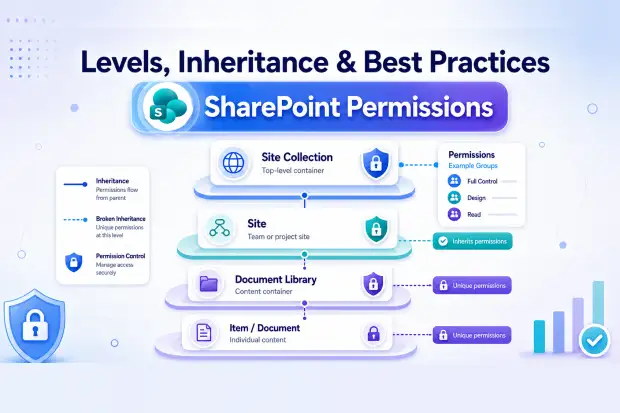
By default, SharePoint uses inheritance to pass permissions from a parent object to child objects. That means a site can pass its settings to a list, a document library, a folder, or an individual item unless inheritance is broken.
This inheritance model is what makes SharePoint manageable at scale. Without it, every library, page, and file would need separate access settings, which would quickly become unmanageable.
A common SharePoint permission inheritance path looks like this:
- Site collection
- Site
- List or document library
- Folder
- Item or document
Once inheritance is broken, that location becomes its own permission scope. This is a key part of SharePoint permissions inheritance and one of the main reasons permissions can become complex over time.
Understanding SharePoint permission inheritance is essential for anyone trying to manage SharePoint online permissions well. It explains why one file may be visible to a specific person even when the main site appears locked down.
When (and When Not) to Break Inheritance
Breaking inheritance can be useful, but it should be done with care. It allows a list, library, folder, page, or item to have unique access, but every exception adds more complexity to your environment.
There are valid use cases for unique permissions. Sensitive SharePoint document library permissions for HR records, legal files, executive content, or finance documents may require tighter control than the parent site provides.
Common examples where unique permissions make sense include:
- SharePoint item level permissions for confidential records.
- SharePoint page permissions for executive or restricted communication pages.
- SharePoint library permissions for highly sensitive departments.
- SharePoint list permissions where a business process requires tighter access boundaries.
Even so, unique permissions should be the exception, not the rule. Too many exceptions make it harder to explain SharePoint permissions in a clean way, and much harder to audit later.
Find Your Unique Permissions
A good awareness campaign is to challenge site owners to find and reduce unnecessary unique permissions. This can be framed as a practical cleanup initiative rather than a technical exercise.
The message is simple: fewer unique scopes usually mean cleaner governance, simpler audits, and better confidence in SharePoint access permissions.
Practical Handbook: How To Edit and Check Permissions
Many admins and site owners need practical answers to questions like how to edit permissions in SharePoint, how to change permissions in SharePoint, and how to change SharePoint permissions without disrupting users. Microsoft provides built in tools for this across modern SharePoint experiences.
Common permission management tasks include:
- Using Share or Manage access to update SharePoint share permissions.
- Opening advanced permission settings to view SharePoint permissions view in more detail.
- Using Check Permissions to verify effective SharePoint user permissions for a person or group.
- Adjusting SharePoint group permissions when a team needs more or less access.
- Reviewing SharePoint edit permissions and SharePoint edit group permissions carefully before broad changes are made.
These actions are helpful, but they still depend on a consistent governance model. Without that foundation, even well intended changes can create permission sprawl across sites, pages, and libraries.
Governance Guardrails: Best Practices for SharePoint Permissions
Good governance makes SharePoint safer and easier to use at the same time. The best models give people the access they need while limiting unnecessary exposure and reducing the chance of accidental oversharing.
Some of the most effective SharePoint permissions best practices include:
- Use least privilege as the default approach.
- Standardize SharePoint permission groups across sites.
- Prefer group-based access over direct user assignments.
- Limit broken inheritance to real business exceptions.
- Review SharePoint permissions regularly.
- Document ownership for each business-critical site.
- Keep SharePoint rights management aligned with broader Microsoft 365 security controls.
Governance is not just about locking things down. It is about creating a permission model that people can understand, support, and maintain over time.
Governance Office Hours
A recurring Governance Office Hours session can help site owners ask permission related questions in a low-pressure format. It is a useful way to discuss SharePoint roles and permissions, review confusing access patterns, and guide owners through better decisions.
Over time, this builds confidence among non-technical site owners. It also creates stronger adoption of your preferred governance model.
Advanced Security and Compliance Considerations
SharePoint permissions are important, but they are only one part of a strong Microsoft 365 security strategy. Organizations also need auditing, data protection, identity controls, and monitoring to reduce risk across collaboration environments.
That broader security model often includes:
- Sensitivity labels for classified files.
- DLP policies for regulated or sensitive information.
- Conditional access and MFA for higher risk scenarios.
- Audit reviews for unusual sharing or admin activity.
- Clear security groups in SharePoint and Microsoft 365 for scalable control.
This layered approach matters because permissions alone cannot cover every type of risk. The strongest results come when SharePoint online permissions are managed alongside labelling, sharing policies, and broader governance standards.
Where to Learn Deeper from Microsoft Documentations

















 Migrate
 Manage
 Migrate Microsoft 365








