


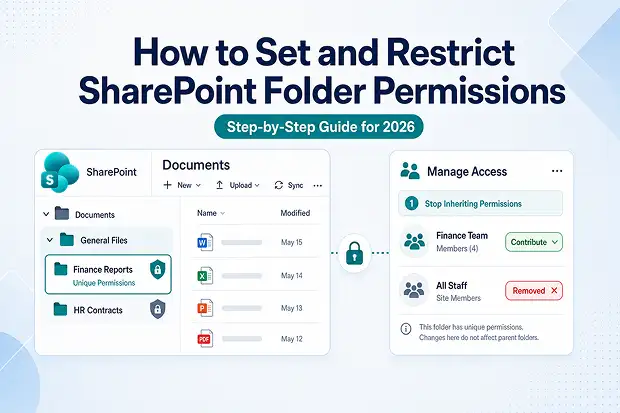
Why SharePoint folder permissions matter more than people think
A SharePoint site usually starts clean. One site, three groups — Owners, Members, Visitors and the access model is manageable. Then the requests begin.
“Can you give Finance their own folder, but only Finance can see it?”
“HR contracts shouldn’t be visible to the rest of the HR team.”
“The vendor needs to upload files here, but they shouldn’t see anything else.”
Within weeks, you’re maintaining unique permissions across folders, files, and document libraries and a single misconfiguration can result in a data exposure incident, audit finding, or persistent backlog of access-denied tickets.
This guide explains how SharePoint folder permissions actually work, how to set and restrict them correctly, and how to troubleshoot the edge cases.
- How the SharePoint permissions model works
- How SharePoint permission inheritance works
- Which permissions take precedence in a shared folder?
- How to set SharePoint folder permissions (the standard path)
- How to restrict access to a folder in SharePoint (break inheritance)
- Item-level permissions in SharePoint (when you really need them)
- The unique permissions limit
- Manage SharePoint permissions day-to-day
- “You need permission to access this item” — diagnostic order
- Where most permissions problems actually start: migrations and reorgs
- Final takeaway
- Related reading from the Apps4.Pro Permissions library:
How the SharePoint permissions model works
Before you start clicking, it helps to understand how SharePoint structures access. Every permission you assign — and every exception you create later — sits somewhere in this hierarchy, which is why inheritance is the single most important concept in the system.
SharePoint permissions live in a hierarchy:
Site collection
→ Site
→ List or Document Library
→ Folder
→ Item (file)
Each level inherits permissions from its parent by default. You can break inheritance at any level to apply unique permissions — but every break is an exception that must be documented and maintained over time.
The default SharePoint permission levels
SharePoint ships with 7 built-in permission levels. You’ll use 4 of them daily, and assigning the wrong one is the single most common cause of access-control problems.
|
Level |
What the user can do |
Typical use case |
|
Full Control |
Everything, including managing permissions and site settings |
Site owners, admins |
|
Design |
View, add, update, delete, approve, customize pages |
Power users, branding |
|
Edit |
Add/edit/delete lists and libraries + all item actions |
Library stewards |
|
Contribute |
View, add, update, delete items and documents (but not containers) |
Most everyday members |
|
Read |
View pages, items, and documents — no changes |
Visitors, auditors |
|
View Only |
View in the browser, but cannot download |
Excel Services / sensitive viewers |
|
Limited Access |
Auto assigned; lets a user reach a specific item |
Used by SharePoint behind the scenes |
Edit vs. Contribute — the most consequential permission-level decision
- Contribute = change items (files, list items), not the container.
- Edit = Everything Contribute can do, plus create or delete entire lists and libraries.
Contribute is the safer default. Reserve Edit for trusted library stewards.
If accidental deletion of a library would qualify as a data-loss event in your organization, do not assign Edit.
How SharePoint permission inheritance works
When you create a folder inside a library, it inherits the library’s permissions. Create a subfolder, it inherits from the folder. Upload a file, it inherits from wherever it lands. This is how inherit permissions SharePoint behavior is designed to operate — and it’s what keeps permission management sustainable at scale.”
Break inheritance only when a folder, file, or document library genuinely requires a different access policy from its parent.
Which permissions take precedence in a shared folder?
A common question — and the answer is not “the most restrictive wins.”
- Inheritance intact → the folder uses whatever the parent library defines.
- Inheritance broken → only the permissions explicitly assigned to that folder apply.
- Within a single scope → a user’s effective access is the union of all groups they belong to. SharePoint has no implicit deny (it does not use NTFS-style deny ACLs).
Example: A user assigned to two groups within the same security scope — “Marketing Team” (Read) and “Marketing Managers” (Edit) — receives the union of both permission levels. Effective access is Edit; the lower permission does not constrain it.
The same principle explains downstream access-denied errors: a user may hold valid permissions on a parent scope, but if inheritance has been broken on a child folder and the user’s group has not been explicitly granted access on that folder, access is denied.
How to set SharePoint folder permissions (the standard path)
This is the everyday workflow — adding people to a folder that should stay aligned with its parent library. It’s the safest path: nothing breaks, nothing changes for anyone else.
Use this when the folder should keep inheriting from its library — you’re adding people, not isolating the folder.
- Open the SharePoint site → navigate to the document library.
- Hover over the folder → click ⋯ (More options) → Manage access.
- In the panel, click + Add people.
- Type the user or group.
- Choose Can view, Can edit, or Can’t download (or Advanced for full permission levels).
- Add an optional message → Grant access.
The user joins the folder’s access list along with everyone who inherits from the library. No inheritance broken, no unique permissions created.
|
Pro tip: Always grant access to SharePoint groups or Microsoft 365 / Entra ID security groups, never to individuals. When the person leaves the organization, you remove them from one group — not from 47 folders. |
How to restrict access to a folder in SharePoint (break inheritance)
A common scenario: restricting a single folder to a specific group of users while keeping the rest of the library open to the broader team.
Step-by-step: restrict access to a SharePoint folder
Three moves: break inheritance, remove who shouldn’t be there, and grant who should. Here is the exact click path.
- Navigate to the folder → click ⋯ → Manage access.
- Click Advanced to open the classic Permissions page.
- On the ribbon, click Stop Inheriting Permissions and confirm. SharePoint warns that the parent’s future permission changes will no longer flow down — which is the intent.
- The folder now holds a copy of the parent’s permissions but stands alone. Select groups or users who should not have access → Remove User Permissions.
- Click Grant Permissions to add the right users or groups at the right level (Read, Contribute, Edit).
- Uncheck Send an email invitation if you don’t want SharePoint to notify them → Share.
The folder is now scoped to the explicitly granted users only. Any other user, including those with active permissions on the parent library, will receive an access-denied response.
|
Note: If you don’t see Advanced in the Manage Access pane (some tenants are on the refreshed 2025–2026 UI), open the same page via Site contents → library Settings → Permissions for this document library or Site permissions → Advanced permissions settings. |
When you want your document library to have different permissions
If an entire library needs to behave differently from the site (an HR library on a general team site, for example), apply the same logic one level up:
- Library → Settings → Library settings → More library settings.
- Permissions for this document library → Stop Inheriting Permissions.
- Remove the groups that shouldn’t have access and grant the ones that should.
A clean pattern for SharePoint permissions for a document library :
|
Group |
Permission level |
|
Marketing Team |
Contribute |
|
Marketing Managers |
Edit |
|
Executives |
Read |
Item-level permissions in SharePoint (when you really need them)
Item level permissions in SharePoint — also called SharePoint file permissions — restrict a single document. Same idea as a folder: break inheritance, remove, grant (see step 3 above).
Use sparingly. Microsoft’s guidance is explicit: only set unique scopes on parent objects such as folders, not files.
If you keep reaching for item-level permissions, you probably need a separate library with the right permissions baked in from day one. The exact 50,000-scope and 100,000-item limits are covered next.
The unique permissions limit
- Every break in inheritance carries a hidden cost — and most administrators don’t see it until performance degrades. Microsoft enforces strict limits on the number of unique permissions a single list or library can hold, and they matter more than the official documentation makes obvious.
- Every broken inheritance creates a unique security scope. Per list or library (Microsoft Learn):
- 5,000 scopes — recommended operational limit. Above this, SharePoint switches to a slower ACL evaluation path (Microsoft Q&A).
- 50,000 scopes — hard ceiling. Beyond it, SharePoint refuses further breaks: “too many items with unique permissions.”
- 100,000+ items in a container → you can’t break or re-inherit at all
Actions that consume scopes: every “Stop Inheriting Permissions” operation, every sharing link generated through Manage Access (Anyone, People in your organization, or Specific people) (Microsoft Q&A), and every direct permission grant on an individual item. Libraries with heavy external collaboration commonly exceed 5,000 scopes within a few months.
Warning signs: sluggish library views, search re-indexing delays, sharing requests returning HTTP 429 (throttling), and Power Automate workflows timing out.
Stay under 5,000:
- Inherit by default — every break requires a documented reason.
- Apply permissions at the folder level, not the file level.
- Split libraries by audience (HR, vendor, marketing = separate scope budgets).
- Audit and revoke stale sharing links on a regular cadence.
- Restore inheritance when exceptions end (Delete unique permissions releases the scope).
- Track scope count via SharePoint admin center or PnP PowerShell (Get-PnPListPermissions).
- Microsoft caps each list or library at 50,000 unique scopes. Treat 5,000 as your operational target.
Manage SharePoint permissions day-to-day
Once permissions are in place, day-to-day management is mostly small adjustments — changing levels, undoing exceptions, and confirming who actually has access. These are the three operations you’ll perform most often.
Edit a user’s permission: Folder → ⋯ → Manage access → dropdown next to their level → choose a new level or Stop sharing.
Restore inheritance (the cleanest way to retire old exceptions): Folder → ⋯ → Manage access → Advanced → Delete unique permissions → confirm. The folder snaps back to inheriting from its parent and the scope is released.
Check what a user can actually access (the most useful SharePoint permission view tool):
- Site → Settings → Site permissions → Advanced permissions settings.
- Ribbon → Check Permissions → enter the user’s name → Check Now.
SharePoint reports the exact permissions and why — which group, which level, which scope
“You need permission to access this item” — diagnostic order
One of the most common help-desk tickets: a user has permissions but still receives an access-denied error in SharePoint. Run this checklist in order to identify the cause.
- Check inheritance at the folder (not the site). The folder probably has unique permissions and the user isn’t on the list. Fix: grant access on the folder, or restore inheritance.
- Check the permission level. Read users cannot edit or upload, even though they technically “have permissions.” Fix: raise them to the appropriate level.
- Check sharing-link conflicts. A user may have access via the library and a link; revoking the wrong one removes access. Review both Direct access and Links in Manage access.
- Check for Limited Access only. SharePoint automatically assigns Limited Access so a user can reach a single shared item, but it does not permit navigation through the surrounding folders or library. Fix: grant explicit access at the appropriate parent scope (library or folder).
- Check tenant sharing policy. External users may be blocked tenant-wide. SharePoint admin center → Policies → Sharing.
Where most permissions problems actually start: migrations and reorgs
Tangled permission models rarely get designed that way — they grow during tenant moves, mergers, or reorganizations, when content is lifted between environments and every unique permission tags along.
If you’re consolidating tenants after an acquisition, splitting one during a divestiture, or restructuring sites, plan permissions before you migrate — which libraries need unique permissions, who owns them, how access maps source-to-target.
That kind of reset is exactly the scenario Apps4.Pro’s Microsoft 365 migration tools are designed for — tenant-to-tenant SharePoint, OneDrive, and Teams migrations with advanced reporting and post-migration logs your compliance team can review.
Final takeaway
SharePoint folder permissions are powerful because they’re granular — and they expose you for the same reason. To manage SharePoint permissions effectively, get the model right once: inherit by default, break with intent, manage by groups, Contribute over Edit, and treat 5,000 scopes as your operational target. Audit quarterly. Document every broken-inheritance folder with an owner and a reason. Restrict at the highest sensible scope (Library > Folder > File).
Do that, and the difference between a tenant that scales cleanly and one that accumulates access-denied tickets comes down to a few well-chosen clicks.

















 Migrate
 Manage
 Migrate Microsoft 365








