


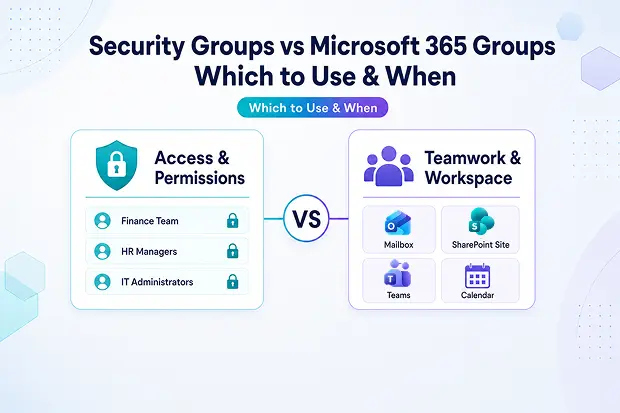
Every Microsoft 365 admin faces this question at some point: Should I use a Security Group or a Microsoft 365 Group? They may look similar in the admin center, but they serve different purposes. A Security Group is used to control access and permissions, while a Microsoft 365 Group is designed for collaboration and teamwork. Choosing the wrong one can lead to permission issues, unused Teams and workspaces, and extra work during migrations.
This blog clearly explains the differences between the two, includes a simple comparison table, and helps you understand which one to use in different situations.
- What Is a Microsoft Security Group in Office 365?
- What Is a Microsoft 365 Group (Formerly Office 365 Group)?
- Security Group vs Microsoft 365 Group: Side-by-Side Comparison Table
- Dynamic Membership: What Both Groups Can (and Can’t) Do
- When to Use a Security Group and Microsoft 365 Group
- Why This Matters During Tenant Migration
- Your Next Step
- FAQ
What Is a Microsoft Security Group in Office 365?
An Office 365 security group is mainly used to manage access and permissions across Microsoft 365 services. Office 365 security groups exist for one reason: so you stop assigning rights to people one by one. Create a security group office 365 admins can hand out to SharePoint, Teams, Intune, and Conditional Access, and you’ve replaced dozens of one-off permission changes with a single object to maintain.
A few things make them stand out:
- Flexible membership. Users, devices, service principals, and even other groups (nested groups) can all be members of a security group.
- Built for resources and licenses. They shine when you’re handing out access to applications, Azure resources, SharePoint, portals, printers, or assigning licenses in bulk.
- No clutter. Creating one doesn’t generate a mailbox, calendar, or team site , and that’s a feature, not a bug.
- Mail-enabled cousin. Need to email everyone in the group too? Use a mail-enabled security group; it controls access and accepts mail.
If you came from an on-prem world, the security groups office 365 administrators rely on will feel familiar, they’re the closest cloud cousin of the Active Directory groups you’ve used for years.
What Is a Microsoft 365 Group (Formerly Office 365 Group)?
A Microsoft 365 group (you might still hear it called an Office 365 group) was designed for collaboration, not just access. Spin one up and the platform quietly does a lot of work for you in the background.
Here’s what shows up automatically the moment a group is created:
- A shared Exchange mailbox and calendar.
- A SharePoint team site with a document library for files.
- A shared OneNote notebook, plus a Planner for tasks.
- And optionally, a Microsoft Teams workspace, either at creation or bolted on later.
The scale is generous too: a single Microsoft 365 group can hold up to 100 owners and more than 1,000 members, so most departments and project teams fit inside one group comfortably.
There’s one big catch: a Microsoft 365 group can only hold users. No devices, no service principals, no nested groups. The upside is that you can invite external guests, which makes them genuinely useful for cross-org work.
Security Group vs Microsoft 365 Group: Side-by-Side Comparison Table
|
Capability |
Security Group |
Microsoft 365 Group |
|
Primary purpose |
Grant access to resources & licenses |
Enable team collaboration |
|
Allowed member types |
Users, devices, service principals, groups |
Users only (plus guests) |
|
Creates mailbox, calendar, SharePoint site |
No |
Yes, automatically |
|
Can connect to Microsoft Teams |
No |
Yes – every Team is built on one |
|
Assign licenses to members |
Yes |
Yes |
|
Dynamic membership |
Yes – users and devices |
Yes – users only |
|
Self-service / owner management |
Limited |
Owners manage their own group |
|
Group expiration policy |
No |
Yes |
|
Max members |
No published cap (subject to tenant limits) |
100 owners, 1,000+ members |
|
Best for |
IT admins controlling permissions |
Project teams & departments collaborating |
Dynamic Membership: What Both Groups Can (and Can’t) Do
Both group types support dynamic membership, and once you’ve used it, you won’t go back. Instead of editing membership by hand, you write a rule based on user attributes (department, location, job title, whatever fits), and Entra ID handles the rest. When someone’s profile changes, the group quietly catches up.
Two things worth knowing before you go all-in:
- Devices are security-group territory only. Microsoft 365 groups can do dynamic users, but not dynamic devices.
- It isn’t free. Dynamic membership needs Microsoft Entra ID P1 or P2 licensing for every user in the group, currently around US $6/user/month for P1, US $9/user/month for P2 on standalone pricing.
When to Use a Security Group and Microsoft 365 Group
Skip the long debate. Use this single question:
Do these people need to work together, or just get in?
Use a Security Group When You Need Access Control
If the job is purely about who can touch what, a security group is the cleaner choice. Typical signals:
- You’re granting access to applications, Azure resources, printers, or a portal.
- You need to assign licenses in bulk.
- A device policy or Conditional Access rule needs a population to target.
- Your permission model has gotten deep enough that nesting groups inside groups will save your sanity.
When you’re deciding between a Microsoft 365 group and a simple access list, choose a security group if you only need to manage access. It’s lightweight and doesn’t create extra resources like a mailbox or SharePoint site.
Use a Microsoft 365 Group When You Need Collaboration
A Microsoft 365 group becomes the right choice when people need a shared workspace to collaborate. If they need to send emails, share files, manage tasks in Planner, or meet in Teams, a Microsoft 365 group provides all of these in one place.
A security group cannot do that. You would have to create separate tools, such as a SharePoint site and a distribution list, which adds complexity and duplication. Microsoft 365 groups also support guest access, making it easy for external partners and clients to work in the same shared space.
Why This Matters During Tenant Migration
This is where poor group planning can create real problems.
During a tenant migration, whether it is part of an acquisition, divestiture, consolidation, or cleanup project, every unclear group decision becomes visible. Duplicate permissions, unused SharePoint sites, Teams without clear owners, and groups that no one manages all need to be reviewed before cutover.
One thing many teams miss is that not every Microsoft 365 group needs to be migrated as a Team.
A Microsoft 365 group only needs Teams migration handling if a Team was actually created from that group. In simple terms, the group has been connected to Microsoft Teams. This is identified in the background through the resourceProvisioningOptions attribute.
Checking this before migration helps you send each group to the right migration path. If you skip it, you may end up with broken collaboration links, missing ownership, or cleanup work after migration.
The rule is simple: use Security Groups for access control and Microsoft 365 Groups for collaboration.
When you make that decision clearly, your tenant becomes easier to manage today and easier to migrate in the future.
Your Next Step
Before your next tenant move (or even a quarterly cleanup), do this:
- Audit every group — type, owner, member count, last activity.
- Reclassify wrong-fit groups — a Microsoft 365 group serving as a pure access list should become a security group.
- Flag the “Team-connected” Microsoft 365 groups so they get the right migration workstream.
- Assign at least two owners to every Microsoft 365 group you keep, so none go orphaned.
If a tenant-to-tenant migration is on your roadmap, Apps4.Pro Migration Manager maps security groups, Microsoft 365 groups, Teams, and SharePoint permissions across tenants, so the structure you cleaned up here stays clean on the other side.
FAQ
- Do I need a specific license to create security groups or Microsoft 365 groups?
No, creating standard security groups, Microsoft 365 groups, and distribution groups is included with every Microsoft 365 plan that has Exchange Online and SharePoint Online. You only need paid Microsoft Entra ID P1 or P2 licensing when you enable dynamic membership rules, currently around US $6/user/month for P1 and US $9/user/month for P2 standalone.
2. Can I convert a security group into a Microsoft 365 group?
No. Microsoft does not support direct conversion between a security group and a Microsoft 365 group because they are different group types with different features and resources.
Workaround: Export the security group members, create a new Microsoft 365 group, and then add the members to the new group using PowerShell or Microsoft Graph.
3. Can a deleted Microsoft 365 group be restored?
Yes. Deleted Microsoft 365 groups can be restored within 30 days, along with their connected resources such as Teams, SharePoint sites, Planner plans, and mailboxes. After 30 days, they are permanently deleted.
















