


Microsoft Teams has become the center of collaboration for many organizations. But in most Microsoft 365 tenants, collaboration did not start with Teams. It often started with Microsoft 365 Groups, SharePoint team sites, Outlook-based group conversations, Planner plans, and shared document libraries.
As organizations modernize their collaboration model, many admins face the same question: how do we convert existing Microsoft 365 Groups into Teams?
For one or two Groups, the answer looks simple. Open the Microsoft Teams interface, choose the Group, and create a Team from it.
But when the organization has 50, 100, or 500 Groups to convert, the user interface quickly becomes the wrong tool for the job.
- The Problem: Group-to-Team Conversion Is Easy Once, Hard at Scale
- Why the Native UI Does Not Scale
- Why Bulk Conversion Requires Planning
- The Practical Approach: Learn, Analyze, Modernize
- PnP PowerShell: The De Facto Bulk Approach
- The Risk of Manual or Unstructured Conversion
- Where Apps4.Pro Fits In
- What a Good Bulk Conversion Process Should Include
- Final Thoughts
The Problem: Group-to-Team Conversion Is Easy Once, Hard at Scale
Microsoft makes it fairly straightforward to create a Team from an existing Microsoft 365 Group when you are working with a single Group. That experience works well for small, manual actions.
The challenge begins when admins need to convert many Groups in a planned, consistent, and auditable way. At that point, clicking through the UI for every Group becomes slow, repetitive, and risky.
Each Group may have different owners, members, SharePoint site configurations, naming patterns, privacy settings, and collaboration history. Some Groups may be ready for Teams. Others may need cleanup before conversion. A few may not be suitable for conversion at all.
This is why bulk Group-to-Team conversion is not just a “repeat the same action many times” task. It becomes a tenant modernization project.
Why the Native UI Does Not Scale
The native Microsoft experience is designed around a per-Group action. That is fine for an individual owner or admin creating a Team from one existing Group.
It is not designed as an administrative bulk operation.
There is no simple native bulk conversion wizard where an admin can upload a list of Groups, validate eligibility, preview results, run the conversion in batches, and track success or failure across the tenant.
For M365 admins and SharePoint admins, this creates a major operational gap. The need is not just to convert Groups. The need is to convert the right Groups, in the right order, with the right validation, and with minimal disruption to users.
Why Bulk Conversion Requires Planning
Not every Microsoft 365 Group or connected SharePoint site behaves the same way during conversion. Conversion behavior can depend on the underlying site template, such as STS#0, COMMUNITY#0, or GROUP#0.
This matters because some source templates may not support the same conversion path. Others may require additional checks before they are included in a bulk conversion plan.
Without validation, admins may start a conversion project assuming every Group can be modernized the same way. In reality, some conversions may fail, some may need manual review, and some may require a different remediation path.
That is why any serious Group-to-Team conversion effort should begin with analysis, not execution.
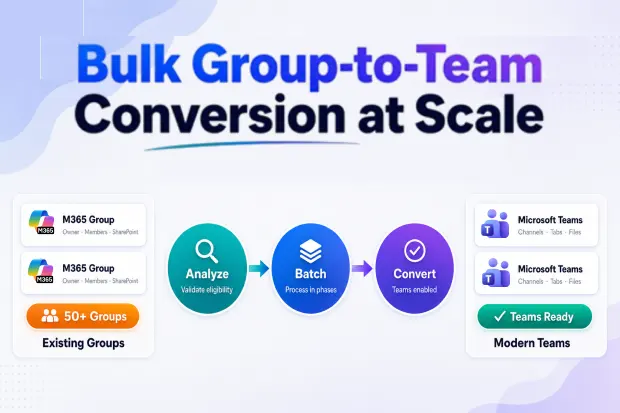
The Practical Approach: Learn, Analyze, Modernize
A workable approach usually follows three stages.
First, admins should test the conversion process using the UI with a small number of pilot Groups. This helps them understand what changes, what users see, and what operational issues may appear.
Next, they should analyze the tenant to identify which Groups are suitable for conversion. This includes checking Group ownership, membership, activity, SharePoint site template, naming conventions, and business relevance.
Finally, they can modernize in controlled batches using PowerShell-based automation. This is where bulk conversion becomes practical, but it also becomes more technical.
PnP PowerShell: The De Facto Bulk Approach
Since Microsoft does not provide a native bulk conversion tool, PnP PowerShell is often the practical path for admins who need to convert Groups at scale.
A structured CSV file can be used as the input source. The script can process Groups in batches, validate whether each Group is suitable for conversion, log results, and help admins manage exceptions.
This approach is powerful, but it requires scripting knowledge, careful testing, and rollback planning. A poorly prepared script can create inconsistent results, miss validation steps, or make troubleshooting harder.
For organizations without deep PowerShell expertise, this can become a bottleneck. The business wants Teams modernization, but the admin team has to build and maintain the operational process manually.
The Risk of Manual or Unstructured Conversion
When bulk conversion is handled manually, the results are often inconsistent.
Some Groups may be converted early, while others are delayed for weeks. Some users may receive Teams-enabled workspaces while similar teams in the business continue using only Groups or SharePoint. Admins may struggle to track which Groups were converted, which failed, and which still require action.
This creates a fragmented user experience. It also increases support requests because users may not understand why some workspaces have Teams and others do not.
From an admin perspective, the biggest risk is loss of control. Without a structured process, bulk conversion becomes a long-running manual project instead of a repeatable modernization workflow.
Where Apps4.Pro Fits In
This is where Apps4.Pro has a direct positioning opportunity.
The native Microsoft experience helps with one Group at a time. PnP PowerShell can help at scale, but it requires custom scripting and operational expertise.
Apps4.Pro can help bridge that gap by making bulk Group-to-Team conversion more manageable, structured, and repeatable.
For admins, this means reducing repetitive manual effort. Instead of clicking through each Group or building scripts from scratch, they can use a more scalable approach to manage conversion activity.
For SharePoint admins, it means better visibility into which sites and Groups are suitable for modernization before conversion begins.
For IT leaders, it means Teams adoption can move faster without turning the project into weeks of manual admin work.
What a Good Bulk Conversion Process Should Include
A reliable bulk conversion process should start with inventory. Admins need to know which Microsoft 365 Groups exist, who owns them, whether they are active, and whether their connected SharePoint sites are suitable for conversion.
The next step is validation. Groups should be checked before conversion to avoid failed or inconsistent outcomes. This includes reviewing templates, ownership, membership, and business relevance.
After validation, conversion should happen in phases. A pilot batch allows admins to confirm the process before expanding to larger cohorts. Each batch should have logging, status tracking, and a clear exception-handling process.
Finally, communication matters. Users should know when their workspace is being converted, what will change, and how they should use Teams going forward.
Final Thoughts
Group-to-Team conversion looks simple when viewed as a single action. But at scale, it becomes a governance and modernization challenge.
The Microsoft UI is useful for learning and testing. PnP PowerShell is useful for automation. But most organizations need something more structured than manual clicks and less fragile than one-off scripts.
For M365 admins and SharePoint admins, the goal should be clear: convert Groups to Teams in a controlled, validated, and repeatable way.
That is how organizations move from Group-led collaboration to Teams-led collaboration without weeks of manual effort, inconsistent user experiences, or unnecessary admin overhead.
















