Starting a new project should move your work forward, not send you back to rebuilding the same task list. When your onboarding process, campaign schedule, or recurring checklist stays largely the same, repeated setup becomes work you should not have to do.
Microsoft Planner custom templates give you a reusable starting point. You can turn an existing basic plan into a template, share it with a Microsoft 365 group, and create new plans without rebuilding the structure each time.
- Microsoft Planner Custom Templates: Build Once, Reuse Your Workflow
- How to Create a Custom Template in Microsoft Planner
- Create New Planner Plans Without Repeating the Setup
- Practical Ways to Use Planner Templates for Recurring Projects
- Planner Template Sharing and Limits: What to Know
- Turn Repeatable Work Into Simpler Planning
Microsoft Planner Custom Templates: Build Once, Reuse Your Workflow
A useful plan holds more than tasks. It brings together the steps, instructions, and supporting details that help you keep work organized.
With custom templates in Microsoft Planner, you can choose which elements to carry into future plans:
- Goals and buckets.
- Tasks and task labels.
- Task notes.
- Checklists.
- Task attachments.
Only the elements you select carry over. Task status and progress reset for the new plan, while attachments carry over as links rather than separate files.
This gives you a familiar structure without carrying forward the previous project’s completion status.
💡 Find Your Most Repeated Workflow
Start with a process you regularly recreate. A familiar workflow makes it easier to identify what belongs in your first reusable Planner template.
Consider:
- New employee onboarding.
- Monthly marketing campaigns.
- Recurring operational checklists.
Choose a process with a stable set of steps, then identify the tasks and details you need every time.
How to Create a Custom Template in Microsoft Planner
Begin with a basic plan that reflects the workflow you want to reuse. Review its tasks, buckets, and checklists so the template includes what you need without unnecessary project-specific details.
Before publishing, make sure the plan is connected to a Microsoft 365 group and that you belong to the group you want to share it with.
To publish your custom template:
- Open the plan in Microsoft Planner.
- Select Share in the top-right corner.
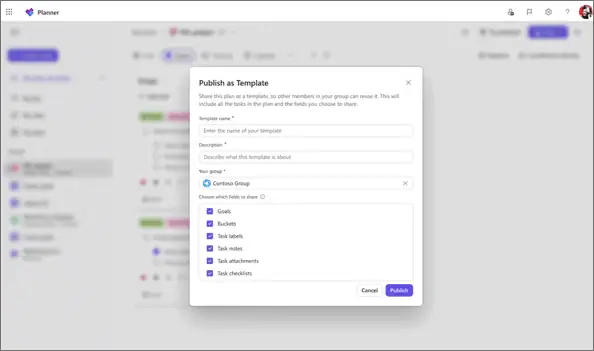
- Choose Publish as Template.
- Enter a template name and description.
- Select the Microsoft 365 group to share it with.
- Choose the plan elements to include.
- Select Publish.
Use a clear name and description so you can recognize the template’s purpose when creating your next plan. Once published, it becomes available to members of the selected group.
Planner for the web shows the “Publish as Template” window
Create New Planner Plans Without Repeating the Setup
Once your template is published, you can use it to create a new basic plan with the selected structure already in place.
To create a plan from a custom template:
- Open Planner and select Create a plan.
- Under Choose a template, open Shared or Created by me.
- Select the template you want to use.
- Confirm and configure the new plan’s details.
You can then review the new plan and adjust it for the project ahead. The repeatable structure is ready, leaving you to focus on what is different this time.
🎯 Let Your Team Choose the First Template
Your most frequently reused plan is a good starting point, but input from colleagues can help you decide what deserves a place in the template.
Before publishing:
- Gather suggestions from the people involved in the process.
- Select one recurring workflow.
- Agree on the essential tasks and checklists.
This helps you create a template that supports the actual work rather than simply preserving an old plan.
Practical Ways to Use Planner Templates for Recurring Projects
Microsoft Planner custom templates are useful when the details change from project to project, but the underlying process stays familiar.
Standardize Employee Onboarding
For each new employee, you need a fresh plan without losing the steps that make onboarding consistent.
An onboarding template lets you reuse predefined tasks, buckets, and checklists. You can start with the core process, then adjust the new plan to suit the employee’s role.
Simplify Marketing Campaign Planning
Recurring campaigns often follow a similar planning structure. Rebuilding that structure can take time away from the campaign itself.
A reusable campaign template keeps your standard tasks, linked attachments, and checklists together. You can begin with the established workflow and adapt the new plan to the campaign’s priorities.
Give Recurring Operations a Consistent Starting Point
Routine work still needs a reliable process. A reusable operational checklist gives you the expected steps each time you create a plan.
Instead of relying on memory or recreating an earlier task list, you can start with a structure that already reflects the process.
🔎 Spot the Missing Step Before You Publish
A template is an opportunity to improve a workflow, not just copy it. Review the steps that were missed or added late in previous projects.
Before publishing:
- Add commonly forgotten tasks.
- Include useful checklists or supporting links.
- Check that the task sequence makes sense.
A brief review can make your template more useful the next time you need it.
Planner Template Sharing and Limits: What to Know
Before building custom templates into your planning process, keep these boundaries in mind:
- Basic plans are supported; premium plans are not currently supported.
- Template access is tied to the Microsoft 365 group you share it with.
- External users cannot access or use templates by default.
- Future template changes do not update plans already created from that template.
The last point matters when maintaining a recurring workflow. Treat each plan created from a template as a separate plan, rather than expecting later template changes to update it automatically.
Planner stores custom templates as .plat files in SharePoint. If you manage template data, existing Microsoft 365 permissions and governance capabilities help you control how that data is handled.
Turn Repeatable Work Into Simpler Planning
A well-organized plan should be useful beyond a single project. Microsoft Planner custom templates let you preserve its structure and reuse the tasks, checklists, and supporting details that belong in your recurring work.
Start with a workflow you already trust, remove what is specific to the previous project, and publish a template that gives your next plan a stronger starting point. With less setup to repeat, you can focus on the work ahead.
Explore More: Microsoft’s Official Planner Resources
Find step-by-step guidance on using custom templates, managing template data, and exploring Planner features: