
- Key Takeaways
- The Short Answer
- Introduction: Migrating 2,000 Microsoft 365 Users in a US-UK Acquisition
- Single-Event vs. Phased Migration: Which Strategy Fits 2,000 Users?
- The recommended hybrid architecture
- How to Plan a Bulk Microsoft 365 Tenant Migration
- What Is the Fastest Way to Migrate 2,000 Users in Bulk?
- How pre-migration synchronization shortens cutover
- What Can Be Automated, and What Needs PowerShell or an Administrator?
- How Migration Errors, Permissions, and Incomplete Items Are Handled
- How to Handle Identity Mapping and Domain Transfer Between UK and US Tenants
- How to Migrate Microsoft 365 Workloads at Scale
- How to Minimize Downtime During a 2,000-User Migration
- UK-to-US Microsoft 365 Migration: Security and Compliance Considerations
- UK GDPR and international transfers
- What Does a 2,000-User Migration Cost?
- Which Microsoft 365 Migration Tool Is Best for a 2,000-User Migration?
- Why Consider Apps4.Pro Migration Manager?
- User Microsoft 365 Migration Checklist
- Conclusion
- Frequently Asked Questions
Key Takeaways
- The fastest practical approach for 2,000 users is pre-staged, wave-based migration with one coordinated cutover, not a single big-bang event.
- Microsoft’s orchestrator moves mailboxes, OneDrive, and Teams chats and meetings in batches of up to 100 users that can run concurrently.
- Teams channels, SharePoint sites, Microsoft 365 Groups, Planner, and Power Platform need separate native licensing or a third-party tool.
- Native mailbox and OneDrive moves require a one-time, per-user Cross-Tenant User Data Migration license. Microsoft states migrations fail without it.
- Native OneDrive and SharePoint moves have no delta passes, so only mailboxes pre-stage natively. Some third-party tools add incremental runs.
- Identity mapping and the UK domain transfer usually set the critical path, because a custom domain can belong to only one tenant.
- UK personal data moving into a US tenant can be a restricted transfer under UK GDPR, so get legal sign-off before migrating.
- Size waves from a pilot of 20 to 50 real users, because Microsoft gives no completion-time SLA for native moves.
The Short Answer
The fastest way to complete a bulk Microsoft 365 tenant migration for 2,000 users is to:
- Build and validate identity mapping before any data moves.
- Pre-stage mailbox data (and file data, where your tool supports incremental passes) in batches while users keep working in the UK tenant.
- Cut everyone over in one planned window that is tied to the UK email domain transfer.
- Run final deltas, validate, and support users in waves afterward.
Moving all 2,000 users in a single uncontrolled event is rarely faster. It concentrates every throttling delay, oversized mailbox, and mapping error into one weekend, and Microsoft gives no completion-time SLA for its native cross-tenant moves.
Introduction: Migrating 2,000 Microsoft 365 Users in a US-UK Acquisition
A US company has acquired a UK business. The UK business runs its own Microsoft 365 tenant with about 2,000 users. Leadership wants one tenant, one identity system, and one security baseline, and they want it quickly. You are the consultant who has to explain how fast that can safely happen.
The honest answer depends more on sequencing than on raw copy speed. Exchange, OneDrive, SharePoint, and Teams depend on each other. Teams chat attachments live in OneDrive. Teams meetings live in calendars. Flows and plans point at sites and groups. Identity mapping ties it all together. When one dependency moves out of order, users see broken links and missing files.
A cross-border deal adds two more constraints. The UK email domain must move from the UK tenant to the US tenant, and a custom domain can be verified in only one Microsoft 365 tenant at a time. UK personal data is also moving into a tenant controlled by a US organization, which raises UK GDPR transfer and data residency questions that IT cannot answer alone.
This guide covers strategy, batch planning, workload dependencies, automation, identity and domain sequencing, downtime reduction, compliance, tool selection, and cost. For the wider deal context, including divestitures, see Microsoft 365 migration for mergers, acquisitions, and divestitures.
Single-Event vs. Phased Migration: Which Strategy Fits 2,000 Users?
For most 2,000-user acquisitions, the best strategy is a hybrid: pre-stage data in user batches, then complete all users in one orchestrated cutover aligned with the domain move.
|
Approach |
How it works |
Advantages |
Risks |
When it fits |
|---|---|---|---|---|
|
Single event (big bang) |
How it works All users and workloads move in one window |
Advantages One cutover, no long coexistence, simple messaging |
Risks Large blast radius; failures pile up in one weekend; little time to fix issues |
When it fits Small data volumes, simple tenants, or a hard legal deadline |
|
Phased by user batches |
How it works Users move in waves by department, site, or role |
Advantages Smaller failures, lessons from each wave, steady help desk load |
Risks Long coexistence; shared mailboxes and Teams split across tenants; domain can sit in only one tenant |
When it fits Large or complex tenants where users must keep working throughout |
|
Workload by workload |
How it works Move one workload for everyone, then the next |
Advantages Specialist teams; easier troubleshooting per service |
Risks Users live in two tenants for weeks; Teams and file links break between phases |
When it fits One urgent workload, such as unified email on day one |
|
Orchestrated multi-workload |
How it works Each user’s mailbox, OneDrive, and chats move together in dependency order |
Advantages Users switch once; fewer broken links |
Risks Requires clean identity mapping and dependency-aware tooling |
When it fits Most users collaborate across mail, files, and Teams |
The recommended hybrid architecture
- Pre-stage data in batches over several weeks while everyone still works in the UK tenant.
- Keep copies current with incremental passes where the tool supports them.
- Cut everyone over in one planned window, aligned with the domain transfer.
- Run final deltas, validate, and support users in waves after cutover.
If the data volume is too large for one window, split cutover into two or three groups and accept a short coexistence period with mail routing between tenants.
There are two common ways to implement this architecture:
- Native plus third-party. Use Microsoft’s orchestrator for personal data (mailboxes, OneDrive, Teams chats and meetings) and a third-party tool for shared data (Teams channels, SharePoint sites, Microsoft 365 Groups, Planner, Power Platform).
- Single third-party platform. Use one tool for every workload, which gives one console, one mapping file, and one reporting model.
The right choice depends on workload scope, licensing cost, and how much of the UK company’s work happens in Teams channels.
How to Plan a Bulk Microsoft 365 Tenant Migration
- Assess both tenants. Compare licensing, Entra ID settings, Conditional Access, retention and hold policies, sensitivity labels, and Exchange configuration. Check blockers early. Native OneDrive moves, for example, fail if Microsoft Purview Customer Key is enabled on the source.
- Inventory everything. Include user, shared, resource, and archive mailboxes, Microsoft 365 Groups, Teams (including private and shared channels), SharePoint sites, Planner plans, Forms, Power Automate flows, and Power BI workspaces.
- Measure data and flag complex accounts. Record mailbox and archive sizes, OneDrive size and item counts, and long file paths. Native OneDrive moves have a 5 TB and 1 million item limit per account and a 400-character path limit. Flag executives, users on hold, and heavy delegates.
- Map identities. Build one authoritative mapping file: source UPN, target UPN, primary SMTP address, aliases, and group memberships.
- Prepare licenses, apps, and infrastructure. Assign target licenses, register migration apps, grant admin consent, and confirm service accounts. For native moves, buy the Cross-Tenant User Data Migration add-on first.
- Configure the migration platform. Connect both tenants, set domain and recipient mapping rules, choose workloads, and define filters.
- Run a pilot. Use 20 to 50 real users, including IT staff and a few power users. Test mail flow, Outlook profiles, OneDrive sync, Teams, and shared mailbox access.
- Design batches. Group users by collaboration pattern so people who share mailboxes and Teams move together.
- Pre-stage and sync. Copy the bulk of data ahead of cutover and run incremental passes where supported.
- Cut over and validate. Switch the domain, run final deltas, rebuild Outlook profiles, and check item counts and permissions against reports.
What Is the Fastest Way to Migrate 2,000 Users in Bulk?
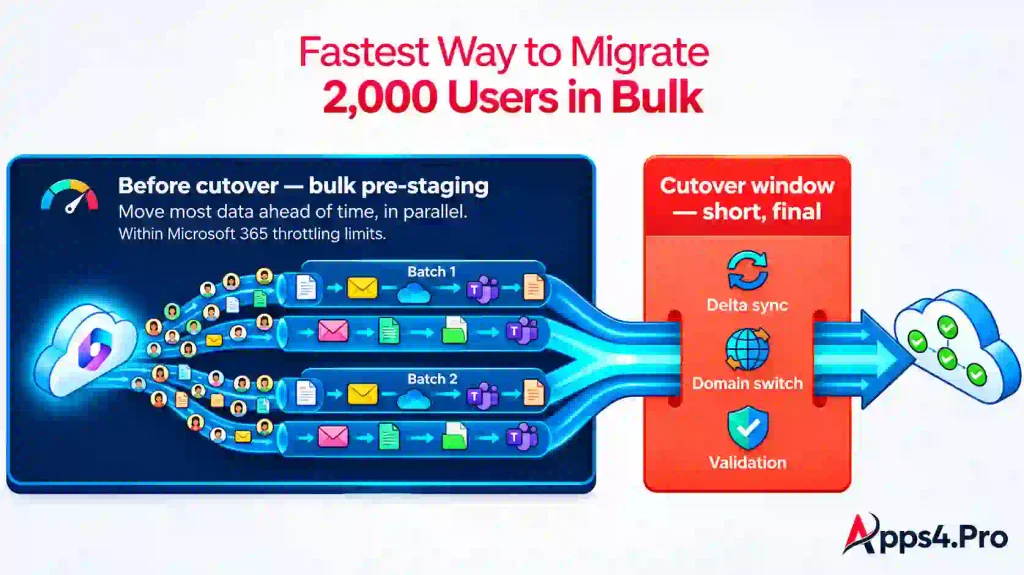
The fastest way to migrate 2,000 users in bulk is to move as much data as possible before cutover, run batches in parallel within Microsoft’s throttling limits, and leave only deltas, the domain switch, and validation for the final window.
Throughput is not the same as project duration.
- Throughput is how much data moves per hour or per day. It depends on data volume, item counts, API throttling, concurrency, and where the migration engine runs.
- Project duration is the time from kickoff to source tenant decommissioning. It depends on license procurement, identity cleanup, approvals, legal review, pilot fixes, communications, and remediation.
Most projects lose more time to duration problems than to throughput problems. A faster copy engine does not help if target accounts are not ready or the transfer has not been approved. Treat vendor speed figures as indicators measured under specific conditions, not as a schedule.
What actually determines migration speed
- Data volume and item count: Many small items move more slowly than a few large ones, because each item is a separate operation.
- Mailbox and archive sizes: Users near quota can fail native moves. Microsoft recommends reducing mailbox size or enabling archives beforehand.
- OneDrive and SharePoint structure: Item counts, file versions, and long paths slow migration and cause failures.
- Teams chat volume: Chat history can be large, and each message must be recreated in the target.
- Throttling: Microsoft 365 slows clients that exceed service limits.
- Concurrency and infrastructure: The number of parallel jobs, migration hosts, and the network path between them and Microsoft 365.
- Administrative readiness: Licenses, mapping, approvals, and how fast failures are fixed.
How to structure migration batches
Structure batches around how people work, not alphabetically.
- Pilot wave: IT staff, migration champions, and a sample of complex users.
- Early waves: Departments with simple needs and little external exposure.
- Middle waves: Groups that share mailboxes, Teams, and sites, moved together.
- Late waves: Executives, assistants with delegate access, finance, and legal.
- Exception batch: Users on hold, oversized mailboxes, OneDrives near the item limit, and accounts with path-length issues.
Respect the native limits:
|
Native limit |
Value |
Source |
|---|---|---|
|
Orchestrator batch size |
Value 100 users per batch; multiple batches can run concurrently |
Source |
|
Standalone cross-tenant mailbox batches |
Value 2,000 mailboxes or fewer recommended |
Source |
|
OneDrive and SharePoint queue |
Value Up to 4,000 OneDrive accounts scheduled at a time; this limit is shared with SharePoint site moves |
Source |
|
Mailbox lead time |
Value Start mailbox sync at least two weeks before cutover |
Source |
|
Batch membership |
Value Each user can belong to only one orchestrator batch |
Source |
For 2,000 users on the native orchestrator, that means at least 20 batches. A practical pattern is to group users by department into batches of up to 100, create them all at least two weeks before cutover, and set the same cutover date on each.
Which workloads can move together?
Microsoft recommends running all orchestrator workloads for a user in one batch so the service can order them by dependency. The orchestrator’s sequence is fixed:
- Only the Exchange mailbox syncs before the cutover date (the CompleteAfterDate).
- After the mailbox completes, OneDrive, Teams chats, and Teams meetings move.
- Teams meetings require Teams chats and mailboxes in the same batch, or the batch fails to start.
Apps4.Pro has published its real-world testing of the native orchestrator, including how workload order affects chat migration.
Shared workloads move separately:
- SharePoint sites and Teams channels should move before the users who depend on them switch.
- OneDrive should move before or with Teams chats, because chat attachments live in the sender’s OneDrive.
- Planner, Forms, Power Automate, and Power BI should move after the sites, groups, and mailboxes they reference.
How pre-migration synchronization shortens cutover
Pre-staging is where most of the speed comes from. Copy most of the data while users still work in the source, then copy only changes at cutover.
- Exchange (native): Mailbox sync runs in the background and does not affect users, which is why Microsoft advises starting at least two weeks before cutover.
- OneDrive and SharePoint (native): No pre-staging. Microsoft states that cross-tenant moves are one and done, and incremental or delta passes cannot be performed. Each OneDrive is read-only for a few minutes during its move.
- Third-party tools: Many support repeated incremental passes. Apps4.Pro Migration Manager, for example, has a Rerun option that picks up items added to the source mailbox after the first pass.
How to handle throttling
Throttling is normal in a bulk Microsoft 365 migration. SharePoint Online returns HTTP 429 or 503 responses with a Retry-After header when limits are exceeded. Microsoft says honoring Retry-After is the fastest way to recover, and ignoring it causes more throttling. For migration-specific patterns, see how API throttling slows Microsoft 365 tenant migrations.
- Raise concurrency gradually and watch the error rate as closely as throughput.
- Run heavy file migration outside business hours where possible.
- Add migration hosts only where the tool and Microsoft’s terms support it.
- Separate transient failures (throttling, timeouts) from permanent ones (long paths, holds, oversized files). Retry the first. Fix the second at the source.
What Can Be Automated, and What Needs PowerShell or an Administrator?
Most data movement can be automated. Configuration, exceptions, and decisions cannot.
|
Task |
Native Microsoft tools |
Apps4.Pro Migration Manager |
Always needs an administrator |
|---|---|---|---|
|
Tenant setup and trust |
Native Microsoft tools PowerShell: Exchange Online organization relationship and migration endpoint; SharePoint Online PowerShell for OneDrive trust; Microsoft Graph PowerShell for orchestrator apps and batches |
Apps4.Pro Migration Manager App registration with Global Administrator consent and an Azure Storage account in the target region |
Always needs an administrator Approving consent in both tenants |
|
Inventory |
Native Microsoft tools Admin-run scripts and reports |
Apps4.Pro Migration Manager PowerShell inventory scripts supplied in the user guide |
Always needs an administrator Deciding scope |
|
Identity matching |
Native Microsoft tools Identity mapping is required; you create all target users |
Apps4.Pro Migration Manager Sync, AutoMap by display name, and CSV import |
Always needs an administrator Exceptions: renamed users, shared and service accounts |
|
Batch creation and scheduling |
Native Microsoft tools PowerShell batch commands with a CompleteAfterDate |
Apps4.Pro Migration Manager GUI selection, queue timers, and up to 10 concurrent mailbox jobs |
Always needs an administrator Wave design and business timing |
|
Data copy and deltas |
Native Microsoft tools Automated; mailbox sync only before cutover |
Apps4.Pro Migration Manager Automated, with Retry and Rerun |
Always needs an administrator Responding to throttling and failures |
|
Domain removal and DNS |
Native Microsoft tools Manual; Microsoft recommends PowerShell for bulk address changes |
Apps4.Pro Migration Manager Recipient domain rewriting inside migrated content |
Always needs an administrator All DNS and domain cutover steps |
|
Compliance controls |
Native Microsoft tools Holds block moves; labels must be recreated |
Apps4.Pro Migration Manager Retention tags are not migrated |
Always needs an administrator Recreating policies and legal sign-off |
|
Communications and support |
Native Microsoft tools Not automated |
Apps4.Pro Migration Manager Not automated |
Always needs an administrator Messaging, training, help desk |
Also budget administrator time for the Exchange Web Services (EWS) retirement. Microsoft began disabling EWS in Exchange Online tenant by tenant in October 2026, and EWS will be fully disabled in April 2027 (April 1, 2027, according to Microsoft 365 Message Center notice MC1227454). Until then, a migration tool that still uses EWS for mailbox data works only if its app ID is on the tenant’s EWS allow list (EWSAllowedAppIDs). After April 2027, only Microsoft Graph-based mailbox migration will work.
How Migration Errors, Permissions, and Incomplete Items Are Handled
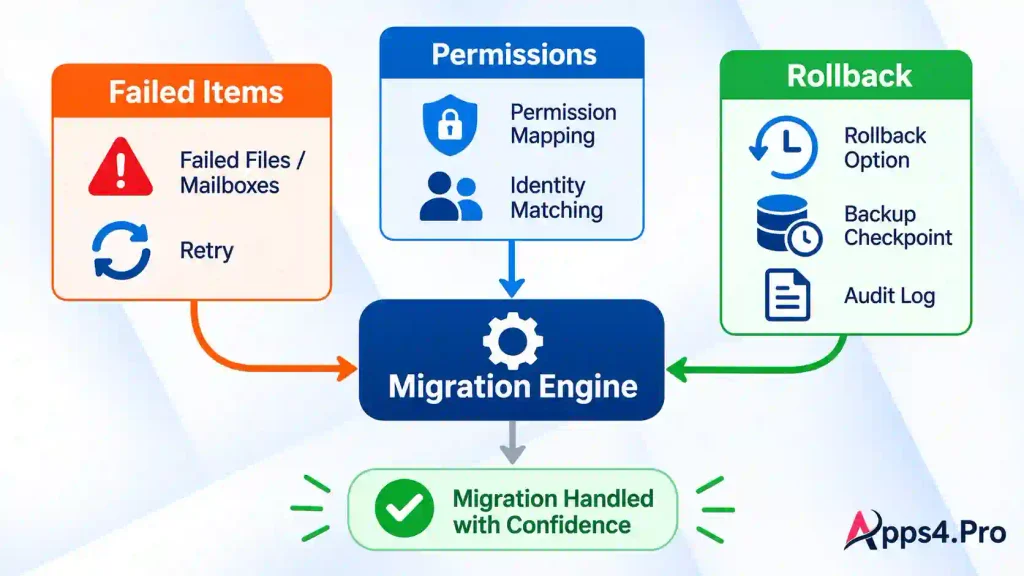
Incomplete and failed items
- Native mailboxes: Microsoft reports a Data Consistency Score for each user. If it shows “Investigate,” an administrator can review skipped items and approve completion with Set-MigrationUser -ApproveSkippedItems. If it shows “Poor,” Microsoft says not to approve and to contact support.
- Native OneDrive and SharePoint: Because moves are one-time, fix blockers before scheduling: path length, apostrophes in usernames or URLs, holds, read-only source accounts, and pre-existing target sites all cause failures.
- Apps4.Pro: Completed tasks show folder-level total, success, failed, and warning counts. Administrators can retry failed items, Rerun for new items, use Get Latest to refresh source data, and export logs for support.
Permissions
- Native mailbox moves keep permissions stored in the mailbox only when the principal and the delegate move together. Permissions that would span the two tenants are not supported, and Send On Behalf rights do not move. Microsoft advises putting principals and delegates in the same batch and re-adding Send On Behalf afterward.
- Native OneDrive moves keep permissions for users and groups in the identity map. Old sharing links redirect to the new location while the user still has access, until the source tenant is deprovisioned.
- Apps4.Pro preserves OneDrive file-level permissions when identity mapping is correct, but does not migrate sharing links. Convert critical shares to direct permissions before migration.
Rollback
With the native orchestrator, you can cancel a migration only before the CompleteAfterDate passes. After completion, data can be moved back with the standalone mailbox and OneDrive tools, but Teams meetings must be recreated manually. Treat cutover as one-way and prove it in the pilot.
How to Handle Identity Mapping and Domain Transfer Between UK and US Tenants
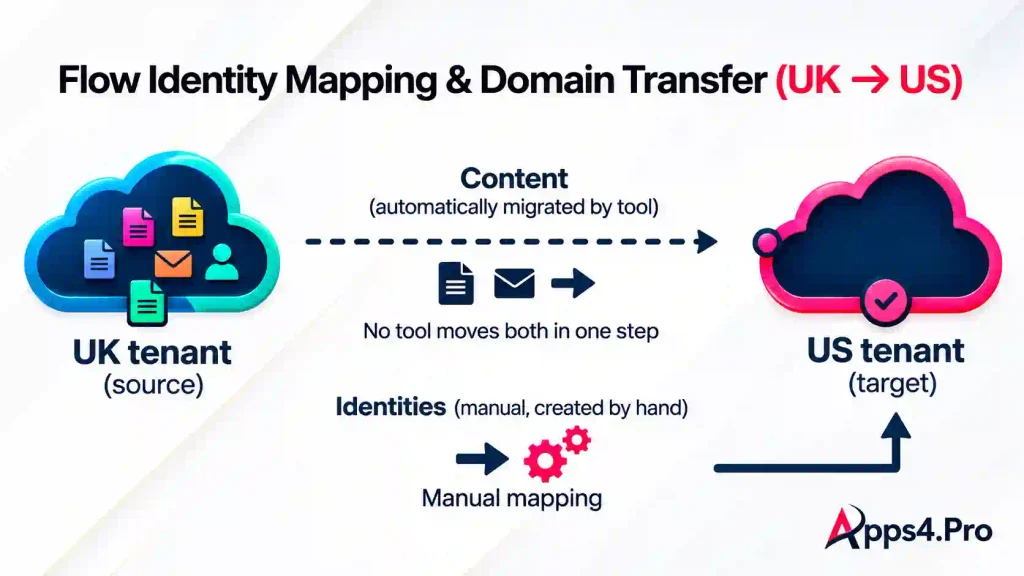
Microsoft’s orchestrator moves content, not identities, so with native tools you create and configure every target user. Some third-party tools can provision or migrate Entra ID users and groups first, but identities still have to be in place and mapped before any data moves.
Prepare destination accounts
- Target UPN and primary email. Decide whether users keep the UK domain or move to the US parent’s domain. Many acquirers keep the UK domain as a secondary alias for brand continuity.
- Account state before cutover. Native moves require target users without a mailbox or OneDrive. Identity mapping stamps the source Exchange GUID onto the target user. Microsoft warns not to assign an Exchange license until that is done, or a new empty mailbox is created.
- Licenses in both tenants. Orchestrator users need a Teams license and an active Exchange Online plan in both tenants. Budget for that overlap.
- OneDrive provisioning. Disable OneDrive creation for target users as soon as they are created.
- Groups. Recreate security groups, distribution lists, and Microsoft 365 Groups, then map memberships. Naming conflicts between the two companies are common.
Third-party tools handle matching differently. Apps4.Pro Migration Manager syncs users and groups from both tenants, auto-maps them by display name, and accepts CSV imports for accounts whose names differ.
The domain constraint
A custom domain can be verified in only one Microsoft 365 tenant. Microsoft states that source and target domains must be unique. Before the UK domain can be added to the US tenant, every user, group, and alias using it must move off it, as described in Microsoft’s guide to removing a domain.
Recommended sequence
- Weeks before cutover: Create target accounts on the US tenant’s domain or its onmicrosoft.com domain. Start mailbox pre-staging.
- Days before cutover: Lower DNS TTLs on MX and Autodiscover records. Lock the mapping file. Freeze new account creation in the UK tenant.
- Cutover, step one: Run final deltas. Move all source objects off the UK domain, then remove the domain from the UK tenant.
- Cutover, step two: Add and verify the UK domain in the US tenant. Stamp it as a primary or secondary address on target users and groups. Update MX, Autodiscover, SPF, DKIM, and DMARC.
- After cutover: Rebuild Outlook profiles, confirm external mail flow both ways, and monitor bounce reports.
Known complications
- Mail flow gap. Between removing the domain from the UK tenant and verifying it in the US tenant, inbound mail can queue or bounce. Keep this window short and rehearse it.
- Address scrubbing. When an Exchange service plan is applied, Entra ID can remove email domains the tenant does not own from a MailUser. Time license assignment carefully.
- Lost reply addresses. After a native move, the former primary SMTP address is no longer associated with the user. Add old addresses as aliases.
- Outlook profiles. Users must rebuild profiles with the new UPN and primary SMTP address, then resync. Plan for the network load.
- Coexistence identities. Microsoft Entra cross-tenant synchronization can create B2B collaboration users so people work across both tenants before cutover. It does not migrate data.
How to Migrate Microsoft 365 Workloads at Scale
|
Workload |
Native Microsoft capability |
Key native limits |
Where third-party tools usually help |
|---|---|---|---|
|
User mailboxes |
Native Microsoft capability Cross-tenant mailbox migration, also used by the orchestrator |
Key native limits Mailboxes on any hold are blocked; only user-visible content moves; permissions move only when principal and delegate move together; Send On Behalf does not move |
Where third-party tools usually help Delegates, recipient rewriting, date filters, retries |
|
Shared, archive, and group mailboxes |
Native Microsoft capability Shared mailboxes move with standalone cross-tenant mailbox migration; archives move with user mailboxes |
Key native limits Shared mailboxes keep only store permissions; Microsoft 365 Group mailboxes are not supported |
Where third-party tools usually help Group mailboxes, public folders, shared mailbox permissions |
|
OneDrive |
Native Microsoft capability Cross-tenant OneDrive migration, also used by the orchestrator |
Key native limits One-time move, no deltas; 5 TB and 1 million items per account |
Where third-party tools usually help Incremental pre-staging |
|
SharePoint sites |
Native Microsoft capability Cross-tenant SharePoint site migration (separate license) |
Key native limits EA customers only; per 100 GB; no deltas; no merge into existing sites |
Where third-party tools usually help Merging into existing sites, incremental runs |
|
Teams chats and meetings |
Native Microsoft capability Orchestrator |
Key native limits Chats are copied and remain in source; duplicate threads possible; meetings depend on mailbox moves |
Where third-party tools usually help Additional chat options and scheduling |
|
Teams channels |
Native Microsoft capability Not migrated natively; only the connected SharePoint content can move |
Key native limits Team structure and channel messages stay in source |
Where third-party tools usually help Teams, channels, membership, channel messages |
|
Groups, Planner, Forms, Power Automate, Power BI |
Native Microsoft capability Not covered by cross-tenant user data migration |
Key native limits Rebuild manually or use a tool |
Where third-party tools usually help Coverage varies by vendor |
Exchange Online and shared mailboxes
Native mailbox migration needs a target app registration with the Mailbox.Migration permission, organization relationships in both tenants, a mail-enabled security group scoping source mailboxes, and prepared target users. After a move, the source mailbox is deleted, and the source user becomes a MailUser that routes mail to the target. That routing is what enables coexistence. Signatures, sensitivity labels, and cross-tenant permissions do not move. Teams meeting links are not updated and must be recreated.
OneDrive
Native OneDrive moves happen after the mailbox completes in an orchestrator batch, so they fall inside the cutover window. Every path must fit Microsoft’s limits. Third-party tools with incremental passes let you pre-stage OneDrive weeks ahead, but sharing links may not carry over. For the full list of native constraints, see native cross-tenant OneDrive migration limitations.
SharePoint
Native site migration covers group-connected, modern, classic, and communication sites, but it does not migrate Teams channels or their structure and cannot merge into existing sites. If the UK intranet must merge into the US intranet, use a tool that migrates into existing sites.
Teams chats, meetings, channels, and Groups
The orchestrator copies one-to-one and group chats and meetings. Participant lists may change, duplicate threads may appear, and users should switch to their target identity afterward. Teams channels, Microsoft 365 Groups, and other shared data stay in the source under native tools. For most acquisitions, that is the largest gap, so plan a third-party tool for teams, channels, membership, and channel messages, and move each team with its SharePoint content. Apps4.Pro documents Teams channel migration, including private and shared channels.
How to Minimize Downtime During a 2,000-User Migration
Zero downtime is not a realistic promise in a tenant-to-tenant move. Short, predictable disruption is.
- Coexistence and mail routing: Native mailbox moves leave a MailUser that routes mail to the target. Orchestrator migrations also require AutoForwardingMode set to On in the default outbound spam filter policy in both tenants. Vendors such as Quest and Cloudiway document coexistence features such as domain rewrite, mail routing, and cross-tenant free/busy.
- Scheduling: Choose the quietest weekend. Avoid month-end close, payroll, and UK bank holidays. A Friday evening start in New York is already early Saturday in London.
- Pilot first: Size waves from your measured pilot throughput, not vendor estimates.
- Incremental sync: Run deltas daily as cutover approaches so the final pass is small.
- Communications: Send dated messages four weeks out, one week out, the day before, and the morning after. Explain changes to sign-in names, Outlook, OneDrive sync, Teams, mobile apps, and MFA. Explain what will not move.
- Help desk readiness: Staff up for the first two business days after each cutover, with a runbook for Outlook rebuilds, OneDrive resync, Teams sign-in, and mobile setup.
- Post-migration support: Keep the source tenant read-only and monitored until validation and legal approval are complete. Native redirects remain until the source tenant is deprovisioned, so decommissioning early breaks old links.
UK-to-US Microsoft 365 Migration: Security and Compliance Considerations
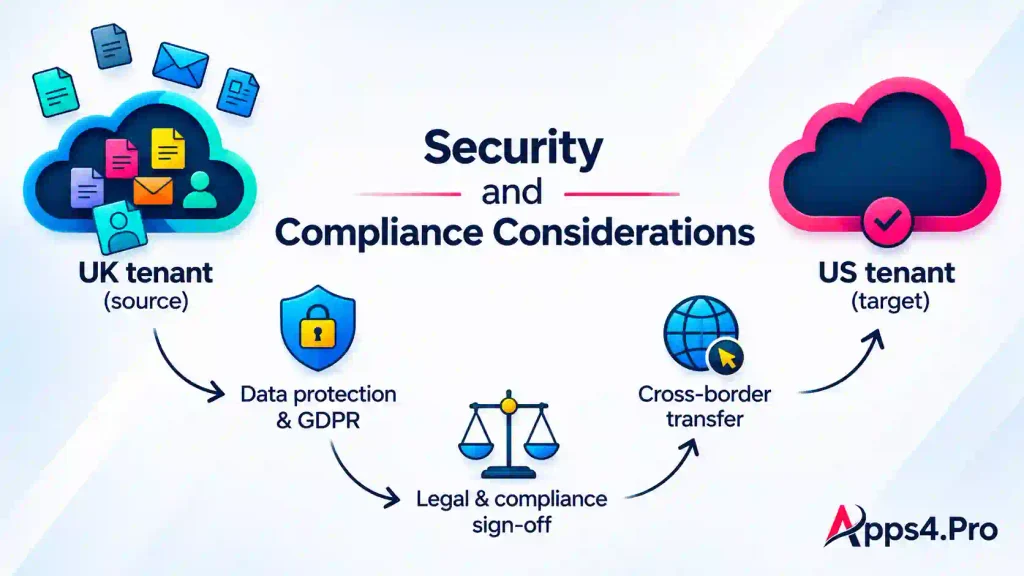
A cross-border Microsoft 365 migration is also a data transfer project. IT can gather the facts, but the decisions below belong to legal, privacy, and compliance teams. This section is practical guidance, not legal advice. Microsoft itself advises regulated organizations to consult legal and compliance before starting.
UK GDPR and international transfers
Under the UK GDPR, a transfer is restricted when three things are true: the UK GDPR applies to the personal data, your organization initiates the transfer to an organization outside the UK, and the recipient is a separate legal entity. A restricted transfer must be covered by adequacy regulations, appropriate safeguards, or an exception. The Information Commissioner’s Office (ICO) set out this three-step test in updated international transfers guidance published on 15 January 2026.
One route to the US is the UK-US data bridge, formerly the UK Extension to the EU-US Data Privacy Framework. According to the ICO, the US recipient must be active on the Data Privacy Framework list, self-certified to the UK Extension, and certified for the data type being sent (HR, non-HR, or both). Special category and criminal offence data must be flagged as sensitive. If the recipient is not covered, another safeguard or an exception is needed, and an Article 46 safeguard requires a transfer risk assessment first (UK legislation now calls this the “data protection test”).
Questions to raise with legal before data moves:
- Which legal entity will control the data in the US tenant?
- Is the US parent certified under the Data Privacy Framework and the UK Extension, including for HR data?
- Do UK contracts, public-sector clients, or regulators require UK data residency?
- Have privacy notices and records of processing been updated?
- Do employee representatives need to be consulted?
Data residency
The UK is a Microsoft 365 Local Region Geography with its own residency commitments. A US tenant stores core data in the US. Moving UK users into a US tenant therefore changes where their data rests. If UK residency must be preserved inside one tenant, evaluate Microsoft 365 Multi-Geo with your Microsoft account team before finalizing the architecture.
Retention, holds, and eDiscovery.
- Native tools block mailboxes and OneDrive on hold. Microsoft says to remove the hold, migrate, and reapply it in the target. Legal must approve any temporary removal, and some holds cannot be lifted.
- After a native mailbox move, the source mailbox is deleted and not discoverable in the source. eDiscovery must run in the target.
- Recreate retention policies and labels in the target before data arrives.
- Preserve audit logs and eDiscovery cases from the UK tenant before decommissioning it.
Sensitivity labels, encryption, and access
- Sensitivity labels do not move with native mailbox migration and must be recreated. SharePoint sites with labels that use user-defined permissions cannot be migrated natively until those labels are removed.
- Apply the US tenant’s Conditional Access, MFA, and device policies to UK users before cutover, and pilot them first.
- Give migration accounts and app registrations least privilege, limit them in time, and remove them afterward.
- Reissue guest access for UK partners in the target tenant.
- Document where any third-party tool processes or stores data in transit, and include it in the data protection impact assessment.
What Does a 2,000-User Migration Cost?
License cost is usually the smallest part of the budget. Plan for these line items:
|
Cost item |
What to expect |
|---|---|
|
Microsoft Cross-Tenant User Data Migration |
What to expect Per-user add-on required for native mailbox and OneDrive moves. Microsoft describes it as a one-time fee per user, assignable to the source or target account. Microsoft Learn does not publish a price. Some reseller listings show about USD 15 per license, but with monthly or annual billing terms. At USD 15 per user, 2,000 users would be about USD 30,000. Confirm the price and billing term with your Microsoft partner before budgeting. |
|
Microsoft Cross-Tenant Shared Data Migration |
What to expect Required for native SharePoint site moves; sold per 100 GB moved and available to EA customers only. |
|
Apps4.Pro Migration Manager |
What to expect Priced by machine installations, not per user: USD 5,995 (1 installation), USD 8,995 (5), or USD 17,995 (20+), valid for one year from activation. Mailbox, OneDrive, SharePoint, Teams (channels and 1:1 chats), and Planner migration are unlimited on every tier. Premium Planner, Viva Engage, Forms, Power Automate, and Power BI are capped per tier, for example, 50, 100, or 200 Power Automate flows. |
|
BitTitan MigrationWiz |
What to expect Per-user list prices: Mailbox USD 14 (up to 50 GB), User Migration Bundle USD 17.50, Tenant Migration Bundle USD 60. Flex Collaboration for sites, teams, and shared drives costs USD 50 per 100 GB. Entra ID directory moves start at USD 6.25 per user. For 2,000 users, Tenant Migration Bundles come to about USD 120,000 at list price. |
|
Other third-party tools |
What to expect Quest uses subscription plans with add-ons. AvePoint and Cloudiway pricing is quote-based. |
|
Overlapping Microsoft 365 licenses |
What to expect Orchestrator users need Teams and Exchange Online licensing in both tenants during migration. |
|
Azure resources |
What to expect Apps4.Pro requires an Azure Storage account and recommends a Windows Azure VM (4 cores, 16 GB RAM) in the target region. |
|
People and services |
What to expect Consultant and admin time, legal review, communications, training, and extra help desk capacity. |
Per-user licensing grows with headcount. Per-installation licensing does not, but throughput then depends on how many installations run in parallel.
Which Microsoft 365 Migration Tool Is Best for a 2,000-User Migration?
No single tool is best for every acquisition. Use Microsoft’s native tools when the scope is mostly mailboxes, OneDrive, and chats. Add or choose a third-party platform when Teams channels, Microsoft 365 Groups, Planner, Power Platform, merging into existing sites, or incremental file pre-staging are in scope.
The table includes only capabilities stated in vendor documentation or product pages reviewed in November 2026. “Not detailed” means the capability was not confirmed in those sources, not that it is absent.
|
Tool |
Delivery |
Supported workloads |
Bulk and scheduling |
Identity and permission mapping |
Reporting, errors, and remediation |
Licensing and prerequisites |
Documented limitations |
|---|---|---|---|---|---|---|---|
|
Delivery Windows desktop app; data moves through Microsoft APIs; job state in a customer-owned Azure Storage account |
Supported workloads Exchange (user, shared, group, archive, public folders), OneDrive, SharePoint, Teams channels and chats, Planner, Planner Premium, Viva Engage, Forms, Bookings, Power Automate, Power BI |
Bulk and scheduling Multi-select bulk runs; up to 10 concurrent mailbox jobs; queue timers; parallel runs across installations on higher tiers |
Identity and permission mapping Sync, AutoMap by display name, CSV import; per-user recipient domain mapping; OneDrive permissions with correct mapping |
Reporting, errors, and remediation Folder-level success, failure, and warning counts; Migration Summary; log export; Retry, Rerun, Get Latest |
Licensing and prerequisites Per installation, from USD 5,995 per year; 15-day trial; app registration, Azure storage, and Azure VM recommended |
Documented limitations Exchange engine used EWS as of April 2026, so an EWS allow list is needed; sharing links not migrated; meeting links point to source |
|
|
Delivery Built into Microsoft 365; PowerShell-driven |
Supported workloads Mailboxes, OneDrive, Teams chats and meetings; SharePoint sites via a separate service |
Bulk and scheduling Orchestrator batches of 100 users, run concurrently; CompleteAfterDate scheduling; 4,000-account OneDrive queue |
Identity and permission mapping 1:1 identity mapping; mailbox permissions kept only when principal and delegate move together; cross-tenant permissions and Send On Behalf not migrated; OneDrive permissions kept for mapped users |
Reporting, errors, and remediation Data Consistency Score with skipped-item approval; no OneDrive or SharePoint deltas; no SLA |
Licensing and prerequisites Per-user Cross-Tenant User Data Migration add-on; SharePoint per 100 GB for EA customers |
Documented limitations No Teams channels, Groups, Planner, or Power Platform; holds block moves; no cross-cloud moves |
|
|
BitTitan MigrationWiz |
Delivery SaaS; PowerSyncPro directory and device moves need a Windows server |
Supported workloads Exchange mailboxes, archives, and public folders; OneDrive and Google Drive; SharePoint, Teams, and Google shared drives; Teams private chat; Active Directory, Entra ID, and devices via PowerSyncPro |
Bulk and scheduling Project-based bulk migration; Exchange mail-flow and free/busy coexistence |
Identity and permission mapping Entra ID-to-Entra ID projects discover and import all users and groups; directory sync through PowerSyncPro |
Reporting, errors, and remediation Not detailed on the pages reviewed |
Licensing and prerequisites Per user: Mailbox USD 14, User Migration Bundle USD 17.50, Tenant Migration Bundle USD 60; Flex Collaboration USD 50 per 100 GB; PowerSyncPro from USD 6.25 |
Documented limitations Mailbox license capped at 50 GB; Teams and shared documents in the Tenant Migration Bundle capped at 100 GB |
|
Quest On Demand Migration |
Delivery SaaS with a unified dashboard |
Supported workloads Exchange, OneDrive, SharePoint, Teams and Microsoft 365 Groups, Power BI, Active Directory and Entra ID |
Bulk and scheduling Scheduling and automation from a management dashboard |
Identity and permission mapping Provisioning of target users, groups, and contacts; Domain Move; Domain Rewrite; directory sync |
Reporting, errors, and remediation Central dashboard with project visibility |
Licensing and prerequisites Subscription plans (T3, T5, T7) with some add-ons |
Documented limitations Feature availability varies by plan |
|
AvePoint Fly |
Delivery SaaS; Fly Server deployments referenced for regulated environments |
Supported workloads Exchange Online and Exchange Server mailboxes, public folders, SharePoint Online and Server, OneDrive, Microsoft 365 Groups, Teams and Teams chat, Power Platform, Active Directory, Entra ID, devices, Gmail, Google Drive, Google Chat, Slack, Box, Dropbox, file shares, IMAP/POP3/PST |
Bulk and scheduling Plan Groups apply schedules in bulk across sources; free discovery and scanning engine |
Identity and permission mapping Keeps permissions, versions, and sensitivity labels; Entra ID workflow moves users, guests, security groups, and role and license assignments |
Reporting, errors, and remediation Real-time dashboards; volume, item-count, and trend reports; centralized error reporting |
Licensing and prerequisites Not published on the pages reviewed; quote-based |
Documented limitations AD and Entra ID identity migration listed as private preview; Entra ID workflow skips user extension attributes and mail-enabled groups |
|
Cloudiway |
Delivery SaaS; dedicated instance or installation in the customer’s Azure tenant available |
Supported workloads Exchange, Gmail, IMAP, Lotus Notes, Zimbra, and archives; OneDrive, SharePoint, Google Drive, Box, Dropbox, Azure Blob; Teams, Microsoft 365 Groups, Planner, Slack, Google Chat; Entra ID user and group provisioning, devices, Intune |
Bulk and scheduling Migration into existing mailboxes and teams; file delta passes; mail routing, free/busy, and GALSync coexistence |
Identity and permission mapping Orchestrator provisions target users and recreates groups; OneDrive permissions kept for mapped identities |
Reporting, errors, and remediation Migration dashboards; orchestrator pre-checks such as Exchange GUID matching, hold status, and approved target domains |
Licensing and prerequisites Quote-based, priced by users or items migrated; free trial |
Documented limitations Orchestrator runs on Microsoft’s native cross-tenant migration, so native limits apply |
How to choose
- Mostly mail and OneDrive, light Teams use: Native tools can be enough if you accept no OneDrive deltas and batches of 100.
- Heavy Teams channel use, Planner, or Power Platform: You need a third-party platform. Check coverage workload by workload against your inventory.
- Long coexistence or day-one domain rewrite: Shortlist tools with documented coexistence and domain features.
- Mailbox engine: Ask every vendor whether it uses EWS or Microsoft Graph today, especially for projects running past April 2027.
Apps4.Pro also publishes vendor-written comparisons with Quest On Demand Migration, AvePoint Fly, and BitTitan MigrationWiz.
Run a proof of concept with real UK users before signing. Measure throughput, error rates, and remediation effort.
Why Consider Apps4.Pro Migration Manager?
Apps4.Pro Migration Manager is worth evaluating when an acquisition involves more than mailboxes and OneDrive, because it covers the collaboration layer that native tools leave in the source tenant.
Where it helps:
- Broad workload coverage in one license. Exchange, OneDrive, SharePoint, Teams channels and chats, Planner, Viva Engage, Forms, Bookings, Power Automate, and Power BI are documented in its tenant-to-tenant migration overview. Core workloads are unlimited on every tier, while Premium Planner, Viva Engage, Forms, Power Automate, and Power BI have per-tier caps, so check them against your inventory.
- Pricing that does not scale with headcount. Per-installation pricing changes the cost math for 2,000 users compared with per-user licensing.
- Incremental runs and remediation. Retry and Rerun support a pre-stage-then-cutover plan, and folder-level reports show what failed.
- Domain-aware mapping. Recipient domains can be rewritten globally or per user. Apps4.Pro explains its approach to cross-domain mailbox migration.
- Customer-controlled data path. Apps4.Pro states that data moves directly between tenants through Microsoft APIs and that job state is kept in Azure storage the customer owns.
Where planning and intervention remain necessary:
- Setup. The mailbox guide requires an app registration and an Azure Storage account, and recommends an Azure VM with 4 cores and 16 GB RAM in the target region.
- EWS dependency. As of April 2026, Apps4.Pro stated that its Exchange mailbox migration used EWS, with Microsoft Graph for other operations. Confirm the current engine with Apps4.Pro and configure your EWS allow list if required.
- Items that do not move. The mailbox guide lists exclusions such as retention tags, meeting requests and responses, and custom calendar groups. Meeting links point to the source and must be re-sent.
- Sharing links. OneDrive sharing links are not migrated.
- Domain and compliance work. DNS, domain removal, holds, labels, and legal approval remain your responsibility.
Some teams combine both approaches: Microsoft’s orchestrator for personal data, and Apps4.Pro for Teams channels, SharePoint, Planner, and Power Platform. You can validate either design against your own tenants with the 15-day free trial or by booking a migration demo.
2000-User Microsoft 365 Migration Checklist
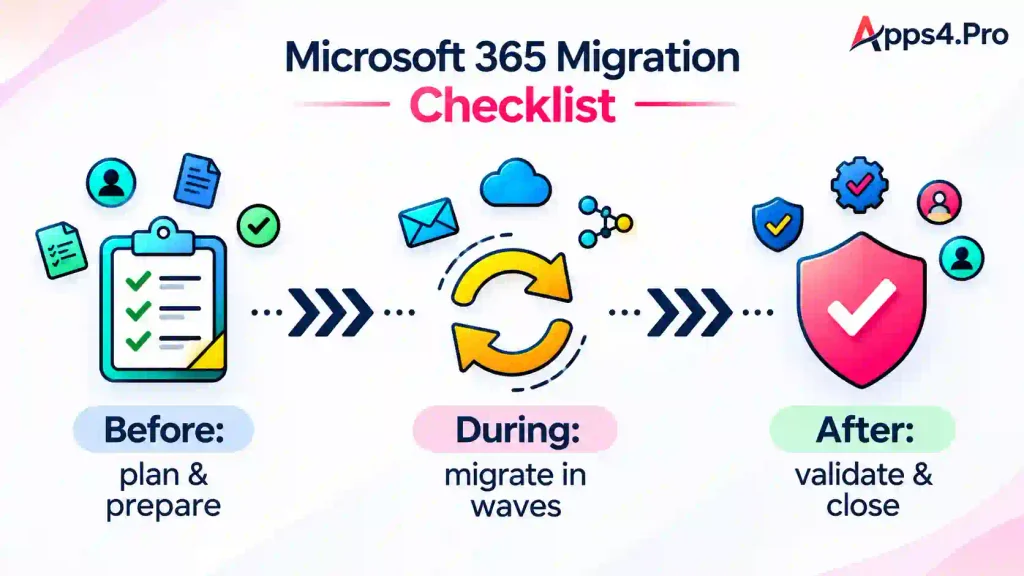
Before migration
- Confirm scope, target architecture, and decommission date with business and legal stakeholders.
- Get legal sign-off on the UK GDPR transfer mechanism, data residency, and employee notices.
- Inventory mailboxes, OneDrives, sites, Teams, Groups, Planner, flows, and reports.
- Measure data volumes, item counts, and path lengths. Flag holds, oversized accounts, and Customer Key.
- Buy licenses: target licenses, Cross-Tenant User Data Migration add-ons if using native tools, and third-party tool licenses.
- Confirm each tool’s EWS or Graph dependency and configure allow lists if needed.
- Validate the identity mapping file, including aliases and group memberships.
- Create target users, groups, Teams, and sites. Disable early OneDrive provisioning for native moves.
- Recreate retention policies, sensitivity labels, Conditional Access, and DLP in the target.
- Run a pilot and record throughput, errors, and support tickets.
- Finalize waves, the cutover runbook, and the cancellation point.
- Lower DNS TTLs and prepare MX, Autodiscover, SPF, DKIM, and DMARC changes.
- Send user communications and brief the help desk.
During migration
- Create native mailbox batches at least two weeks before cutover.
- Run scheduled incremental passes where supported.
- Review daily reports, retry transient failures, and fix permanent ones at the source.
- Adjust concurrency in response to throttling.
- Freeze source changes before the final pass.
- Execute the domain move and DNS updates.
- Run final deltas and switch users.
- Keep a live issue log and an open bridge call for the cutover team.
After migration
- Validate item counts, permissions, and delegates, starting with executives and shared mailboxes.
- Review native Data Consistency Scores and approve or escalate skipped items.
- Confirm mail flow, free/busy, and Teams meetings.
- Rebuild Outlook profiles and reconfigure mobile devices.
- Recreate signatures, Send On Behalf permissions, and recurring meetings.
- Reapply holds and confirm eDiscovery works in the target.
- Remove migration apps, service accounts, and temporary permissions.
- Keep the source tenant read-only until legal approves decommissioning.
Conclusion
A bulk Microsoft 365 tenant migration for 2,000 users is fastest when most of the work happens before cutover. Start three workstreams in parallel: a full inventory of the UK tenant, a legal review of the UK-to-US transfer, and a pilot with 20 to 50 real users on your shortlisted tools. Those results give you real throughput, a clear list of blockers, and compliance approval, which is everything you need to give your client a schedule you can defend.
Frequently Asked Questions
It depends on scope. Apps4.Pro Migration Manager suits projects that include Teams channels, Planner, and Power Platform and favor per-installation pricing. Quest, AvePoint, BitTitan, and Cloudiway document strengths in domain moves, SaaS delivery, per-user bundles, and coexistence. Run a proof of concept before deciding.