


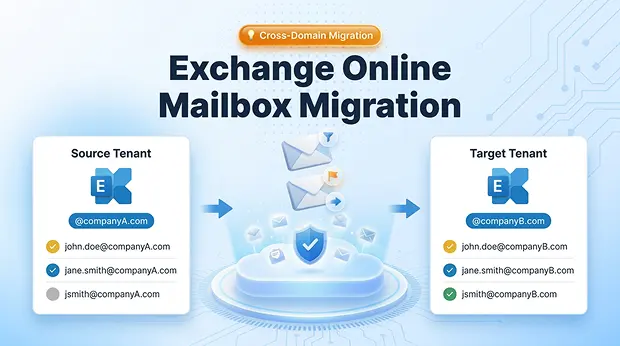
Microsoft Exchange Online tenant-to-tenant migration is one of the most complex IT operations an organization can undertake. It involves transferring mailbox data including emails, calendar events, contacts, tasks, rules, and permissions from one Office 365 tenant to another. This migration process is commonly required during mergers, acquisitions, divestitures, or corporate rebranding.
But the real challenge begins when it becomes a cross domain mailbox migration where source and target users live on entirely different domains, often with entirely different usernames.
A straightforward user@companyA.com to user@companyB.com move is hard enough.
A cross tenant UPN change like john.doe@companyA.com to jdoe@companyB.com is where most migration tools break down entirely.
This guide walks you through exactly how to handle these complex scenarios using Apps4.Pro Migration Manager and why it succeeds where other tools fall short.
Why Most Migration Tools Fail at Cross-Domain Scenarios
Before choosing a migration tool, it’s critical to understand what makes cross domain mailbox migration fundamentally different from a same domain move and why the majority of tools on the market cannot handle it properly.
Microsoft’s Native Cross-Tenant Migration
Microsoft offers a built-in cross-tenant mailbox migration feature using New-MigrationBatch and the Mailbox Replication Service (MRS). While this method moves mailbox data reliably, it has significant limitations:
- It does not rewrite UPNs inside existing mail headers (From, To, CC, BCC fields within migrated messages).
- Inbox rules referencing source-domain email addresses remain unchanged.
- Calendar event attendees still display old-domain addresses.
- Administrators must handle UPN rewriting manually via PowerShell scripts – a tedious and error-prone process at scale.
In short, Microsoft’s native tool moves the data but does not transform it for the new domain context.
Third-Party Tools
Most tools cannot handle cross-UPN scenarios where both the username prefix AND domain suffix change simultaneously.
For example, migrating john.doe@sourcecorp.com → jdoe@targetinc.com requires the tool to understand a complete identity transformation, not just a domain swap. Most tools support only one of these changes at a time:
| Scenario | Typical Tool Support |
|---|---|
| Same username, same domain (user1@domainA.com → user1@domainA.com) | ✅ All tools |
| Same username, different domain (user1@domainA.com → user1@domainB.com) | ✅ Most tools |
| Different username, same domain (john@domainA.com → jsmith@domainA.com) | ⚠️ Limited support |
| Different username AND different domain (john@domainA.com → jsmith@domainB.com) | ❌ Most tools fail |
This last scenario – the full cross tenant UPN change - is precisely where Apps4.Pro excels.
Additionally, UPN changes have downstream effects beyond Exchange. OneDrive URLs, Intune device profiles, and SharePoint permissions all reference the original UPN. Getting the mailbox-level migration right is the critical first step in preventing cascading failures across the Microsoft 365 ecosystem.
Introducing Apps4.Pro Migration Manager
Apps4.Pro Migration Manager is a comprehensive solution built specifically to handle the complexity of cross domain mailbox migration.
Apps4.Pro can handle any type of domain mapping - cross-domain, cross-UPN, and even scenarios where the target domain does not yet exist at migration time.
To be precise, Apps4.Pro Migration Manager handles all of the following scenarios :
- Source domain is the same as the target domain
- Multiple source domains mapped to different target domains
- Different UPNs mapped between source and target domains
Here’s what that looks like in practice:
| Source UPN | Target UPN |
|---|---|
| user1@sourcedomain1.com | user2@targetdomain1.com |
| user3@sourcedomain2.com | user4@targetdomain2.com |
What makes Apps4.Pro unique is that UPNs in mail headers and inbox rules on the target are automatically replaced with the new domain, ensuring business continuity from day one.
The headers that get rewritten include:
- Mail messages: From, To, CC, BCC
- Calendar events: Mandatory and optional attendee email IDs
- Inbox rules: Forwarding addresses, redirect targets, and condition-based addresses
Mail Header Before and After Migration
To understand the real impact of cross domain mailbox migration, let’s look at what happens to an actual email’s headers, with and without proper UPN rewriting.
Before Migration (Source Tenant)
From: john.doe@sourcecorp.com
To: jane.smith@sourcecorp.com
CC: team-leads@sourcecorp.com; m.johnson@sourcecorp.com
BCC: archive@sourcecorp.com
Subject: Q4 Budget Review – Final Approval
Date: Mon, 15 Jan 2024 09:30:00 +0000
Message-ID: <AANLi7xyz@sourcecorp.com>
Reply-To: john.doe@sourcecorp.com
After Migration WITHOUT UPN Rewriting (Most Tools)
From: john.doe@sourcecorp.com ← STILL OLD DOMAIN
To: jane.smith@sourcecorp.com ← STILL OLD DOMAIN
CC: team-leads@sourcecorp.com ← REPLIES WILL BOUNCE
BCC: archive@sourcecorp.com ← STILL OLD DOMAIN
Subject: Q4 Budget Review – Final Approval
Date: Mon, 15 Jan 2024 09:30:00 +0000
Reply-To: john.doe@sourcecorp.com ← REPLIES GO NOWHERE
When users search for old emails and hit “Reply” or “Reply All,” responses route to the defunct source domain – resulting in bounced emails, lost communications, and confused employees.
After Migration WITH Apps4.Pro
From: j.doe@targetinc.com ← UPDATED
To: j.smith@targetinc.com ← UPDATED
CC: team-leads@targetinc.com; m.johnson@targetinc.com ← UPDATED
BCC: archive@targetinc.com ← UPDATED
Subject: Q4 Budget Review – Final Approval
Date: Mon, 15 Jan 2024 09:30:00 +0000
Reply-To: j.doe@targetinc.com ← UPDATED
Every address in the mail header now points to the correct target domain. Replies work. CC chains stay intact. No manual cleanup required.
Notes: Authentication headers like SPF, DKIM, and DMARC will naturally update once DNS records are configured for the target tenant. But the message-level headers – From, To, CC, BCC, Reply-To – require active rewriting by the migration tool. This is exactly what Apps4.Pro automates.
Step-by-Step: How to Perform a Cross-Domain Mailbox Migration
Here is the complete process for executing a cross domain mailbox migration using Apps4.Pro Migration Manager.
Step 1: Connect Source and Target Tenants
Open Apps4.Pro Migration Manager and authenticate to both the source and target Microsoft 365 tenants using global admin credentials. The tool establishes secure API connections to both environments.
Step 2: Prepare Your UPN Mapping CSV
Create a CSV file mapping every source UPN to its corresponding target UPN. This is the most critical preparation step for any cross tenant UPN change scenario.
Step 3: Configure Recipient Mapping Settings
Apps4.Pro provides three options for recipient mapping:
Option 1: Same as Source Domain - Use when the source and target domain are identical (simple tenant-to-tenant move).
Option 2: Custom Domain - Use for straightforward domain swaps where usernames remain the same. Add multiple source-to-target domain pairs:
| Source Domain | Target Domain |
|---|---|
| sourcedomain1.com | targetdomain1.com |
| sourcedomain2.com | targetdomain2.com |
Option 3: Import CSV - Use for full cross-UPN mappings where both usernames and domains may differ. This is the recommended option for complex migrations.
This handles all combinations:
- Case 1 – Different usernames, same domain: user1@domain1.com → user2@domain1.com
- Case 2 – Same usernames, different domains: user1@domain1.com → user1@domain2.com
- Case 3 – Different usernames AND different domains: user1@domain1.com → user2@domain2.com
Step 4: Configure Rules Settings
Mirror your recipient mappings in the Rules Settings panel. This ensures inbox rules including forwarding rules, redirect rules, and condition-based rules are updated with target-domain UPNs.
Apps4.Pro offers two options for rules:
- Same as Source Domain - for same-domain migrations.
- Import CSV - for cross-UPN rule rewriting, using the same CSV format as recipient mappings.
Step 5: Run a Pilot Migration (5–10 Mailboxes)
Select a representative sample of 5–10 mailboxes spanning different departments and mail volumes. After migration completes:
- Open migrated emails and verify From/To/CC/BCC headers display target-domain addresses
- Check calendar events for updated attendee email addresses
- Test inbox rules by sending test emails that trigger forwarding or redirecting
- Confirm contacts display updated email addresses
Step 6: Execute Full Batch Migration
Once the pilot passes validation, batch-migrate the remaining mailboxes in waves. Use the Apps4.Pro dashboard to:
- Monitor real-time migration progress
- Track error counts per mailbox
- Pause and resume individual mailbox migrations as needed
- Generate migration reports for stakeholder sign-off
Step 7: Post-Migration Validation and Audit
After the final batch completes, perform a comprehensive audit:
- Spot-check mail headers across departments to confirm no old-domain references remain
- Verify inbox rules fire correctly with new-domain addresses
- Confirm calendar events sent from the target tenant carry the correct organizer UPN
- Run a PowerShell search across migrated mailboxes for any lingering source-domain references
Why Choose Apps4.Pro for Cross-Domain Migration?
Apps4.Pro stands out for three reasons:
- Complete cross-UPN handling - It’s one of the only tools that rewrites mail headers, calendar attendees, AND inbox rules simultaneously during a cross tenant UPN change.
- No manual scripting - Unlike Microsoft’s native approach, there’s no need for custom PowerShell scripts to fix headers post-migration.
With Apps4.Pro, UPNs in mail headers and rules in the target are replaced with the new domain automatically, ensuring business continuity from the moment migration completes.
Ready to Simplify Your Cross-Domain Exchange Mailbox Migration?
Try Apps4.Pro Migration Manager today and experience a secure, fast, and automated transition for even the most complex cross domain mailbox migration scenarios including full cross tenant UPN change support.
15-day free trial. No credit card required.

















 Migrate
 Manage
 Migrate Microsoft 365








