


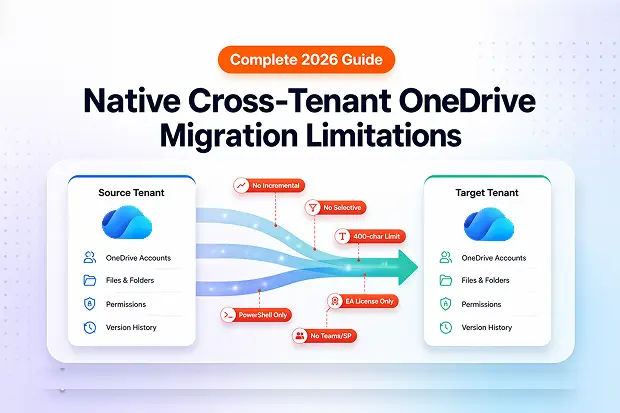
Microsoft’s native cross-tenant OneDrive migration sounds ideal on paper – no third-party vendor, data stays inside the Microsoft 365 cloud, and it handles the most common M&A use case. But once IT teams start planning a real migration, the hard limits emerge fast: no incremental passes, no selective content moves, a strict 400-character path ceiling, a paid add-on license that’s only available to Enterprise Agreement customers, and an interface that lives entirely in PowerShell.
This article – part of our complete guide to Microsoft 365 tenant-to-tenant migration – documents every confirmed limitation of Microsoft’s native approach, citing Microsoft Learn directly, so IT teams can plan with full information and know exactly where a purpose-built migration tool like Apps4.Pro Migration Manager fills the gaps.
- What Is Microsoft’s Native Cross-Tenant OneDrive Migration?
- Limitation 1: No Incremental or Delta Migration
- Limitation 2: No Selective File or Folder Migration
- Limitation 3: 400-Character Path Length Limit
- Limitation 4: Requires the Cross-Tenant User Data Migration Add-On License
- Limitation 5: PowerShell Only – No Admin Center GUI
- Limitation 6: Scope Is Limited – Teams Channels and SharePoint Sites Are Excluded
- Additional Technical Constraints
- Native vs. Apps4.Pro: Capability Overview
- When the Native Method Works
- Frequently Asked Questions
What Is Microsoft’s Native Cross-Tenant OneDrive Migration?
Microsoft introduced cross-tenant OneDrive migration in November 2022 as an add-on capability, available to Enterprise Agreement customers. The feature enables SharePoint admins to move personal OneDrive accounts from one Microsoft 365 tenant to another – a common need during mergers, acquisitions, and divestitures.
In December 2025, Microsoft released a newer unified approach in public preview called the Migration Orchestrator, which bundles Exchange, OneDrive, and Teams chat migrations into a single workflow. Both the legacy PowerShell method and the new Orchestrator are covered here – because, as the sections below confirm, the core OneDrive limitations apply to both.
The Core PowerShell Workflow
The legacy method relies entirely on SharePoint Online Management Shell and two primary cmdlets:
- Set-SPOCrossTenantRelationship - establishes bilateral trust between the source and target tenant
- Start-SPOCrossTenantUserContentMove - triggers the individual OneDrive account move once trust is verified
The six-step process: connect to both tenants → establish trust → verify trust → pre-create users and groups → prepare identity mapping file → start migration. Up to 4,000 OneDrive accounts can be queued at a time.
The appeal is real: data never leaves the Microsoft 365 cloud, a redirect is placed at the original OneDrive location so existing links continue working, and users experience only a brief read-only window. But the structural constraints are equally real.
Limitation 1: No Incremental or Delta Migration
This is the most operationally disruptive limitation for any phased or large-scale migration project.
Microsoft’s own documentation is explicit: “Cross-Tenant moves are a one and done migration activity. The content is moved from the Source to Target, leaving behind a redirect link on Source. Incremental and delta migration passes cannot be performed.”
In practice, this means:
- Files modified in the source after the migration started are not captured in a follow-up pass
- There is no pre-staging capability – you cannot copy data early, then sync changes before cutover
- Organizations running wave-based migrations with extended Transition Service Agreements (TSAs) have no mechanism to re-migrate updated content
- The hard-cutover model forces all disruption into a single event
This constraint also applies to Microsoft’s newer Migration Orchestrator
(December 2025 Preview). Even in the Orchestrator model, OneDrive moves are one-and-done the fundamental architecture has not changed. The target keyword “incremental onedrive migration not supported” applies to both the legacy PowerShell method and the Orchestrator preview.
What this means for M&A projects:
Any organization with a multi-week or multi-month coexistence window – common in carve-out divestitures – cannot rely on the native tool to keep both tenants in sync during the transition.
Where Apps4.Pro fills the gap: Apps4.Pro Migration Manager supports incremental migration. Admins can rerun migration tasks from the completed tasks view to capture newly added or modified files since the initial pass. This makes phased, wave-based rollouts and TSA coexistence windows operationally feasible.
Limitation 2: No Selective File or Folder Migration
The native method migrates an entire OneDrive account as a single unit. There is no capability to select specific files, specific folders, apply content filters, or route content to a different destination path.
Microsoft’s FAQ confirms the corollary: “The tool doesn’t support Merge functionality with existing content. The user being migrated must not have a preexisting OneDrive on the target tenant.” Practically, this means:
- You cannot migrate only the /Finance/2025 folder while leaving personal files behind
- You cannot exclude obsolete content, personal items, or legally sensitive files from a job
- You cannot send content from a source folder to a different destination path in the target
- You cannot merge content into a pre-existing target OneDrive – if the target account already has a OneDrive site, the migration fails with no overwrite option
For organizations restructuring data during a transition – for example, routing shared project content to SharePoint rather than personal OneDrive – the all-or-nothing design forces manual workarounds entirely outside the native tool.
Where Apps4.Pro fills the gap: Apps4.Pro supports folder-level selection and destination path remapping. Admins can migrate a specific source folder to a specific target folder in a user’s OneDrive. This enables content restructuring and selective migration without full-account moves
Limitation 3: 400-Character Path Length Limit
Microsoft enforces a hard 400-character limit on the full decoded file path - not just the filename.
As Microsoft’s support documentation states: “The entire decoded file path, including the file name, can’t contain more than 400 characters for OneDrive for home, OneDrive for work or school and SharePoint in Microsoft 365. The limit applies to the combination of the folder path and file name after decoding.”
In a cross-tenant migration context, the full path is calculated as the source file/folder directory structure plus the target OneDrive URL. Migration failures occur when the combined length exceeds 400 characters. The key implications:
- Deep nested folder structures accumulated over years routinely breach 400 characters in enterprise environments
- There is no in-migration scan alerting admins which files will fail before the job runs
- Users with longer User Principal Names (UPNs) hit the limit faster because the UPN forms part of the target OneDrive URL
- The OneDrive desktop sync client compounds this further – Windows NTFS imposes a 256-character local path limit, creating a secondary failure surface on already-long paths
Microsoft’s only published guidance is to keep target OneDrive URL names short – a limited mitigation that does nothing for files already buried in deep source folder trees.
Pre-migration action:
Before initiating any cross-tenant OneDrive migration with the native tool, run a path-length audit across all source accounts. Any path that, when combined with the target tenant’s OneDrive URL prefix, approaches 400 characters is a failure candidate.
Limitation 4: Requires the Cross-Tenant User Data Migration Add-On License
Microsoft’s native cross-tenant migration is not included in any standard Microsoft 365 plan. A separate, per-user add-on called the Cross Tenant User Data Migration license is a mandatory prerequisite.
Key facts about this license:
| Attribute | Detail |
|---|---|
| License type | Per-user, one-time fee – not a recurring subscription |
| Also covers | Cross-tenant mailbox migration |
| Eligible plans | M365 Business Basic/Standard/Premium; M365 F1/F3/E3/E5; Office 365 F3/E1/E3/E5; Exchange Online; SharePoint in M365; OneDrive for Business |
| Required user license (Orchestrator) | Microsoft 365 E3 or E5 in addition to the add-on |
| Purchasing channel | Enterprise Agreement / Volume Licensing Portal only |
| Enforcement | Hard requirement – migrations fail without it |
Migrations fail immediately with a
CrossTenantMigrationWithoutLicensePermanentException error if the license is not assigned to either the source or target user object. The license is only available to Enterprise Agreement customers - organizations on CSP plans, direct web purchases, or standard SMB licensing cannot acquire it through normal channels.
The Microsoft Orchestrator (December 2025 preview) extends the E3/E5 requirement, meaning smaller organizations face an even higher licensing threshold to access the native tooling.
Where Apps4.Pro fills the gap: Apps4.Pro Migration Manager requires only a standard Microsoft 365/Office 365 license with OneDrive enabled and delegated admin permissions – no Enterprise Agreement, no add-on SKU, and no volume licensing relationship required.
Limitation 5: PowerShell Only – No Admin Center GUI
There is no graphical interface for Microsoft’s native cross-tenant OneDrive migration. Every step – establishing trust, verifying trust, preparing identity mapping, starting migrations, monitoring progress – must be executed through SharePoint Online Management Shell commands.
This creates concrete operational challenges:
- Requires SharePoint Administrator or Global Administrator credentials on both source and target tenants simultaneously
- In M&A scenarios, obtaining admin access on both sides involves significant legal, security, and IT coordination
- Identity mapping files must be prepared and formatted correctly in CSV – scripting errors cause incorrect user mappings or silent migration failures
- Monitoring running jobs requires additional PowerShell queries; there is no real-time migration dashboard
- Error messages are often cryptic, requiring cross-referencing against multiple Microsoft Learn articles to diagnose
The Microsoft Orchestrator (December 2025 preview) moves to Microsoft Graph API commands but remains script-driven with no admin center UI. The “no GUI” limitation persists in both versions of the native tooling.
Where Apps4.Pro fills the gap: Apps4.Pro Migration Manager provides a full GUI-based experience with no scripting required. Admins connect source and target tenants through a desktop application, view live migration progress, manage user mappings through a visual interface, and access post-migration validation reports – reducing skill barriers and error rates.
Limitation 6: Scope Is Limited – Teams Channels and SharePoint Sites Are Excluded
The Set-SPOCrossTenantRelationship method migrates personal OneDrive accounts only. It does not address Teams, SharePoint collaboration sites, or any other Microsoft 365 workload.
Even the newer Migration Orchestrator (preview) does not migrate shared SharePoint sites, Teams channels, or channel-connected content:
“Orchestrator does not migrate shared SharePoint content such as Team sites, Channel sites, or collaboration sites. The ODSP workload covers personal user data (OneDrive) only.”
What the native cross-tenant OneDrive migration does not cover:
❌ Microsoft Teams channels, tabs, and posts
❌ Teams-connected SharePoint sites (site content only, not Teams wrapper)
❌ Exchange Online mailboxes (separate process with separate setup)
❌ Microsoft Planner tasks and plans
❌ Power BI reports and dashboards
❌ Power Automate flows
❌ Microsoft Forms
❌ Viva Engage (Yammer) communities
Real-world M&A migrations require all of these workloads. Relying on the native OneDrive tool alone forces IT teams to stitch together multiple separate tools and scripts, each with its own prerequisites, failure modes, and licensing.
Where Apps4.Pro fills the gap: Apps4.Pro Migration Manager covers all major M365 workloads in a single platform – Exchange Online (mailboxes, shared mailboxes, public folders), Teams (standard, private, and shared channels, posts, chats), SharePoint Online, OneDrive, Planner, Forms, Power BI, Power Automate, and Viva Engage. This consolidated approach eliminates the multi-tool complexity of a native migration.
Additional Technical Constraints
Beyond the six headline limitations, Microsoft’s native method carries several additional technical blockers that can silently fail a migration job:
| Constraint | Detail |
|---|---|
| No merge with existing content | Target OneDrive must not exist at migration time – no overwrite or merge |
| No Government Cloud support | GCC, GCC High, Consumer, and DoD tenants are not supported |
| Customer Key Encryption blocker | Source tenants with Microsoft Purview Customer Key enabled cannot migrate |
| Legal hold blocker | Accounts under an active Hold policy are blocked; hold must be removed, migrated, then reapplied on target |
| Version history not preserved | Only the latest file version is moved – historical version history is lost |
| 5 TB / 1 million item limit | Per-account ceilings; exceeding either causes job failure |
| No apostrophe in URLs | Usernames or URLs containing an apostrophe character fail with an invalid character error |
| 4,000 account queue cap | Only 4,000 accounts can be queued in advance at a given time |
| Multi-geo requires separate trust | Each geographic location must be treated as a separate tenant with a separate trust relationship |
| Source must be read/write | Source OneDrive cannot be in read-only mode before migration begins |
Native vs. Apps4.Pro: Capability Overview
| Capability | Microsoft Native (Set-SPOCrossTenantRelationship / Orchestrator) | Apps4.Pro Migration Manager |
|---|---|---|
| Incremental / delta migration | ❌ Not supported – one-and-done | ✅ Supported – rerun completed tasks |
| Selective file/folder migration | ❌ Whole account only | ✅ Folder-level selection, path remapping |
| 400-char path limit | ❌ Hard limit on full path | ✅ No equivalent restriction |
| Add-on license required | ❌ Cross Tenant UDM add-on (EA customers only) | ✅ Standard M365 license sufficient |
| Admin Center GUI | ❌ PowerShell / Graph API only | ✅ Full desktop GUI, zero scripting |
| Teams channels migration | ❌ Not supported | ✅ Standard, private, shared channels |
| SharePoint collaboration sites | ✅ Separate feature (PowerShell, no Teams) | ✅ Integrated in same tool |
| Exchange mailboxes | ✅ Separate process | ✅ Integrated in same tool |
| Planner, Forms, Power BI | ❌ Not supported | ✅ Supported |
| Government Cloud (GCC/High/DoD) | ❌ Not supported | Contact Apps4.Pro for GCC status |
| Version history | ❌ Latest version only | ✅ Full version history |
| Post-migration validation | ❌ Manual verification required | ✅ Built-in post-migration reports |
| Pre-migration inventory | ❌ No built-in tooling | ✅ Free inventory reports |
When the Native Method Works
The native PowerShell approach is a reasonable choice in a narrow set of circumstances:
- Clean, full-account moves - migrating entire OneDrive accounts with no content restructuring or filtering needed
- One-time hard-cutover migrations - where there is no coexistence window and no need to re-run after cutover
- EA-licensed organizations - where the add-on license is already budgeted and available
- SharePoint/Exchange admin teams - already experienced with PowerShell-driven workflows and M365 administrative scripting
- Small user populations - where the 4,000-account queue limit is not a constraint
For anything outside this narrow envelope – especially M&A projects requiring coexistence, phased waves, selective content routing, multi-workload coverage, or Teams data portability – the native limitations become active project risks.
Frequently Asked Questions
No. The native method – including the Orchestrator preview – migrates the entire OneDrive account as a unit. Selective file or folder migration, content filtering, and destination path remapping are not supported. The target OneDrive site must also be empty before migration, with no merge option available.
Related reading:
- M&A Migration Overview
- What Gets Migrated in a Cross-Tenant Migration
- Apps4.Pro Migration Support Guide
Ready to migrate without the limitations?

















 Migrate
 Manage
 Migrate Microsoft 365








