


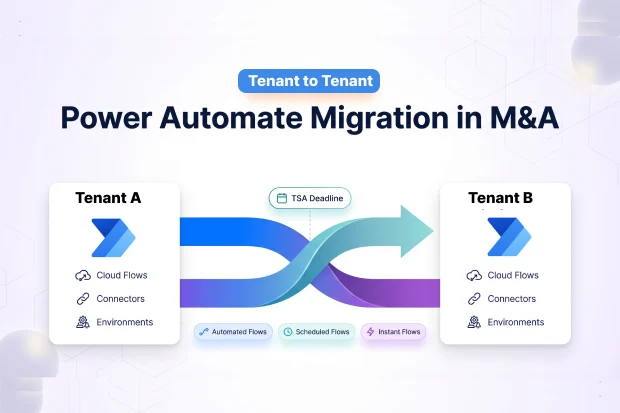
When two Microsoft 365 tenants come together in a merger or acquisition, you probably spend months planning email, identity, and Teams. Power Automate often stays in the background until the first morning after cutover, when someone says, “My approvals stopped” or “Invoices are not going out” and all eyes suddenly turn to IT.
A focused power automate migration M&A plan helps you stay ahead of that moment. It lets you protect critical automations, meet TSA commitments, and keep your Microsoft 365 migration mergers acquisitions program moving without surprise outages.
- Why Power Automate Is the Forgotten M&A Workload
- How Native Capabilities Handle Power Automate Migration
- TSA Deadlines and Power Automate Migration Timeline
- Sort-out Workload Dependencies with SharePoint, Teams and Planner
- Connector Re-authentication in the Target Tenant
- M&A Power Automate Migration Checklist
- Helpful in-depth resources
- FAQs: Power Automate Migration in M&A
Why Power Automate Is the Forgotten M&A Workload
In most M&A playbooks, Exchange, SharePoint, and Teams get formal workstreams and budgets, while Power Automate gets a few bullet points at best. It is easy to assume that flows will “just work” after cutover, until you discover how tightly they depend on specific tenants, identities, and connectors.
Every flow is tied to a real person, a specific environment, and one or more connectors that know how to talk to your data. When you move users, domains, and workloads without a tenant to tenant plan for Power Automate, you risk orphaned flows, stalled approvals, and broken integrations that surface as production incidents rather than planned change.
Silent risks hiding in your tenant
- Flows owned by people who leave during the merger become orphaned and no longer manageable.
- Approvals still use old identities, so requests sit waiting with nobody to review them.
- Flows call URLs or domains from the legacy M365 tenant and start failing as those endpoints go away.
- New tenant isolation and DLP policies can unintentionally block cross tenant automations if they are not carefully configured.
How Native Capabilities Handle Power Automate Migration
Microsoft now offers native options to move Power Platform environments between tenants, which helps during mergers and acquisitions but does not fully automate Power Automate migration. You still need to plan, script, and perform post migration checks for flows in each environment.
With tenant to tenant migration, you move an entire environment into the target tenant instead of rebuilding everything manually. This works well when you are consolidating multiple M365 tenants in an M&A scenario.
What native capabilities cover
- Moving supported Power Platform environments from source to target tenants through admin center and PowerShell.
- Keeping Dataverse solution components together so core applications and the automations behind move as a single package.
What still needs manual work
- Making sure important flows are added to Dataverse solutions before migration.
- Recreating all connections in the new tenant so flows can authenticate again.
- Restarting flows in the right order and updating HTTP URLs where they are referenced.
Native capabilities are a strong foundation for tenant to tenant migration, but most organizations still need additional tooling and process to inventory flows, handle connectors at scale, and align everything to TSA timelines in a power automate migration M&A program.
Apps4.Pro Migration Manager builds on top of these native capabilities with automation, discovery, and tenant to tenant Power Automate migration tooling designed specifically for complex M&A programs, so you are not relying on scripts and manual checks alone.
TSA Deadlines and Power Automate Migration Timeline
Your TSA dates dictate how long you can safely keep two tenants running together. If Power Automate does not have a clear timeline inside that window, you either rush at the end or extend coexistence and cost, both of which create pressure on your team.
You might already have a Microsoft 365 migration mergers acquisitions roadmap for mailboxes, OneDrive, and Microsoft Teams. Power Automate needs to be woven into that plan rather than treated as a separate side project that happens “later.” When you align discovery, pilots, and cutovers to TSA milestones, you avoid the scramble of trying to fix broken flows while leadership is asking whether the integration is complete.
A practical timeline you can walk through with stakeholders
- Pre-sign / early planning: List key environments and high-value flows, then align them with TSA deadlines for your Microsoft 365 tenant to track required migrations.
- Pre-close: Decide your approach, shortlist tools, and insert Power Automate checkpoints into your overall migration plan.
- Day 1 readiness: Make sure the flows that support Day 1 processes are migrated or at least tested in the target tenant, and that workarounds exist if something goes wrong.
- Post Day 1: Finish migrating and rationalizing the rest of the less critical flows, retire duplicate flows, and refine governance based on what you learned from early waves.
TSA Backward Planning Session
Bring your project leads into a workshop and put your TSA end date on a whiteboard. Ask, “Which automations absolutely must be stable before this date?” Then work backward to agree when you will discover, test, and move each set of flows.
Sort-out Workload Dependencies with SharePoint, Teams and Planner
Most Power Automate flows sit on top of other workloads such as SharePoint lists, Teams channels, Planner plans, mailboxes, and external business systems. If those workloads move on a different schedule, flows can begin to fail even before you officially “migrate Power Automate.”
Think about a flow that watches a SharePoint list, posts into a Teams channel, and then updates a Planner task. To move that scenario cleanly in an M&A, you need to move the list, recreate the team and channel, map the plan, and only then adjust the flow and its connections in the target tenant.
Dependency patterns to look for in your own environment
- SharePoint centric flows such as “on item created” notifications, document library updates, or permission adjustments.
- Teams centric flows that send messages, approvals, or alerts into channels and chats.
- Planner centric flows that create or update tasks based on events in other systems.
- Line of business flows integrated with CRM, ERP, ticketing tools, or custom APIs that may also change in the merger.
Connector Re-authentication in the Target Tenant
After tenant migration, you often discover that the hardest part is not copying a flow; it is convincing every connector to trust the new tenant. Even if environments and solutions move, connector credentials usually need fresh sign-in in the target tenant, which is where many flows get stuck.
During a merger or acquisition, you may also be changing identities, domains, and conditional access at the same time. That means your power automate merger acquisition plan has to assume that re authentication is not a small clean up task but a core workstream, with implications for service accounts, licensing, and support.
Ways to make connector re-authentication smoother
- Use service accounts for high value flows when security and licensing allow, so you are not dependent on one person clicking “sign in.”
- Align DLP and tenant isolation policies in advance so connectors are not blocked the moment you try to re-authenticate.
- Prepare scripts or runbooks to quickly find flows that are failing due to connection issues after each migration wave.
- Pre-notify flow owners so they expect to see sign in prompts and understand why they matter.
Connector Health Scorecard
Share a simple visual summary each week showing how many flows are fully re authenticated, which connectors are failing most often, and how many high priority flows are still waiting for fixes. This keeps leadership informed and shows progress without drowning them in technical logs.
M&A Power Automate Migration Checklist
A clear tenant migration M&A checklist for Power Automate gives you and your stakeholders confidence that nothing critical is being missed. It turns a vague risk into a sequence of actions that can be assigned, tracked, and reported.
1. Discovery and assessment
Start by understanding what you actually have. Without this step, you are relying on memory and ad hoc lists from users.
- Inventory environments and flows including cloud flows, desktop flows, and flows that are part of Power Platform solutions in your production and test environments.
- Classify flows by business impact such as mission critical, important, and nice to have, and map them to departments or business units.
- Capture dependencies across SharePoint, Teams, Planner, mailboxes, gateways, and external systems.
- Flag flows owned by users who may leave during the integration so you can transfer or redesign ownership early.
2. Strategy and design
Once you know what is running, you can decide what to keep, what to move, and what to retire. This is where you align Power Automate decisions with your broader Microsoft 365 migration mergers acquisitions strategy.
- Decide which environments will move as they are, which will be consolidated, and which will be retired in the new M365 tenant.
- Align DLP, tenant isolation, and security policies between organizations, so flows can keep working in the combined landscape.
- Define patterns for approvals, system to system automation, and citizen developer solutions going forward.
- Confirm how Power Automate aligns with other M365 moves, especially identity, Exchange, SharePoint, and Teams.
3. Pilot and remediation
Pilots help you find problems while the risk is low and the scope is manageable. They also build trust with business teams who can see that you are testing real scenarios, not just doing lab work.
- Pick a representative set of flows and environments and run a pilot migration.
- Validate that triggers still fire correctly and that connectors have the right access in the target tenant.
- Capture recurring issues such as missing connectors, permission mismatches, and manual re-authentication steps.
- Update your power automate migration M&A approach and documentation based on what you learn.
4. Production migration and cutover
This is where your work becomes visible to everyone in the business. Clear communication and careful sequencing help avoid unexpected downtime.
- Plan migration waves that line up with user moves and business calendars, not only technical convenience.
- Execute your post migration tasks such as recreating connections, restarting flows, and updating HTTP URLs or endpoints.
- Watch logs and feedback closely during the first full business cycles after each wave.
- Document any temporary coexistence patterns, such as flows that still call legacy systems, so they can be cleaned up later.
5. Stabilization and optimization
Once the main Microsoft flow migration work is complete, you can shift focus from “keep the lights on” to “make this sustainable.” This is also your chance to show extra value from the integration instead of just risk management.
- Retire flows that are unused or duplicated and remove accidental workflows that only added noise.
- Move repeatable patterns into managed solutions with clear owners and lifecycles.
- Adjust licenses and environments based on real usage data in the combined tenant.
- Build a roadmap that connects Power Automate to your long-term digital transformation goals after the merger or acquisition.
Helpful in-depth resources
If you are ready to go deeper than this overview, a few focused resources can help you refine your plan and avoid common pitfalls.
- For a deeper dive into the topic, take a look at our Power Automate Migration: Best Practices for IT Admins article.
- For a wider view across Power Apps, Power BI, and Power Automate in M&A scenarios, you can read more about Microsoft Power Platform Migration – Hidden risks in M&A.
- When you want to tie your automation work back to the broader tenant move, you can use the article on The Ultimate Guide on Microsoft 365 Migration Checklist as your end-to-end reference.
- If your next step is more technical, this article on How to Migrate Power Automate Cloud Flows Between Tenants can help you understand the practical flow migration path.
- For a more hands on product and implementation view, you can also refer to the Microsoft Power Automate Tenant to Tenant Migration Guide in the Apps4.Pro Knowledge Base.
FAQs: Power Automate Migration in M&A
Microsoft offers ways to move Power Platform environments between tenants, but individual flows still need to be checked and reconfigured after the move. You have to manually recreate or fix connections, restart flows, and update callbacks or URLs before everything runs smoothly.
Apps4.Pro Power Automate Migration adds a SaaS based migration manager that discovers flows, automates user and connector mapping, and lets you move flows in bulk with detailed logs, so you are not relying only on scripts and manual fixes.
Identity, Exchange Online, SharePoint, OneDrive, and Teams are normally addressed before or together with critical flows. Once these foundations are stable in the target tenant, you can migrate and adjust flows that depend on them with less risk.
If you want a prescriptive workload sequencing for real world projects, you can refer to the Migration sequence in the Apps4.Pro Knowledge Base.
Accelerate Your M&A Success with Total Confidence!
Ready to reduce risk in your Power Automate flows during tenant to tenant migration in mergers and acquisitions? Discover how Apps4.Pro Power Automate Migration helps you inventory, analyse, and move flows safely between tenants, with M&A focused checks.

















 Migrate
 Manage
 Migrate Microsoft 365








