


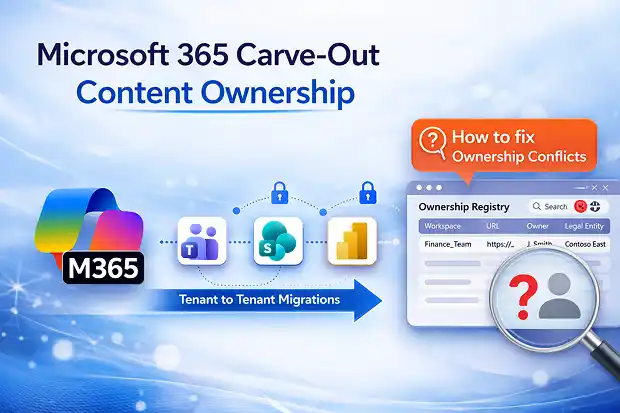
Fixing Microsoft 365 content ownership conflicts in a corporate carve-out (divestiture) is less about scripts and more about enforcing clear business accountability across every mailbox, SharePoint site, Microsoft Teams workspace, and Power BI workspace- starting on Day 0 of the deal and before any tenant-to-tenant migration begins.
Carve-out delays usually come from unclear ownership of Microsoft 365 data (mailboxes, SharePoint, Teams, Power BI). The fastest fix is to define a business-first ownership model, capture decisions in an ownership registry, and use that registry to drive migration waves and access reviews.
- Why Microsoft 365 content ownership conflicts explode in carve-outs and divestitures
- Root cause: no designated business owner for Microsoft 365 digital assets
- Why unclear ownership slows tenant splits and Microsoft 365 tenant-to-tenant migrations
- Microsoft 365 Native Tool Gap: Migration Tools Vs. Ownership Attribution
- A practical MSP playbook to fix ownership conflicts
- Further Reading from Microsoft Documentation
- Frequently Asked Questions
Why Microsoft 365 content ownership conflicts explode in carve-outs and divestitures
In most divestitures, nobody has a single, trusted map of “who owns what” across Microsoft 365 workloads.
That gap becomes dangerous the moment you need to separate a carvedout business unit from the parent tenant.
Key pain points you’re probably seeing:
- Shared mailboxes used by multiple legal entities.
- Shared SharePoint sites with cross department content.
- Microsoft Teams channels where multiple BUs collaborate on the same files.
- Power BI workspaces mixing reports for parent and carveout entities.
Quick exercise: Run a 30-minute “ownership shock test” workshop with leadership. Walk through 5–10 real examples of ambiguous mailboxes/sites and capture who the business owner is and which legal entity the asset belongs to.
Root cause: no designated business owner for Microsoft 365 digital assets
The real problem isn’t technical; it’s governance.
Behind almost every conflict, you will find:
- No documented business owner for key Microsoft 365 workspaces.
- IT listed as “owner” in SharePoint/Teams, but only as a technical admin.
- Adhoc sharing over years, with zero lifecycle or recertification.
- No consistent naming or tagging for which BU, region, or legal entity content belongs to.
During M&A and carveouts, this missing registry means:
- Legal has to interpret ownership from emails and screenshots.
- Business leaders argue over “who needs it more.”
- You, as the MSP, become the accidental referee.
Why unclear ownership slows tenant splits and Microsoft 365 tenant-to-tenant migrations
Carveouts and tenant splits are already complex. When ownership isn’t clear, every y Microsoft 365 tenant migration decision slows to a crawl.
You’ll see this pattern:
- High frequency: Any medium to large M&A with Microsoft 365 hits content ownership conflicts-especially shared sites, cross functional teams, and reporting platforms.
- Legal impact: Misplaced content can violate separation terms, NDAs, or data residency rules.
- Compliance risk: Leaving parent data accessible to NewCo (or vice versa) undermines least privilege and may breach regulations.
- Project delays: Migrations stall while business, IT, and legal debate what moves and what stays.
- Rework: Content gets moved, pulled back, then remigrated—burning budget and trust.
Microsoft 365 Native Tool Gap: Migration Tools Vs. Ownership Attribution
Microsoft has strong tools for moving data between tenants (Exchange Online, OneDrive, SharePoint Online, and Teams) but no single built in feature that says “this site/mailbox legally belongs to Entity X.”
You can:
- Migrate Exchange Online mailboxes via the Exchange admin center or third-party tools.
- Move SharePoint and OneDrive content cross tenant with native and Independent Software Vendor(ISV) tools.
- Recreate Teams and channels and map memberships.
But you cannot:
- Automatically attribute business ownership by legal entity.
- See a Cross workload view like “all assets owned by BU Alpha, across mail, SharePoint, Teams, and Power BI.”
- Distinguish which part of a shared workspace belongs to which entity.
That’s why so many MSPs fall back to:
- Manual stakeholder interviews to decide ownership.
- Email threads with Legal and HR to interpret contracts.
- Custom PowerShell scripts to enumerate owners, members, and last activity across SharePoint sites, Microsoft 365 Groups, and mailboxes.
A practical MSP playbook to fix ownership conflicts
Design your carveout services so ownership is a structured phase, not an afterthought.
1. Define a business first ownership model
Start by framing ownership in business terms, not Microsoft 365 objects.
Agree with your customer that:
- Every Microsoft SharePoint site, team, Exchange online mailbox, and Power Bi workspace has a single accountable business owner.
- Ownership is tied to a legal entity or BU (e.g., “Parent Manufacturing,” “SpinCo Sales Europe”).
- Technical admins are custodians, not owners.
- Shared resources need explicit rules on which side they serve post deal (or how they are duplicated).
Communicate this clearly:
- “If I can’t name a business owner in under 60 seconds, that workspace is a risk.”
- “If Legal can’t tell which entity a report belongs to, it’s a risk for both sides.”
2. Build a lightweight ownership registry
You don’t need a massive Database; you need a simple, living registry.
Use something your customer already knows (SharePoint list, Excel in Teams, or your MSP portal) and track the following:
- Workspace type: SharePoint site, Team, shared mailbox, Power BI workspace.
- URL/email address.
- Business owner (person/role).
- Legal entity: Parent vs SpinCo vs Shared.
- Criticality: Mission critical, important, nice to have, archive.
- Migration decision: Move, stay, duplicate, archive.
- Notes: Dependencies, external sharing, special legal flags.
You can seed this registry using:
- PowerShell export of sites, groups, and shared mailboxes.
- Microsoft Teams and SharePoint inventory from your existing reporting tools.
- A shortlist of “top 50” workspaces by size, activity, and business importance.
Service idea: Offer the registry as a branded template (for example, “M365 Carve-Out Ownership Workbook”) and walk BU leaders through it in short, focused sessions to confirm ownership, legal entity, and migration decision.
3. Classify shared and high risk areas early
Not all content is equal. Encourage your customer to prioritize:
- Cross entity SharePoint hubs and project sites.
- Global Teams channels where multiple BUs collaborate.
- Shared mailboxes like legal@, hr@, sales@, bids@.
- Power BI workspaces that blend parent and carvedout data.
For each, drive a decision:
- Single sided: “Post deal, this belongs only to Parent or only to specific BU.”
- Split: “We duplicate and filter content so each side gets only what it should.”
- TSA bound: “Shared temporarily under a Transition Services Agreement, with a strict end date.”
This is where you demonstrate advisory value by translating legal and commercial language into tactical migration decisions.
4. Turn stakeholder interviews into a repeatable process
Manual interviews are unavoidable, but they don’t have to be chaotic.
Standardize how you engage:
- Send a one page “ownership survey” to each BU leader with a prefilled list of their top workspaces.
- Ask three focused questions per workspace:
- Who is accountable for this after Day 1?
- Which legal entity needs this data?
- Can any subset be archived or excluded?
- Capture responses back into your registry and highlight conflicts for follow up.
This makes you look structured, reduces meeting time, and creates an audit trail your customer can show to Legal and Compliance.
Service idea: Offer an “Ownership Clarification Sprint”—a two-week, time-boxed engagement where you drive decisions on the top X% of content, publish a dashboard for leadership, and document exceptions for Legal/Compliance.
5. Bake ownership rules into migration waves and access reviews
Once your registry is good enough (not perfect), use it to drive the M365 tenant migration plan.
For your customer, explain that waves are based on business ownership and criticality, not org chart:
- Wave 1: Mission critical, single owner assets of the carvedout entity (e.g., SpinCo ERP SharePoint, SpinCo Sales Teams).
- Wave 2: Shared but clearly governed areas where duplication rules are agreed.
- Wave 3: Low risk or archive candidate content.
Align with tenant to tenant best practices:
- Identity first: Make sure the right identities and roles exist in the target tenant before content arrives, so every asset lands with a clear owner.
- Pre cutover access review: Recertify owners and permissions before each wave to avoid granting the carvedout entity access to leftover parent data.
- Post cutover verification: Validate that ownership and access match the registry, not just that “the migration tool shows green.”

















 Migrate
 Manage
 Migrate Microsoft 365








