


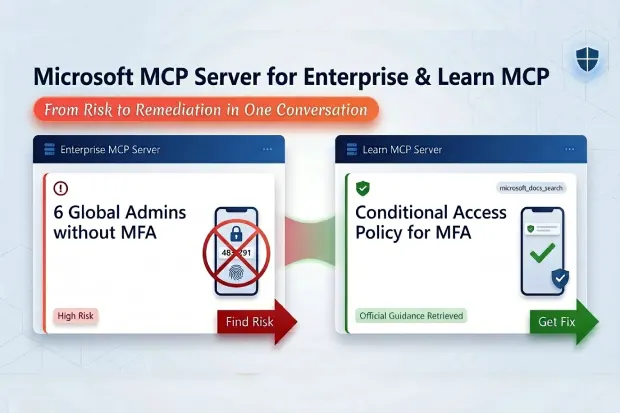
Most security tools do one thing: they find problems.
You run a scan, get a report full of red findings, and then you’re on your own. Open a browser, search for documentation, read through Microsoft Learn articles, figure out the remediation steps, implement them, and hope you got it right.
What if the same tool that found the problem could also pull the official fix, in the same conversation, without switching tabs, without searching anything?
That’s exactly what happens when you combine two Microsoft MCP Servers in a single VS Code session: the Enterprise MCP Server finds risks in your tenant, and the Learn MCP Server pulls the official Microsoft remediation guidance. One conversation. One interface. Risk identification AND remediation in a single workflow.
I demonstrated this live at Microsoft Purview & Defender Days 2026, and it was the moment that got the biggest reaction from the audience. Here’s how it works and how you can use it today.
- The Two MCP Servers
- Setting Up Both Servers
- Workflow 1: MFA Gap → Conditional Access Policy
- Workflow 2: Overpermissioned Apps → Least Privilege Guidance
- Workflow 3: Ownerless Apps → App Governance Setup
- Workflow 4: Unredeemed Guest Invitations → Guest Lifecycle Management
- Building a Monthly Assessment Process
- What’s Coming Next
- Practical Tips for Multi-MCP Success
- The Bigger Picture
The Two MCP Servers
Before we dive in, let’s clarify what we’re working with.
Microsoft 365 MCP Server for Enterprise connects to Microsoft Graph API and lets you query your Entra ID tenant data, users, roles, MFA status, apps, permissions, guests, and more. It’s your discovery engine. It finds the risks.
Microsoft Learn Docs MCP Server connects to Microsoft’s documentation library (docs.microsoft.com / learn.microsoft.com). It can search for and retrieve official Microsoft guidance on any topic. It’s your remediation engine. It finds the fix.
Both can be installed in VS Code and used simultaneously in the same Copilot Chat conversation. The AI maintains context across both servers, so you can say “I found X problem” and then “find me the Microsoft docs on how to fix X”, and it connects the dots.
Setting Up Both Servers
If you’ve already set up the Enterprise MCP Server (see my complete setup guide [add blog1 url]), adding the Office 365 Learn MCP Server is straightforward:
- In VS Code, open Extensions
- Search for @mcp → find “Microsoft Learn”
- Install it
- Verify both servers appear in the Copilot Chat MCP panel (both should show green/connected)
Make sure you’re in Agent Mode in Copilot Chat, this is required for MCP tools to be available.
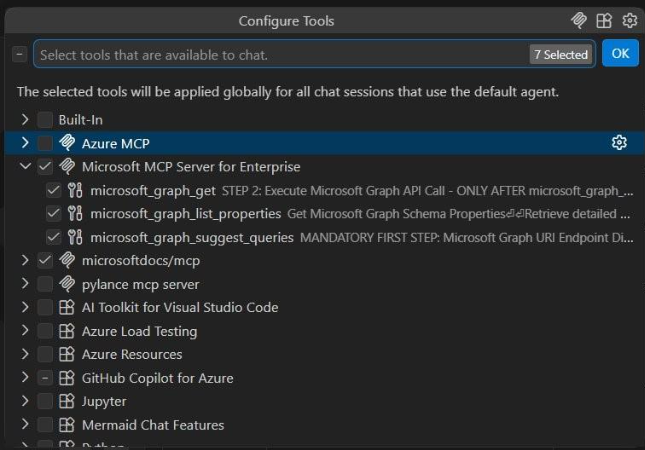
Both MCP servers active in one VS Code session, the Enterprise server with its 3 Graph API tools, and the Microsoft Learn docs server. This is the foundation of the multi-MCP workflow.
Workflow 1: MFA Gap → Conditional Access Policy
This is the workflow I demonstrated live. It starts with a critical finding and ends with the official Microsoft remediation steps.
Step 1: Find the Risk
Prompt:
“List all users who are assigned the Global Administrator role.”
Wait for the result. Then follow up:
“Which of these Global Administrators have NOT registered any MFA authentication methods?”
The Enterprise M365 MCP Server queries your tenant and returns the findings. In my demo tenant, six out of eight Global Admins had no MFA registered, a significant security risk.
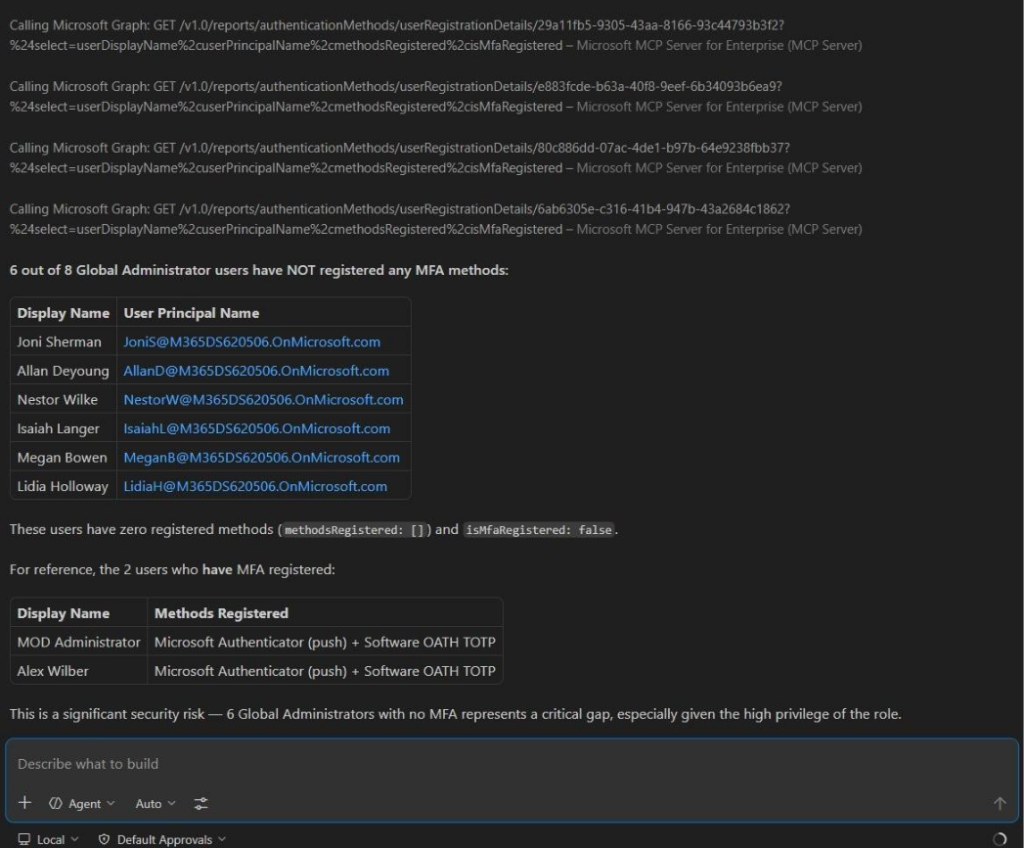
The risk is identified: 6 out of 8 Global Admins without MFA. The AI even calls out the severity. Now, without leaving this conversation, let’s ask for the official fix.
Step 2: Get the Fix
Now, without starting a new conversation, ask:
Prompt:
“I found Global Administrators without MFA in my tenant. Using the microsoft_docs_search and microsoft_docs_fetch tools, find the official Microsoft documentation on how to create a Conditional Access policy that requires MFA for all users with administrative roles.”
The Learn MCP Server searches Microsoft’s documentation and returns the relevant guidance, the exact steps to create a Conditional Access policy targeting admin roles with an MFA requirement.
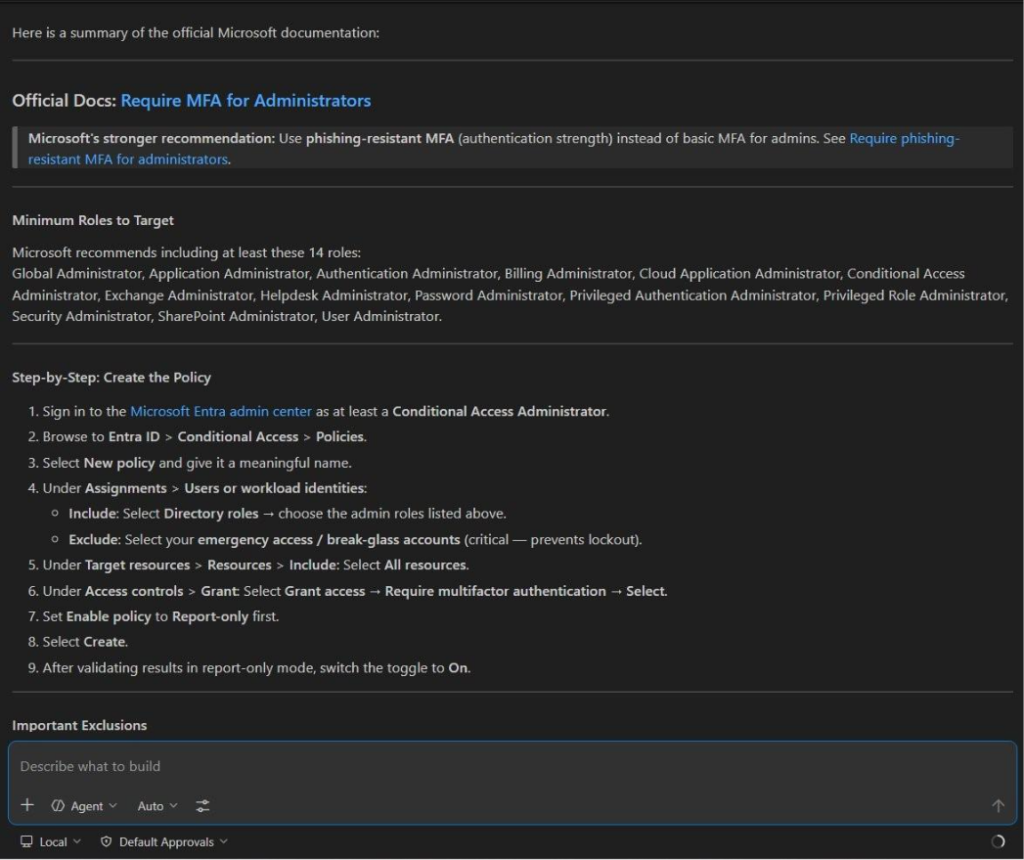
This is the magic moment: the Learn M365 MCP Server pulls the official Microsoft documentation with a complete step-by-step remediation guide, including which 14 admin roles to target, the exact Entra admin center navigation path, and the recommendation to start in report-only mode. All in the same conversation where we found the risk.
Step 3: Implement
Take the guidance from Step 2 and implement the Conditional Access policy in the Entra admin center. The documentation tells you exactly which settings to configure.
Step 4: Verify
Come back to VS Code and re-run the original query:
“Which Global Administrators have NOT registered any MFA authentication methods?”
If your CA policy is enforcing MFA registration, the next time those admins sign in they’ll be prompted to register. Over time, this finding resolves itself.
Why This Matters
The traditional version of this workflow looks like: run a Graph query → find the problem → open a browser → search “conditional access MFA admin roles” → read through multiple Microsoft Learn pages → figure out which article is current → extract the relevant steps → go implement.
The multi-MCP version: find the problem → ask for the fix → get the authoritative answer → implement. Same conversation, same interface, two minutes instead of twenty.
Workflow 2: Overpermissioned Apps → Least Privilege Guidance
Step 1: Find the Risk
Prompt:
“List all application registrations that have been granted application-level permissions like Directory.ReadWrite.All, Mail.ReadWrite, or Sites.FullControl.All. Show the app name and what permissions it has.”
The Enterprise MCP Server surfaces your overpermissioned apps. In most tenants, you’ll find at least one app that was granted broad permissions during initial setup and never reviewed.
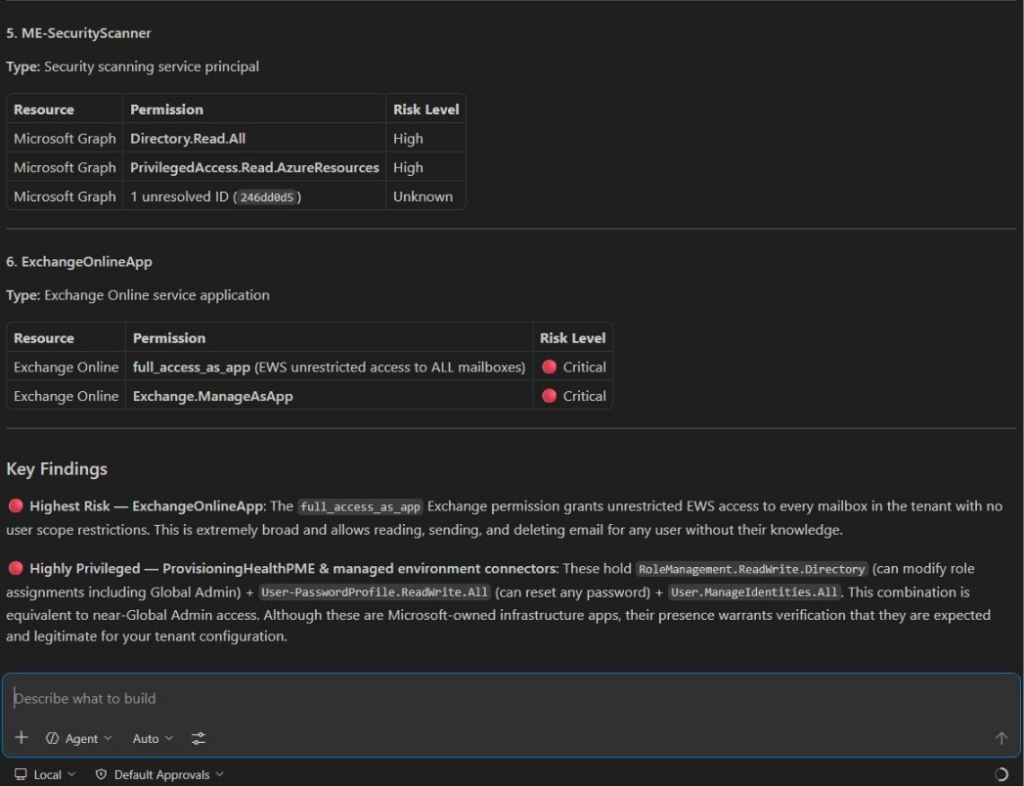
The Enterprise MCP Server doesn’t just list permissions, it assesses risk levels. The ExchangeOnlineApp with full_access_as_app is flagged as Critical because it grants unrestricted access to every mailbox in the tenant. This is the kind of finding that justifies an immediate review.
Step 2: Get the Fix
Prompt:
“I found app registrations with excessive application permissions in my tenant. Using the microsoft_docs_search tool, find the Microsoft best practices for implementing least-privilege application permissions and how to review and reduce overpermissioned apps in Entra ID.”
The Learn MCP Server returns Microsoft’s guidance on app permission best practices, how to audit current permissions, identify which are actually needed, and reduce scope without breaking functionality.
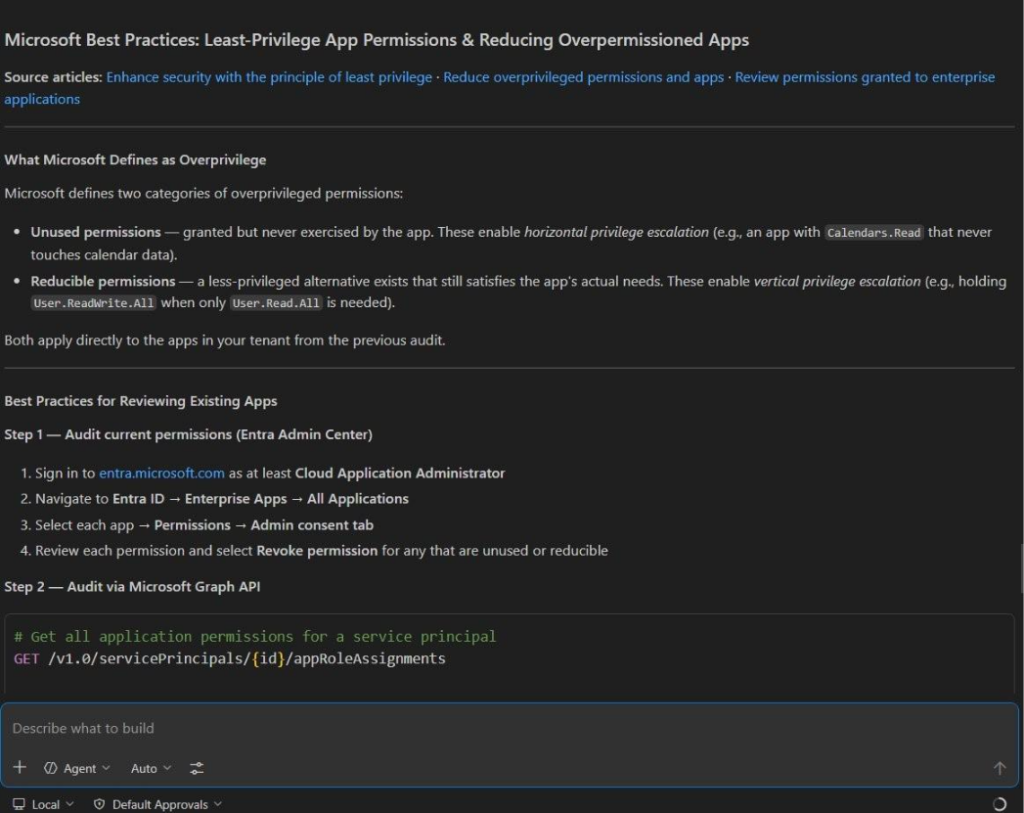
Same pattern, different risk: the Learn MCP Server returns Microsoft’s official best practices for least-privilege app permissions, complete with definitions of overprivilege types, remediation steps via both the Entra Admin Center and Graph API, and links to the source documentation. Identify → get guidance → implement → verify.
Step 3: Implement
For each over permissioned app: review what the app actually does, determine the minimum permissions required, update the API permissions in the app registration, and re-test the integration.
Step 4: Verify
Re-run the original query to confirm permissions have been reduced.
Workflow 3: Ownerless Apps → App Governance Setup
Step 1: Find the Risk
Prompt:
“Are there any app registrations in this tenant that have no assigned owner?”
Ownerless apps are a governance blind spot. Nobody is accountable for their credential rotation, permission reviews, or decommissioning.
Step 2: Get the Fix
Prompt:
“Using microsoft_docs_search, find the official Microsoft guidance on app governance best practices, specifically how to assign owners to app registrations and set up regular app access reviews in Entra ID.”
Step 3: Implement
Assign owners to every app registration. Set up periodic access reviews for applications. Establish a credential rotation policy.
Step 4: Verify
Re-run the ownerless apps query. The count should be zero.
Workflow 4: Unredeemed Guest Invitations → Guest Lifecycle Management
Step 1: Find the Risk
Prompt:
“List all guest users whose invitation has not been redeemed. Show their display name, email, and when they were invited.”
These are external users who were granted access but never actually signed in. The invitation is still pending, they could redeem it tomorrow, next month, or never.
Step 2: Get the Fix
Prompt:
“Using microsoft_docs_search, find the Microsoft documentation on managing guest user lifecycle in Entra ID, specifically how to set up automatic redemption expiry and access reviews for external users.”
Step 3: Implement
Clean up stale invitations. Configure invitation redemption policies. Set up recurring access reviews for guest users.
Step 4: Verify
Re-run the guest query to confirm unredeemed invitations are cleaned up.
The Pattern
By now you’ve noticed the repeatable pattern:
- Query the Enterprise MCP Server to identify a specific risk
- Ask the Learn MCP Server for the official Microsoft remediation guidance
- Implement the fix based on authoritative documentation
- Verify by re-running the original query
This works for virtually any Entra ID finding. The Learn Docs MCP Server has access to the full Microsoft documentation library, so whether you’re looking for Conditional Access guidance, PIM configuration steps, app permission best practices, or guest lifecycle management, it can find it.
Building a Monthly Assessment Process
This multi-MCP workflow isn’t just for one-off assessments. Here’s how to turn it into a recurring process:
Monthly Identity Security Review (30 minutes):
- Run the 7 core assessment queries (15 minutes)
- For any new findings, pull remediation guidance via Learn MCP (5 minutes)
- Document findings and remediation status (5 minutes)
- Track progress by comparing with last month’s results (5 minutes)
You could do this monthly for every tenant you manage. For MSPs, this becomes a recurring service offering at zero tool cost.
Quarterly Deep Assessment (60 minutes):
Add these queries to your monthly baseline:
- Conditional Access policy inventory and coverage gaps
- Licensed users who never signed in (wasted licenses)
- Security Defaults status
- Group membership of privileged users (blast radius analysis)
- PIM-eligible role assignments (if you have P2)
For each finding, pull remediation guidance and build an action plan.
What’s Coming Next
Right now, the Enterprise Microsoft 365 MCP Server is read-only. But consider what happens when write operations arrive (they’re on the roadmap, though no date has been announced):
The workflow could become: Identify → Get Guidance → Auto-Remediate → Verify, all in one conversation.
Imagine asking: “Find Global Admins without MFA, create a Conditional Access policy requiring MFA for all admin roles, enable it in report-only mode, and schedule a review in 30 days.”
We’re not there yet. But the architecture is built for it.
Practical Tips for Multi-MCP Success
Based on my experience running dozens of these workflows:
Be explicit about which server to use. When you want documentation, say “Using the microsoft_docs_search tool…”, this ensures the AI routes to the Learn MCP Server and doesn’t try to answer from its own training data.
Maintain conversation context. Don’t start a new chat between the risk query and the remediation query. The AI uses context from previous queries to provide more relevant documentation.
Split complex queries. If a combined risk query fails, break it into simpler parts. The remediation lookup can still reference the findings.
Save your prompts. Build a library of tested prompt pairs (risk query + remediation query) that you reuse for every assessment.
Verify the documentation is current. The Learn MCP Server pulls from Microsoft’s live documentation, but always check the article date. Microsoft updates their guidance regularly.
The Bigger Picture
MCP Server for Enterprise is impressive on its own. But the multi-MCP workflow is where it becomes transformative. You’re not just querying data, you’re building a complete security operations loop: discover, understand, remediate, verify.
And you’re doing it in natural language, at zero additional cost, with full audit trails.
This is what AI-powered security operations should look like: not a replacement for human judgment, but an accelerator that handles the tedious query-build-search-read-implement cycle so you can focus on the decisions that matter.
Resources
- Microsoft 365 MCP Server for Enterprise setup: learn.microsoft.com/en-us/graph/mcp-server/get-started
- Microsoft Learn MCP Server: learn.microsoft.com/en-us/training/support/mcp-get-started
- Complete 7-query assessment guide: How to Run an AI-Powered Entra Security Assessment in 15 Minutes (Blog #1)
This article is based on the session “AI-Powered Entra Security Assessments Using MCP Server for Enterprise” presented at Microsoft Purview & Defender Days 2026 by Narasima Perumal Chandramohan, Microsoft MVP and Co-Founder of JiJi Technologies.
Connect with me on LinkedIn for more Microsoft security insights.

















 Migrate
 Manage
 Migrate Microsoft 365








