


Creating a Viva Engage community is only the beginning. Keeping its updates visible helps turn a new space into somewhere people return to, contribute, and stay connected.
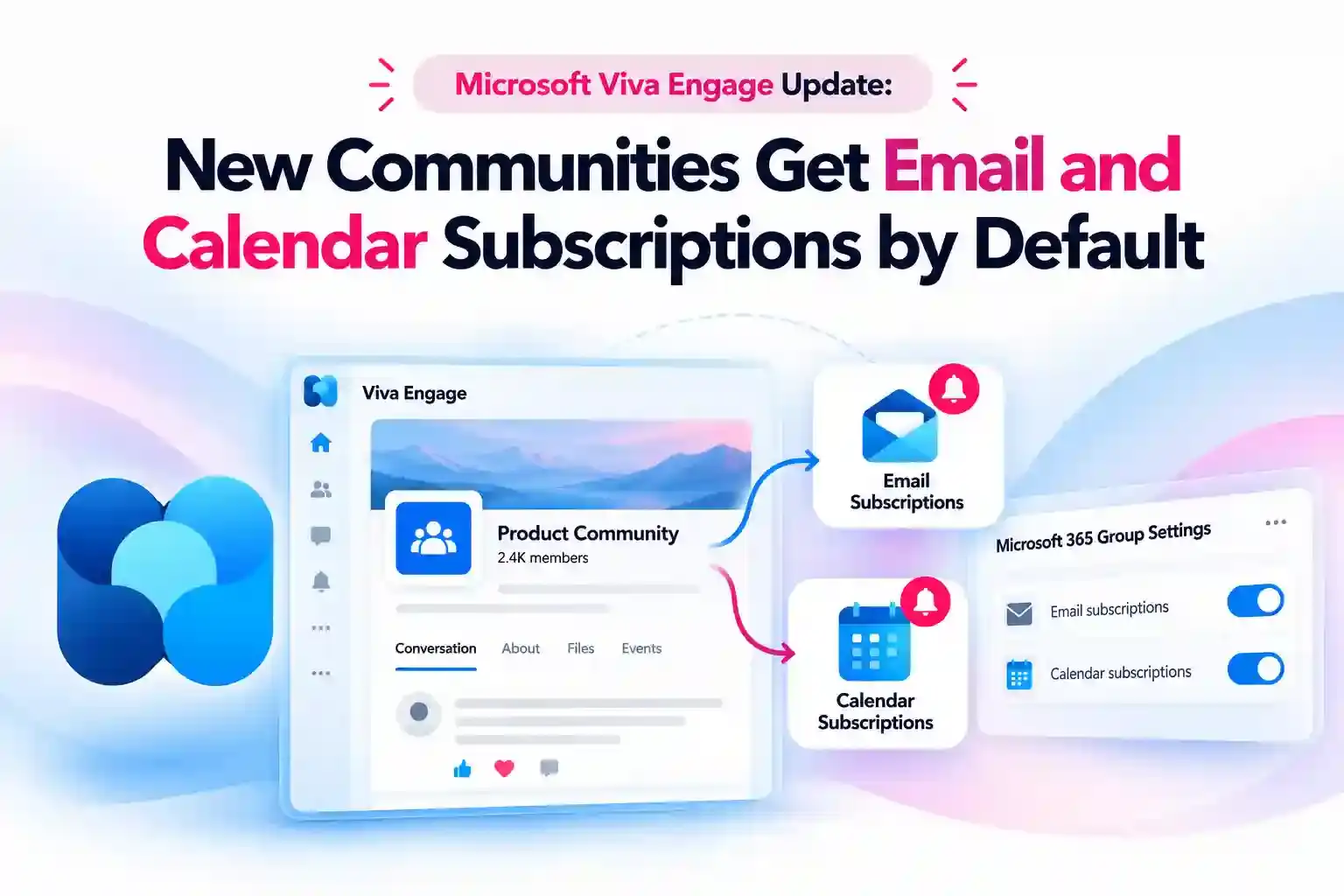
Microsoft’s latest update supports that goal by enabling email and calendar subscriptions automatically for members of newly created Viva Engage communities. Your community members are subscribed to receive community emails and calendar invitations, while you retain control over the settings.
What’s Changing in New Viva Engage Communities?
When you create a new Viva Engage community, its Microsoft 365 group settings will have email and calendar subscriptions enabled by default. This changes how community communications reach your members.
Here is what you can expect:
- Community email subscriptions are enabled by default.
- Community calendar subscriptions are enabled by default.
- Members are subscribed to receive community emails and calendar invitations.
- Community owners can review and adjust these settings in the My Account portal.
- No admin action is required to enable the update.
The update focuses on newly created communities. Remember that an existing Viva Engage community is not enforced with these subscription defaults.
💬 Start With a Welcome That Invites a Reply
Give your community a welcoming first post that makes its purpose clear and gives members an easy way to contribute.
- Explain what members can gain from joining.
- Ask them to share one challenge or interest.
- Include a simple prompt: “What would make this community useful to you?”
Why Default Subscriptions Matter for Community Participation
A useful community update can lose its value if members never notice it. Default email and calendar subscriptions help bring community communications to members, supporting awareness and participation.
For your community, this makes thoughtful communication especially important. Each email or invitation should have a clear purpose and give members something useful to act on.
Focus your communication on:
- Relevant announcements with a clear takeaway.
- Events that address a specific need.
- Conversations that welcome questions, feedback, or shared experiences.
Treat the new defaults as a way to support participation, not a reason to send more messages.
How Microsoft 365 Groups Support Viva Engage Communities
Microsoft 365-connected Viva Engage communities are backed by Microsoft 365 Groups. This connection gives your community access to shared resources such as a SharePoint site, a document library, a OneNote notebook, and Planner.
The latest update specifically concerns email and calendar subscription defaults. It does not mean that every Viva Engage notification setting has changed.
Keep that distinction in mind when explaining the update to your members. Community subscriptions and individual Viva Engage notification preferences are related, but they are not interchangeable.
📅 Turn a Community Event Into a Conversation
Give your community event a focused purpose and create opportunities for members to contribute before and after it.
- Choose one topic, such as a product Q&A or knowledge-sharing session.
- Invite members to submit questions beforehand.
- Post a short recap and encourage follow-up comments afterward.
Where Community Owners Can Manage Subscription Settings
As a community owner, you can review and adjust the Microsoft 365 group settings associated with your Viva Engage community. The My Account portal provides access to the groups you own.
To review your settings:
- Sign in to the My Account portal: Groups I own with your work account.
- Select the group associated with your Viva Engage community.
- Open Edit details to review the available settings.
- Make the appropriate changes and select Update.
The “Members auto-follow group conversations” setting allows members to receive group emails and calendar events in their personal inboxes. The settings available to you may vary according to your organization’s policies.
Review the options against your community’s purpose and communication needs rather than leaving them unchecked.
What Microsoft 365 Admins and Support Teams Should Know
You do not need to take admin action to enable this update. If you support Viva Engage in your organization, the useful next step is to make sure community owners understand the new defaults.
A brief internal update can help explain why members receive community emails and calendar invitations after joining a newly created community.
Include these points:
- What changes when a new Viva Engage community is created.
- Why members may receive community emails and calendar invitations.
- Where community owners can review subscription settings.
- Who members should contact with questions.
Clear guidance helps your community owners manage communication expectations from the start.
🗳️ Ask Members What Belongs in Their Inbox
A short community poll can help you understand which updates your members value most.
Ask: “Which community updates would you most like to receive?”
- Important announcements.
- Event invitations.
- Learning opportunities.
Use the responses to guide your content plan and review whether your community’s settings support its purpose.
Explore the Microsoft Guidance Behind the Update
Learn more about connected Viva Engage communities and the settings you can manage:
- Viva Engage and Microsoft 365 Groups
- Create and update Microsoft 365 Groups for your work or school account
- My Account portal: Groups I own, accessible with your work account.
















