


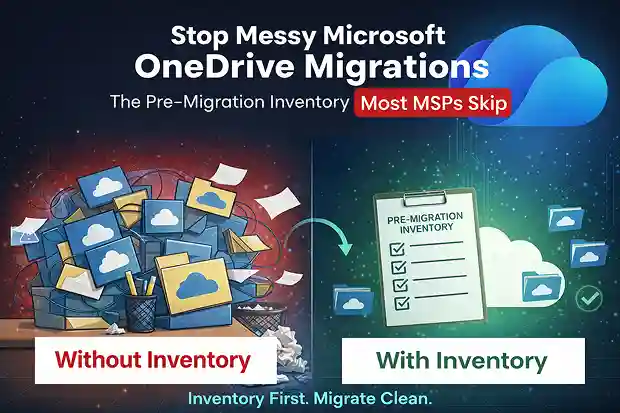
Introduction: If Your Migrations Feel Messy, This Is Probably Why
If you’re honest, at least a few of your Microsoft OneDrive for Business migrations have felt messier than they ever looked on paper.
The tool was fine. The team was solid.
But halfway through, hidden issues started surfacing, timelines slipped, and suddenly you’re explaining “unexpected complexity” to a frustrated client.
That didn’t happen because you’re bad at migrations. It happened because you went in with a weak (or almost non-existent) pre-migration inventory. You thought you knew what was in those OneDrive until the project proved you didn’t.
This article isn’t about tools. It’s about the step most MSPs rush, under-scope, or treat as optional and why that decision quietly creates chaos later.
- The Real Problem: You’re Migrating What You Can’t See
- How to Know Your OneDrive Migration Assessment Wasn’t Good Enough
- Why Microsoft OneDrive Punishes Weak Inventory So Hard
- Superficial Inventory vs. Real Inventory: Which One Are You Doing?
- The Real Cost of Poor or Skipped Inventory (Beyond “It Was Painful”)
- What a Migration-Ready OneDrive for Business Inventory Looks Like
- How to Use Inventory to Make Your Next Migration Boring (In a Good Way)
- Make Pre-Migration Inventory Non-negotiable
The Real Problem: You’re Migrating What You Can’t See
A proper OneDrive for Business migration inventory goes far beyond user counts and storage size.
On the surface, OneDrive looks simple: “user files in the cloud.” So, you scope around user counts and total storage, maybe cross check a few reports, and feel like you’ve got a decent picture.
But what you actually have is a headline, not a diagnosis.
And migrations built on headlines don’t stay smooth for long.
Behind those neat GB numbers, your users have spent years:
- Building weird, deeply nested folder structures
- Sharing random folders and files with external clients and personal emails
- Breaking inheritance and creating one-off permission everywhere
- Letting version history grow into hundreds of versions on key documents
If your “inventory” doesn’t expose those patterns, you’re not really doing discovery, you’re guessing. And when you guess, your SOW (Statement of Work), your timeline, and your resource plan are all built on sand.
You can probably feel that in your gut, because you’ve already seen what happens next.
How to Know Your OneDrive Migration Assessment Wasn’t Good Enough
Think about your last messy OneDrive migration. Did any of this sound familiar?
Most messy migrations don’t explode immediately. They slowly unravel. And it usually starts with small warning signs like these:
- Jobs failing for reasons no one anticipated
You kick off a batch and suddenly see a cluster of failures: huge files, insane path lengths, unsupported characters, or millions of tiny files dragging everything down. None of it appeared in your early “assessment.” Now your engineers are deep in logs instead of moving forward. - Users or departments turning into “hidden monsters” midproject
A few power users suddenly blow your plan to pieces:- Way more data than the estimate
- Thousands of external links no one knew about
- Way more data than the estimate
- Thousands of external links no one knew about
- Crazy nested folders hitting path limits
You thought they were just another line item. Now they’re a special project inside the project.
- Security and compliance are asking awkward questions after cutover
You go live, and then the fun starts:- External partners can’t access critical content
- Some links still expose things they shouldn’t
- Legal or compliance asks why certain version history or “modified by” data looks different
None of these conversations are where you want to be after you’ve supposedly “finished” the migration.
- Ticket storms from annoyed users
Your service desk gets flooded with:- “My vendor can’t open the file anymore.”
- “This link worked last week; now it doesn’t.”
- “I used to see more versions of this document.”
You never scoped this volume of hand holding and “unexpected” cleanup. But you’re doing it anyway, unpaid, because the relationship is on the line.
When you step back, these aren’t random headaches. They’re the natural outcome of going into a complex environment with a shallow inventory.
Why Microsoft OneDrive Punishes Weak Inventory So Hard
SharePoint sites are usually more structured, planned, and centrally governed. Microsoft OneDrive is the opposite. It’s years of user behavior piled up in one place. That’s why it punishes weak discovery so brutally.
Inside each OneDrive, you’re dealing with:
- Personal “archive” and “backup” folders that were never cleaned up
- Old project data that’s still technically live
- Sharing links to ex-employees, vendors, and personal accounts employees, vendors, and personal accounts
- Content that’s business critical but owned by one person’s OneDrive critical but owned by one person’s OneDrive
- Long, unplanned version history that someone suddenly cares about once it moves
If you only look at total storage and a couple of high-level reports, you miss all of this. Then the migration becomes the first time anyone actually sees what’s going on. By then, you’ve already promised smooth cutovers and minimal disruption.
So, the real issue isn’t your migration process. It’s that your process starts too late, after you’ve already committed to things you shouldn’t have.
Superficial Inventory vs. Real Inventory: Which One Are You Doing?
Let’s be blunt: most MSPs think they’re doing “discovery” when they’re really just compiling a sizing spreadsheet.
Here’s the difference:
| Area | What You’re Probably Doing Now | What You Actually Need to Know |
|---|---|---|
| Data volume | Total GB per user or tenant | File counts, size distribution, large file outliers |
| Structure | Maybe a quick look at a few folders | Deepest path lengths, nesting depth, near limit structures |
| Permissions | Who owns the OneDrive | Where inheritance is broken, which items have unique perms |
| Sharing | Rough sense of external sharing from basic reports | Exact external links, domains, anonymous vs specific links |
| Version history | Almost never checked | Where version counts are huge or business critical |
| Risk visibility | “Low/medium/high” as a gut feel | Clear red flags and risk scores per user/department |
If your “inventory” looks more like the left column than the right, you’re not really removing risk—you’re just giving it a nicer format.
The Real Cost of Poor or Skipped Inventory (Beyond “It Was Painful”)
These are the real M365 OneDrive migration risks most MSPs don’t price properly.
When you go into a OneDrive migration with a weak inventory, you’re silently accepting a set of risks you didn’t price or plan for:
- Your timeline stops meaning anything
Because you didn’t see the real complexity, your waves take longer, your change windows stretch, and your “low impact” cutovers turn into late nights and weekend work.
- Your margin quietly disappears
Your engineers are spending hours troubleshooting failed items, manually fixing issues, and hand holding users. The client doesn’t want to hear about change requests. They think you should have known this already. So, you absorb it.
- Your security and compliance exposure spikes
Broken or remapped links, unexpected permission changes, or missing version history can all turn into security or audit conversations. You didn’t intend to touch risk, but your migration did, because you didn’t see it coming.
- Your reputation takes the hit
From the client’s side, they don’t think “the inventory phase was weak.” They think “this MSP overpromised and underdelivered.” You can do everything you can to fix it, but that impression lingers.
You’re not skipping a technical step. You’re accepting rework you haven’t priced, risk you haven’t explained, and disruption you didn’t plan for.
What a Migration-Ready OneDrive for Business Inventory Looks Like
So, what does a real, migration-ready inventory actually look like, the kind that protects you instead of just checking a box?
Think of it as building a risk map, not a report. Before you move anything, you want answers to questions like:
- What are you really moving?
- How many files and folders per user?
- How many are very large (e.g., over 100 MB, 500 MB, 2 GB)?
- Are there clusters of tiny files that will slow your jobs?
- Where are the structural landmines?
- Which OneDrive’s have very deep folder trees?
- Which ones are close to or beyond known path limits?
- Are there naming patterns or characters that will break migration?
- Where will permissions and sharing bite you?
- Where are unique permissions applied?
- Which files/folders are shared externally, and with whom?
- How many anonymous or “anyone with the link” shares exist?
- Which areas are sensitive from a history/audit point of view?
- Where is the version history extremely deep?
- Which libraries or files will cause real trouble if history or metadata isn’t preserved as expected?
- What simply won’t move cleanly?
- Files over tool or platform limits
- Unsupported types or weird edge cases
- Orphaned OneDrive’s for ex-employees where ownership decisions are needed
Once you have this, you’re no longer saying “we think it’s fine.” You’re saying, “Here is exactly where we’ll have issues, what they’ll cost in effort and risk, and what we recommend doing about them.”
How to Use Inventory to Make Your Next Migration Boring (In a Good Way)
Inventory on its own doesn’t fix anything. What changes your life is what you do with it.
Here’s how you turn that insight into a calm, predictable migration:
- Reshape your waves based on reality, not wishful thinking
Move truly low risk OneDrive’s first to prove the process. Reserve high risk users and departments (heavy sharing, deep paths, huge version history) for dedicated windows with extra time and senior engineers.
- Plan cleanup before you move
Use your findings to:- Delete or archive obviously stale content
- Trim ridiculous version histories where the business allows it
- Flatten extreme nesting that will cause failures
- Fix or remove dangerous or outdated sharing links before cutover
- Set honest expectations with your client
Instead of “it should be fine,” show them:- Where the risks are
- What might change (links, history, permissions behaviour)
- What you’re proactively doing to reduce surprises
This frames you as a partner managing risk, not just a contractor pushing data.
A good OneDrive migration will never be exciting. It should feel almost boring, because you’ve already surfaced and dealt with the interesting problems before anyone hits “start.”
Make Pre-Migration Inventory Non-negotiable
Here’s the shift that changes everything for you: treat deep premigration inventory as nonoptional. Not a “nice to have.” Not a “we’ll do a quick check.” A formal, named, paid phase of every OneDrive migration you run.
You can even spell it out in your methodology:
- Phase 1: OneDrive pre-migration Inventory & Risk Assessment
- Phase 2: Cleanup & Remediation
- Phase 3: Migration Execution
- Phase 4: Post Migration Validation
And be clear when you talk to clients:
“If we skip or shortcut the inventory phase, we’re choosing more risk, more disruption, and more unknown costs later. This phase exists so your migration is predictable instead of painful.”
You already know what messy migrations feel like.
The late nights.
The uncomfortable calls.
The quiet margin erosion.
Tools like Apps4.Pro Migration Manager don’t magically fix bad projects, but they do make the right way of working much easier: giving you the deep OneDrive inventory, large files, external sharing, unique permissions, version history, that your team needs to spot problems before they become emergencies.
The real question isn’t whether inventory matters.
It’s whether you’re willing to treat it like it does.

















 Migrate
 Manage
 Migrate Microsoft 365








