


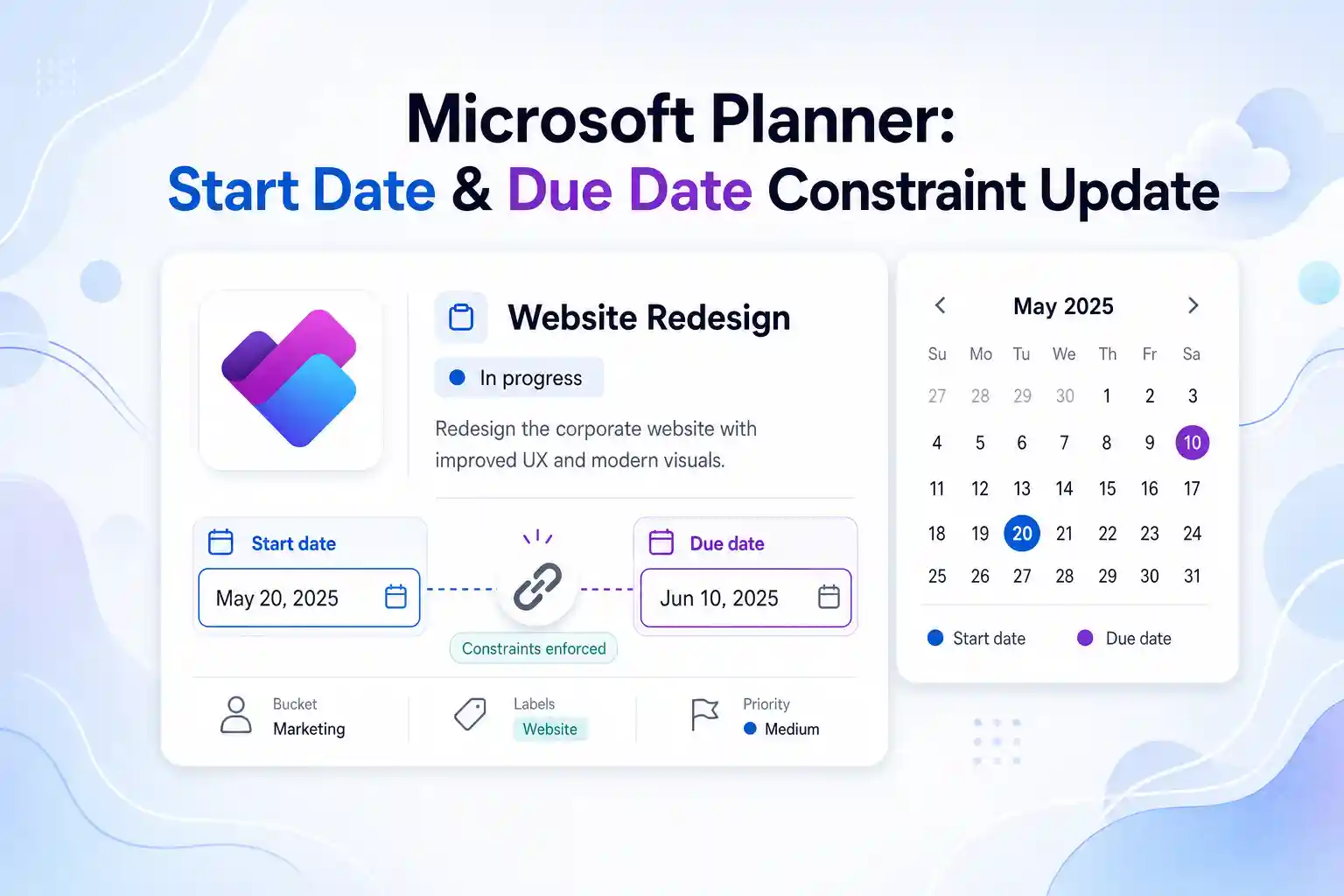
Microsoft Planner has introduced a deceptively powerful change to how task dates work. Start dates and due dates are no longer constrained or silently auto corrected, which puts you in direct control of your scheduling logic.
If you work with Microsoft 365 as an admin, project owner, or power user, this change matters. Your boards, buckets, and automations can now reflect real world scenarios, complex dependencies, and exception cases without Planner changing your dates in the background.
- What has changed in Microsoft Planner?
- Business Impact Of The New Planner Date Behavior
- Affected Microsoft Planner Experiences
- Practical implications for your task management workflows
- Impact on apps, integrations, and automation
- Recommended Actions For Admins And Team Leaders
- Compliance and data handling considerations
What has changed in Microsoft Planner?
Microsoft Planner now allows you to set start dates and due dates independently, without enforcing that the due date must follow the start date.
Previously, Planner would automatically adjust one date when you edited the other to maintain ordering. That behavior is being removed in Planner for Teams and Planner on the web.
Key changes to task date behavior:
- Editing the start date no longer updates the due date automatically.
- Editing the due date no longer updates the start date automatically.
- Tasks can have a start date later than the due date, or a due date earlier than the start date.
- Due dates remain unchanged unless you explicitly edit them.
- Some Planner clients such as Planner Mobile may temporarily continue enforcing date ordering during the transition.
Business Impact Of The New Planner Date Behavior
This update focuses on flexibility and predictability in Microsoft Planner task management.
By removing automatic date enforcement, Planner now aligns better with the way projects actually work, where exceptions, backdated tasks, and complex dependencies are common.
Benefits for your organization:
- Greater control over scheduling logic in Microsoft Planner.
- More predictable behavior when you edit task dates in Planner in Teams and Planner on the web.
- Better alignment between Planner boards and external project management tools or automation flows.
- Less confusion caused by dates that appear to change by themselves when you adjust tasks.
Affected Microsoft Planner Experiences
This change applies to all Microsoft Planner users across Microsoft 365 tenants.
You will see the updated behavior in the below experiences as it rolls out:
- Microsoft Planner in Teams (desktop and web).
- Microsoft Planner web app.
Glimpse of Task Details Edit
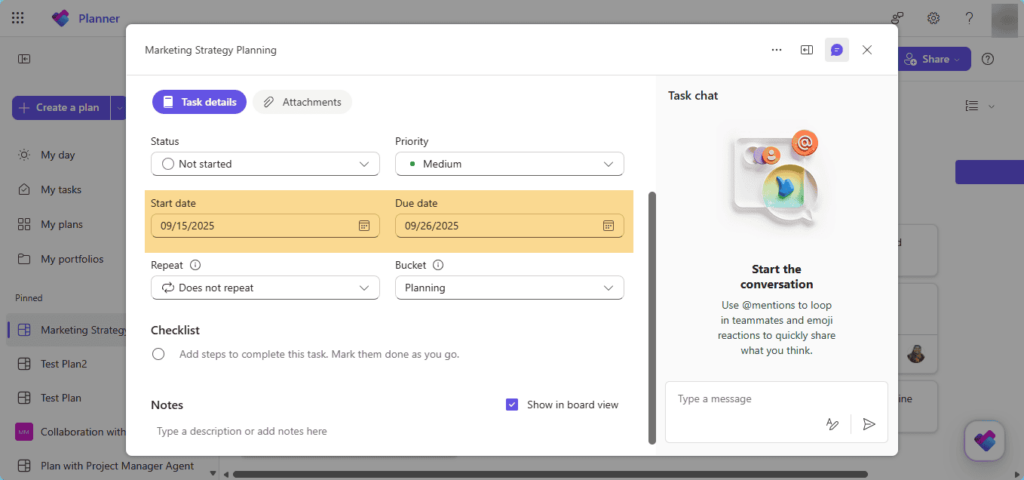
Because the new behavior is enabled by default for all users, it is helpful to proactively communicate the change to your teams. That way, users are prepared for the removal of automatic date corrections.
💬 Planner Date Behavior Live Walkthrough
You can host a short live session in Microsoft Teams or as a webinar to walk through the new Planner date behavior:
- Demonstrate how dates used to auto adjust and how they behave now.
- Show typical project scenarios such as backdated tasks, exception handling, and milestone corrections.
- Invite admins, project owners, and team leads to ask questions and share complex use cases.
Use this session to gather feedback from teams that rely heavily on Planner and to identify documentation or training updates that can support your users.
Practical implications for your task management workflows
With independent start and due dates, you can model more nuanced scenarios in Microsoft Planner:
- Backdating tasks to reflect when work actually happened.
- Handling cases where formal due dates differ from the operational start dates.
- Capturing real world timelines without Planner trying to enforce strict chronological order.
At the same time, you should be aware of the implications:
- If you previously relied on automatic date adjustments, you will notice different behavior when you edit tasks.
- Tasks can now display combinations of dates that look unusual if they were set accidentally or without clear rules.
- Reporting and dashboards that assume a due date always comes after a start date may require review and possible updates.
🎯 Planner Date Rules Cheat Sheet
You can create a concise “Planner Date Rules Cheat Sheet” for your internal users:
- Explain the new independent date behavior in simple, practical language.
- Provide examples of allowed start and due date combinations.
- Document recommended usage patterns for your organization.
Publish this cheat sheet in your SharePoint knowledge base, Teams channels, or internal training portal so that users can quickly understand how Microsoft Planner task dates now behave.
Impact on apps, integrations, and automation
Because Planner no longer adjusts dates automatically, any app, integration, or workflow that relied on the previous behavior may need review.
You should take a close look at:
- Power Automate flows that read or update Planner task dates.
- Custom integration scripts that assume due date is always greater than or equal to start date.
- Line of business apps that consume Planner task data for reporting or SLAs.
Areas that may require validation or updates:
- Business rules that treat “due date earlier than start date” as an error condition.
- Dashboards or reports that calculate duration by subtracting start date from due date.
- SLA logic or escalation workflows built on top of Planner task deadlines.
📌 Refer Official Microsoft Planner documentation – “Learn more about Planner task management”
🔍 Automation Impact Review Workshop
You can organize a focused workshop that brings together IT admins and automation owners:
- Identify all Power Automate flows and integrations that use Planner task dates.
- Test whether any logic behaves differently or breaks due to independent dates.
- Prioritize fixes and enhancements, then capture them in a remediation backlog.
Position this workshop as a proactive step to keep Microsoft 365 automation stable and aligned with the latest Planner improvements.
Recommended Actions For Admins And Team Leaders
Microsoft does not require mandatory admin action for this Planner update, but a few practical steps are recommended.
Checklist for admins and leaders:
- Communicate the new Planner date behavior to teams that use boards for project work.
- Update internal documentation, standard operating procedures, and training materials that reference Planner task dates.
- Review custom apps, integrations, and automation that depend on automatic date adjustments.
- Prepare support teams to explain why Planner task dates behave differently when users edit them.
This update is also an opportunity to reinforce best practices around task creation, backlog grooming, and deadline management in Microsoft Planner and Microsoft Teams.
📣 Planner Policy And Best Practices Update
You can share a short internal announcement along with a quick reference guide:
- Summarize the Planner change using straightforward language.
- Clarify how you expect teams to use start and due dates from now on.
- Link to updated procedures, internal articles, or training videos.
Encourage managers to review existing boards with their teams and agree on how they want to use the new flexibility in task scheduling.
Compliance and data handling considerations
From a compliance and data governance perspective, this update does not change where or how task data is stored. It only changes how task date fields behave when you edit them.
Points for security and compliance teams to remember:
- Task data continues to be processed and stored within the existing Microsoft Planner and Microsoft 365 infrastructure.
- Only the application behavior for start and due date fields changes.
- Existing policies, retention rules, and eDiscovery handling for Planner data remain the same.
If your organization documents application behavior for regulatory or audit purposes, it can be helpful to briefly record this change in internal technical documentation and architecture diagrams.
















