


If you still build surveys and quizzes question by question, this new Copilot experience in Microsoft Forms can change the way you work.
With an integrated Copilot chat pane, Forms becomes an intelligent survey assistant that helps you design, refine, and analyze responses in much less time while keeping you focused on your goals.
Microsoft has rolled out a major upgrade to Copilot in Microsoft Forms that brings a full Microsoft 365 Copilot chat experience directly into your forms and quizzes, making survey creation, editing, and analysis far more intelligent and automated.
- Who Can Use The New Copilot In Forms
- What Is New In Microsoft Forms Copilot
- Phase 1: Discover The New Copilot Experience
- Phase 2: Build Smarter Forms With AI Suggestions
- Phase 3: Bulk Edits And Advanced Settings At Scale
- Phase 4: Analyze Responses With Copilot Chat
- Phase 5: Use Branching And Existing Copilot Tools Together
Who Can Use The New Copilot In Forms
The upgraded Copilot experience in Microsoft Forms is available to users with Microsoft 365 commercial Copilot licenses and uses the same Copilot chat interface you may already know from Word, Excel, and PowerPoint.
Consumer Copilot subscribers continue to use the previous Copilot experience in Forms that relies on a refinement bar and AI credit-based licenses.
Key Licensing Notes
- A Microsoft 365 Copilot commercial license is required for the new chat experience in Microsoft Forms.
- Standard Microsoft 365 or Office 365 licenses do not automatically include Copilot capabilities.
- Existing Copilot policies and admin controls in Microsoft 365 also apply to Copilot in Forms usage.
If you manage licenses or governance, Microsoft recommends reviewing Copilot policies in the Microsoft 365 admin center to ensure that use of Copilot in Forms follows your security and compliance standards.
What Is New In Microsoft Forms Copilot
Microsoft has upgraded Copilot in Forms with a dedicated chat experience that lives inside the Forms editor and connects to the specific form or quiz you are working on.
It combines familiar Microsoft 365 Copilot capabilities with Forms specific intelligence so your form structure, question quality, settings, and data insights improve together.
Key Highlights
- Integrated Copilot chat pane inside Microsoft Forms that works with your current form.
- Context aware suggestions tailored to your survey or quiz.
- AI powered analysis that turns responses into clear insights and actions.
Phase 1: Discover The New Copilot Experience
When you create or open a form or quiz at Microsoft Forms, either at forms.cloud.microsoft or forms.office.com, you see a Copilot icon in the lower right corner of the editor.
This icon is a Dynamic Action Button used across Microsoft 365 apps and in Forms it opens the Copilot chat pane that is automatically grounded to the form you are working on.
What You See First
- Copilot icon in the lower right corner of the Forms canvas.

- A familiar Copilot chat pane that appears beside your form.
- Prompts that relate directly to editing, sending, and analyzing your form.

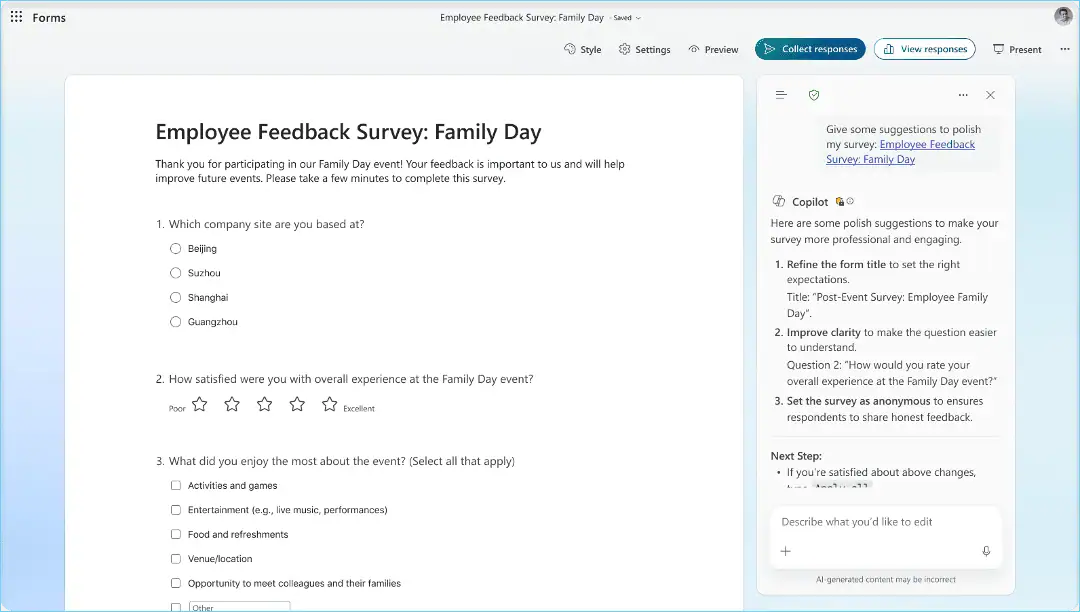
The interface keeps your questions and the Copilot conversation side by side so you can apply changes while seeing how they affect your survey.
💡 Try It Now Copilot Walkthrough
You can run a short Copilot tour in Microsoft Forms to understand the new experience faster.
- Go to https://forms.cloud.microsoft.
- Select a form or create a new one, then choose the Copilot icon.
- Use a prompt such as “Improve the wording of these questions for higher response rates” and compare the updated version with your original.
Phase 2: Build Smarter Forms With AI Suggestions
Once the chat pane is open, Copilot analyzes your form layout, questions, and settings to surface targeted suggestions that align with your purpose.
You can refine wording, reorganize sections, and close gaps where questions or settings do not match the goals of your survey or quiz.
Copilot For Form Design
- Suggests improvements to question clarity, tone, and structure so responses are easier to interpret.
- Highlights missing or redundant questions that may be affecting the quality of your data.
- Advises on settings that support your intent, whether internal feedback or external customer surveys.
Copilot can apply refinements directly in your form so you describe the outcome you want and Copilot updates multiple questions or sections at once.
Phase 3: Bulk Edits And Advanced Settings At Scale
The new Copilot in Forms also helps when you need to update many questions or settings in one go without repetitive manual steps.
You can ask Copilot to perform bulk operations and configuration changes across the form, which saves time and reduces errors.
Bulk Operations Made Easy
- Replace placeholder names or labels across all questions in a single prompt.
- Switch multiple questions from optional to required or the reverse with one prompt.
- Adjust question types or options in batches when your survey design changes.
Settings Copilot Can Help Configure
- Custom thank you messages that match your brand voice and audience.
- Close dates that ensure responses stop at the right time.
- Permissions and response limits that align with your governance and compliance needs.
These capabilities make Microsoft Forms a more effective part of your data collection and decision-making workflow in Microsoft 365.
💡 One Click Cleanup For Legacy Forms
You can use Copilot to bring older surveys up to current standards with minimal effort.
- Pick a legacy form and ask Copilot to standardize required questions and key response options.
- Let Copilot update thank you messages, close dates, and simple branching rules for a more modern experience.
- Position this activity as a quick refresh that improves the consistency of all your surveys.
Phase 4: Analyze Responses With Copilot Chat
Beyond creation and editing, Copilot now helps you interpret results using natural language questions that give quick insight into what your audience is telling you.
You can move from scanning charts to asking Copilot to surface patterns, summarize feedback, and highlight actions that your team can take.
AI Driven Insights
- Summarizes responses into clear themes and trends that are easy to share.
- Answers follow up questions such as “Which option was chosen least and what does that indicate for us”.
- Points out areas where you may need additional questions or a follow-up survey to close gaps.
These insights help you move more quickly from raw feedback to decisions and next steps that matter to your business or project.
Phase 5: Use Branching And Existing Copilot Tools Together
The upgraded Copilot experience adds support for basic branching logic so you can guide respondents to the most relevant follow up questions.
At the same time, existing Copilot features in Forms remain available and continue to support your everyday work.
Branching With Copilot
- Apply simple branching rules by describing your logic in the chat pane.
- Use Copilot to review whether the branching aligns with your survey goals while you manually validate complex paths.
Existing Copilot Features That Stay
- Draft with Copilot to generate new forms by describing your scenario and objectives.
- On canvas Copilot features including Rewrite, Add question, and Answer explanations for quizzes.
- Analyze responses with Copilot to summarize key findings and surface actionable insights.
Together these features create an end-to-end AI toolkit in Microsoft Forms, covering creation, refinement, distribution, and analysis.
💡 Copilot Readiness Check For Forms
You can run a Copilot readiness check to make sure your organization is ready to adopt the new experience in Microsoft Forms.
- Confirm which users have Microsoft 365 Copilot licenses and where gaps may exist.
- Review governance policies and usage guidelines that apply to Copilot in Forms.
- Share links to documentation and training resources so teams have a clear path to start using Copilot in Forms responsibly.
Official Microsoft Resources To Go Deeper
If you want to explore the new Copilot experience in Microsoft Forms in more detail, these official Microsoft links provide trusted information and guidance:
- Microsoft Forms Copilot blog: “Evolving the Copilot experience in Microsoft Forms”
- Microsoft Forms home page and product entry points:
https://forms.cloud.microsoft
https://forms.office.com - Microsoft Forms help and learning library
- Microsoft Forms overview and business value
These resources can support you as you adopt the new Copilot chat experience in Microsoft Forms for more efficient survey design, faster analysis, and better data driven decisions.
















