


Microsoft is rolling out a modernized Planner experience that goes beyond a visual refresh and adds several concrete improvements to how planning works day to day.
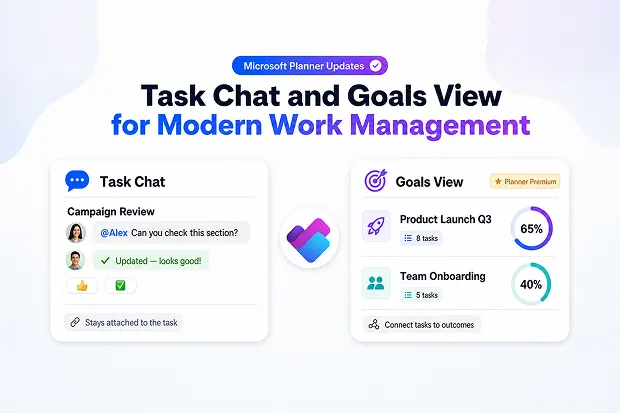
The update brings a cleaner interface, Task chat with @mentions, and a dedicated Goals view to basic plans in both Planner in Teams and Planner for the web.
You can expect three big changes right away:
- A refreshed design that reduces visual clutter, improves layout and spacing, and makes navigation across plans feel more natural. Tasks are easier to scan, and important details stand out more clearly.
- Task chat with @mentions, which lets you hold real time, threaded conversations right inside a task, using rich formatting, emojis, and targeted notifications so decisions stay tied to the work item.
- A new Goals view in basic plans, where you can define clear objectives, connect tasks to those goals, and track progress and outcomes in a more structured way, as long as the right license is in place.
All of this is designed to make planning feel more intelligent and connected, so you can spend more time moving work forward and less time juggling different tools.
License Requirements Before You Get Started
Before exploring the refreshed Microsoft Planner experience further, it is important to check licensing requirements first. Microsoft says users need a supported Microsoft 365 subscription that includes Planner to use basic plans in Planner for Teams and Planner for the web.
But for organizations planning deeper adoption, there are additional licensing considerations to keep in mind.
- Task chat in Basic Plans work with Microsoft 365 subscription that includes Planner.
- Goals view in basic plans require Planner premium or Microsoft 365 Copilot licensing.
- Project Manager agent capabilities in basic plans are tied to Microsoft 365 Copilot as Microsoft continues the rollout.
A simple licensing review at the start can prevent confusion later. It also helps IT teams match the right Planner experience to the right users without overspending.
Refreshed Design For Better Task Visibility
One of the biggest changes is the updated design across Board view and task cards. Microsoft says the new look is meant to reduce visual clutter and make navigation feel more intuitive.
For everyday users, that means less time searching and more time acting on what is already in front of them.
The refreshed design brings a few practical improvements:
- More breathing room in the layout, which makes task boards easier on the eyes.
- Simpler visual structure, so priorities are easier to spot.
- Smoother navigation across plans, buckets, and tasks.
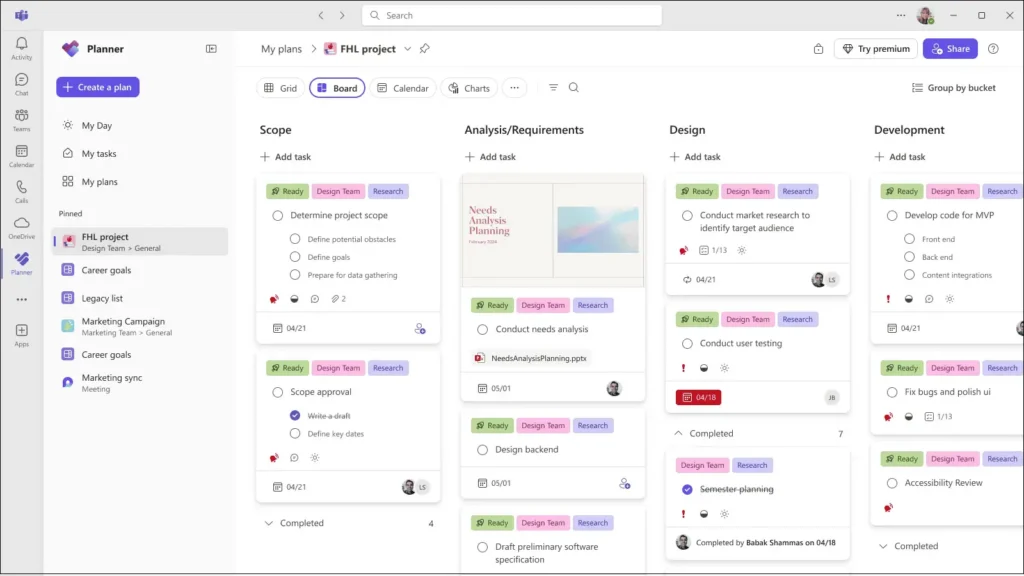
This kind of change may sound small on paper, but it can shape how often people return to a tool. When a workspace feels lighter and clearer, adoption usually gets easier.
Show, Don’t Tell
Instead of sending a long announcement, compare a familiar board before and after the update. People connect faster when they can see how their daily workspace is improving.
A short walkthrough in a team meeting can turn a simple UI refresh into a visible productivity win.
Task Chat With @mentions For Real Time Collaboration
Task chat is one of the most practical additions in the refreshed Planner experience. Microsoft is bringing chat style conversations into tasks in basic plans, so teams can discuss work right where the work is happening.
That means fewer scattered updates across chats, emails, and side conversations.
Here is what makes Task chat useful:
- Conversations stay attached to the task, so context is easier to follow.
- @mentions help bring the right person into the discussion quickly.
- Rich text, emojis, and reactions make updates feel more natural and easier to read.
Microsoft also says notification behavior is improving. Instead of everyone being notified for every comment, users who are directly mentioned can receive alerts in Teams activity and by email, then jump straight into the task card.
This change can reduce noise while still helping urgent conversations move faster.
The One Week Habit Shift
Run a short internal challenge: Ask teams to move task related discussions out of random chats and into Task chat for one week.
By the end of that trial, many people will notice that decisions are easier to trace because the conversation is sitting with the task itself.
Goals View To Align Work And Strategy
The new Goals view gives teams a way to connect day to day tasks with broader outcomes. Microsoft says this view in basic plans helps users create goals, link tasks to those goals, and track progress more clearly.
For teams trying to stay focused, this can be a meaningful improvement.
Goals view can help teams:
- Create clear goals with progress indicators and target dates.
- Connect individual tasks to larger outcomes.
- See how ongoing work contributes to shared priorities.
This feature is especially useful for managers and leads who want visibility without moving into a heavier project management setup. It creates a bridge between task execution and strategic planning.
Remember
Microsoft states that Goals view in basic plans needs either a Planner premium license or a Microsoft 365 Copilot license.
Bridging Gaps between Basic and Premium Plans
Microsoft claims that this refresh also responds to customer feedback around differences between basic and premium Planner experiences.
The bigger idea is to make Planner feel more consistent and less fragmented, especially for organizations using a mix of licenses and work management scenarios.
Here are a few examples of that direction:
- Users with Planner premium licensing can access Goals in basic plans.
- Users with Microsoft 365 Copilot licensing are expected to get access to Project Manager agent capabilities in basic plans as rollout continues.
- Microsoft is moving toward experiences that feel more aligned by license, not just by plan type.
This can make Planner easier to explain internally. It also helps reduce the friction that comes from users seeing very different experiences across similar workspaces.
How To Share Feedback And Learn More
Microsoft is encouraging users to keep sharing feedback as Planner continues to evolve. The company points users to in app feedback options, the Planner Feedback Portal, and official learning resources.
That makes it easier for teams to both learn the product and influence where it goes next.
Helpful ways to stay engaged:
- Use the question mark icon in Planner to send feedback directly from the app.
- Submit and vote on ideas in the Planner Feedback Portal.
- Access Planner on the web through planner.cloud.microsoft.
- Review adoption and help resources from Microsoft to support onboarding and training.
For organizations rolling this out broadly, these links can support both user education and internal communication planning.
What’s Coming Next In Microsoft Planner
Microsoft has made it clear that this update is only part of a broader Planner roadmap. The refreshed design creates a foundation for more connected and intelligent work management experiences across Microsoft 365.
Several upcoming capabilities are already being discussed in Microsoft communications.
What to watch for next:
- Project Manager agent in basic plans: Microsoft has indicated that users with Microsoft 365 Copilot licenses will gain access to AI powered support for planning and task execution in basic plans.
- Custom templates: Microsoft has highlighted custom templates as a future enhancement to help teams standardize repeatable planning workflows.
- Planner in Outlook: Deeper integration with Outlook is also part of the direction Microsoft has shared for Planner.
Useful links for tracking future changes:
- Microsoft 365 Planner Roadmap for official feature tracking and rollout visibility.
- Planner Blog on Microsoft Community Hub for product announcements and updates.
For those who follow Microsoft Planner updates closely, this is a useful time to revisit how Planner fits into daily collaboration, team coordination, and lightweight project management.
Images Courtesy: TechCommunity: Planner:-Introducing a refreshed design,task chat and more

















 Migrate
 Manage
 Migrate Microsoft 365








