


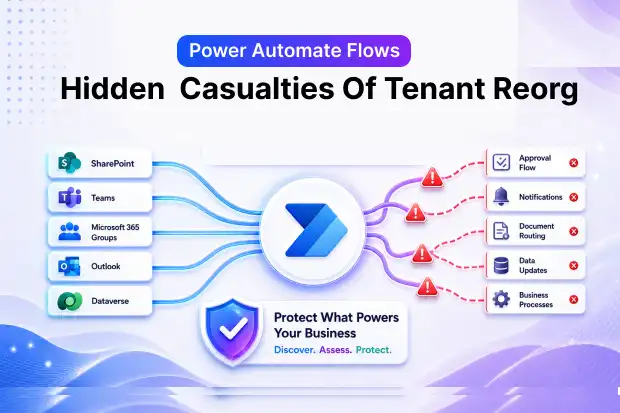
A same-tenant reorganization can look harmless on the surface. The tenant stays the same, user accounts stay the same, and from the outside it may feel like nothing major has changed. But Power Automate does not think that way. It depends on references, IDs, connections, and linked resources that can quietly change underneath it.
That is why some of the most painful Power Automate failures show up after the reorganization is already done. A workflow that handled approvals, notifications, document routing, or list updates suddenly stops doing its job. Nobody notices immediately. The problem only becomes visible when a business process fails, and someone asks why it was never completed.
If Power Automate is part of your Microsoft 365 environment, impact analysis needs to happen before the reorganization, not after. This article explains where the impacts show up and how to reduce them before they affect the business.
- Why same-tenant reorg quietly breaks flows
- The hidden coupling between flows, sites, and Groups
- Typical failure modes you won’t see in the admin center
- Flow-first impact analysis before you touch the tenant
- Design patterns to keep flows resilient through reorg
- Embedding flow impact analysis into your reorg lifecycle
Why same-tenant reorg quietly breaks flows
It is easy to assume a flow will survive an internal restructuring because the organization is still inside the same Microsoft 365 tenant. That assumption causes trouble. Power Automate flows often rely on SharePoint sites, lists, Teams channels, Microsoft 365 Groups, Mailboxes, and connections that are tied to specific underlying references. When those references change, flows can break without much warning.
The problem is not always dramatic. Sometimes a flow still appears in the admin center, still turns on, and still triggers. But one action inside the flow now points to an old list, a retired site, or a broken connection. That creates the worst kind of automation problem: silent failure.
Some common triggers include:
- SharePoint site rename or restructuring that changes how a flow reaches its source or destination.
- Group cleanup or recreation that changes the identity behind a Team, mailbox, or connected site.
- Power Platform connection changes during governance cleanup or environment review.
- List moves, site split or merge activity, or changes to the structure behind a business process.
This is exactly why shadow Power Platform discovery matters in the early planning stage. Many important flows are created outside central IT visibility, yet they still support real business operations.
Refer article “The Inventory Problem Before Any M365 Reorganization: Why You Don’t Actually Know What You Have”, which explains why fragmented tenant-wide inventory makes every restructuring project underestimate scope and hidden dependencies.
The hidden coupling between flows, sites, and Groups
Power Automate rarely breaks in isolation. In most cases, it breaks because something else changed first.
For example,
- A SharePoint site moved
- A Group was retired
- A Team was restructured
- A list was rebuilt
- A connection owner changed roles.
The flow is just the place where that hidden dependency finally shows up.
This is where Microsoft 365 coupling matters. A single Microsoft 365 Group can sit behind a Team, a SharePoint site, an Outlook conversation space, a Planner plan, and more. When one of those surfaces is changed during a reorganization, the rest of the chain needs attention too. Treating each workload separately is how downstream automation gets missed.
Power Platform adds another layer of fragility because many assets are created by citizen developers. These flows may be useful, business critical, and actively used, but they are not always documented in a way that helps during a reorganization.
A finance approval flow tied to a SharePoint list is a classic example. Move the list, and the flow can quietly fail until someone notices the approvals are no longer happening.
A few dependency patterns show up again and again:
- A SharePoint list is moved or rebuilt, but the flow still points to the old object.
- A Team is reorganized and the flow can no longer post to the expected location.
- A Group is deleted and recreated, but the flow was tied to the original identity.
- The original connection owner leaves or loses access, and no one realizes the flow depends on that connection.
Article on “The Microsoft 365 Group-Site-Team Coupling: What Every M365 Admin Needs to Understand Before Restructuring Anything” unpacks how Group, Team, and SharePoint identities drive hidden reorganization risk.
Typical failure modes you won’t see in the admin center
The most frustrating Power Automate issues are not always obvious in the admin center. The flow may still exist. It may even look healthy at first glance. But the business result it is supposed to produce no longer happens.
That creates a gap between technical visibility and business impact. The admin sees a flow; however, the Business sees a missed approval, a missing notification, an untouched document set, or an overdue task.
Some of the most common failure patterns are easy to recognize once you know where to look:
- Approval flows stop writing back to the source list after the list is moved or recreated.
- Scheduled flows run on time, but process zero items because the source path or object reference changed.
- Notification flows fail after a Team, channel, or Group is retired during reorganization.
- Flows owned by departed or inactive users lose connection health over time and fail long after the reorg is finished.
- Business users report that “the process stopped working,” but nobody initially connects it to a site or Group change from weeks earlier.
This is why same-tenant reorganization is dangerous for automation. The break is often delayed, partial, or hidden behind normal-looking admin signals.
The M365 Rollback Reality Check: A Reference Table Every Admin Should Pin to the Wall article provides a practical reversibility table for key Microsoft 365 operations.
Flow-first impact analysis before you touch the tenant
If the reorganization plan starts with SharePoint sites, Teams structure, or Group cleanup, Power Automate usually gets reviewed too late. A better approach is to assess flows as part of the early discovery phase, right alongside the rest of the tenant inventory.
The goal is simple: understand which automations depend on the parts of Microsoft 365 that are about to change. That gives you a chance to protect business processes before they break.
A practical impact analysis usually starts with a few core actions:
- Export and review tenant-wide Flow inventory across relevant environments.
- Identify which flows connect to in-scope SharePoint sites, lists, Teams, Groups, or mailboxes.
- Flag flows with business-critical outcomes such as approvals, compliance routing, onboarding, finance operations, or executive reporting.
- Check whether each flow has a clear owner, valid connection, and recent activity history.
- Separate low risk flows from flows that will require refactoring, validation, or redesign.
This matters because not every change carries the same risk. A site rename may be manageable in one scenario, while a site recreation or split can create much larger downstream impact. A Group retirement may be harmless in one part of the tenant and disruptive in another. Without mapping the flows first, those risks stay hidden.
A useful way to classify flows before reorganization is:
- Safe with minor validation – where the underlying resource remains stable enough to test and continue.
- Needs update – where references, owners, or connections must be changed before cutover.
- High risk – where business critical logic depends on containers that are being merged, split, recreated, or retired.
SharePoint Site Split and Merge: The Reorganization Pattern Microsoft Doesn’t Natively Support article explains why site split and merge scenarios are so risky for links, permissions, and automation.
Design patterns to keep flows resilient through reorg
Not every flow can be made reorg-proof, but many can be made less fragile. The difference often comes down to design discipline. When automation is created quickly for convenience, it usually carries hard-coded assumptions about sites, lists, owners, or connections. During a reorganization, those assumptions become failure points.
More resilient patterns reduce that risk and make change easier to manage. They also help both M365 admins and Power Platform admins work from a cleaner governance model over time.
Some practical design choices make a real difference:
- Prefer managed, well-documented flows for business-critical processes instead of leaving them as informal maker assets.
- Review connection ownership so flows are not dependent on a single user who may change roles or leave.
- Reduce hard-coded dependencies where possible and document important references before restructuring starts.
- Treat heavily used SharePoint lists and libraries as application dependencies, not just content containers.
- Include flow validation in every reorganization wave, not only at the final cutover stage.
Just as important, business critical non-solution assets should not stay invisible forever. Mature tenants often have a mix of better-governed assets and loosely managed ones. Reorganization exposes that gap very quickly.
The maker resilience challenge
Challenge your users to review their top ten business-critical flows and ask a simple question for each one: “If this site, list, Group, or connection changes next quarter, will this flow survive?” That kind of checklist-style challenge works well in community programs, internal CoE initiatives, and customer advisory sessions because it feels practical, not theoretical.
Embedding flow impact analysis into your reorg lifecycle
Power Automate should not be treated as a post-project cleanup task. In a same-tenant reorganization, it belongs inside the full lifecycle from discovery to validation.
The master document frames same-tenant reorganization as a four-phase process: inventory and scope definition, architecture and mapping, execution, and validation with governance handoff. Power Automate has a role in every one of those phases.
Here is what that looks like in practice:
- Inventory and scope definition: Identify flows, apps, connections, owners, and environments tied to the sites, Groups, Teams, and lists in scope.
- Architecture and mapping: Decide what is being renamed, moved, recreated, retired, or merged, and map which automations are affected by each change.
- Execution: Update references where possible, coordinate with flow owners, and include automation testing in every reorganization wave.
- Validation and governance handoff: Confirm that the business outcome still works, not just that the flow exists. Then document ownership, dependencies, and ongoing review expectations.
This is the real shift in mindset. The question is not “Did the flow survive the reorg?” The better question is “Did the business process continue working without hidden disruption?”
That is why impact analysis belongs before change, not after failure. In most organizations, the cost of finding broken automation late is much higher than the effort required to inventory and review it early.
Ready to go deeper on this?
Explore the entire series for battle-tested playbooks, real-world patterns, and tooling ideas to turn messy internal restructures into predictable, low-risk projects.

















 Migrate
 Manage
 Migrate Microsoft 365








