


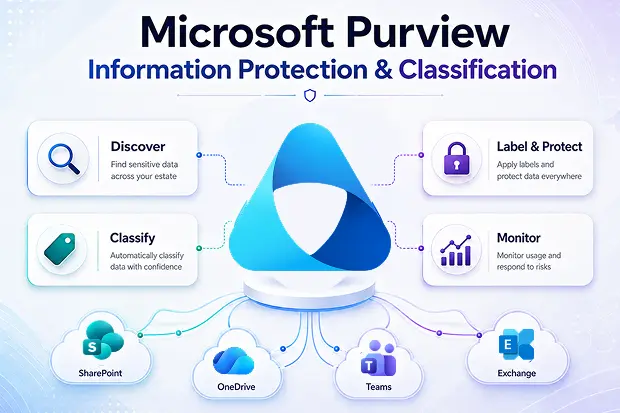
Every Microsoft 365 tenant is sitting on a quiet problem. Years of SharePoint sites, OneDrive folders, Teams channels, and Exchange mailboxes have accumulated contracts, customer records, intellectual property, payroll data, and the occasional spreadsheet someone really should not have saved. Most of it is unlabeled. None of it is going anywhere on its own.
Then comes a tenant-to-tenant migration, an M&A consolidation, or a new compliance audit, and suddenly that quiet problem becomes a loud one. You cannot protect what you cannot see, and you cannot move what you have not classified.
This is where Microsoft Purview Information Protection earns its keep. In this guide, we will walk through what Microsoft Purview data classification actually does, the building blocks you need to know, how the data classification content viewer fits in, and a realistic playbook for using it before and after a migration. By the end, you will have a concrete plan for turning a messy tenant into a labeled, governed, and audit-ready environment.
- What is Microsoft Purview Information Protection?
- What is Data Discovery and Classification?
- The Four Building Blocks of Microsoft Purview Data Classification
- Content Explorer and the Data Classification Content Viewer
- Microsoft Data Classification in a Migration Scenario
- Picking the Right Data Discovery and Classification Tool
- A Short Checklist Before You Go
What is Microsoft Purview Information Protection?
Microsoft Purview Information Protection is the part of the Microsoft Purview suite that helps you discover, classify, label, and protect sensitive data across Microsoft 365 and beyond. It is the modern successor to Azure Information Protection (AIP), and it brings sensitivity labels, data loss prevention (DLP), and classification tooling under a single portal.
Three things make it especially powerful for Microsoft 365 admins:
- It works natively across SharePoint, OneDrive, Exchange, Teams, and endpoints, so you do not have to bolt on a third-party crawler to see your data.
- It applies protection that travels with the file. A sensitivity label can enforce encryption, watermarks, and access controls that persist even after a document leaves your tenant.
- It feeds visibility tools – Content Explorer, Activity Explorer, and the Information Protection reports – that turn classification from a one-time project into an operational practice.
If you have ever asked “where is all our sensitive data and who is touching it?”, Purview is built to answer that question.
What is Data Discovery and Classification?
Before going deeper, it is worth defining the terms, because they get used interchangeably and they are not the same thing.
Data discovery is the process of finding content across your environment – scanning SharePoint sites, OneDrive accounts, mailboxes, Teams chats, and endpoints to identify what exists and where it lives.
Data classification is the process of categorizing that content based on its sensitivity or business value – for example, marking a file as Public, Internal, Confidential, or Highly Confidential.
Put together, a data discovery and classification tool answers two questions in sequence: “What sensitive information do we have?” and “How should it be handled?” Microsoft Purview is designed to do both, and the classification engine is what links them.
Microsoft Purview can start surfacing sensitive and labeled content without requiring you to build every policy first. This gives admins an early view of where sensitive information already exists across Microsoft 365, so classification decisions can be based on real data instead of assumptions.
The Four Building Blocks of Microsoft Purview Data Classification
Purview data classification is not one feature. It is a set of complementary engines that each solve a different part of the problem. You will use most of them together.
1. Sensitive Information Types (SITs)
Sensitive information types are pattern-based classifiers. Microsoft ships hundreds of built-in SITs that detect sensitive data using regular expressions, keyword lists, checksums, and proximity rules. These cover common categories such as government-issued identifiers, financial account numbers, and other regulated data formats across many regions.
Use SITs when the data has a recognizable pattern. They are fast, deterministic, and easy to extend with custom SITs for your own internal identifiers (employee IDs, customer numbers, project codes).
2. Trainable Classifiers
Some content does not match a pattern – think source code, resumes, legal contracts, or harassment language. Trainable classifiers are machine-learning models that learn from examples. You feed them positive samples, validate their accuracy, and Purview applies them across your environment.
Microsoft provides pre-trained classifiers for common categories (source code, harassment, threat, profanity, customer complaints, IT business, finance, HR, legal affairs) and lets you build custom ones. They are the right tool when the question is “is this document about X?” rather than “does this document contain X pattern?”
3. Exact Data Match (EDM)
Pattern matching catches “looks like a credit card number.” EDM catches “is one of the 4.2 million customer records in our actual CRM export.” You upload a hashed reference table, and Purview matches content against the exact values. This is the right approach for high-precision detection of your own data – patient IDs, account numbers, employee SSNs – where false positives are expensive.
4. Sensitivity Labels
Sensitivity labels are the action layer. While SITs, trainable classifiers, and EDM identify sensitive content, sensitivity labels do something about it: enforce encryption, add headers and footers, restrict external sharing, mark Teams and SharePoint sites as private, and apply DLP policies. Labels can be applied manually by end users, recommended by Office apps, or applied automatically when classifiers detect a match.
The relationship is simple: classifiers find the data; labels protect it.
A Note on Licensing
Before you plan around these building blocks, check what your tenant is licensed for, because the line between free and premium runs right through this feature set. Manually applying sensitivity labels and a basic data classification view are available broadly, but the capabilities this guide leans on most – automatic labeling, trainable classifiers, Exact Data Match, and full use of Content and Activity Explorer – generally require Microsoft 365 E5, the E5 Compliance add-on, or equivalent standalone licensing.
A 90-day Purview trial is the cheapest way to validate the workflow before committing. If you scope a migration playbook assuming auto-labeling and EDM are available and later discover the tenant is on E3, the plan will not survive contact with reality, so confirm entitlements first.
Content Explorer and the Data Classification Content Viewer
Once classification is running, you need a way to look at what it found. That is the job of Content Explorer (and its companion, Activity Explorer).
What Content Explorer Shows You
Content Explorer gives you a current snapshot of every item in your tenant that has been classified – items with a sensitivity label, items with a retention label, and items detected as a sensitive information type. You can drill from the summary tile on the Information Protection overview into the actual file, see where it lives, and (with the right permissions) open it directly to verify the classification.
Practical things it supports:
- Viewing email attachments without downloading the email
- Marking SIT or trainable classifier results as Match or Not a Match to improve accuracy
- Filtering by label, location, sensitive information type, or workload
Permissions and the “Data Classification Content Viewer” Role
This is where the data classification content viewer terminology becomes important. Access to Content Explorer is intentionally restricted because viewers can read the contents of sensitive files. Microsoft splits the permission into two role groups:
- Content Explorer List Viewer – assigned the data classification list viewer role. Lets you see each item and its location, but not its contents.
- Content Explorer Content Viewer – assigned the data classification content viewer role. Lets you open and read the file itself, and is also required to see item names in list view when those names themselves contain sensitive data.
The two are independent and not cumulative. A compliance investigator who needs to read flagged documents needs the Content Viewer role; an analyst building a coverage report only needs the List Viewer role.
Note that broad roles like Compliance Administrator or a Microsoft Purview role such as Information Protection Admin grant access to the data classification area, but the ability to actually list items and open their contents is gated specifically by the List Viewer and Content Viewer role groups.
As of May 2026, Microsoft tightened this further: membership in the List Viewer role group is now required to navigate Content Explorer at all, and broad assignments like Organization Management alone no longer suffice.
Treat the data classification content viewer role like any other privileged role: assign it sparingly, log its use, and review it quarterly.
Activity Explorer
Content Explorer answers “what do we have?” Activity Explorer answers “what is happening to it?” It pulls from the Microsoft 365 unified audit log to show roughly 50 dimensions of activity on labeled content, covering up to the last 30 days of history – label applied, label changed, label removed, file downloaded to an unmanaged device, file shared externally, and so on. Together, the two explorers give you the inventory and the timeline.
Microsoft Data Classification in a Migration Scenario
Most Purview guides treat classification as a steady-state compliance project. For Microsoft 365 admins running a tenant-to-tenant migration, M&A consolidation, or divestiture, that framing misses the point. Classification before, during, and after the migration is what determines whether the new tenant starts clean or inherits the same mess.
Here is a practical, phased approach.
Phase 1: Pre-Migration Discovery
Before you move a single mailbox, run Purview data classification on the source tenant for at least two to four weeks.
- Turn on the default sensitive information types relevant to your industry (PII, PHI, PCI, intellectual property).
- Publish a minimal sensitivity label taxonomy – Public, Internal, Confidential, Restricted is a fine starting point.
- Use Content Explorer to find out where sensitive data actually lives. You will almost certainly discover that 80% of it sits in a small number of SharePoint sites, OneDrive accounts, and shared mailboxes.
This phase answers a question every migration project should ask up front: what is the blast radius if we get this wrong?
Phase 2: Cleanup and Scoping
Armed with discovery data, decide what to migrate, what to archive, and what to delete. Stale executive OneDrive’s full of acquisition due-diligence files do not need to follow you to the new tenant. Apply retention labels to mark content for disposition, and use Content Explorer to verify that classifications stuck.
This is also the right time to set auto-labeling policies that will apply at scale. Be clear about which kind you need: client-side auto-labeling runs inside Office apps as users open and edit files, recommending or applying labels in the moment, while service-side auto-labeling runs in the background against data already at rest in SharePoint, OneDrive, and Exchange.
For a migration, the service-side policies are what let you classify the existing backlog without touching every file by hand. If you label only in the destination, you lose the chain of custody. If you label at the source, the labels travel with the content.
Phase 3: Migration With Labels Re-Applied at the Target
Sensitivity labels and the encryption they carry are tied to the source tenant’s identities and Azure RMS keys, so they do not transfer automatically in most tenant-to-tenant migrations. Microsoft’s own SharePoint Migration API does not apply sensitivity labels to migrated files, and Microsoft’s native cross-tenant SharePoint migration can block sites that contain labels with user-assigned permissions.
The practical pattern is to move the content with a migration tool such as Apps4.Pro Migration Manager – which preserves file metadata, permissions, version history, and managed metadata – and then re-apply sensitivity labels in the target tenant through Purview auto-labeling policies or scripted labeling against the MIP SDK.
Confirm four things before cutover:
- The same sensitivity-label taxonomy is published in the target tenant. Labels are recreated in the target (GUIDs do not carry across tenants) and mapped to their source equivalents in your runbook.
- Files protected with labels that allow end users to assign permissions are identified up front and handled as a separate workstream – there is no clean automated path for those.
- Auto-labeling policies in the target are scoped and scheduled so they re-label migrated content after cutover, not during.
- A cutover validation step checks not just file counts but expected access behavior on previously protected content.
Phase 4: Post-Migration Validation
Once content is in the target, Content Explorer becomes your audit tool. Compare classification coverage in source versus target. Investigate any drop – it usually points to label-mapping gaps or permissions issues. Activity Explorer will show whether labels are being honored in the new environment (external sharing blocked, DLP triggering, encryption holding).
Plan a 30-day stabilization window where classification reports are reviewed weekly. Migrations always surface edge cases – service accounts that bypass labels, third-party connectors that strip metadata, legacy file shares that were never in scope.
Picking the Right Data Discovery and Classification Tool
Microsoft Purview is the right foundation if you live in the Microsoft 365 ecosystem, but it is not the only tool you will use. A pragmatic stack typically includes:
- Purview for native classification, sensitivity labels, DLP, and policy enforcement.
- A migration tool such as Apps4.Pro Migration Manager for moving labeled content between tenants while preserving metadata.
- A reporting layer – Power BI on top of the Purview audit data, or Microsoft Security Copilot in Activity Explorer for natural-language hunting.
Evaluate any third-party classifier on four criteria: does it preserve Microsoft Information Protection metadata end-to-end, does it support the workloads you actually use (Teams private channels and Planner are common gaps), does it scale to your tenant size without throttling, and does it produce evidence your auditors will accept.
A Short Checklist Before You Go
If you are about to start a Purview data classification project – migration or not – here is the shortest path to a useful first 30 days:
- Publish a four-tier sensitivity label set with a clear naming convention.
- Enable the built-in SITs that match your regulatory footprint, plus one or two custom SITs for your own identifiers.
- Turn on auto-labeling in simulation mode and review matches in Content Explorer before going live.
- Assign the data classification content viewer role to no more than two named individuals.
- Schedule a weekly review of Activity Explorer for the first month.
Classification is not a project that finishes. It is a practice that compounds. The tenants that handle migrations, audits, and AI rollouts smoothly are the ones that started labeling early, kept their taxonomy small, and treated Content Explorer as a daily-driver tool rather than a dashboard nobody opens.
Start small, label what matters, and let Microsoft Purview do the heavy lifting.

















 Migrate
 Manage
 Migrate Microsoft 365








