


Introduction
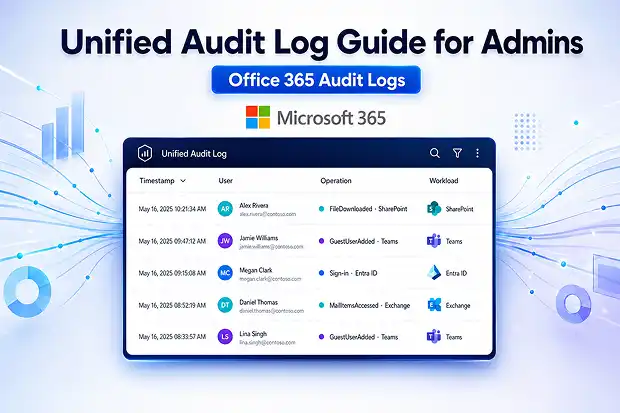
Every click, share, sign-in, and mailbox rule change in your Microsoft 365 tenant leaves a fingerprint. The Unified Audit Log (UAL) is where those fingerprints are collected, a single, query able feed of user and admin activity across Exchange Online, SharePoint, OneDrive, Teams, Microsoft Entra ID, Power BI, Power Automate, Defender, and Purview.
When a phishing case lands on your desk on a Tuesday morning, this is the log you reach for. When an auditor asks for evidence during SOC 2 or ISO review, this is what you hand over. And when a tenant migration cuts over at midnight, this is the evidence trail that stays behind in the source tenant and disappears with it, unless you preserved it before decommissioning.
This guide walks through everything an admin needs to do in production: turn auditing on, search it the right way, export at scale, set retention to match compliance obligations, and critically what to capture before and after a tenant migration so you don’t lose evidence at cutover.
What the Unified Audit Log Captures Across Microsoft 365
The UAL is not a single log. It’s an aggregation layer that ingests audit records from across the Microsoft 365 stack and normalizes them into one searchable store. A single record contains the actor’s identity, precise timestamp, IP address, the service involved, and the exact operation performed.
These are the workloads and event categories you’ll actually query:
Workload | Representative events | Why it matters |
|---|---|---|
|
Exchange Online |
Mailbox access, transport rules, delegations, MailItemsAccessed |
Detect email attacks and suspicious activity. |
|
SharePoint Online |
File access, share, delete, permission changes |
Track data exposure and insider risk |
|
OneDrive for Business |
Download, sync, external share |
Identify data theft or mass downloads. |
|
Microsoft Teams |
TeamCreated, MemberAdded, GuestUserAdded, recording events |
Audit collaboration and external access |
|
Microsoft Entra ID |
Sign-ins, role changes, MFA events, conditional access |
Detect privilege escalation and account takeover |
|
Power Automate / Power Apps |
Flow runs, app activity |
Find unauthorized automations and apps. |
|
Microsoft Purview |
DLP, retention, sensitivity-label, eDiscovery events |
Prove compliance enforcement |
Microsoft’s Management Activity API exposes more than 200 distinct RecordType values (and over 1,600 operations).
These RecordType values represent different Microsoft 365 activity sources.
Examples include:
- ExchangeAdmin (1) – Exchange admin activities
- SharePointFileOperation (6) – SharePoint file activities
- MicrosoftTeams (25) – Microsoft Teams activities
- ExchangeItemAggregated (50) – Used for MailItemsAccessed
When you query the Unified Audit Log (UAL), you are actually filtering activity data across these RecordType values.
How to set up and work with the Office 365 Unified Audit Log
A three-step workflow every admin should run through, once at setup, then again whenever ownership of the tenant changes hands.
Step 1: Verify Audit Logging Before You Need It
Audit logging is on by default for new Microsoft 365 enterprise tenants but never assume it. Older tenants, tenants restored from backup, and tenants modified by a previous admin can have it disabled, and you can’t search what was never recorded. Note that Microsoft 365 Business (SMB) plans, Business Basic, Standard, and Premium, and trial tenants are not auto-enabled either, so they must be turned on manually.
Verify via the Microsoft Purview portal
- Sign in to the Microsoft Purview portal as a Global Admin or with the Audit Logs role.
- Under Solutions, select Audit.
- If you see a yellow banner that says “Start recording user and admin activity,” click it and confirm. If the banner is absent, auditing is already running
Verify via PowerShell
Connect-ExchangeOnline

Get-AdminAuditLogConfig | FL UnifiedAuditLogIngestionEnabled
A value of True confirms ingestion is running. If you get False:
Set-AdminAuditLogConfig -UnifiedAuditLogIngestionEnabled $true Changes can take up to 60 minutes to propagate before records start landing in the log.
Quick admin tip:
Auditing being “on” only tells you the tenant ingests records. Some high-value events – like MailItemsAccessed – require Advanced Audit / Audit (Premium) licensing and may need to be enabled per mailbox. Confirm with Get-Mailbox <user> | FL Audit*.
Step 2: Search Audit Logs Without Hitting Microsoft 365 Limits
You can search two ways: the Purview UI and New-AdminAuditLogSearch in Exchange Online PowerShell.
Searching in the Purview portal
In Audit > Search, set:
- Date and time range – defaults to the last seven days. Use UTC if you’re correlating with SIEM (Security Information and Event Management) data.
- Activities – choose specific operations (e.g., FileDownloaded, GuestUserAdded) or pick a whole group like “File and page activities.”
- Users – leave blank for all users, or paste UPNs.
- File, folder, or site – narrow by URL or file name.
After running the search, results stream in batches of 150 events, up to a hard ceiling of 50,000 newest events per search. If you hit that ceiling, your search is too broad, narrow the date range or filter by activity.
Searching in PowerShell
The Purview UI is convenient but rate-limited. For real investigations and exports, drive the same engine from PowerShell:
Connect-ExchangeOnline

# Last 7 days, all SharePoint file events for a specific user
Search-AdminAuditLog `
-StartDate (Get-Date).AddDays(-7) `
-EndDate (Get-Date) `
-UserIds "[email protected]" `
-RecordType SharePointFileOperation `
-ResultSize 5000
Key things to remember:
- The default -ResultSize is 100; the maximum per call is 5,000.
- For exports beyond 5,000 records, use paged sessions with -SessionId and -SessionCommand ReturnLargeSet, or break the query into smaller date windows.
- Filter by -Operations, -IPAddresses, -ObjectIds, -SiteIds, or -FreeText to keep result sets clean.
- Each record’s rich detail lives in the AuditData JSON column. Use Excel’s Power Query JSON transform to expand it into structured columns for analysis.
A third, more strategic option is the Microsoft Purview Audit Search Graph API. now recommends it as the programmatic successor to Search-UnifiedAuditLog because it supports asynchronous, more reliable searches and can return beyond the cmdlet’s 50,000-record limit. Existing PowerShell scripts can still run, but new automation should be built around the Graph API.
One caveat: some legacy Exchange mailbox-audit cmdlets are deprecated, and mailbox audit data generated after March 1, 2025 cannot be retrieved through them.
Step 3: Export Audit Logs Before Retention or Migration Removes Them
This is the step most teams skip until it’s too late.
What Microsoft retains, and for how long
Microsoft changed retention defaults in October 2023. The current model.
License | Default UAL retention |
|---|---|
|
Microsoft 365 / Office 365 E3 (Audit Standard) |
180 days (was 90 days before Oct 17, 2023) |
|
Microsoft 365 / Office 365 E5 (Audit Premium) |
1 year for Exchange, SharePoint, OneDrive, Entra ID workloads; 180 days for others |
|
E5 + 10-Year Audit Log Retention add-on |
Up to 10 years with a custom retention policy |
|
Guest users / non-E5 users |
180 days regardless of who else has E5 |
You can create custom retention policies in Purview with durations of 7 days, 30 days, 6 months, 9 months, 1 year, 3 years, 5 years, 7 years, or 10 years, but options below 30 days and above 1 year are gated behind specific licensing.
If your regulator demands a seven-year evidence trail and you’re on E3, you have two options: upgrade your licensing, or export logs to an external archive (Azure Storage, SIEM, database, backup storage, etc.)on a recurring schedule.
Exporting from the Purview UI
After a search, click Export to download up to 50,000 records as a CSV. The export includes the AuditData JSON column, which contains the rich event detail.
Two important caveats most blogs miss:
- The CSV is capped at 50,000 rows per export.
- Each AuditData cell can be truncated when exported via the UI.
For complete records, export via PowerShell:
$results = Search-UnifiedAuditLog `
-StartDate (Get-Date).AddDays(-30) `
-EndDate (Get-Date) `
-RecordType SharePointFileOperation `
-ResultSize 5000 `
-SessionId "MigrationBaseline" `
-SessionCommand ReturnLargeSet

$results | Export-Csv -Path "C:\Audit\SP_Baseline.csv" -NoTypeInformation
For continuous ingestion into a SIEM (Microsoft Sentinel, Splunk, Datadog), use the Office 365 Management Activity API and stream new records as they’re produced.
Why Audit Logs Matter During Tenant-to-Tenant Migration
Many guides about audit logs only explain how to search and export them. But if you are performing a Microsoft 365 tenant-to-tenant migration, such as during a company merger, business separation, or rebranding, audit logs are also important for verifying the migration and meeting compliance requirements.
The key thing to remember is that Unified Audit Logs belong to a specific tenant and do not move to the new tenant during migration. After you switch to the target tenant, the audit history remains in the source tenant. If you later decommission the source tenant without saving those logs, that audit evidence will be lost.
For this reason, it is important to preserve the audit logs before decommissioning the source tenant. Here is the practical process we recommend.
Before migration – capture a forensic baseline
- Confirm UAL ingestion is on in both source and target tenants. Don’t trust defaults. Run Get-AdminAuditLogConfig on both.
- Export a baseline window (60–180 days minimum) for high-value workloads: SharePoint sharing events, Exchange MailItemsAccessed, Entra ID sign-ins and role changes, Teams GuestUserAdded, and all Purview policy events.
- Archive the export externally – into Sentinel, an immutable S3/Azure Blob store, or your existing SIEM. Treat it like backup data, not a CSV on a laptop.
- Document active eDiscovery cases, litigation holds, and DLP policies that reference user activity. If a hold relies on audit data, that data needs to land in a place your legal team can still query post-cutover.
During Cutover – Plan for the Gap Window
Even if you use a SIEM, there may be a few hours or even days when activity is happening in both the source and target tenants at the same time. Users may have already moved to the new tenant, but their older audit history could still remain in the source tenant.
Record this period as a known gap window in your migration documentation or risk register. Clearly note when it starts, when it ends, and how you will verify or reconcile the data.
On the day of the cutover, export the latest audit log changes (the final delta export) from the source tenant. Label the export with the cutover date and time and store it together with your earlier baseline export so you have a complete audit record.
After migration – validate and reconcile
- Re-verify UAL ingestion in the target tenant immediately after the cutover. Not next week. Today.
- Reconcile event counts between source pre-cutover and target post-cutover for the same activity categories. A large unexplained gap means a workload isn’t fully wired up in the target, find it before your auditor does.
- Recreate retention, DLP, sensitivity labels, and information barriers in the target, validated against the baselines you documented. Reconstructing from memory is how regressions ship to production.
- Update SOC playbooks to correlate alerts across both tenants until the source is fully decommissioned.
The difference between a migration that passes audit and one that triggers a year of remediation is whether this section was done before cutover or skipped.
Common Admin Mistakes (and How to Avoid Them)
- Searching too much data at once: If your search is too broad, it may stop after 50,000 results. Instead, search using shorter date ranges or filter by user or activity, and run multiple smaller searches.
- Forgetting -ResultSize 5000 in PowerShell: PowerShell returns only 100 results by default. If you do not change this setting, you may miss important events in your investigation.
- Using CSV exports as final evidence: CSV exports can cut off long AuditData values. For complete and reliable audit records, use PowerShell or the Management API.
- Thinking Microsoft 365 E3 keeps logs for one year: It does not. E3 keeps audit logs for only 180 days.
- Ignoring MailItemsAccessed events: These events are very useful when investigating business email compromise (BEC) attacks because they show when emails were accessed. They are available only with Audit Premium.
- Searching using local time: Different systems may use different time zones. To compare events correctly across services or SIEMs, convert everything to UTC.
What to Log (No Matter Your Industry)
If you can log only a few events, prioritize these:
- Sign-in anomalies: Risky sign-ins, MFA failures, and impossible travel in Entra ID.
- Role and permission changes: Global Admin assignments, Teams owner changes, and SharePoint permission changes.
- External sharing and guest access: Guest users added and anonymous sharing links in SharePoint and OneDrive.
- Bulk file activity: Large numbers of file downloads or deletions in SharePoint and OneDrive.
- Mailbox forwarding rules: A common sign of Business Email Compromise (BEC).
- Purview policy changes: Changes to DLP, retention, and sensitivity label policies.
- eDiscovery activity: Case creation, exports, and legal holds.
These events provide the most valuable information for both security investigations and compliance audits.
If you’re scoping a Microsoft 365 tenant migration and want to make sure compliance, eDiscovery, and audit evidence stay defensible across the boundary, our companion piece on compliance risks in M365 tenant migrations during M&A lays out the wider risk framework that wraps around the audit-log playbook above.

















 Migrate
 Manage
 Migrate Microsoft 365








