


Running a webinar or town hall involves much more than presenting content. You need to manage speaker timing, respond to unexpected technical issues, coordinate transitions, and keep attendee communication clear throughout the event.
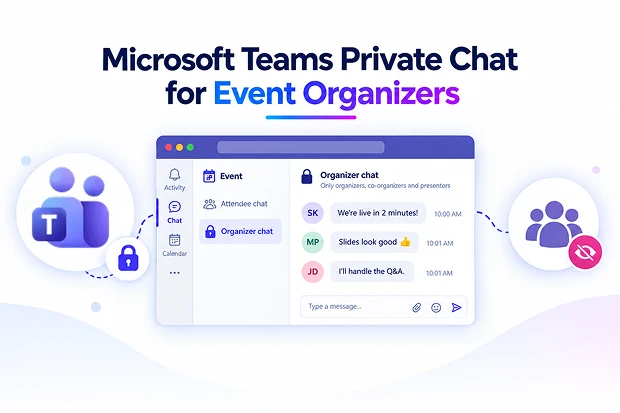
Microsoft Teams now makes that coordination easier with a dedicated private chat for organizers, co-organizers, and presenters. This private event space helps you keep important production conversations away from attendee chat, so your team can stay aligned without disrupting the audience experience.
Whether you are hosting an internal company update, a customer webinar, a training session, or a large virtual town hall, this feature gives your event team a more structured way to communicate before, during, and after the session.
A Private Backstage Chat for Event Teams
During a live event, your team may need to share instructions quickly and discreetly. A presenter may need a reminder about their upcoming segment, a moderator may need help with audience questions, or a technical lead may need to alert the team about an audio issue.
The new Microsoft Teams private event chat creates a dedicated space for organizers, co-organizers, and presenters to manage these conversations. It stays separate from attendee chat, helping you keep internal coordination private while maintaining a smooth experience for participants.
You can use the private chat at every stage of your virtual event:
- Before the event to confirm speaker readiness and review the agenda
- During the event to coordinate transitions, timing, and technical support
- After the event to discuss follow-up actions and feedback
- Separately from attendee chat to keep internal communication private
This gives your event team a virtual backstage area where essential coordination can happen without appearing in the public event conversation.
💡 Create a Speaker-Ready Checklist
A successful virtual event often depends on preparation. Use the private organizer chat as a quick readiness check before attendees begin joining.
Ask each presenter to confirm the essentials:
- Microphone, camera, and internet connection are working properly
- Presentation slides are finalized and ready to share
- Speaking time and agenda position are understood
- A backup contact is available if technical support is needed
A simple readiness confirmation in the private chat can help your team identify and resolve small issues before they affect the live event.
Teams Town Halls Get Consistent Backroom Chat
Microsoft Teams is also improving the private chat experience in town halls by making backroom chat behavior more consistent.
Previously, access to backroom chat in town halls could vary depending on event settings, streaming chat availability, and licensing conditions. The updated experience is designed to reduce that variation and give organizers, co-organizers, and presenters a more predictable private communication channel.
In Microsoft Teams town halls, this private area is known as the Event Group chat. It is available only to the people responsible for running and presenting the event.
This can help you coordinate important activities without sending internal messages to attendees. For example, your event team can use the Event Group chat to:
- Notify presenters about schedule changes
- Coordinate responses to important audience questions
- Share private reminders before a presenter goes live
- Manage live technical concerns such as audio, video, or screen sharing
- Confirm transitions between speakers, presentations, videos, and demonstrations
By separating production communication from attendee interaction, your team can deliver a more professional and organized virtual event.
💡 Run a Live Presenter Cue System
When several presenters are involved, timing can quickly become difficult to manage. The private event chat gives you a simple way to guide speakers without interrupting the live session.
Use short and clear internal messages to keep presenters informed, such as:
- “You are live in two minutes”
- “Please wrap up in one minute”
- “The next question is ready”
- “Move to Slide 12”
- “Please wait for technical support confirmation”
A consistent cue system helps presenters stay confident, improves transitions, and keeps the agenda moving without visible delays for attendees.
What Teams Admins Should Review
If you manage Microsoft Teams meetings, webinars, or town halls, it is important to review how this private chat experience fits into your organization’s event process.
Your internal policies, support documentation, and event-hosting guidance should reflect how organizers and presenters will use private communication during live sessions.
Key areas to review include:
- Teams meeting policies for organizers, co-organizers, and presenters
- Town hall meeting options and private event chat settings
- Internal event-hosting guidelines for webinars and town halls
- Helpdesk guidance for presenter, organizer, and attendee chat questions
- Existing scheduled town halls that may need their meeting settings reviewed
If your organization chooses to disable the relevant backroom chat policy, some previously configured town halls may no longer provide private chat access after meeting settings are updated.
Reviewing the configuration before your next major virtual event can help you avoid unexpected changes and ensure your event team has the communication tools it needs.
💡 Assign a Virtual Event Control Room
For large webinars, leadership broadcasts, and customer-facing town halls, assigning clear event roles can make a major difference.
Use the private organizer chat as your virtual event control room, with each person responsible for a specific part of the experience.
Consider assigning roles such as:
- Event producer: Manages the overall agenda, speaker order, and event timing
- Technical lead: Watches audio, video, screen sharing, and device-related issues
- Moderator: Monitors attendee chat, manages Q&A, and supports audience engagement
- Presenter coordinator: Sends private speaker cues and confirms each presenter is ready
When responsibilities are clear, your team can react faster to changes and keep the event experience smooth for attendees.
Deliver More Polished Microsoft Teams Events
Virtual events require a balance between audience engagement and behind-the-scenes coordination. Attendees should be able to focus on the content, while organizers and presenters need a reliable way to manage everything happening in the background.
The Microsoft Teams private event chat helps create that separation. Instead of depending on separate messaging apps, side calls, or external communication channels, your event team can coordinate directly within the Teams environment where the webinar, meeting, or town hall is taking place.
This can help you deliver better virtual events by enabling your team to:
- Support presenters without distracting attendees
- Manage timing changes and agenda updates in real time
- Coordinate technical support more effectively
- Keep internal event communication private
- Improve moderation and audience engagement
- Maintain a connected space for post-event follow-up
For organizations that regularly host internal broadcasts, training programs, customer webinars, leadership updates, and large virtual town halls, this update provides a more organized way to manage event communication.
With a dedicated private chat for organizers, co-organizers, and presenters, you can spend less time switching between tools and more time delivering a focused, professional, and engaging Microsoft Teams event experience.
Learn more from Microsoft
Explore these Microsoft resources to understand the latest Teams event chat updates and how to manage them effectively.

















 Migrate
 Manage
 Migrate Microsoft 365








