


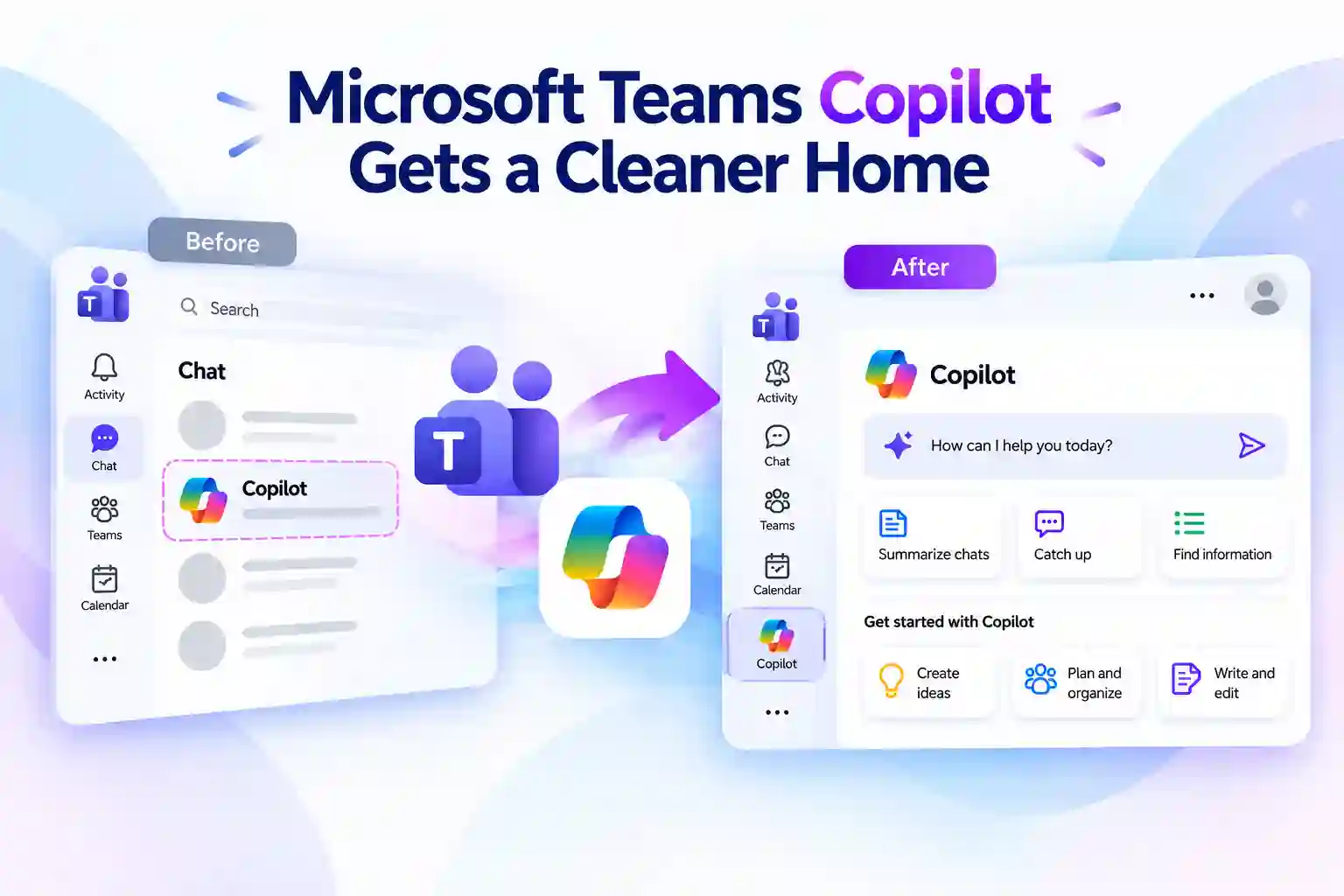
Finding Copilot in Microsoft Teams is about to become simpler. Instead of looking for Copilot in more than one place, you will access it from one dedicated location in the Teams app bar.
The Copilot shortcut currently available in the Teams chat list is being removed. This change gives you a cleaner Teams interface while keeping the full Copilot experience available through the dedicated Copilot app.
Your existing Copilot conversations, prompts, notifications, and chat history remain available. The update changes where you open Copilot, not the work you have already done with it.
A Single Place to Access Copilot in Teams
You may currently access Copilot in Teams from two locations:
- The Copilot entry in the Chat list
- The dedicated Copilot app in the Teams app bar
Going forward, the Copilot app in the Teams app bar will become your main place to open Copilot. It provides access to the broader set of Copilot capabilities available in Teams.
This helps make the Microsoft 365 Copilot experience easier to find and more consistent across your daily Teams workflow.
Note
Copilot is not being removed from Microsoft Teams. Only the shortcut in the Chat list is being retired.
What Users Will Notice in Teams
If you usually open Copilot from the Teams Chat list, you will notice that shortcut is no longer there. Instead, select the Copilot app from the Teams app bar to continue using Copilot.
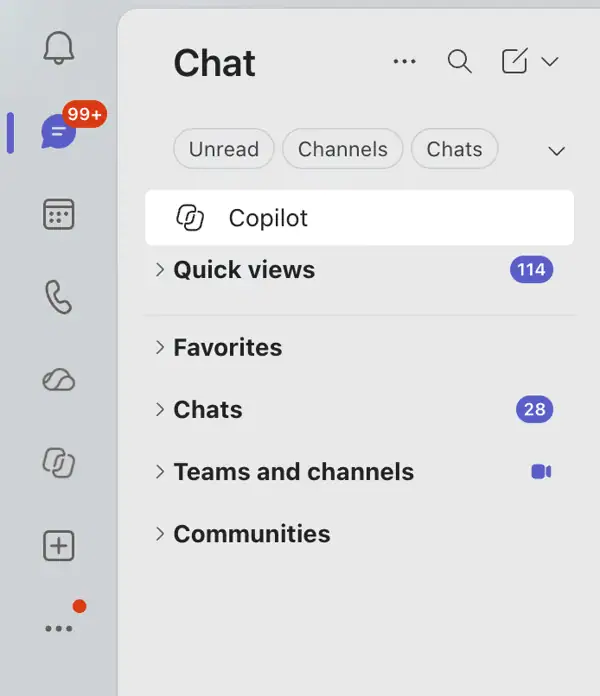
Before the change, Copilot could appear directly in the Teams Chat list.
Before: Copilot accessible from the Chat list and App bar
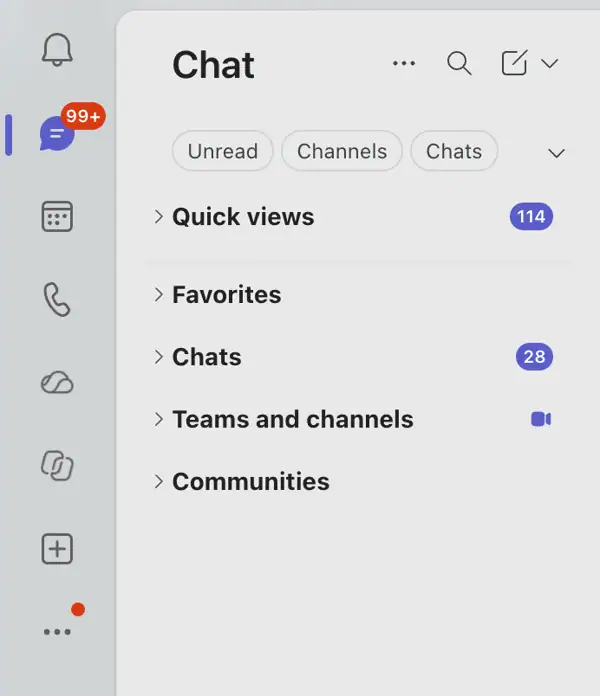
After the change, the Copilot app in the Teams app bar becomes the primary location for accessing Copilot.
After: Copilot accessed through the Teams app bar only
💡 Quick Adoption Tip: Keep Copilot Within Easy Reach
A small navigation update can make a noticeable difference to your daily workflow. Taking a few seconds to find and pin the Copilot app can save time later.
- Open Microsoft Teams on desktop or web.
- Locate the Copilot app in the Teams app bar or app overflow menu.
- Pin it to the app bar if you use Copilot frequently.
- Use the same location whenever you want to start or continue a Copilot task.
Keeping Copilot visible makes it easier to use it for everyday work, from catching up on conversations to preparing content and organizing next steps.
Your Copilot Chats and Data Stay Intact
The change affects only how you open Copilot in Microsoft Teams. It does not remove your Copilot work or reset your experience.
You can continue using your existing Copilot information, including:
- Previous Copilot conversations
- Prompts and chat history
- Notifications
- Supported Copilot links
- Ongoing sessions and continuity across supported experiences
- The dedicated Copilot app in Teams
Your conversations and Copilot data are not removed as part of this update.
The change affects Microsoft Teams on desktop and web. Teams on mobile experience remains unchanged.
Why This Teams Copilot Update Matters
This update gives you one clear path to Copilot in Microsoft Teams. Rather than deciding whether to use the Chat list or app bar, you can go directly to the dedicated Copilot app.
The streamlined approach can help you:
- Find Copilot more quickly in Teams.
- Access the fuller Copilot app experience.
- Keep your Chat list focused on people and conversations.
- Build a more consistent daily Copilot routine.
- Continue your existing Copilot work without disruption.
For many users, this creates a cleaner Teams interface and removes the uncertainty of having multiple places to access Copilot.
📣 Help Desk Heads-Up: Know the New Location
If you support colleagues, clients, or internal teams, it helps to share one simple message early: Copilot is still available in Teams, but it is now accessed from the Teams app bar.
You can use this quick response when someone cannot find the old shortcut:
“Copilot is still available in Teams. Select the Copilot app from the Teams app bar to access your existing chats and continue using Copilot.”
A clear message can prevent unnecessary confusion and help users quickly return to their work.
Admin Checklist for a Smooth Transition
If you manage Microsoft Teams, a few quick checks can make the navigation update easier for users.
- Inform users that Copilot is accessed from the Teams app bar.
- Update internal training guides, onboarding materials, screenshots, and support articles that show Copilot in the Chat list.
- Brief service desk teams so they can guide users to the correct Copilot location.
- Review Teams app setup policies and consider pinning the Copilot app for relevant users.
- Watch for user feedback and clarify where users can find the dedicated Copilot app.
- Reassure users that their existing Copilot chats and history remain available.
No tenant configuration is required for this change. The main priority is keeping guidance, training content, and support messages up to date.
Keep Your Teams Training Content Current
A navigation change may seem small, but outdated screenshots and instructions can quickly cause uncertainty. If your internal guides still show Copilot in the Teams Chat list, update them to show the Copilot app in the app bar instead.
Review content such as:
- Employee onboarding guides
- Microsoft Teams training decks
- Knowledge-base articles
- Internal how-to videos
- Copilot adoption campaigns
- Help desk scripts
- Quick-reference documents
Using current screenshots and straightforward guidance helps users build the right habit from the beginning.
The key takeaway is simple: Copilot remains available in Microsoft Teams. You will access it through the dedicated Copilot app in the Teams app bar, while your existing conversations and history stay intact.
🔎 Pulse Check: Confirm Users Can Find Copilot
A quick check can show whether users understand the new navigation path.
Use a short poll in Teams, email, or an internal community:
“Where do you access Copilot in Microsoft Teams?”
- From the Copilot app in the Teams app bar
- From the Chat list
- I am not sure
The responses can help you identify where users may need a short reminder, a refreshed screenshot guide, or clearer onboarding material.
Explore Microsoft Copilot in Teams
Learn more about Microsoft Copilot in Teams and related Copilot management options:

















 Migrate
 Manage
 Migrate Microsoft 365








