


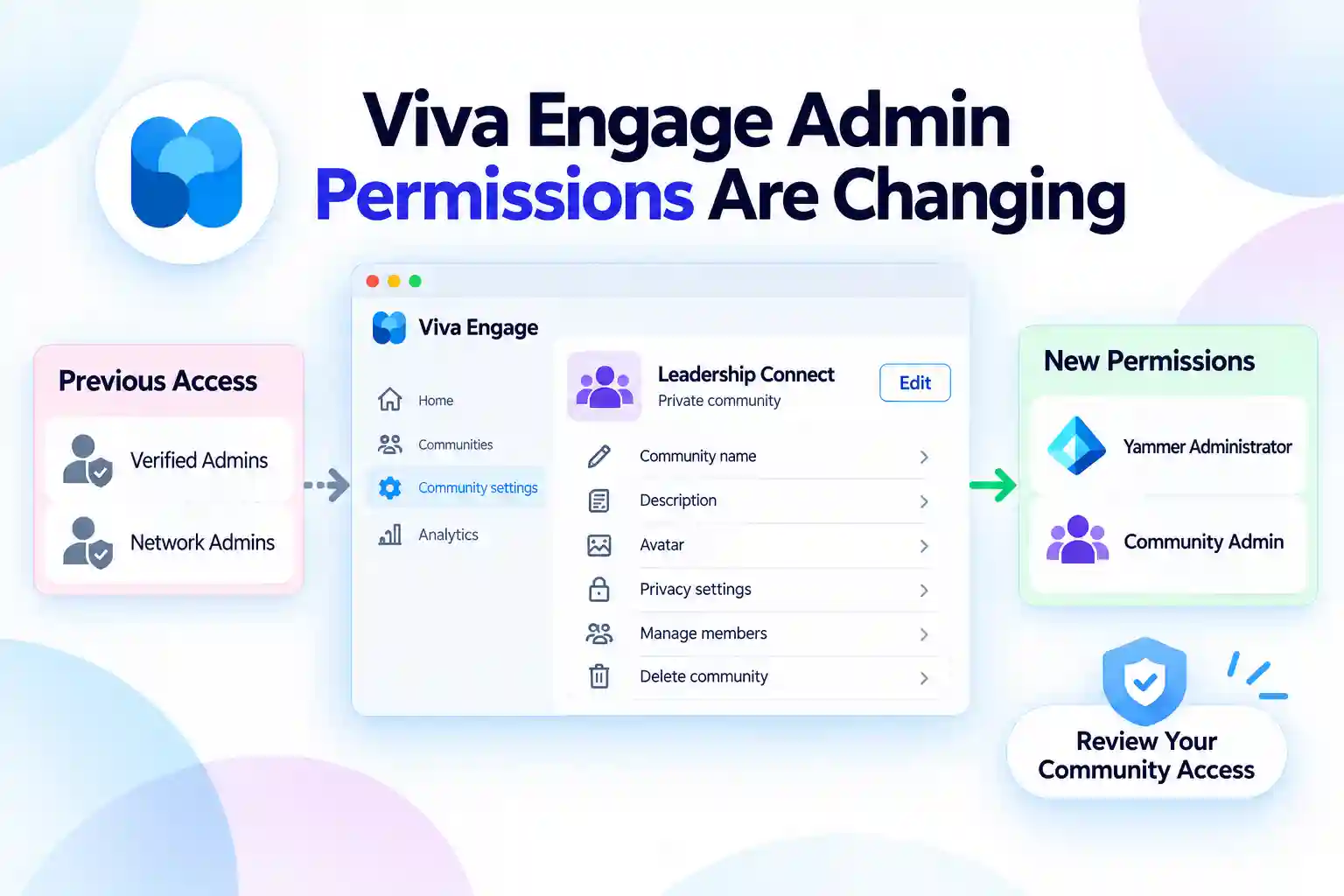
Managing a Viva Engage community should be simple, secure, and clearly owned. Microsoft is updating how community and membership administration works by aligning key actions with Microsoft Entra permissions.
If you manage Viva Engage communities, this update is important because it affects who can edit community details, control membership, update privacy settings, and delete communities. Reviewing your current admin access now can help prevent avoidable access issues later.
- What’s Changing in Viva Engage Community Administration
- Which Viva Engage Actions Need New Permissions?
- Why Microsoft Entra Alignment Matters
- A Practical Permission Model for Viva Engage
- Action Checklist for Microsoft 365 Admins
- Avoid Over-Assigning Tenant-Level Access
- Key Takeaway for Viva Engage Administrators
What’s Changing in Viva Engage Community Administration
Viva Engage is strengthening its permission model for community and membership administration. Certain tasks that were previously available to Verified Admins and Network Admins will now require more specific administrative access.
To manage these actions, you will need one of the following permissions:
- The Yammer Administrator role in Microsoft Entra
- Community Admin access for the specific Viva Engage community you manage
This change creates a clearer connection between Viva Engage administration and Microsoft Entra identity governance. It also helps ensure that users have the right level of access based on their actual responsibilities.
Which Viva Engage Actions Need New Permissions?
If you currently have only the Verified Admin or Network Admin role in Viva Engage, you may no longer be able to perform certain community management tasks unless you also have the Yammer Administrator role in Microsoft Entra or Community Admin access for the relevant community.
The affected actions include:
- Changing the community name
- Updating the community description
- Changing the community avatar
- Updating community privacy settings
- Switching a community between public and private
- Managing community members
- Deleting a community
Community Administrator capabilities remain unchanged. If you are already assigned as a Community Administrator for a specific community, you can continue managing that community within the permissions granted to that role.
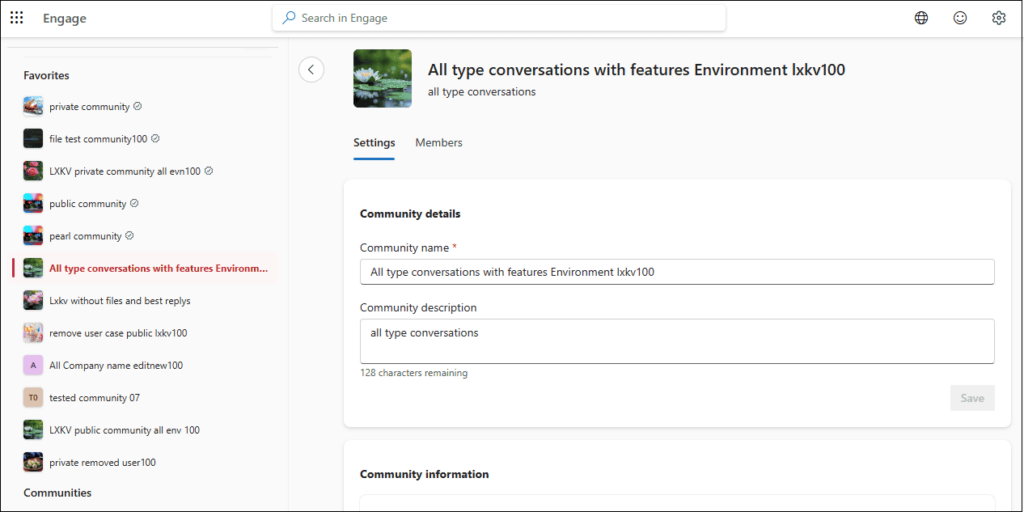
Glimpse of Viva Engage Community >> Settings
🔐 Run a “Who Owns This Community?” Check
Use this update as a reason to confirm ownership across your Viva Engage communities.
A simple ownership review can help ensure that every active community has the right people responsible for its content, membership, and settings.
Ask each community owner to confirm:
- Who is responsible for managing the community?
- Who can approve membership requests or member removals?
- Who should update the community’s privacy setting?
- Which communities no longer need an active administrator?
- Does the community still have a clear business purpose?
This small exercise can improve both access governance and community quality. It also helps avoid situations where a community is active, but no one is clearly accountable for maintaining it.
Why Microsoft Entra Alignment Matters
Viva Engage communities often play an important role in employee communication, leadership engagement, company culture, departmental collaboration, and knowledge sharing.
Because these communities can contain important conversations and business information, changes to their privacy, membership, or ownership should be controlled carefully.
By connecting community administration more closely with Microsoft Entra permissions, Microsoft is making it easier to apply consistent access controls across Microsoft 365.
This approach helps you:
- Improve visibility into who has administrative access
- Reduce unnecessary access to sensitive community settings
- Apply least-privilege access principles
- Keep community management aligned with identity governance practices
- Simplify access reviews for IT and internal communications teams
- Reduce the risk of unauthorized community changes
For example, an internal communications manager may need to manage a company-wide leadership community but may not need access to every Viva Engage community in the tenant. In that case, Community Admin access for the specific leadership community may be more appropriate than a broad tenant-level administrator role.
A Practical Permission Model for Viva Engage
The right Viva Engage permission depends on the scope of community administration you need.
Administrative need | Recommended access | Best fit |
|---|---|---|
Manage Viva Engage across the organization | Yammer Administrator role in Microsoft Entra | Central IT teams, Viva Engage service owners, designated tenant administrators |
Manage one department, project, campaign, or interest-based community | Community Admin access | HR teams, internal communications professionals, departmental managers, community owners |
Manage multiple communities without tenant-wide administration | Community Admin access for each relevant community | Regional communication leads, business unit owners, project administrators |
Clean-up older admins without ongoing responsibilities | No administrative role required(remove legacy Viva Engage admin permissions when user no longer manages communities, membership, or tenant-level Viva Engage settings) | Former community owners, role-changed employees, inactive community administrators |
- The Yammer Administrator role is intended for users who require broad control across Viva Engage. This role should be assigned thoughtfully because it provides service-level administrative capabilities.
- Community Admin access is better suited for people who need to manage a specific community without gaining wider administrative access across the organization.
Action Checklist for Microsoft 365 Admins
A focused access review can help you prepare your Viva Engage environment and avoid disruption to community management.
Use this checklist to organize your review:
- Review all existing Verified Admin and Network Admin assignments in Viva Engage.
- Identify who actively manages community settings, privacy, or membership.
- Confirm which users require organization-wide Viva Engage administrative access.
- Assign the Yammer Administrator role in Microsoft Entra only where broad administration is necessary.
- Assign Community Admin access to users who manage specific Viva Engage communities.
- Remove access that no longer reflects current job responsibilities.
- Review inactive, duplicate, or ownerless Viva Engage communities.
- Inform help desk teams about the new permission requirements.
- Share clear guidance with HR, internal communications, and departmental community owners.
- Document who can request, approve, and assign Viva Engage administrative access.
A well-defined access process makes future administration easier. It also gives employees and support teams a clear path to follow when they need help managing a Viva Engage community.
📣 Publish a Community Admin Starter Guide
A short Community Admin Starter Guide can help community owners manage their spaces with more confidence.
Keep the guide practical and easy to scan. It should focus on the tasks that community owners perform most often.
Include topics such as:
- How to update a community name and description
- How to choose a meaningful community avatar
- When to use a public or private community
- How to manage membership responsibly
- How to keep conversations relevant and inclusive
- When to contact the central IT or Viva Engage support team
- How to request broader administrative access when needed
Publish the guide in a central Viva Engage community, SharePoint communication site, or internal knowledge hub.
This gives new Community Admins a reliable resource while helping reduce routine support requests.
Avoid Over-Assigning Tenant-Level Access
Giving broad administrator access to every community owner may seem convenient, but it can make access governance more difficult over time.
A better approach is to match permissions to the exact level of responsibility.
For most users, Community Admin access will provide the right balance between control and security. It allows them to manage their own community without giving them broad access across Viva Engage.
Consider these good practices when assigning permissions:
- Use Community Admin access whenever community-specific administration is enough.
- Reserve the Yammer Administrator role for users who need tenant-wide Viva Engage administration.
- Review administrator assignments regularly.
- Remove permissions when employees change roles or leave the organization.
- Maintain an up-to-date list of community owners and backup owners.
- Use approval processes for elevated administrative access.
- Require strong sign-in protection for administrator accounts.
- Keep separate administrative accounts where appropriate for high-privilege tasks.
A least-privilege model reduces unnecessary access while helping the right people stay productive.
💡 Launch a “Healthy Communities” Campaign
This update is also a useful opportunity to improve the quality and ownership of your Viva Engage communities.
Invite community owners to complete a quick health check for the spaces they manage.
Ask them to review:
- Is the community name clear and easy to search?
- Does the description explain the community’s purpose?
- Is the community avatar current and recognizable?
- Is the public or private setting still appropriate?
- Are the right people managing membership?
- Does the community have an active owner and backup owner?
- Is the community still useful for employees?
You can make the initiative more engaging by recognizing teams that complete the review. A simple badge, leadership mention, or highlighted post can encourage participation without making the process feel like an administrative burden.
Key Takeaway for Viva Engage Administrators
Viva Engage community and membership administration is becoming more closely connected with Microsoft Entra role-based access controls.
If you currently rely on Verified Admin or Network Admin access, review your permissions and make sure you have the right role for the activities you need to perform.
Use the Yammer Administrator role when broad tenant-wide Viva Engage administration is required. Use Community Admin access when you only need to manage individual communities.
Taking these steps helps you protect community settings, improve accountability, reduce unnecessary access, and create a more structured Viva Engage governance model across your Microsoft 365 environment.
Learn More from Microsoft
Use these Microsoft resources to verify role requirements and plan Viva Engage permission updates with confidence.
















