


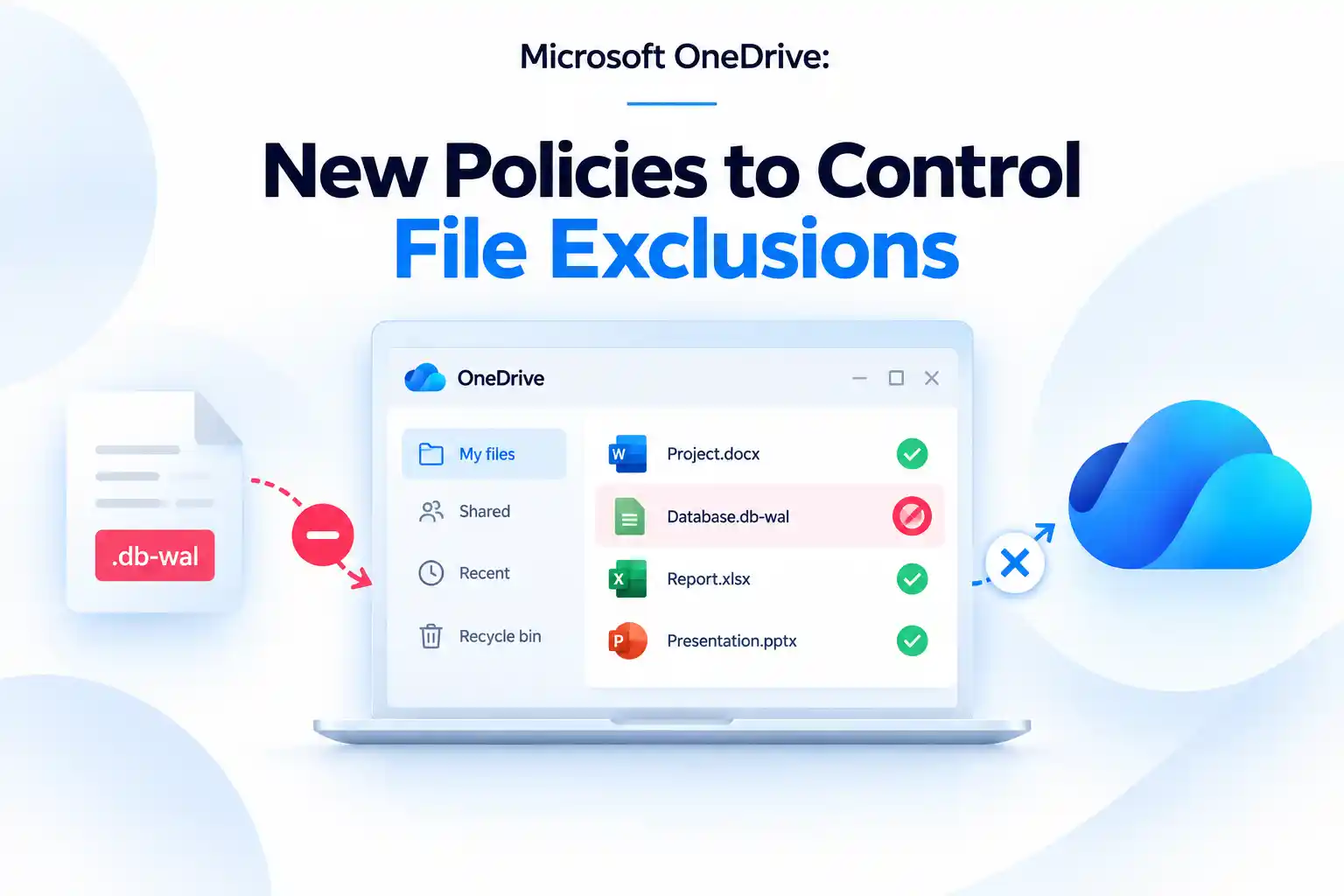
OneDrive file exclusion means preventing a specific file—or files matching a defined name or pattern—from being uploaded and synchronized to OneDrive. An excluded file remains in the local OneDrive folder on the user’s device, but it is not stored in the cloud or available through OneDrive backup, sharing, version history, or recovery.
Microsoft is now making this experience more flexible without taking control away from IT. New file-level exclusion controls let users prevent specific files from syncing when needed, while administrators can continue enforcing organization-wide policies for security, compliance, and data governance. This creates a better balance between a smoother OneDrive sync experience and centralized Microsoft 365 administration, especially for organizations managing temporary application data, large file volumes, and varied user workflows.
What Are the New OneDrive File Exclusion Controls?
OneDrive now supports self-service file-level exclusions for work and school accounts on Windows and macOS.
Previously, users could see the file exclusions configured by their organization, but they could not independently add or remove exclusions. With this update, users can manage their own file-level exclusions by default.
This capability applies only to exclusions that users add themselves. Centrally configured exclusions remain protected and cannot be removed by users.
Key points to understand:
- Users can add specific files to their own OneDrive exclusion list.
- Users can remove exclusions that they created.
- Users cannot remove exclusions set by administrators through Group Policy or other policy management methods.
- IT administrators can still control whether self-service exclusions are available.
- Folder-level self-service exclusions are not included in this update.
This gives users more control over files that do not need cloud synchronization while allowing IT teams to maintain the policies required for a secure and consistent OneDrive environment.
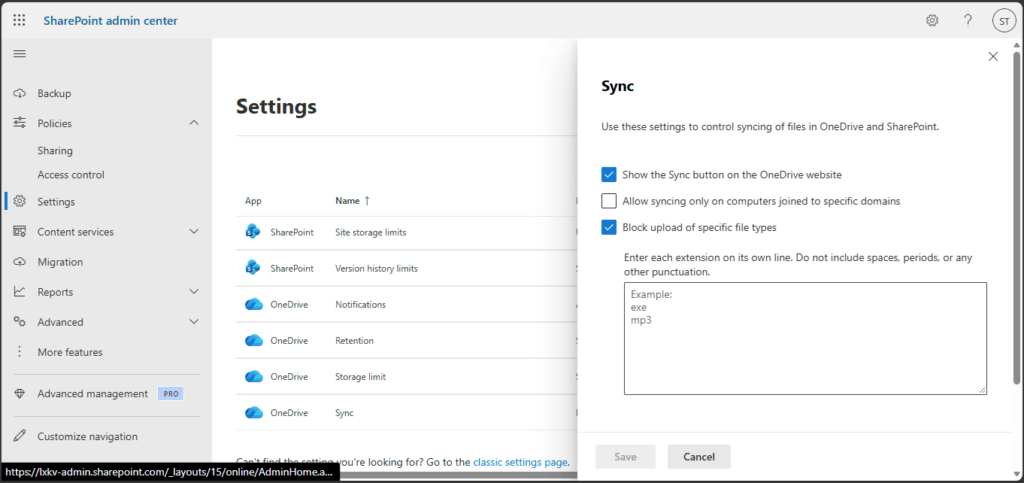
Admin Center: OneDrive sync settings for file-level exclusion controls
Two New OneDrive Policies Admins Should Know
Microsoft has introduced two OneDrive policies to help organizations control how file exclusions work across managed devices.
OneDrive policy | What it does | When to use it |
|---|---|---|
DisableChangesToODIgnoreList | Prevents users from adding or removing file-level exclusions and hides the self-service experience | Use it when file exclusions must remain fully controlled by IT |
DisableDefaultODIgnoreList | Disables Microsoft’s built-in default file exclusion list | Use it when default-excluded file types are required to sync |
The DisableChangesToODIgnoreList policy helps maintain a fully administrator-managed OneDrive sync experience. It can be useful where data handling requirements are strict and user-controlled sync behavior is not appropriate.
The DisableDefaultODIgnoreList policy gives organizations more control over Microsoft’s standard exclusion behavior. This can help when business applications rely on file types that are excluded by default.
💬 Ask Your IT Community
Poll question: Should employees decide which files sync to OneDrive?
Some organizations value user flexibility, while others need complete administrative control over every synced file.
Use these poll options:
- Yes, users should manage unnecessary files.
- No, IT should control all file exclusions.
- Only temporary or non-business files should be excluded.
- It depends on security and compliance requirements.
This topic can generate useful discussion among Microsoft 365 administrators, IT managers, endpoint teams, and security professionals.
Why .db-wal Files Are Being Excluded
Microsoft is adding .db-wal files to the default OneDrive file exclusion list.
A .db-wal file is commonly known as a write-ahead log file. Database applications may create these files while data is being written or updated. They can change frequently and are generally useful only alongside the related database file.
Syncing temporary database logs can create unnecessary upload activity, consume bandwidth, and introduce avoidable file conflicts.
With the new default exclusion behavior:
- Newly created .db-wal files are excluded from OneDrive sync.
- Existing .db-wal files already syncing to OneDrive are not affected.
- Excluded .db-wal files remain available on the local device.
- Organizations that need new .db-wal files to sync can use the DisableDefaultODIgnoreList policy.
This change can be useful for devices running database-based applications, developer tools, local business software, or apps that generate continuously changing temporary files.
What This Means for Microsoft 365 Admins
These OneDrive updates affect more than file synchronization. They can influence endpoint management, user support, data governance, and overall Microsoft 365 administration.
Organizations should decide whether self-service file exclusions align with their operational and compliance requirements.
Consider the following:
- Do users need flexibility to exclude temporary or unnecessary files from OneDrive sync?
- Are there regulated workloads where all sync decisions should remain under IT control?
- Do business applications create .db-wal files in OneDrive-synced folders?
- Does the support team understand how excluded files behave?
- Are current Group Policy and Microsoft Intune configurations aligned with the organization’s OneDrive governance model?
Organizations with strict data control requirements may prefer an administrator-managed model. More flexible workplaces may benefit from allowing users to manage their own file-level exclusions.
🔍 Create a OneDrive Readiness Checklist
Turn this update into a quick Microsoft 365 admin checklist for a LinkedIn post, email campaign, or carousel.
OneDrive File Exclusion Readiness Check
- Do current OneDrive policies allow users to manage sync settings?
- Are there applications generating .db-wal files on managed devices?
- Are temporary database files stored within OneDrive-synced folders?
- Has the policy behavior been tested with a pilot group?
- Is the help desk prepared to support questions about excluded files?
- Are users aware that admin-defined exclusions cannot be changed?
A checklist format makes a technical update easier to understand and encourages administrators to assess their own OneDrive configuration.
Recommended Actions Before Enabling the New Experience
Before allowing users to manage file-level exclusions, review the organization’s OneDrive sync strategy and test the experience in a controlled environment.
A pilot deployment can help identify applications, devices, file types, and user workflows that may need a different configuration.
Recommended actions include:
- Review existing OneDrive sync, retention, and data governance policies.
- Identify applications that create .db-wal files or similar temporary database files.
- Check whether these files are being created in OneDrive-synced locations.
- Use DisableChangesToODIgnoreList if file exclusions should remain centrally managed.
- Use DisableDefaultODIgnoreList only when there is a confirmed business need to sync default-excluded file types.
- Test both policies with a representative pilot group.
- Update internal IT documentation and service desk knowledge articles.
- Explain how user-managed exclusions differ from administrator-enforced exclusions.
Administrators can also configure OneDrive policies to exclude specific file names or file patterns from being uploaded. For example, an organization may choose to exclude file types such as *.pst if those files should stay local rather than sync to OneDrive.
Excluded files remain in the local OneDrive folder but are not uploaded to the cloud. In File Explorer, they can be identified with the Excluded from sync status icon.
💡 Use a Real-World Scenario
Scenario: A database file is stored in a OneDrive-synced folder
A user works with an application that regularly updates a local database. The app generates a .db-wal file every time changes are made, and the file changes frequently during active use.
Because the file is temporary and tied to the local database, syncing it may not provide value. Instead, it can create unnecessary sync activity and increase the chance of file-related issues.
Use this scenario to start a discussion:
- Should the temporary database file be excluded from OneDrive sync?
- Should the database be stored outside a OneDrive-synced folder?
- Should IT configure the exclusion centrally?
- Should users be allowed to manage this type of exclusion themselves?
This approach helps connect a Microsoft OneDrive policy update with practical endpoint management and user support scenarios.
Self-Service vs. Admin-Controlled Exclusions
OneDrive gives organizations a choice between user flexibility and centralized IT control.
Self-service exclusions allow users to stop temporary or unnecessary files from syncing.
- Helps reduce unwanted OneDrive sync activity.
- Can lower file-related support requests.
- Excluded files stay only on the local device.
- Excluded files are not available for OneDrive backup, sharing, or recovery.
Admin-controlled exclusions keep file sync rules under IT management.
- Use DisableChangesToODIgnoreList to prevent users from changing file exclusions.
- Helps maintain consistent sync rules across managed devices.
- Reduces the risk of important business files being excluded by users.
- Supports security, compliance, and data governance requirements.
Admins can also manage Microsoft’s default file exclusion list.
- Keep the default list enabled to exclude temporary files such as .db-wal files.
- Use DisableDefaultODIgnoreList only when a business application requires those files to sync.
The best option depends on your organization’s security needs, applications, and OneDrive governance strategy.
Final Thoughts
Microsoft’s new OneDrive file exclusion controls offer a more practical way to manage sync behavior across users and devices.
Users can gain flexibility to exclude files that do not need cloud storage, while IT administrators can retain the ability to enforce policies that support security, compliance, and operational consistency.
The most effective approach is to review the organization’s application environment, test the policies with a pilot group, and clearly communicate how excluded files work. With the right configuration, these OneDrive controls can reduce unnecessary sync activity while keeping important business data protected.
Learn More from Microsoft
Refer to these Microsoft resources for detailed policy configuration guidance and the latest OneDrive sync updates.

















 Migrate
 Manage
 Migrate Microsoft 365








