



Microsoft has provided an add-on Outlook feature, to envision users with ‘Schedule Send Suggestions’. This feature provides a suggested time that aligns with the working hours of the recipient.
Earlier, when scheduling a meeting, a convenient slot is suggested to the sender, a feature similar to which has been extended to the mails as well.
How to configure ‘Schedule Send Suggestions’
‘Schedule Send Suggestions’ is enabled by default. However, users have the choice to toggle it at the tenant / user level.
At Tenant level
Only a Global Administrator or an Exchange Administrator can toggle it at the tenant level.
- Sign in as a Global admin or an Exchange admin to the Microsoft 365 admin center. Make sure you are using the new admin center.
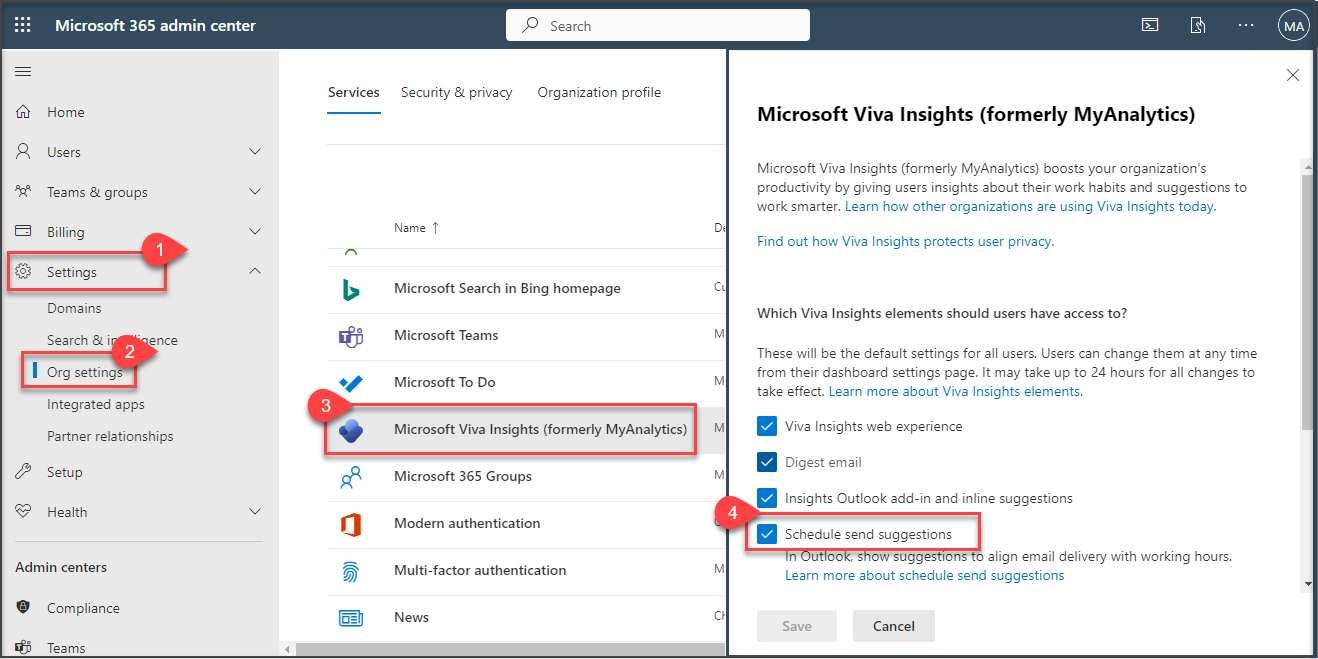
- From the left Pane, navigate to Settings -> Org Settings. Under Services click “Microsoft Viva Insights”.
- Toggle ON “Schedule send suggestions” option to enable this feature to all the Viva Insights users in your organization. Toggle OFF to disable the same.

At user level
Individuals can toggle this feature in the following ways.
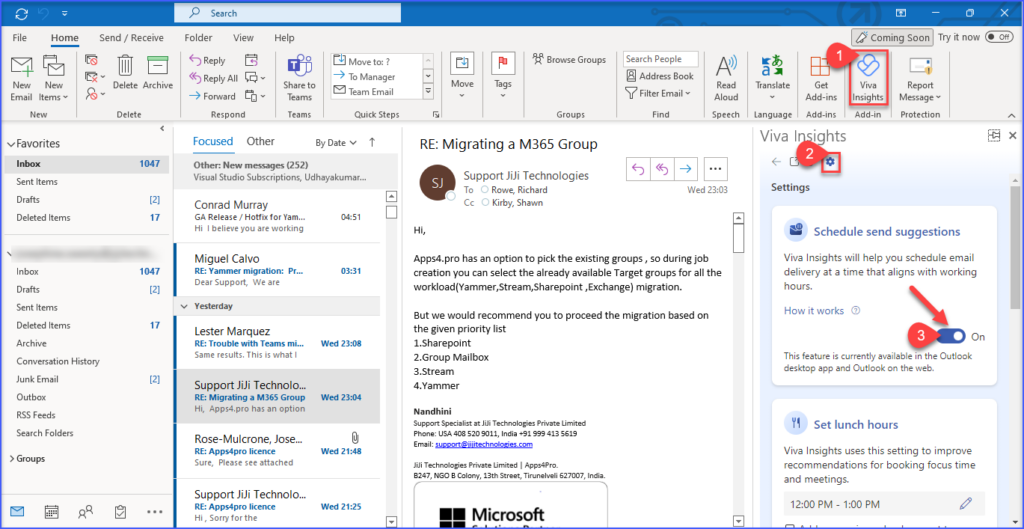
- Via Outlook Desktop App : Select the Viva Insights icon on the Outlook Home ribbon. Navigate to Settings and Toggle ON / OF “Schedule send suggestions”.
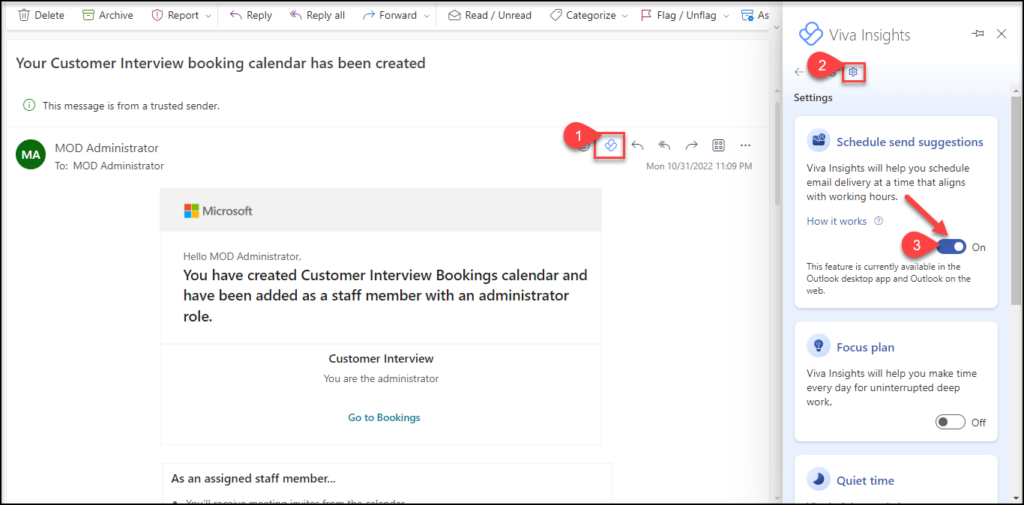
2. Via Outlook web : When reading or composing a mail, select the Viva Insights icon from the Send Options / Edit ribbon. Navigate to Settings and Toggle ON / OF “Schedule send suggestions”.
How do I utilize ‘Schedule Send Suggestions’
With Schedule send suggestions turned on, users with Insights by My Analytics service plan can get up to three daily schedule send suggestions and users with My Analytics (Full) service plan or Viva Insights subscription can get an unlimited number of suggestions.
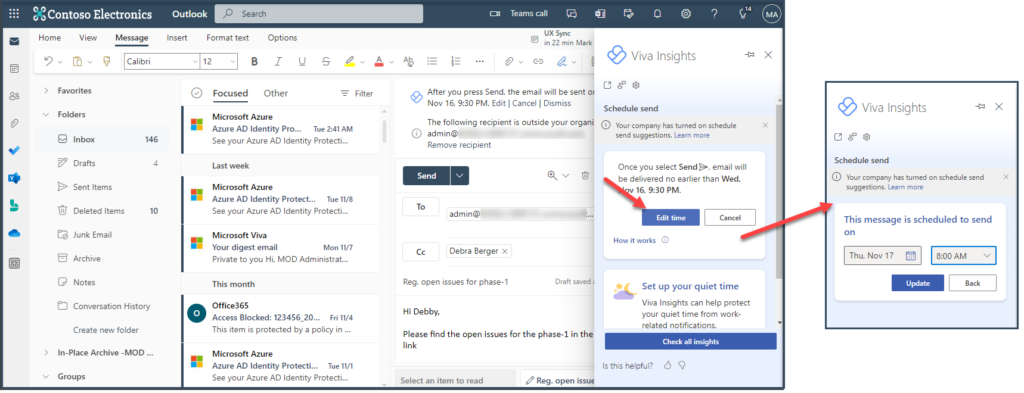
✓ With Schedule send suggestions turned on, when you compose a mail, the outlook automatically showcases the suggestions to send later during the working hours of the recipient.
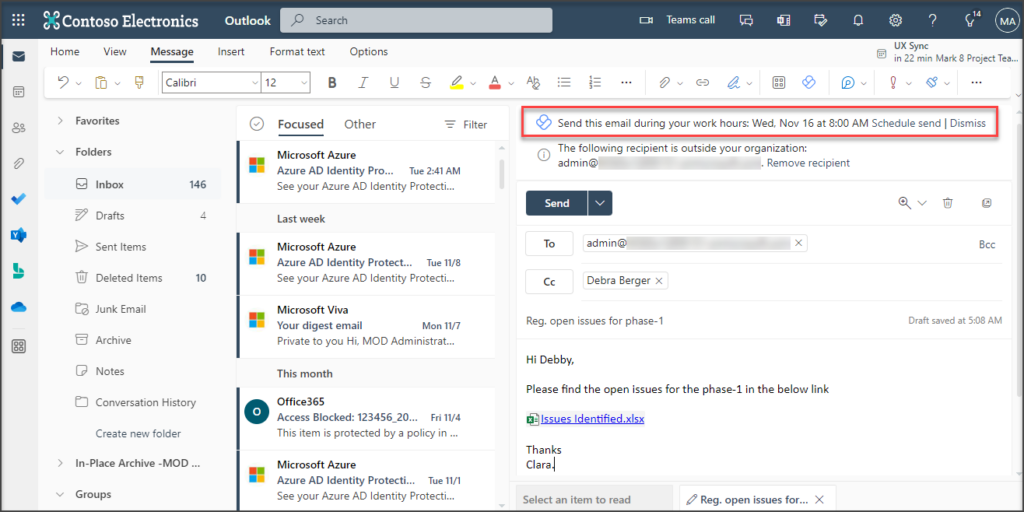
✓ When you click on ‘Schedule Send’ link in the suggestion, it takes you to the Insights window. In the Insights window, you have the choice to tailor the scheduled time to a more appropriate one.
Note : If you ignore the suggestion (OR) dismiss it, the message is sent immediately once you click ‘Send’.
✓ Post scheduling the time, when you click ‘Send’ the message moves to draft window titled with the schedule time as shown below.
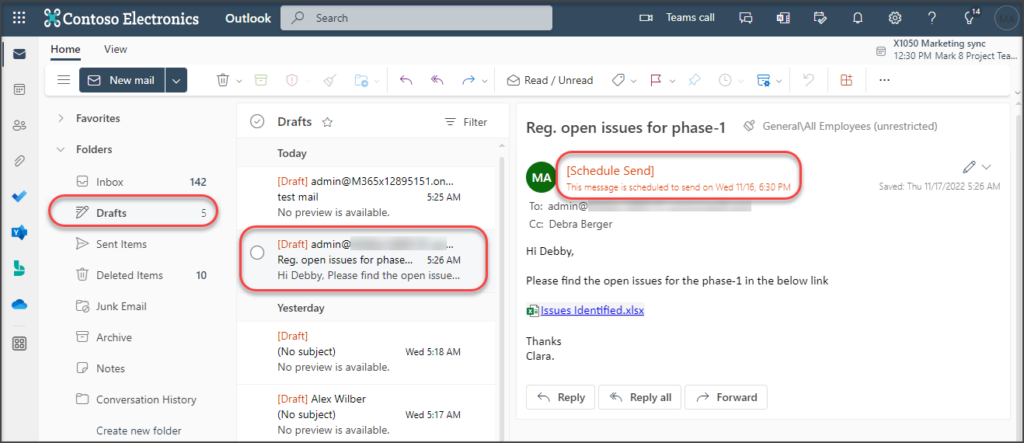
✓ The mail is delivered in the scheduled date & time.

















 Migrate
 Manage
 Migrate Microsoft 365








