


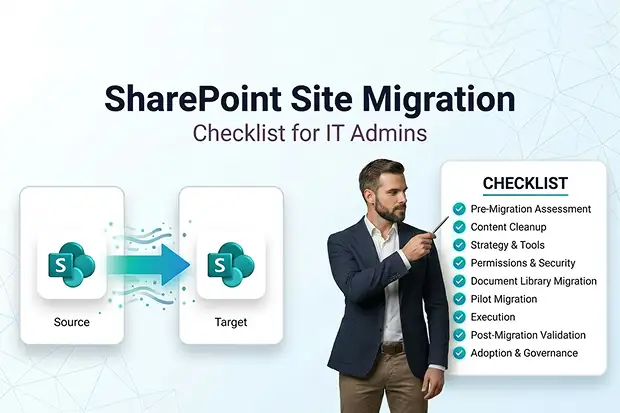
Migrating a Microsoft SharePoint site is a big moment for your organization, not just another IT task on your list. It changes how people find files, work together in SharePoint Online, and trust the systems you run every day.
If you do not have a clear plan, it is easy to end up with broken links, missing permissions, and stressed users asking, “where did my site go”. This article walks you through a practical SharePoint Site Migration Checklist that you can actually follow, whether you are moving a single hub site or doing a full cross tenant migration using Microsoft SharePoint Migration Tool (SPMT) and Apps4.Pro Migration Manager.
Below is a brief overview before we proceed with a more detailed discussion.
- SharePoint Online Site Migration Checklist – One Page Summary
- Why you need a SharePoint Site Migration Checklist
- Pre migration assessment: Get the full picture
- Content cleanup and optimization
- Choose your SharePoint migration strategy and tools
- Plan for permissions and security from day one
- Document Library migration considerations
- Pilot migration and validation
- Execute your SharePoint migration waves
- Post migration validation
- Adoption, change management, and governance
- How Apps4.Pro Facilitates SharePoint Tenant-to-Tenant Migration
- FAQs about SharePoint Site Migration
SharePoint Online Site Migration Checklist – One Page Summary
| Phase | Checklist items |
|---|---|
| Pre-migration assessment | Inventory sites, subsites, lists, libraries, and pages Identify customizations, classic components, and integrations Capture storage size, version history, and usage trends |
| Content cleanup | Remove redundant, obsolete, and trivial content Standardize naming conventions and folder structures Fix broken links and unsupported customizations |
| Strategy and tools | Choose Lift and Shift, Rebuild and Modernize, or Hybrid approach Select a SharePoint data migration tool that supports full-fidelity migration Plan migration waves, cutover windows, and rollback options |
| Permissions and security | Map users, groups, and permissions between tenants Decide on handling orphaned users and broken inheritance Validate least privilege and external sharing policies |
| Document library migration | Confirm folder structure, content types, and metadata requirements Define version history limits and large file handling Plan for critical libraries and business workflows |
| Pilot migration | Run a pilot site migration in non-production Validate item counts, metadata, and version history Capture issues and resolutions for future waves |
| Execution | Monitor live waves, throttling, and error logs Validate hub site connections and navigation Communicate status to owners and end users |
| Post migration validation | Verify content, permissions, and search behaviours Test integrated apps, flows, and Teams connections Collect user feedback and optimize |
Why you need a SharePoint Site Migration Checklist
If you have ever fixed a broken SharePoint site after a rushed migration, you already know why a checklist matters. One overlooked permission or dependency can turn into hours of calls, tickets, and follow ups with frustrated users.
A simple, written checklist lets you slow things down just enough to stay in control. It gives your stakeholders one clear story, helps you avoid “did we forget that step” moments, and makes your SharePoint Online migration feel more like a project and less like a fire drill.
Inadequate validation and planning may result in the following consequences:
- Hidden customizations may suddenly stop working in the new tenant
- Permissions may not line up with what managers expect
- Users may feel lost and say “this is harder than before”
If you invest a little time upfront, every step that follows becomes faster, safer, and easier to defend. Start by mapping what exists so your migration plan is built on facts, not assumptions.
1. Pre migration assessment: Get the full picture
Before you run any tool or script, take a calm look at what you actually have in Microsoft SharePoint today. This is where you discover surprises early, when they are still cheap to fix.
Key checks for each site collection or hub site:
- List out site collections, subsites, lists, document libraries, and site pages
- Note custom web parts, add ins, branding, and any classic components
- Record storage size, usage trends, and version history needs
Then look at how everything fits together, not just what exists.
- Review metadata, content types, and taxonomy so you know how information is structured
- Audit permissions, sharing settings, and orphaned users and groups
- Mark ROT content (redundant, obsolete, trivial) that can be archived or left behind
To clearly understand what content and components Apps4.Pro can migrate on your behalf, consult the official SharePoint Migration scope detailed in the Support Portal Knowledge Base.
A clean scope is what separates a smooth move from a drawn-out cleanup after go-live. Trim the noise now so you migrate only what delivers value and confidence.
2. Content cleanup and optimization
Trying to migrate messy content is like packing a cluttered house without sorting anything first. You end up moving junk and paying for it with longer runtimes, confusion, and more validation work later.
Focus your cleanup on a few practical wins:
- Retire unused document libraries, lists, and very old sites
- Remove versions and files that no one has touched in years
- Fix obvious broken links
- Remove unsupported or risky customizations
SharePoint Online really shines when metadata and content types are used well.
- Re-structure deep folder trees where it helps search and navigation
- Align naming conventions, templates, and content types across site collections
- Make sure retention labels and archive policies support your compliance needs
Once the content is in shape, the real leverage comes from choosing a strategy and tooling that match your scale and risk. A smart choice here saves days of rework and makes your timeline realistic.
3. Choose your SharePoint migration strategy and tools
After assessing your current assets and determining which to retain, you can select an appropriate strategy aligned with your circumstances. At this stage, it is important to ensure that the extent of change implemented is balanced and neither excessive nor insufficient.
Common strategies:
- Lift and shift: Keep structure similar, focus on stable move with minimal redesign
- Rebuild and modernize: Take the chance to redesign around hub sites and modern features
- Hybrid: Modernize some sites, lift and shift others based on complexity and value
When you plan your waves, think about people, not just data:
- Group sites by department, region, or business unit so communication is easier
- Choose cutover windows that reduce impact on day-to-day work
- Check licenses, storage, and throttling so nothing surprises you on the day of migration
The SharePoint Migration Tool (SPMT) is designed specifically for migrating content from on-premises environments to SharePoint Online. For large-scale cross-tenant migrations, more advanced solutions like Apps4.Pro Migration Manager would be required. Apps4.Pro gives you a dedicated SharePoint Online data migration tool that handles sites, libraries, permissions, metadata, and more in tenant to tenant moves.
Data can be re-copied, but trust is harder to rebuild. Lock down your access model early so users land in a secure environment that feels familiar from day one.
4. Plan for permissions and security from day one
Permissions are deeply personal for your users because they decide who can see what. If this part goes wrong, trust in the new SharePoint Online environment can drop very quickly.
When you move content, move security with the same care:
- Map site admins, owners, members, and visitors to their future equivalents
- Align Azure AD groups, Microsoft 365 groups, and SharePoint groups between tenants
- Decide what to do with orphaned, disabled, or guest accounts before the cutover
Treat your permissions work as its own track, not a side task at the end.
- Test user and group mappings in a safe environment
- Decide if you will keep or simplify unique permissions and broken inheritance
- Check that least privilege access still holds in the target tenant
For a comprehensive guidance on scope, hierarchy and challenges of permissions migration, please visit our Permissions Migration article.
For most teams, document libraries are where work actually happens. Give them extra attention now and you reduce support tickets, confusion, and resistance after the move.
5. Document Library migration considerations
Most users do not say “the site looks different”; they say, “my library feels different”. That is why document libraries deserve special attention in your migration plan.
Make sure your SharePoint document library migration covers:
- Folder structure, document sets, and how content is nested
- Custom metadata, lookup columns, and content types that users rely on
- Version history expectations and limits for especially large or sensitive files
Apps4.Pro Migration Manager supports tenant to tenant document library migration while keeping folder structure, metadata, version history, and permissions intact where supported. This includes cases where libraries are attached to hub sites or use shared content types at the site collection level.
To go deeper for library focused projects, visit our comprehensive Document Library Migration article for detailed guidance.
A pilot is your chance to prove the process and remove uncertainty. Validate on a smaller scale so your larger rollout runs with fewer surprises and clearer answers.
6. Pilot migration and validation
A good pilot gives you space to learn without the stress of having everything on the line. It turns unknown risks into known issues with fixes you can reuse.
For a solid pilot:
- Choose a site that has “typical” lists, libraries, and pages, not just the easiest one
- Run a full migration into a non-production or pilot site collection
- Compare item counts, metadata, and version history between source and target
Then, step into the shoes of your users:
- Check Microsoft Teams integration, OneDrive shortcuts, and embedded web parts
- Click through navigation and modern pages to see if the site feels natural
- Log issues, root causes, and resolutions so you build your own playbook for later waves
When your pilot checks out, you are ready to move from testing to momentum. A disciplined wave approach keeps impact low while still delivering visible progress.
7. Execute your SharePoint migration waves
Post the pilot phase, it is time to scale the process with more confidence. Here the goal is to be predictable, not heroic.
During each wave:
- Put clear controls in place on the source site to prevent big changes during migration
- Use dashboards and logs to keep an eye on progress, errors, and throttling
- Keep an open communication channel with owners and users in scope, so they are not surprised
At the same time, keep governance and design in view:
- Check that URLs and naming follow the patterns your organization expects
- Confirm that sites are linked correctly to the right hub site for navigation and search
- Double check permissions inheritance and external sharing for sensitive sites
See how it works: Share a simple “Migration Live Board” in Microsoft Teams that lists each site, its current stage, and a small status note. This helps you reduce repeated status questions.
Execution gets you to the finish line, but validation is what keeps you there. Take the time to confirm quality now so issues do not surface later when they are harder to trace.
8. Post migration validation
When the content reaches the target tenant, the migration is not truly finished until you know it works for real people. Post migration validation protects you from slow, hidden issues emerging weeks later.
Walk through a structured checklist:
- Confirm that lists, libraries, and pages are present and behave as expected
- Spot check metadata and version history on key items for accuracy
- Test important workflows, Power Automate flows, and integrated apps
From a user point of view, also make sure to:
- Validate search results, refiners, and promoted content for common queries
- Look for missing files, classic web parts, and links that still point to the old tenant
- Confirm that Teams tabs and OneDrive connections still feel seamless
Try it out:
Send out a quick three question survey to users in each migrated site: “What works well”, “What is harder than before”, and “What is missing”. Use the patterns you see to refine your next waves.
A technically successful migration still falls short if people cannot work confidently afterward. Pair clear guidance with light governance so the new environment stays organized, useful, and easy to support.
9. Adoption, change management, and governance
Adoption and governance are how you keep the investment paying off over time.
To support users and site owners:
- Share simple “What changed” guides for key sites and hub sites
- Run short, focused sessions on modern SharePoint features and OneDrive experiences
- Build a champions group that users can reach for quick, practical help
To keep things healthy in the long term:
- Define how sites are created, reviewed, archived, and eventually deleted
- Standardize templates for common scenarios like project sites or communication sites
- Use analytics to see which areas are thriving and which ones need design or permission tweaks
Pause and reflect: Host a “SharePoint Online User Issues & Solutions” webinar one to two weeks after go-live. Invite users to submit questions live to address concerns early and provide practical guidance for a smooth transition.
Using a suitable migration platform streamlines operations and improves oversight at every stage. Centralised management with reliable tools ensures consistency, reduces risk, and lowers effort.
How Apps4.Pro Facilitates SharePoint Tenant-to-Tenant Migration
Tenant to tenant migration touches more than just sites, and it can be stressful to juggle everything by hand. Apps4.Pro Migration Manager is designed to give you a single place to manage Microsoft 365 migrations, including Microsoft SharePoint, OneDrive, Microsoft Teams, Planner, and more.
For SharePoint Online cross tenant migration, it supports:
- Modern, classic, and hub sites with their site collections and subsites
- Site settings, navigation, site columns, content types, lists, and document libraries
- Site permissions, unique permissions, and item level permissions where supported
Before you finalize your plan and dates, it is worth checking your scenario against the supported scope and matrix so expectations match what the tool can do.
Experience Hassle-Free SharePoint Migration
See how Apps4.Pro simplifies complex migrations – schedule a demo today.
Book a Demo for Apps4.Pro SharePoint Migration

















 Migrate
 Manage
 Migrate Microsoft 365








