


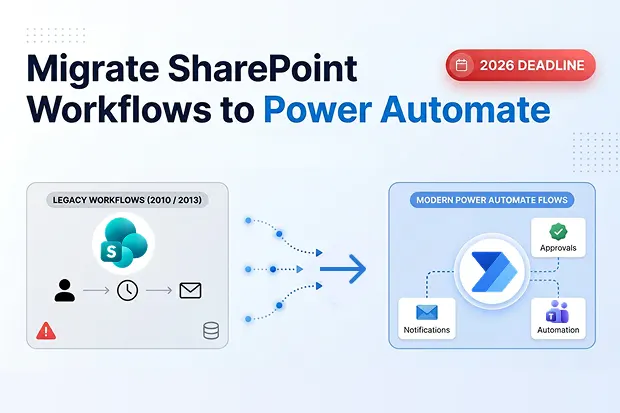
SharePoint Designer 2013 reaches end of support on July 14, 2026, and the SharePoint 2013 workflow engine itself was removed from existing Microsoft 365 tenants on April 2, 2026 - leaving administrators a narrow window to convert classic workflows into Power Automate flows before automation silently breaks. This complete Microsoft Power Automate migration guide walks you through Microsoft’s official retirement timeline, the conversion patterns for approval and notification workflows, the InfoPath artifacts that simply cannot come along, and the combined scenario where you must both convert and move flows across tenants.
SharePoint Workflow Retirement Timeline (2010, 2013, Designer)
Microsoft has staged the death of classic SharePoint automation across three distinct milestones, and as of April 2026 all three are now either past or days away.
| Milestone | Date | What Breaks |
|---|---|---|
| SharePoint 2010 workflows turned off (new tenants) | Aug 1, 2020 | No new 2010 workflows could be created |
| SharePoint 2010 workflow services removed (existing tenants) | Nov 1, 2020 | All 2010 workflows stopped running |
| SharePoint 2013 workflows disabled (new tenants) | Apr 2, 2024 | 2013 engine unavailable for new tenants |
| SharePoint 2013 workflows removed (existing tenants) | Apr 2, 2026 | 2013 engine disabled tenant-wide; flows fail silently |
| SharePoint Designer 2013 end of support | July 14, 2026 | No updates, patches, or security fixes; no extensions |
Microsoft has stated explicitly that no extensions or exceptions will be offered beyond these dates, and the retirement applies across Commercial, GCC, GCC High, and DoD clouds. If you are reading this in April 2026, the 2013 engine has effectively just been switched off in existing tenants, and Designer 2013 itself has roughly three months of life remaining.
Why Microsoft Is Forcing the Move
The official rationale is modernization: Microsoft is consolidating workflow automation onto Power Automate, which offers adaptive triggers, Teams integration, and hundreds of connectors that the legacy engines cannot match. The SharePoint Migration Tool (SPMT) has been extended to automate part of this conversion, querying the source workflow, parsing the definition, converting it to a Power Automate flow, and publishing it as a solution via the Power Automate API.
Your 90-Day Action Checklist
- Run the SharePoint Migration Assessment Tool (SMAT) to inventory every 2010 and 2013 workflow in your tenant.
- Grab our free SharePoint and Power Automate admin tools to accelerate assessment and reporting before committing to paid migration
- Categorize each workflow as retire, rebuild, or auto-convert via SPMT.
- Document dependencies – lists, libraries, InfoPath forms, third-party connectors.
- Flag InfoPath-dependent workflows as non-convertible and plan form replacement separately (see below).
- Schedule conversion sprints to finish before April 2, 2026 for the engine cutoff and well before July 14, 2026 for Designer tooling loss.
Approval Workflows → Power Automate Approval Flows
Classic SharePoint approval workflows – the out-of-the-box “Approval – SharePoint 2010” template and custom Designer 2013 approval chains – map cleanly onto Power Automate’s Start and wait for an approval action, which is the single most common and highest-value conversion pattern.
Step-by-Step: Rebuild an Approval Workflow
- In Power Automate, create a new Automated cloud flow with the SharePoint trigger When an item is created or modified.
- Add the Start and wait for an approval action; choose Approve/Reject – First to respond or Everyone must approve to match your legacy branching.
- Populate the Assigned to field using the list column that stored your approver (e.g., Manager lookup).
- Add a Condition on the outcome output of the approval action to branch into Approve vs. Reject paths, replicating your Designer parallel/serial logic.
- On approval, use Update item to set status columns; on rejection, send a Send an email (V2) notification – this mirrors the classic “Log to history list + Send email” pattern.
- Test with a handful of items, then either publish the solution or use SPMT to migrate the original definition and let Microsoft generate the starter flow.
What SPMT Does Automatically
See Microsoft’s official SPMT workflow migration overview for the full three-step configure-endpoints → migrate → activate sequence. The SharePoint Migration Tool reads the legacy workflow XAML, maps supported actions to Power Automate equivalents, and packages the result into a solution that an admin can review and switch on in Power Automate – the workflow owner then signs in and turns on the flows they want to keep. Unsupported actions are flagged in the migration report for manual rebuild.
Notification Workflows → Automated Cloud Flows
Simple “when something changes, send an email” workflows – which make up the majority of long-forgotten Designer 2013 workflows in most tenants – are the easiest conversions and should be tackled first.
- Trigger: SharePoint When an item is created or When an item is created or modified.
- Primary action: Send an email (V2) via Office 365 Outlook connector, using dynamic content from the SharePoint trigger to populate subject and body.
- Delays/Reminders: Replace Designer’s “Pause until” with the Delay or Delay until action.
- Conditional notifications: Replace “If current item:Status equals…” with a Power Automate Condition block referencing the trigger outputs.
Because these are stateless and short running, they fit the Automated cloud flow pattern perfectly and generally convert one-to-one through SPMT with little manual cleanup.
What Cannot Be Converted (InfoPath Forms)
This is the hard stop in every migration project: InfoPath forms have no automated conversion path to Power Automate or Power Apps, and any Designer workflow that reads InfoPath-generated XML fields, posts back to an InfoPath form library, or is triggered by InfoPath form submission must be redesigned, not migrated.
Other items that SPMT will flag as non-convertible or partially convertible include:
- Custom coded activities and sandboxed solution workflow actions.
- Site workflows with complex external data sources beyond standard SharePoint connectors.
- Nintex workflows built on the 2013 engine, which break on April 2, 2026 alongside native 2013 workflows.
- Impersonation steps relying on the Workflow app identity – Power Automate uses the connection owner’s identity instead, requiring a redesign of permission-elevation logic.
- State machine workflows with deeply nested transitions – technically rebuildable, but usually faster to redesign than to translate.
For InfoPath specifically, the pragmatic path is to rebuild the form as a Power Apps canvas app or a SharePoint list form customized in Power Apps, then wire a new Power Automate flow to the modern form – accepting that this is a redesign project, not a conversion.
Combined Scenario: Convert + Migrate Across Tenants
A frequent real-world scenario in 2026: you have just acquired (or divested) a business unit, you need to consolidate into a single Microsoft 365 tenant, and the source tenant still runs 2013 workflows that must be modernized. Doing this in the wrong order wastes weeks.
The Correct Sequence
- Convert first, migrate second. Run SPMT in the source tenant to convert 2013 workflows into Power Automate flows before the April 2, 2026 cutoff removes the 2013 engine – after that date the source definitions are no longer executable, and conversion tooling has nothing to read.
- Export the generated solutions. Power Automate packages converted flows as solution files; export each solution as a managed or unmanaged .zip from the source tenant’s default environment.
- Move the underlying SharePoint content (lists, libraries, permissions) using our SharePoint tenant migration checklist to the destination tenant, preserving list GUIDs where possible to minimize connector rebinding.
- Import the flow solutions into the destination tenant and update each SharePoint and Office 365 connection reference to point at the migrated site URLs and new service accounts.
- Re-test approvals and notifications end-to-end in the destination tenant – approver identities, group memberships, and email routing frequently break on the tenant boundary and need explicit remapping.
Skipping step 1 and trying to migrate SharePoint content first leaves you with dead 2013 workflow definitions in the destination that can never be converted, because the 2013 runtime does not exist there and will not exist anywhere after April 2, 2026.
Ready to move converted flows across tenants?
Migrate Power Automate flows across tenants with Apps4.Pro Migration Manager – preserve connections, owners, and solution structure in a single automated pass.
Frequently Asked Questions
SharePoint 2010 workflows were already retired – disabled for new tenants on August 1, 2020 and removed from existing tenants on November 1, 2020 – so any remaining 2010 workflow references in your tenant are non-functional today and must be rebuilt in Power Automate.

















 Migrate
 Manage
 Migrate Microsoft 365








