


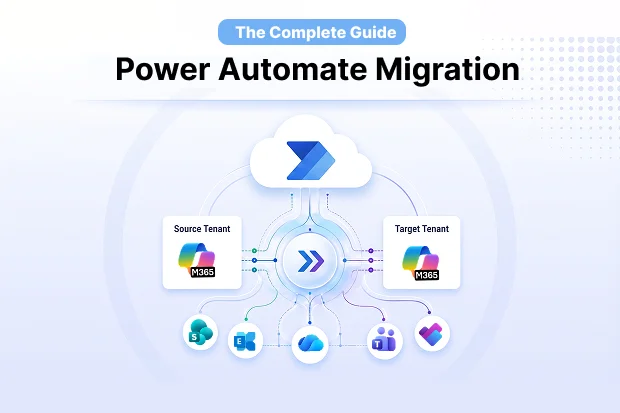
Power Automate flows are one of the most sensitive workloads in a tenant-to-tenant migration. While the core flow logic-triggers, actions, conditions, and expressions-can be exported as JSON, critical dependencies like connector authentication, SharePoint URLs, user identities, and environment references remain tied to the source tenant and do not migrate automatically.
Microsoft does offer a tenant-to-tenant environment migration feature through the Power Platform admin center, but after the environment moves, the real work begins – you must create connections for all connection references, start all flows manually (child flows before parent flows), and retrieve new URLs for every HTTP-triggered flow. There is no native Power Automate migration tool that moves flows with their connections intact.
- What Is Microsoft Power Automate?
- Why Tenant-to-Tenant Migration?
- Cloud Flow Types and Migration Behavior
- Connector Mapping and Remapping
- Power Platform Environments and Migration
- How to Migrate Power Automate Flows
- SharePoint Workflow → Power Automate Migration
- Power Automate Migration for M&A
- Comparing Migration Approaches
- Frequently Asked Questions
- Start Your Power Automate Migration
What Is Microsoft Power Automate?
Microsoft Power Automate is the workflow automation engine within the Power Platform – alongside Power Apps, Power BI, and Power Pages. Power Automate supports three cloud flow sub-types – Automated (event-driven), Scheduled (time-based), and Instant (user-triggered) – plus desktop flows for RPA. In a Microsoft 365 tenant, flows live inside Power Platform environments and depend on connector credentials bound to that tenant’s Azure AD identity.
Why Tenant-to-Tenant Migration?
Power Automate migration is triggered by the same events that drive any Microsoft 365 tenant consolidation:
- Mergers and acquisitions – two organizations combining into a single tenant under TSA deadlines
- Divestitures – carving out a business unit into a standalone tenant
- Rebranding – domain changes that require a new tenant identity
- Restructuring – consolidating regional or departmental tenants into one
In all of these scenarios, Power Automate is rarely scoped as a formal workstream – it gets added to the tail end of SharePoint or Teams migration, if it’s scoped at all. The consequences surface on Day 1 post-cutover: approvals stop, invoices don’t go out, and automated reports go silent.
Cloud Flow Types and Migration Behavior
Not all cloud flows behave the same way after migration. The three sub-types carry different risks:
| Sub-Type | Trigger | Migration Risk |
|---|---|---|
| Automated | Event-driven (e.g., “When an item is created in SharePoint”) | Trigger breaks if connector references aren’t remapped |
| Scheduled | Time-based (e.g., “Every day at 8 AM”) | Arrives disabled – won’t run until manually activated |
| Instant | User-initiated (e.g., button press, “For a selected item”) | Becomes inaccessible after default environment migration |
Instant flows can disappear entirely from the user’s flow list after migration, with no straightforward recovery path.
Our cloud flow migration guide breaks down each sub-type’s behavior in detail what breaks, what to validate after migration, and the specific workarounds for Instant flows including pre-migration export and conversion strategies.
Connector Mapping and Remapping
Every connection carries three pieces of tenant-bound state – the identity (UPN or service principal), the OAuth token, and the resource binding (site URL, mailbox, team, database). None of these transfer natively across tenant boundaries, which is why “my flows migrated, but nothing runs” is the most common post-migration complaint.
Connectors fall into three categories with different migration behaviors:
| Connector Type | Examples | Migration Behavior |
|---|---|---|
| Standard | SharePoint, Outlook, Teams, OneDrive, Planner | Auto-mapped by Apps4.Pro; re-authentication prompt in target |
| Premium | SQL Server, Dataverse, HTTP, Salesforce, ServiceNow | Auto mapped; requires Premium license in target before activation |
| Custom | Org-built connectors, third-party APIs | Must be exported and re-imported separately before migrating flows |
Our connector and environment mapping guide covers the full auto-mapping reference table, the three most common post-migration connector failures and their fixes, and the reconnection workflow after migration.
Power Platform Environments and Migration
Power Automate flows live inside Power Platform environments, and every environment type can be migrated cross-tenant:
| Environment Type | Typical Use Case |
|---|---|
| Production | Business-critical flows, live automations |
| Sandbox | Pre-production testing, UAT |
| Default | Personal productivity flows (every tenant has one) |
| Developer | Individual developer builds, PoCs |
| Trial | 30-day evaluation environments |
| Teams | Flows embedded inside Microsoft Teams channels |
Post-merger organizations often consolidate three source Sandbox environments into one, while divestitures split a single Default environment across departments. Apps4.Pro lets you consolidate or split without breaking flow references.
How to Migrate Power Automate Flows
The migration process follows five stages – whether you’re migrating 10 flows or 10,000:
| Action |
|---|
| 1. Run a Flow Inventory Report – list all flows by owner, environment, sub-type, and connectors used |
| 2. Configure User and Group Mapping – map every source user to their target tenant equivalent |
| 3. Configure Connector Mapping – map source connectors (SharePoint sites, mailboxes, Teams channels) to target equivalents |
| 4. Select and Migrate Flows – transfer flow definitions in bulk with metadata, ownership, and enable/disable status |
| 5. Activate and Validate – reauthorize connections, activate Scheduled flows, and test each flow type |
Apps4.Pro generates the inventory report and auto-maps connectors based on matching resource patterns.
For the step-by-step technical walkthrough, see the Power Automate migration support guide.
📋 Migrating Power Automate flows between tenants?
Apps4.Pro proactively flags Instant flows at risk, maps connector references across all three sub-types, and ensures everything is validated before cutover.
SharePoint Workflow → Power Automate Migration
SharePoint Designer 2013 reaches end of support on July 14, 2026, and the SharePoint 2013 workflow engine was removed from existing Microsoft 365 tenants on April 2, 2026 – leaving a narrow window to convert classic workflows into Power Automate flows before automation silently breaks.
For organizations that also need to migrate to a different tenant, the sequence matters: convert first, migrate second. After April 2, 2026, the source 2013 engine is gone and legacy definitions can no longer be read by SPMT – so conversion must happen before cross-tenant migration.
Our SharePoint workflow migration guide covers the full retirement timeline (2010 and 2013 milestones), step-by-step approval and notification workflow conversion patterns, InfoPath limitations, and the combined convert-then-migrate sequence for cross-tenant scenarios.
Power Automate Migration for M&A
In most M&A playbooks, Power Automate is rarely scoped as a formal workstream – it gets treated as a cleanup task after Exchange, SharePoint, and Teams. But flows sit on top of those workloads – SharePoint lists, Teams channels, Planner plans, mailboxes – so if those move on a different schedule, flows begin failing even before you officially migrate Power Automate.
Our M&A migration playbook covers TSA-aligned migration phasing (pre-sign through stabilization), the workload dependency patterns you need to map (SharePoint-centric, Teams-centric, Planner-centric, LOB), connector re-authentication as a core workstream, and the five-phase M&A checklist – discovery, strategy, pilot, production cutover, and optimization.
Comparing Migration Approaches
The Core Difference
| Microsoft Native (Environment Migration) | Apps4.Pro Migration Manager |
|---|---|
| Transfers the environment, but connections must be recreated manually | Connector auto-mapping with one-time re-authentication |
| All flows must be started manually (child flows before parents) | Bulk activation with ownership and status preserved |
| HTTP-triggered flow URLs must be retrieved and updated individually | Automated URL reference handling |
| No flow-level selection – entire environment moves | Selective migration by user, environment, or flow |
Detailed Capability Comparison
| Capability | Microsoft Native | Manual Export/Import | Apps4.Pro |
|---|---|---|---|
| Flow definitions | ✅ Environment-level | ⚠️ One-by-one solution export | ✅ Bulk with metadata |
| Connector credentials | ❌ Must recreate all | ❌ Must recreate all | ✅ Auto-mapped |
| Ownership / co-owners | ⚠️ Manual reassignment | ❌ Lost | ✅ Preserved |
| Enable/disable status | ❌ All arrive inactive | ❌ All arrive inactive | ✅ Preserved |
| Environment mapping | ❌ 1:1 only | N/A | ✅ Consolidate or split |
| Instant flow handling | ❌ Become inaccessible | ❌ Manual recreation | ✅ Flagged and managed |
| Flow inventory report | ❌ Not included | ❌ Not included | ✅ Included |
See Apps4.Pro Power Automate Migration in action →
Frequently Asked Questions
The 2013 workflow engine was removed from existing tenants on April 2, 2026, and Designer 2013 reaches end of support on July 14, 2026. Convert to Power Automate before migrating.
Start Your Power Automate Migration
Your tenant consolidation doesn’t stop at Power Automate – and neither does Apps4.Pro Migration Manager handles Exchange Online, Viva Engage, Microsoft Teams, SharePoint, OneDrive, Planner, and Power Automate from a single platform, so you manage every workload in one place.
Start your free 15-day trial → no credit card required.
Book a demo → see flow discovery, connector mapping, and bulk migration live.
For the step-by-step technical walkthrough, see the detailed setup guide.

















 Migrate
 Manage
 Migrate Microsoft 365








