


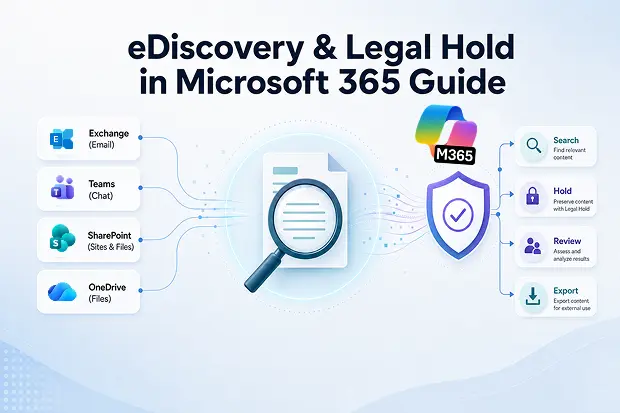
Modern investigations rarely begin with a dramatic moment. More often, they start with a simple request for emails, chats, or documents that can explain what happened and when. In that moment, speed matters, but so does accuracy.
Microsoft 365 eDiscovery and Legal Hold help preserve that evidence before it disappears. Instead of rushing through scattered mailboxes, Teams chats, and files, organizations can use Microsoft Purview to search, hold, review, and export relevant content in a more controlled way.
This is why so many security, compliance, and governance teams now treat eDiscovery as an essential business process rather than a legal afterthought. When done well, it reduces risk, supports defensible investigations, and brings order to high pressure situations.
- What is eDiscovery in Microsoft 365
- Where eDiscovery Lives: Exchange, SharePoint, Teams and More
- What is Litigation Hold in Microsoft 365
- How to Place a Mailbox on Litigation Hold
- Legal Hold vs Litigation Hold: What’s the Difference?
- Core eDiscovery Workflow in Microsoft Purview
- When to Apply eDiscovery, Litigation Holds, and Retention Policies
- Easy Mistakes That Weaken Compliance
- Best Practices for Security and Governance
- Final Thoughts
What is eDiscovery in Microsoft 365
Electronic discovery, or eDiscovery, is the process of finding, preserving, reviewing, and exporting electronically stored information for legal, regulatory, or internal investigations. In Microsoft 365, these capabilities are available through Microsoft Purview.
Microsoft 365 eDiscovery can help teams:
- Search across business data from a centralized location.
- Preserve relevant content before users can delete or modify it.
- Support legal, HR, compliance, and internal investigation workflows.
- Export responsive data for outside counsel, auditors, or case review.
In simple terms, eDiscovery gives organizations a structured way to answer difficult questions with reliable digital evidence instead of guesswork.
Standard vs Premium eDiscovery
Microsoft offers different eDiscovery experiences depending on the organization’s needs and licensing. The broader workflow becomes more powerful as you move from standard capabilities to advanced review and analytics features.
The table below highlights the key differences between eDiscovery Standard and eDiscovery Premium so teams can choose the right fit for their investigation needs.
|
Capability |
eDiscovery Standard |
eDiscovery Premium |
|---|---|---|
|
Case management |
Yes |
Yes |
|
Search and export |
Yes |
Yes |
|
eDiscovery holds |
Yes |
Yes |
|
Review sets |
No |
Yes |
|
Advanced analytics |
No |
Yes |
|
End to end review workflow |
Limited |
Yes |
|
Best fit |
Smaller or straightforward investigations. |
Complex legal, regulatory, or high-volume investigations. |
Where eDiscovery Lives: Exchange, SharePoint, Teams and More
One of the biggest strengths of Microsoft 365 eDiscovery is that it works across the services people use every day. That matters because investigations rarely stay inside a single mailbox or one collaboration tool.
With Microsoft Purview eDiscovery, organizations can search content across:
- Exchange Online mailboxes, including archived mailbox content.
- Microsoft Teams chats, channel conversations, and related files.
- SharePoint Online sites and OneDrive for Business locations.
Exchange remains a critical source, but Microsoft 365 now supports a much broader investigation scope through Microsoft Purview. In practice, this means a single case can bring together email, documents, chat messages, and collaboration records without forcing teams to jump between disconnected admin tools.
What is Litigation Hold in Microsoft 365
Litigation Hold, also called legal hold, is used to preserve mailbox content so that it remains available for investigation even if a user deletes or edits items. In Exchange Online, this includes deleted items and original versions of modified content.
This matters most when an organization anticipates litigation, a regulatory review, or an internal investigation. Once a hold is in place, the data is protected in a way that supports later discovery and review.
Key things to know about litigation hold in Microsoft 365:
- It preserves mailbox content in Exchange Online.
- It can be set for a fixed period or retained until removed.
- It helps ensure relevant content stays discoverable during a case.
For organizations with compliance responsibilities, litigation hold is not just a technical setting. It is a critical control that protects evidence when timing and defensibility matter most.
How to Place a Mailbox on Litigation Hold
Microsoft documents two common ways to place a mailbox on Litigation Hold: through the Microsoft 365 admin center and through Exchange Online PowerShell.
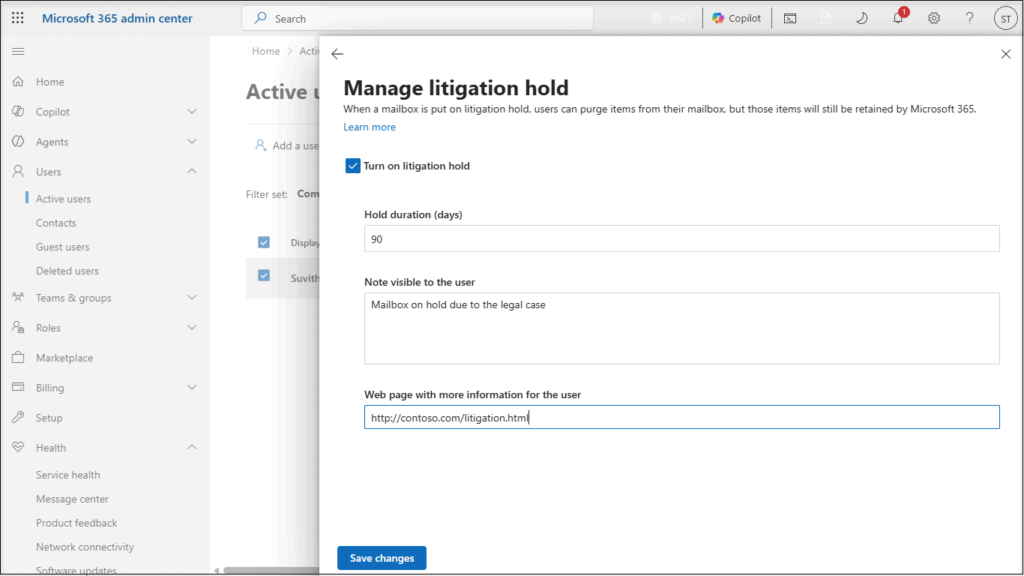
At a high level, the admin center workflow looks like this:
- Open the Microsoft 365 admin center and go to Active users.
- Select the relevant user and open Mail settings.
- Choose the option to manage litigation hold.
- Turn the hold on, optionally set a duration, and save the changes.
Organizations that manage larger environments may also use PowerShell to enable holds more efficiently across users and scenarios.
Once connected to Exchange Online, the Set-Mailbox cmdlet lets administrators turn holds on or off and control the hold duration.
- Enable Litigation Hold indefinitely for a single mailbox:
Set-Mailbox user@contoso.com -LitigationHoldEnabled $true
This preserves mailbox content without a time limit. - Enable a time-based Litigation Hold (for example, 2 years or 730 days):
Set-Mailbox user@contoso.com -LitigationHoldEnabled $true -LitigationHoldDuration 730
The duration is calculated from when each item is created or received. - Disable Litigation Hold when a case is closed:
Set-Mailbox user@contoso.com -LitigationHoldEnabled $false
The main goal is simple: preserve potentially important mailbox content before it can be permanently removed. That small action can make a major difference once a case begins to move quickly.
Legal Hold Fire Drill
A legal hold fire drill can turn a rarely used compliance process into a repeatable operational routine. Build a sample scenario, identify affected users, and walk through what happens from the moment a legal notice arrives to the point where holds are confirmed and documented.
This exercise often exposes process gaps such as unclear ownership, slow approvals, or inconsistent documentation. Fixing those gaps early is far easier than fixing them during a real investigation.
Legal Hold vs Litigation Hold: What’s the Difference?
Legal Hold and Litigation Hold are closely related, but they are not exactly the same in Microsoft 365. Litigation Hold is an Exchange Online mailbox feature, while Legal Hold in Microsoft Purview eDiscovery is broader and can preserve content relevant to a case across multiple Microsoft 365 locations.
|
Feature |
Litigation Hold |
Legal Hold in eDiscovery |
|---|---|---|
|
Scope |
Exchange Online mailbox content only. |
Content relevant to an eDiscovery case across supported Microsoft 365 locations. |
|
Best use case |
Preserve mailbox content for a user during a legal or compliance matter. |
Preserve data across custodians and services during a broader investigation. |
|
Admin experience |
Often managed at the mailbox level in Exchange Online or Microsoft 365 admin workflows. |
Managed inside Microsoft Purview eDiscovery cases. |
|
Coverage |
Email focused. |
Better for multi workload investigations. |
In simple terms, Litigation Hold is best when the requirement is to preserve mailbox content. Legal Hold in eDiscovery is more suitable when an investigation spans email, Teams, SharePoint, and OneDrive as part of a defined case workflow.
Core eDiscovery Workflow in Microsoft Purview
Once the basics are clear, the next step is building a repeatable workflow. Microsoft Purview eDiscovery is designed to help organizations move from case creation to collection, review, and export in a more structured way.
A typical workflow includes:
- Creating a case in Microsoft Purview.
- Adding custodians and data locations such as mailboxes, Teams, SharePoint, or OneDrive.
- Applying legal holds to preserve relevant content.
- Running collections and searches using keywords, conditions, and filters.
- Loading results into review sets for deeper analysis and export.
This structure helps teams act with more confidence. Instead of manually piecing together data from different services, they can work through a consistent case process that supports accuracy, accountability, and audit readiness.
When to Apply eDiscovery, Litigation Holds, and Retention Policies
The right choice depends on the business need, the data source, and how broad the investigation is. Litigation Hold is Exchange specific, whereas retention is broader for long term information lifecycle management, and eDiscovery is designed for case-based investigations and evidence collection.
Use each option in these situations:
- Use eDiscovery when you need to create a case, search across Microsoft 365 data, preserve relevant content, review findings, and export evidence.
- Use Litigation Hold when the requirement is specifically to preserve Exchange Online mailbox content, including deleted and modified items.
- Use Retention Policies when the goal is to keep or delete information according to policy across broader Microsoft 365 workloads as part of ongoing compliance and records management.
Easy Mistakes That Weaken Compliance
Even with the right tools in place, small process gaps can create major compliance problems. Many eDiscovery issues are not caused by missing features, but by delayed action, poor access control, and inconsistent case handling.
Common mistakes include:
- Waiting too long to apply holds, which increases the risk that relevant content is changed or deleted before preservation begins.
- Giving too many users access to cases, which can expose sensitive investigation data to unnecessary risk. Microsoft notes that eDiscovery managers can only access the cases of which they are members, which supports tighter access control.
- Poor documentation, which makes it harder to defend actions taken during a legal or regulatory review.
- Running broad searches without refining scope, which can produce excessive noise and slow down review.
- Forgetting to close or review holds after a case ends, which can leave unnecessary preservation settings in place longer than needed.
Best Practices for Security and Governance
eDiscovery works best when it is supported by strong governance. The technology is important, but the surrounding process is what determines whether teams can respond quickly and defensibly under pressure.
Practical best practices include:
- Assign the right licenses for the level of eDiscovery needed.
- Restrict permissions so only authorized roles can access sensitive investigations.
- Combine eDiscovery with broader retention and compliance planning.
- Document who can initiate, approve, manage, and close a legal hold or eDiscovery case.
- Train teams regularly so procedures remain usable, not theoretical.
For security and governance teams, the real value of Microsoft 365 eDiscovery is not only in finding information. It is in creating a reliable process for protecting sensitive data, responding to legal demands, and reducing avoidable risk across the business.
Official Microsoft Resources to Go Deeper
These official Microsoft resources are useful for teams that want to understand the topic in more depth:
- Microsoft Purview documentation for an overview of Microsoft’s governance, compliance, and security capabilities.
- Learn about eDiscovery for core eDiscovery concepts in Microsoft Purview.
- eDiscovery solutions in Microsoft Purview for workflow and solution details.
- Place a mailbox on Litigation Hold for Exchange Online hold guidance.
- Place a mailbox on litigation hold in Microsoft 365 admin for admin center steps.
- Understand Microsoft Purview eDiscovery training for guided learning.
Final Thoughts
For organizations trying to strengthen compliance in Microsoft 365, eDiscovery and Legal Hold are no longer optional background features. They are practical tools for protecting evidence, improving response readiness, and building a stronger governance foundation across Exchange Online, Teams, SharePoint, and beyond.

















 Migrate
 Manage
 Migrate Microsoft 365








