


Why SharePoint Site Owner vs Site Collection Admin Matters
It almost always shows up on Friday afternoons. A department head pings you on Teams: “I added one of my team members as an Owner of our site three weeks ago. She still can’t restore the contract folder our intern deleted last month. What’s going on?
You probably already know the answer. The team member was added as a Site Owner, not a Site Collection Administrator. Two roles that sound nearly identical, sit one click apart in the admin UI, and have very different powers behind them.
Get this wrong on a single site and you lose an afternoon to a permissions ticket. Get it wrong across a tenant-to-tenant migration and you can lose a full cutover weekend, we’ve seen teams spend 12+ hours re-adding admins by hand because the role mapping wasn’t documented before move day.
This guide walks through both roles, shows where they overlap, where they don’t, and gives you a practical model for assigning them. The migration handoff checklist at the end is the part most articles skip, and it’s usually the one teams wish they hadn’t.
- What Is a SharePoint Site Owner? Permissions and Limits
- What Is a SharePoint Site Collection Administrator?
- Side-by-side: who can do what
- How Microsoft 365 Groups Affect SharePoint Site Permissions
- How to Manage Site Owners and Site Collection Admins in SharePoint
- How to List SharePoint Site Admins Using PowerShell
- Practical assignment patterns
- The migration handoff checklist (the part most articles skip)
- Common SharePoint Permissions Mistakes
- The bottom line
What Is a SharePoint Site Owner? Permissions and Limits
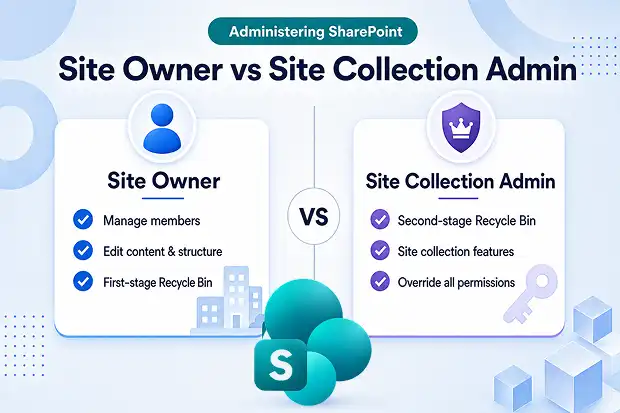
A Site Owner is anyone who’s been added to the site’s Owners SharePoint group, which carries the Full Control permission level by default.
For a modern team site connected to a Microsoft 365 Group, the Group’s owners get mapped into this role automatically. So, in most cases, “Owner” is a hat someone wears because they own the underlying Group, not because anyone explicitly handed them site keys.
Things a Site Owner can do
- Add or remove members from the site’s permission groups
- Create, edit, and delete lists, libraries, and pages
- Change the site’s look — theme, navigation, logo
- Approve access requests from external users
- Spin up subsites (assuming tenant settings allow it)
- Restore items from the first-stage user Recycle Bin
Things a Site Owner can’t do
- No access to the second-stage Recycle Bin. Items emptied from the first-stage bin are simply invisible to them.
- Can’t break inheritance at the site collection root once a Site Collection Admin has locked it down.
- Can’t transfer ownership at the tenant level.
- Can’t see or change settings that only Site Collection Admins control — collection features, audit log settings, storage metrics, and so on.
Think of a Site Owner like a building manager. They handle the day-to-day operations, but they do not own the property.
What Is a SharePoint Site Collection Administrator?
A Site Collection Administrator, now called a Site Admin in the new SharePoint admin center, has full control over everything in a site collection. This includes all sites, subsites, lists, libraries, and files. Their permissions cannot be removed or changed by permission inheritance.
Things only a Site Collection Admin can do
- Empty and restore items from the second-stage Recycle Bin — the Site Collection Recycle Bin
- Activate or deactivate site collection features
- Configure audit log settings for the whole collection
- Manage storage metrics, quotas, and HTML field security
- Override broken-inheritance permissions on any subsite
- Add or remove other Site Collection Admins
The analogy that fits: a Site Collection Admin is the landlord. They hold keys to every unit, can override the building manager any time, and have access to back-of-house spaces residents never see.
Side-by-side: who can do what
|
Capability |
Site Owner |
Site Collection Admin |
|
Permission scope |
Single site |
Entire site collection |
|
Default permission level |
Full Control |
Full Control |
|
Add or remove site members |
✅ |
✅ |
|
Edit site content and structure |
✅ |
✅ |
|
Restore from first-stage Recycle Bin |
✅ |
✅ |
|
Restore from second-stage Recycle Bin |
❌ |
✅ |
|
Activate site collection features |
❌ |
✅ |
|
Configure audit logs |
❌ |
✅ |
|
Override broken inheritance on subsites |
❌ |
✅ |
|
Add other Site Collection Admins |
❌ |
✅ |
|
Visible in SharePoint admin center “Membership” panel |
✅ (as owner) |
✅ (as site admin) |
|
Survives a Microsoft 365 Group ownership change |
Sometimes (group-linked) |
Yes |
|
Auto-assigned when a site is created |
Yes (creator → Owners group) |
Yes (creator → Primary admin) |
A Site Owner manages the site. A Site Collection Admin owns it.
How Microsoft 365 Groups Affect SharePoint Site Permissions
Owning the Group makes you a Site Owner automatically — but it does not make you a Site Collection Admin, no matter how many times that feels like it should be true.
The full wiring:
- The M365 Group’s owners are added to the site’s “Owners” group automatically.
- Only the user who actually created the site becomes a Site Collection Administrator by default — not every group owner.
- If Microsoft 365 Group owners disappear from the site admins list during a sync issue, you can re-add them from the SharePoint admin center: Sites → Active sites → select the site → Membership.
The trap here is subtle but predictable: promoting someone to M365 Group Owner makes them a Site Owner. If they need to recover something from the second-stage Recycle Bin or toggle a site feature, you have to add them as a Site Collection Admin by hand.
How to Manage Site Owners and Site Collection Admins in SharePoint
To manage Site Owners:
Site → Settings (the gear icon) → Site permissions → “Owners” group → add or remove members.
To manage Site Collection Admins:
SharePoint admin center → Active sites → pick the site → Membership panel → Site admins.
Two different screens for two different layers. If you’ve been “fixing permissions” in only one of them, you’re probably looking at half the picture.
How to List SharePoint Site Admins Using PowerShell
When you inherit a tenant or prep for a migration, the first thing you’ll want is a snapshot of who currently holds these roles. PowerShell is faster than the UI for this, and on a tenant with more than ~50 sites, it’s the only sane option.
See all Site Collection Admins on a site:
# Connect to your tenant first

Connect-SPOService -Url https://yourtenant-admin.sharepoint.com

# List Site Collection Admins for a specific site

Get-SPOUser -Site https://yourtenant.sharepoint.com/sites/Finance |

Where-Object { $_.IsSiteAdmin -eq $true } |

Select-Object DisplayName, LoginName
See all Site Owners (members of the “Owners” group):
Get-SPOUser -Site https://yourtenant.sharepoint.com/sites/Finance -Group "Finance Owners" |

Select-Object DisplayName, LoginName
Audit every site collection at once (the pre-migration gold):
Get-SPOSite -Limit All | ForEach-Object {

$site = $_.Url

Get-SPOUser -Site $site |

Where-Object { $_.IsSiteAdmin -eq $true } |

Select-Object @{N='Site';E={$site}}, DisplayName, LoginName

} | Export-Csv -Path "C:\Reports\SiteCollectionAdmins.csv" -NoTypeInformation
Save that CSV. You’ll want it before, during, and after cutover – and the day an auditor asks who had override access on a sensitive site six months ago, you’ll have an answer in under a minute.
Practical assignment patterns
Microsoft’s own guidance is straightforward:
Who should be a Site Owner, who should be a Site Collection Admin, and how often you should review those permissions for different types of SharePoint sites.
|
Site Type |
Why these Site Owners? |
Why these Site Collection Admins? |
Review Cadence |
|
Departmental team site (HR, Finance, Marketing) |
Have 2–3 department leads as Site Owners so the site can still be managed if one person leaves or is unavailable. |
Keep 1 primary IT admin and 1 backup IT admin as Site Collection Admins for emergency access and administration. |
Every 6 months – check that the right people still have these roles. |
|
Project workspace (sensitive content) |
Only the Project Manager should own the site because they control project membership and content. |
Only the SharePoint admin team should have Site Collection Admin rights since these permissions provide unrestricted access. |
Every 3 months because sensitive projects change frequently and require tighter oversight. |
|
Communication site / intranet hub |
The Communications team can be Site Owners so they can publish and edit content. |
Only IT should be Site Collection Admins. Communication staff do not need tenant-level administrative access. |
Every 6 months to ensure permissions remain appropriate. |
|
External-facing collaboration site |
The Site Owner should be an internal employee (sponsor) who is responsible for the site. Guests should never be Site Owners. |
IT should be the Site Collection Admin and should ideally access it through Conditional Access protections. |
Every 3 months because external sharing introduces additional security risks. |
|
Executive / board site |
An Executive Assistant can act as the delegated Site Owner to manage day-to-day operations. |
Have 2 named IT administrators as Site Collection Admins. Avoid shared admin accounts so actions can be audited to specific individuals. |
Every 3 months due to the highly confidential nature of the content. |
While the IT team should retain the Site Collection Admin role. Mixing these two roles can create audit gaps. If the compliance team later identifies those gaps, the responsibility for documenting and resolving them will typically fall on the administrators.
Before moving to the next section, it’s helpful to understand the term governance bench account. This refers to a named IT administrator account owned by a specific individual and used specifically for site collection administration. It is not a shared service account. Because it has a designated owner, all actions can be traced through audit logs, and the account is regularly re-certified according to the organization’s review schedule.
The migration handoff checklist (the part most articles skip)
If you’re running a tenant-to-tenant migration, an M&A consolidation, or a SharePoint reorg, admin roles are one of the easiest things to break.
Before cutover
- Export source roles. Use the PowerShell snippet above (or the PnP cmdlet Get-PnPSiteCollectionAdmin) to snapshot every Site Collection Admin in the source tenant.
- Map M365 Group owners separately. Group ownership drives the Site Owners role implicitly, so those identities need to exist on the target tenant before the site migration runs.
- Pre-create every user and group identified for migration on the target tenant.
- Document the primary admin per site. During migration, that role often gets replaced by your migration service account — save the original so you can restore it cleanly.
During cutover
- Set source sites to Read/Write. Migration fails if they’re stuck in read-only.
- Don’t pre-create target sites. Cross-tenant migration fails if the target site already exists.
After cutover
- Re-add the original Site Collection Admins on every target site from your pre-cutover snapshot.
- Run “Add the group owners as primary admins” for every group-connected site. Group owner sync into Site Collection Admin does not carry across tenants.
- Audit second-stage Recycle Bin access. Users will inevitably ask for deleted content within the 93-day window after cutover – make sure the right person can actually restore it.
- Remove the migration service account from Site Collection Admins on every site.
- Notify Site Owners separately from Site Collection Admins.
Common SharePoint Permissions Mistakes
I made them a Site Owner, but they still can’t restore deleted files.”
They need to be a Site Collection Admin. Deleted items can be recovered for up to 93 days from the time they are deleted. They remain in the first-stage Recycle Bin until someone empties it, after which they move to the second-stage Recycle Bin for the remainder of the 93-day retention period. Only Site Collection Admins have access to items in the second-stage Recycle Bin.
“The site has no owner because the employee left.”
If the only Site Collection Admin leaves and the site isn’t group-connected, the site becomes ownerless. A SharePoint Administrator at the tenant level has to reassign one through the admin center.
“Group owners vanished from Site Collection Admins after a tenant sync.”
Known behavior. Restore them from SharePoint admin center → Permissions → “Add the group owners as primary admins.”
“Five different people are Site Collection Admins on every site.”
That’s governance debt, and it compounds. Run the quarterly audit from the table above — the fewer admins per site collection, the cleaner your compliance story when an auditor eventually asks.
The bottom line
SharePoint site administration uses a layered model rather than a flat one. The Site Owner role is intended for day-to-day operational responsibilities, such as managing content, maintaining membership, and overseeing regular site activities.
The Site Collection Admin role is designed for administrative control. It provides authority over site features, access to the Recycle Bin, audit settings, and the ability to override permissions when necessary.
When roles are assigned correctly, SharePoint environments are generally easier to manage and require fewer support interventions. However, assigning the wrong role can lead to time-consuming permission issues, file recovery requests, and situations where someone identified as the “owner” is unable to perform critical administrative tasks when they are needed most.
If you are planning a tenant-to-tenant migration, Apps4.Pro Migration Manager can preserve Site Collection Admin assignments and Site Owner mappings across tenants in a single migration process. This helps eliminate manual remapping, reduces post-cutover audit work, and minimizes support requests after the migration—allowing you to move your sites while maintaining your governance structure.

















 Migrate
 Manage
 Migrate Microsoft 365








