


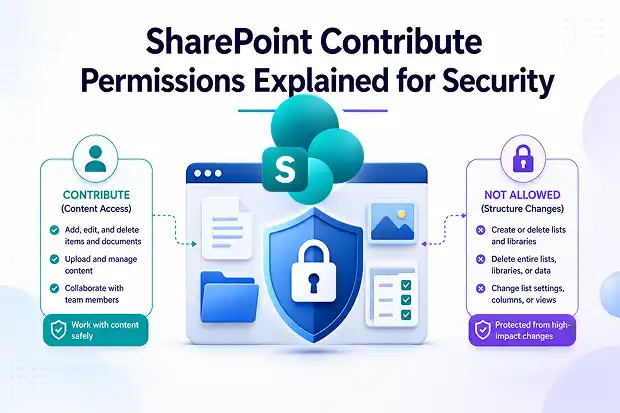
What if your team could collaborate freely in SharePoint without the risk of someone accidentally breaking a critical site? That is where Contribute permissions shine. They give users the access they need to create, update, and manage content, while keeping high-risk site changes out of reach. The result is a smarter balance between productivity, security, and Microsoft 365 governance.
- Why Contribute permissions matter
- What Contribute permissions mean in SharePoint
- SharePoint Edit vs Contribute permissions
- How to configure Contribute permissions in your sites
- Bring your users along
- Governance Template for new sites
- Track SharePoint permission changes
- Security and governance benefits of using Contribute
Why Contribute permissions matter
Think about the last time someone accidentally deleted a library, list, or changed a critical column that every report depends on. With Edit permissions everywhere, that kind of mistake is only a few clicks away for many users in a typical tenant. Most people do not need that level of power, but they often get it by default when you add them to a site.
Contribute permissions give you a way to stop that pattern. You still let people create and edit documents and list items, but you keep them away from the site structure, list settings, and other high-impact changes that can ruin a workday.
What Contribute permissions mean in SharePoint
Contribute is a standard SharePoint permission level that lets people view, add, update, and delete items and documents in lists and libraries, without letting them redesign or delete those lists and libraries. In practice, this means someone can work with content all day but cannot change how the site itself is built.
If you think about typical site members, Contribute permissions match what they actually need. They can upload files, complete list entries, and collaborate with colleagues, but they cannot accidentally break the structure that your governance depends on.
These limits are exactly what turn Contribute permission into a powerful control for your security and governance model.
SharePoint Edit vs Contribute permissions
The conversation about sharepoint edit vs contribute permissions comes up in almost every tenant review or governance workshop. At a glance, they feel similar, because both allow users to work with documents and list items. The real difference lives in what they allow people to do to lists and libraries themselves.
What Edit really means
When you give someone Edit, you are saying they can:
- Add, edit, and delete list items and documents.
- Create new lists and libraries for themselves or their team.
- Delete entire lists and libraries, along with all their data.
- Change list settings, including columns and views that other users depend on.
In many environments, the Members group on a site is configured with Edit by default, which means a large part of your user base has this level of power every day.
Why Contribute is safer
With SharePoint contribute permission, people can still do their work:
- They can upload, edit, and delete their documents and list items.
- They can collaborate with colleagues in document libraries and lists.
What they cannot do is change the underlying structure of your site. They cannot create or delete lists and libraries or alter list settings, which significantly reduces the chance of accidental damage.
A simple rule you can adopt
You can translate this into one easy rule for your governance documentation:
- Use Edit only for users who build solutions, manage list structures, and understand the impact of structural changes.
- Use contribute permissions sharepoint wide for everyone else who just needs to work with content.
If you embed this rule in your site provisioning templates and admin guidance, your risk profile improves immediately without any major friction for end users.
Map your roles to Contribute
To make this more concrete, take a minute and list three personas in your organization:
- A typical business user, such as a finance analyst or HR executive.
- An external collaborator, such as a vendor or partner.
- A power user who helps build lists, libraries, and views.
Now decide where each one fits: which personas truly need Edit, and which are better aligned with Contribute permission in SharePoint. In most organizations, you will see that the majority of people fall naturally into the Contribute group.
How to configure Contribute permissions in your sites
Turning this into reality is mostly a configuration exercise. Once you know what you want your model to look like, you can standardize the steps across your sites.
Here is a practical sequence to set up Contribute permission on a site:
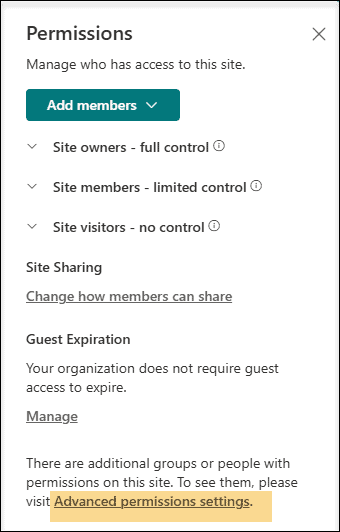
- Open the SharePoint site and go to Settings (gear icon), then choose Site permissions.
- Click Advanced permission settings to open the classic permissions page.

- Look for the Members group for the site, open its settings, and change its permission level from Edit to Contribute.
- Go to Permission Levels to confirm what is included in Contribute versus Edit, so you can document the difference for your users.

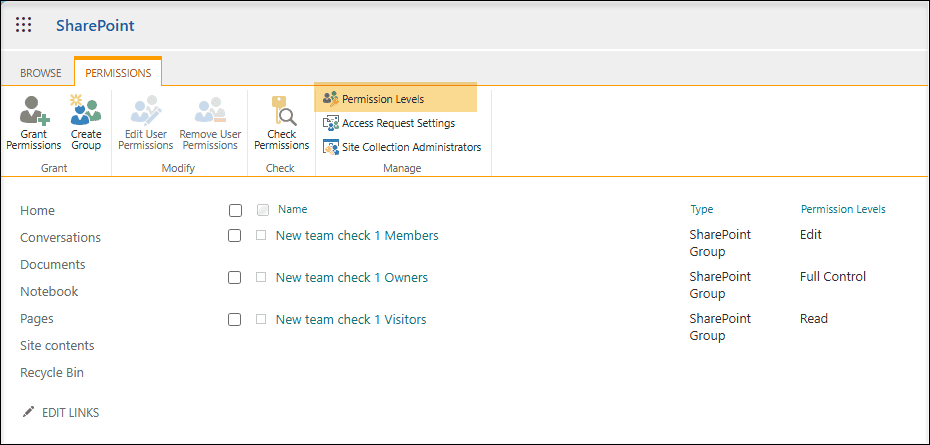
If you have a specific list or library that needs tighter control, you can break permission inheritance on that library and give selected users Contribute while others retain a lower level like Read.
Bring your users along
Do not forget the human side of this change:
- Tell site owners and members why you are moving them from Edit to sharepoint contribute permissions.
- Explain that you are protecting critical lists and libraries from accidental changes while keeping their daily work untouched.
- Offer a simple way for them to request Edit if they have a justified business need.
This clears up confusion and avoids the impression that you are simply taking permissions away.
Governance Template for new sites
Contribute permissions become even more powerful when they are baked into your new site templates. A simple governance structure is often enough to keep things under control without slowing people down.
When you provision new SharePoint sites, you can follow a clear baseline:
- Define default Owners, Members, and Visitors for every site, including how external users fit into that model.
- Use a standard pattern of Owners with Full Control, Members with Contribute permission, and Visitors with Read, and describe this in your template documentation.
- Document where you allow exceptions, such as specific project sites that need more Edit access, and make sure those exceptions have an owner and review schedule.
If you use a site request and approval process, you can include Contribute vs Edit choices in the request form so site owners think about permissions early instead of treating them as an afterthought.
Track SharePoint permission changes
Adding Contribute as your default is a strong start, but it helps to know when someone changes permissions later. Auditing lets you catch drift early, before it turns into an incident or audit finding.
You can keep this simple and still effective:
- Turn on auditing in the Microsoft Purview compliance portal so you can see permission changes across your SharePoint environment.
- Set up alerts for high impact events, such as Members being switched back to Edit, new Owners being added, or broad external links created on sensitive sites.
- Keep a lightweight log of key permission changes on business-critical sites, including why a change was made and who approved it.
Over time, this turns permission management from a one-off activity into an ongoing control that supports your governance plan and helps you answer tough questions from security and compliance teams.
Security and governance benefits of using Contribute
From a governance perspective, shifting members from Edit to SharePoint permission contribute is one of the lowest-effort, highest-impact changes you can make. It supports core security principles without interrupting day-to-day work.
You earn several benefits immediately:
- Fewer accidental deletions of lists and libraries, because users simply do not have that right anymore.
- Tighter control over configuration changes, which you keep in the hands of site owners and power users.
- Clearer audit trails, because only a smaller set of people can modify structural settings.
- Better alignment with the principle of least privilege, a key part of any SharePoint security and governance plan.
When your Contribute permission model is consistent across sites, it also becomes much easier to document and explain your overall governance approach to audit, compliance, and security stakeholders.
Policy snippet you can lift and reuse
To make adoption easier, you can embed language like this in your internal policy:
- For all new SharePoint sites, the default Members group must use the Contribute permission level. Edit permissions are reserved for site owners and designated solution builders who maintain lists and libraries.
Feel free to adapt this wording to match your organization style and add it to your SharePoint site templates, admin runbooks, or governance portal.
Official Microsoft resources for deeper learning
Want to go deeper into SharePoint permissions and governance? These official Microsoft resources are a great next step to strengthen your security model and confirm the best practices for your own environment:
- Microsoft support: Understand groups and permissions on a SharePoint site
- Microsoft support: Site governance, permission, and sharing for site owners
- Microsoft Learn: Sharing and permissions in the SharePoint modern experience
- Microsoft Learn: SharePoint Server user permissions and permission levels
- Microsoft support: Customize permissions for a SharePoint list or library
















