
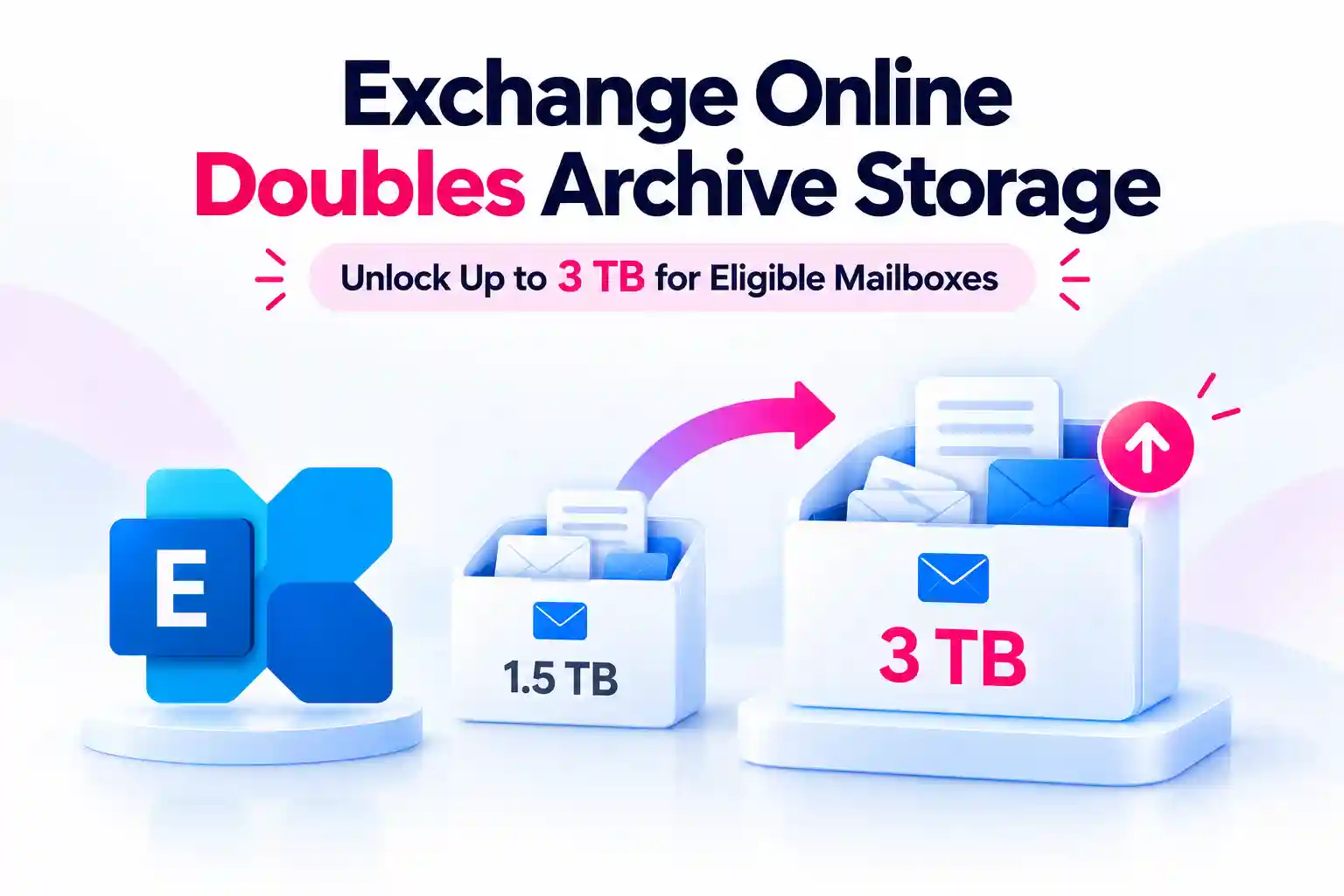
A growing email archive can make storage planning another task on your already busy Microsoft 365 checklist. Microsoft’s latest Exchange Online update gives you more room to manage that growth, increasing the maximum auto-expanding archive capacity from 1.5 TB to 3 TB per eligible mailbox.
If your eligible mailboxes already have auto-expanding archiving enabled, no additional configuration is needed. Your archives can continue expanding as required, with a higher storage ceiling and no new administrator workflow.
Exchange Online’s 3 TB Archive Upgrade: What Changes?
The update increases the maximum capacity available to eligible Exchange Online archive mailboxes. Instead of reaching the previous 1.5 TB limit, these archives can expand automatically up to 3 TB per mailbox.
Here is what the change means for your environment:
- Twice the maximum archive capacity for eligible mailboxes.
- No additional configuration if auto-expanding archiving is already enabled.
- No new per-GB consumption charge introduced by this update.
- No new administrator workflow or user interface.
The increase applies specifically to archive mailbox storage. It does not increase your users’ primary mailboxes to 3 TB or provide unlimited email storage.
🔎 Is Your Email Archive Ready for More Room?
Start your review with the mailboxes holding the largest volumes of archived email.
- Identify users with large archive mailboxes.
- Check whether their assigned licenses qualify.
- Confirm that auto-expanding archiving is enabled.
This gives you a clear starting point without requiring a review of every mailbox at once.
Who Qualifies for the 3 TB Exchange Online Archive Limit?
Access to the higher archive limit depends on licensing. An existing Exchange Online archive mailbox does not automatically qualify for 3 TB of storage.
Eligible offerings include:
- Office 365 E5, A5, and G5.
- Microsoft 365 E5, A5, and G5.
- Microsoft 365 Purview Suite.
- Microsoft 365 Purview Suite FLW, EDU, and GOV.
- Microsoft Defender + Purview Suite FLW.
- Microsoft 365 F5 Compliance.
- Microsoft 365 F5 Security + Compliance.
- The eDiscovery & Audit and Insider Risk Management mini suites combined with the Information Protection & Governance mini suite.
Higher qualifying offerings that include Microsoft Purview E5 capabilities are also covered. Before updating your storage plans, confirm that the relevant license is assigned to each mailbox.
Mailboxes that do not qualify for the increase retain their applicable existing storage limits. The 3 TB maximum should not be treated as a standard allowance across your entire Exchange Online environment.
How Auto-Expanding Archiving Supports Growing Email Storage
Auto-expanding archiving adds storage as your archive needs more capacity. The update raises the maximum available space for eligible mailboxes rather than allocating the full 3 TB immediately.
If your mailbox already meets the licensing requirements and has auto-expanding archiving enabled, expansion continues without an additional setup step.
For a mailbox where the feature is not yet enabled:
- Confirm that the required license is assigned.
- Enable the archive mailbox if necessary.
- Enable auto-expanding archiving through Exchange Online PowerShell.
Keep these settings distinct during your review. Enabling an archive mailbox does not, by itself, mean that auto-expanding archiving is enabled.
📊 Turn Archive Growth Into a Quick Team Check
Add a focused archive check to your next Microsoft 365 administration review.
- Identify your fastest-growing archive mailboxes.
- Verify their licensing and auto-expanding archive status.
- Flag any mailboxes approaching their applicable limits.
Keep the findings in a simple tracking list so you can follow up on the mailboxes that need attention.
More Archive Capacity, Same Retention Policies and Holds
The increased storage ceiling does not change your existing archived content, retention configurations, policies, or holds. Your established settings remain in place as eligible archives gain room to grow.
There is also no new user interface or administrator experience to introduce. This update changes archive capacity, not the way your users access their archived email.
Treat the additional capacity as more room for your existing email retention strategy, not a reason to keep information longer than your policies require.
Exchange Online Admin Checklist: Make the Most of 3 TB Archives
If your eligible mailboxes already have auto-expanding archiving enabled, no action is required to receive the higher limit. A short administrative review can still help you keep licensing, monitoring, and internal guidance aligned.
Use this checklist to stay prepared:
- Review license assignments for users with large email archives.
- Monitor archive mailbox growth using Exchange Online PowerShell.
- Identify mailboxes nearing their applicable capacity limits.
- Update internal documentation and help desk guidance.
- Review licensing and retention requirements for mailboxes that do not qualify.
When updating your documentation, use the wording “up to 3 TB for eligible auto-expanding archive mailboxes.” It sets the right expectation without suggesting that every mailbox receives the increase.
💬 Clear Up the 3 TB Mailbox Myth
Include a short clarification in your internal IT guidance:
The new 3 TB maximum applies to eligible Exchange Online archive mailboxes, not primary mailboxes.
- The assigned license must qualify.
- Auto-expanding archiving must be enabled.
- Archive storage grows as needed, up to the supported maximum.
This simple distinction helps your help desk explain the update accurately and avoid unnecessary storage requests.
Explore Microsoft’s Official Exchange Online Archiving Guides
Use these Microsoft resources to review archive mailbox behavior, configuration requirements, and auto-expanding archiving: