


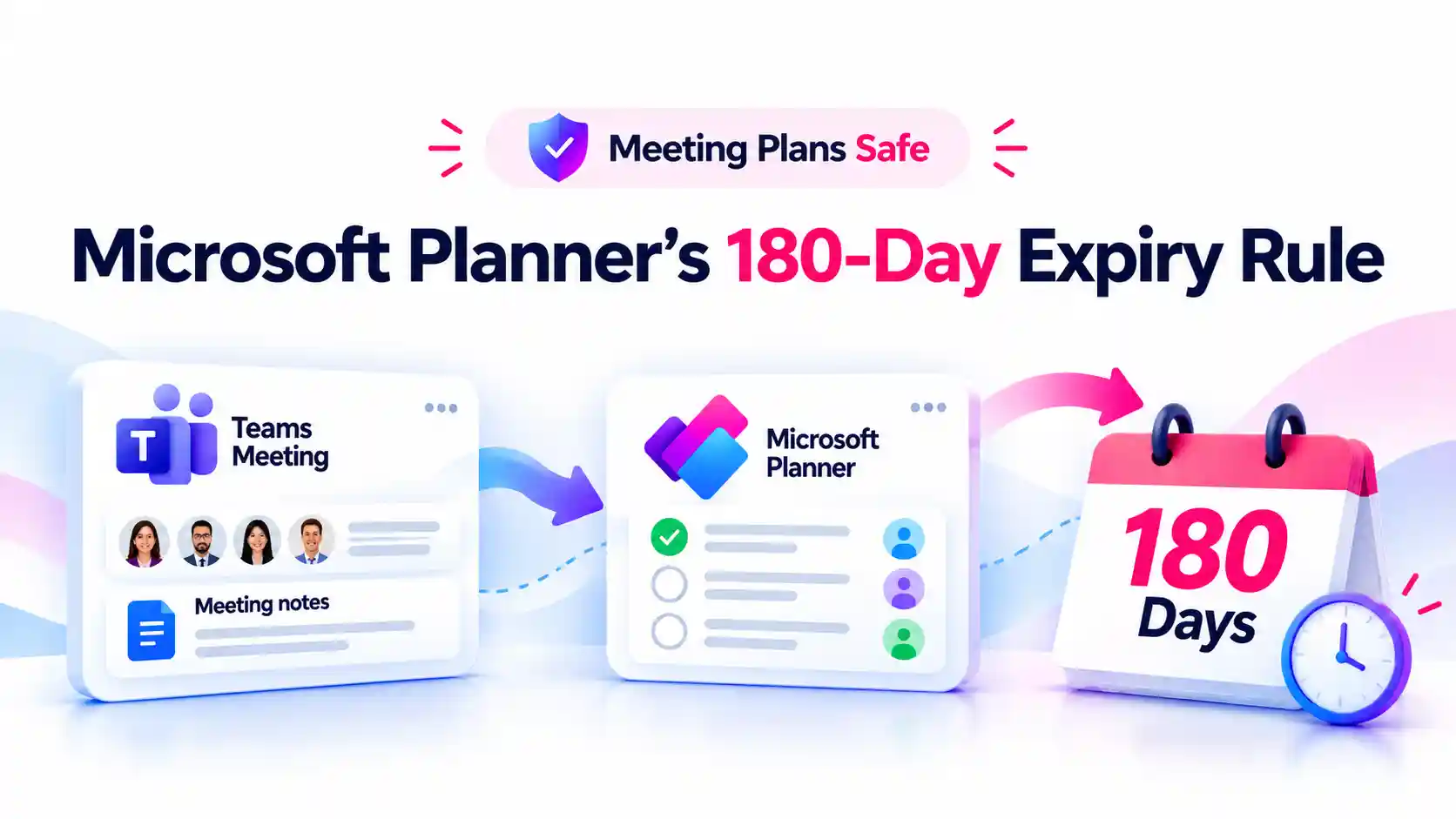
A meeting plan can still hold valuable follow-up work long after your meeting ends. With Microsoft Planner’s new inactivity rule, an eligible meeting-created plan will be automatically deleted after 180 days without task activity, even if you occasionally open it to review progress.
An infrequently updated plan is not always an unnecessary one. You may still rely on it to revisit decisions, track pending responsibilities, or prepare for a follow-up meeting. That makes understanding what counts as activity essential to keeping the plans you need.
You can prevent that deletion without making unnecessary task changes. Advance email reminders and a Keep plan option give you time to review the plan and retain it when it still matters.
- Microsoft Planner Plan Expiration: What Is Changing?
- What Counts as Planner Activity? Opening a Plan Is Not Enough
- Planner Expiration Emails: Two Warnings Before Deletion
- How to Keep a Meeting-Created Planner Plan
- What Happens to Tasks in Loop and Teams Meeting Notes?
- Deleted Planner Plan? There Is a 30-Day Recovery Window
- Microsoft 365 Admin Checklist: Prepare Users, Not Settings
Microsoft Planner Plan Expiration: What Is Changing?
Microsoft is introducing automatic expiration to reduce unused meeting plans and improve Planner lifecycle management. Eligible plans created from Teams meetings will expire after 180 consecutive days without task activity.
The policy has a specific scope:
- It applies only to new meeting-created plans covered by this change.
- Existing plans are outside its scope.
- It does not apply to every Microsoft Planner plan.
- Expiration removes the Planner plan and Planner-specific data, not the tasks in Loop or meeting notes.
When you add the first task to a meeting-notes task list, a connected Planner plan is created. That connection lets you manage meeting follow-up work in Planner, but the plan now needs attention if it remains inactive.
What Counts as Planner Activity? Opening a Plan Is Not Enough
Opening a plan to check progress does not count as activity under the Microsoft Planner inactivity policy. The rule tracks changes to tasks rather than visits to the plan.
Qualifying activity includes:
- Creating a task.
- Editing a task.
- Deleting a task.
🔎 The “Looked at It” Trap
A plan can feel active because you regularly review it. However, viewing its contents does not reset the inactivity period.
During your next review:
- Check whether any tasks have actually changed.
- Review expiration reminders promptly to avoid losing a plan you still need.
Planner Expiration Emails: Two Warnings Before Deletion
If you organize a meeting, you will receive email notifications 30 days and 7 days before its associated plan is scheduled for deletion.
Each notification includes:
- The affected plans.
- The last-activity date.
- A link to view the tasks in Planner.
Use these reminders to review the plan’s value, not just its recent activity. A plan may still contain useful Planner information even when its tasks have not needed an update.
How to Keep a Meeting-Created Planner Plan
Select Keep plan in Planner to retain an eligible plan for another 180 days without editing its tasks. You can repeat this action as many times as needed.
When an expiration warning arrives:
- Open and review the affected plan.
- Check whether you still need its Planner information.
- Select Keep plan to retain it.
This gives you a simple way to preserve useful meeting plans while allowing genuinely unused plans to be cleared.
📌 Keep It or Clear It?
Treat an expiration reminder as a quick review of unfinished work and useful information.
- Keep the plan if it still supports ongoing work or reference needs.
- Confirm that nothing important remains before allowing it to expire.
A brief check can prevent a useful plan from being mistaken for forgotten meeting clutter.
What Happens to Tasks in Loop and Teams Meeting Notes?
Your tasks in Loop and meeting notes remain intact and accessible when the connected Planner plan expires.
The distinction is important:
- Removed: the expired Planner plan and Planner-specific data.
- Unaffected: tasks stored in Loop and meeting notes.
You should still review the expiration notice carefully. Having access to the meeting tasks is not the same as retaining the Planner plan and its Planner-specific information.
Deleted Planner Plan? There Is a 30-Day Recovery Window
If you take no action, the plan is deleted on its scheduled date. You can seek recovery within 30 days through an IT administrator’s request to Microsoft support.
After that recovery window closes, deletion is permanent.
If a needed meeting plan disappears:
- Contact your IT administrator promptly.
- Explain that the plan may have expired because of inactivity.
- Ask for a recovery request to Microsoft support within the 30-day window.
Recovery requires support assistance. Responding to an expiration warning is a more direct way to keep the plan available.
🚨 Make Recovery a Fast Handoff
Report a missing meeting plan to IT as soon as you notice it. Providing the right details can help your administrator investigate the issue.
Include:
- The meeting or plan name.
- When you noticed the plan was missing.
- Any expiration emails you received.
Microsoft 365 Admin Checklist: Prepare Users, Not Settings
If you manage Microsoft 365, you do not need to enable this feature. Your preparation should focus on clear communication and a reliable recovery process.
Use this checklist to prepare:
- Explain which meeting-created plans are subject to the 180-day inactivity rule.
- Clarify that opening or viewing a plan does not count as activity.
- Tell meeting organizers to watch for expiration emails.
- Educate users to use Keep plan option in Planner to retain the necessary plans.
- Prepare your support process for the 30-day recovery window.
- Explain that tasks in Loop and meeting notes remain unaffected.
For Microsoft 365 task governance, the priority is helping people recognize when a plan still matters and retain it before automatic deletion.
Explore Microsoft’s Planner and Meeting Task Guides
Use these Microsoft guides to set up meeting task lists and manage your follow-up work in Planner with confidence.
















