


Creating a polished SharePoint page no longer has to begin with a blank canvas. Microsoft’s new HTML pages capability gives you another way to turn an idea, a project brief, or existing HTML content into a published page.
You can use Copilot to create a draft, upload an HTML file you already have, and refine the content within SharePoint. The result is a more flexible authoring experience alongside your existing modern pages.
- One Library, More Possibilities: What SharePoint HTML Pages Bring
- From Prompt to Page: Create SharePoint Content with Copilot
- Bring Existing HTML into Your SharePoint Site
- Edit the Message, Refine the Design, Skip the HTML Code
- Publish with Confidence: Permissions Still Control Access
- Know the Boundaries Before Replacing a Modern Page
- SharePoint Admin Checklist: Settings, Licenses, and Author Guidance
One Library, More Possibilities: What SharePoint HTML Pages Bring
SharePoint HTML pages give you an additional content format without replacing existing ASPX pages. Your created or uploaded HTML pages are stored in the Site Pages library, where you can manage, edit, and publish them.
With this capability, you can:
- Create HTML pages using Copilot prompts.
- Upload an existing HTML file or a folder with supporting files.
- Edit text directly on the page.
- Use Copilot to make broader content and design changes.
- Publish and share pages with the appropriate audience.
This keeps your HTML content within SharePoint’s familiar page management experience.
From Prompt to Page: Create SharePoint Content with Copilot
A useful page starts with clear direction. Describe the content you need, the layout you prefer, and any design requirements. You can also attach relevant files to give Copilot more context.
Start creating from any of these locations:
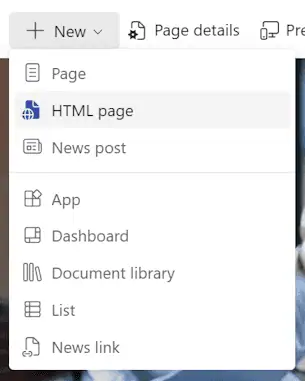
- On your SharePoint site, select + New > HTML page.
- Select the floating Copilot button on your SharePoint site.
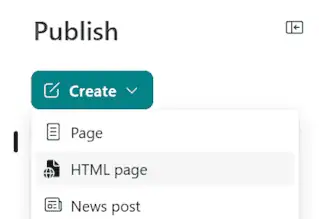
- On the Publish landing page, select + Create > HTML page.
Copilot generates a draft and opens it in edit mode. Review the content, refine the structure, and confirm that the page is saved in the Site Pages library.
Opening the creation screen through + New or + Create requires a Microsoft 365 Copilot license. Uploading HTML directly to the Site Pages library does not require that license.
💡 Turn Your Team Brief into a Page
Turn an approved project brief into a page that makes key information easier to find.
- Try: “Create a project overview HTML page with goals, milestones, team contacts, and FAQs.”
- Attach your project brief to provide supporting context.
- Review the draft for accuracy, clarity, and missing details before publishing.
A specific prompt gives Copilot a clearer starting point and helps keep the draft focused on your requirements.
Bring Existing HTML into Your SharePoint Site
Existing HTML content can become part of your SharePoint publishing workflow. You can upload a single .html file or an HTML folder containing the page and its supporting files.
Choose the upload option that matches your content:
- From the HTML page creation screen, select Upload HTML page.
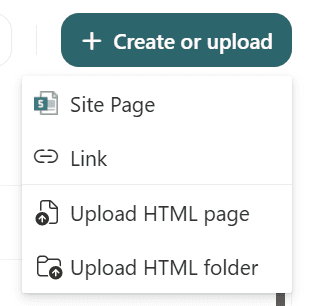
- From the Site Pages library, select Create or upload, then Upload HTML page or Upload HTML folder.
Supporting content, such as included images and videos, is uploaded to the Site assets folder. The HTML file size limit is 10 MB, excluding those supporting assets.
If your HTML file is already in a document library, open its menu and select Edit > Edit in SharePoint. This moves the file to Site Pages and opens it for editing, rather than leaving it in its original library.
🎨 Give Existing Content a Fresh Look
Start with one existing HTML page to understand how it fits your SharePoint site before uploading a larger collection.
- Check the layout, images, and links after uploading.
- Review whether the design matches your site.
- With the required Copilot license, ask Copilot to adjust the page to your site’s branding.
Uploaded HTML does not automatically inherit SharePoint site branding, so a design review remains an important step.
Edit the Message, Refine the Design, Skip the HTML Code
You can make everyday text updates without working directly with HTML code. Open the page, select Edit, and update the text on the canvas.
For broader changes, use the Copilot chat pane. Describe the section you want to change and the outcome you need.
For example:
- “Add an FAQ section at the bottom of the page.”
- “Change the hero background to our brand color.”
- “Add a team introduction section.”
Direct page-content editing does not require a Microsoft 365 Copilot license. Creating or editing through the Copilot chat pane requires one, along with the appropriate SharePoint permissions.
Publish with Confidence: Permissions Still Control Access
When your page is ready, select Publish. If you need more time to review it, select Save and close to continue later.
Publishing makes the current version available to people who already have permission to view the page. It does not automatically give access to a new audience.
Before sharing the page, check that:
- Your intended audience has the required permissions.
- The content, links, and supporting files are ready.
- Your sharing option follows your organization’s requirements.
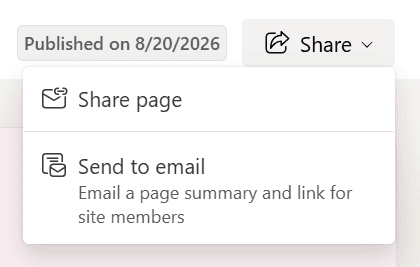
After publishing, select Share to send the page to a person or group, copy a link, or share it by email. Access depends on the permissions applied through your selected sharing option.
Published HTML page options
🔎 Make Your First Page a Useful Pilot
Choose a focused page, such as a team introduction or project FAQ, to test the experience from creation to publishing.
- Ask a small review group to check clarity and navigation.
- Confirm that the intended audience can open the published page.
- Use the feedback to improve your authoring checklist.
Collect feedback through a separate channel, because HTML pages do not support built-in reactions or comments.
Know the Boundaries Before Replacing a Modern Page
HTML pages offer another way to present content, but they do not include every capability available with modern SharePoint pages.
Important limitations include:
- No promotion to a news post.
- No scheduling or private drafts.
- No co-authoring.
- No built-in reactions or comments.
- No saving HTML pages as templates.
- No arbitrary fetch requests or outbound API calls.
📌 For the complete list of limitations, refer Microsoft Support | What can I do with an HTML page in SharePoint?
Choose the format around your publishing needs. If your workflow depends on news promotion, scheduled publishing, or co-authoring, review these limitations before moving that content to an HTML page.
SharePoint Admin Checklist: Settings, Licenses, and Author Guidance
No advance admin action is required for this update. HTML pages are enabled by default, while site owners can control whether the Site Pages library accepts HTML files.
To review the setting, open Site Pages > File types and check Allow HTML files. Your ability to create, edit, and publish still depends on the permissions assigned to you.
Your internal guidance should explain:
- Where to create and upload SharePoint HTML pages.
- When a Microsoft 365 Copilot license is required.
- How publishing differs from granting access.
- Which limitations affect your existing workflows.
There is also a related change to agent creation. The site-scoped Agent creation entry point is being removed from the + New menu on site pages.
You can still create agents from a document library or list command bar, or from the context menu of selected files in a document library.
Explore Microsoft’s Guide to SharePoint HTML Pages
Find detailed instructions for creating, uploading, editing, and publishing HTML pages, along with licensing requirements and supported capabilities.
















