


If you rely on Microsoft Teams every day, these new updates are designed to help you cut through the noise and find what you need faster. They focus on giving you more control over notifications, clearer invites for large events, and better ways to search for files in busy channels.
Update 1: Granular Channel Notification Settings To Cut The Noise
Microsoft Teams is introducing granular channel notification presets so you can decide exactly how you want to be notified in each channel. This update aims to reduce notification overload while still keeping your most important conversations within easy reach.
What’s new in channel notifications
You will be able to choose from three main presets inside each channel:
- All new messages
- Mentions and replies
- Mute
Within each preset, you can fine tune how you receive alerts:
- Turn notifications on or off for unfollowed threads
- Manage tag, channel, and team mentions
- Decide whether alerts appear in banner and activity feed or only in the activity feed
These options give you more control over what matters most, helping you focus on relevant updates while keeping low priority conversations in the background.
Why it matters for your workday
With these settings, you can shape Teams around how you work instead of constantly reacting to every ping. You do not need admin’s help to use these controls, and existing notifications stay as they are unless you change them.
Practical benefits for you include:
- Fewer interruptions from noisy channels
- More attention on priority threads and mentions
- A consistent notification experience across desktop, web, and mobile apps
💡 “Notification Tuning Day” Workshop
A short “Notification Tuning Day” workshop can help teams with the below so everyday collaboration feels less distracting and more focused.
- Review and set channel presets in a more intentional way
- Compare what works best for project channels, leadership channels, and announcement spaces.
📌 Official Microsoft resources
To learn more and see Microsoft guidance on notification settings, explore
Update 2: Distinguish Town Hall Invites For Attendees, Presenters, And Co organizers
Microsoft Teams is updating event invites so that each town hall participant receives email and calendar information tailored to their role. Attendees, presenters, and co organizers will get clearer, separate invites that make large events easier to coordinate.
What’s changing in event invites
This change introduces role-based event invite emails for Teams town halls. Here is what you can expect in practice:
- Attendees receive an invite focused on joining the event and participating as audience
- Presenters receive separate calendar invites highlighting their presentation responsibilities
- Co-organizers receive information aligned with managing and supporting the event
As an organizer, you will also see emails that clarify the roles of participants, giving you a clearer overview of who is responsible for content and logistics.
Why this helps your town halls and large meetings
Separating attendee and event crew invitations helps you avoid mixing backstage details with audience communication. This update makes it easier to keep operational information clear, reduce confusion around responsibilities, and make large events feel more organized from the start.
No additional admin setup is required, but reviewing internal event templates and meeting guidance can help teams use the new invite structure more effectively.
🎤 Design Your Perfect Town Hall Invite
A quick planning session around town hall invites can help organizers
- Rethink how they assign roles before an event begins
- Improve clarity for presenters
- Simplify coordination for co organizers, and
- Create a cleaner experience for attendees
📌 Official Microsoft resources
To explore townhall invite changes and role details, use
Update 3: Advanced File Discovery And Filters In “Find In Chat And Channels”
Microsoft Teams is improving file search so you can locate documents in busy chats and channels more quickly. Instead of scrolling through long histories or asking colleagues to resend files, you can now use richer filters and contextual search directly in Teams.
What’s new in Teams file search
The enhanced search experience surfaces files shared in channels and chats and lets you narrow results with filters. When you press Ctrl+F on Windows or Cmd+F on Mac, or use Find in chat and channels, you can:
- Filter by file type to focus on formats such as Word, Excel, or PowerPoint
- Narrow by person to see files modified or shared by specific colleagues
- Refine by date to spot recent or older content
- Use typeahead suggestions while you type keywords
Glimpse of the new filter options
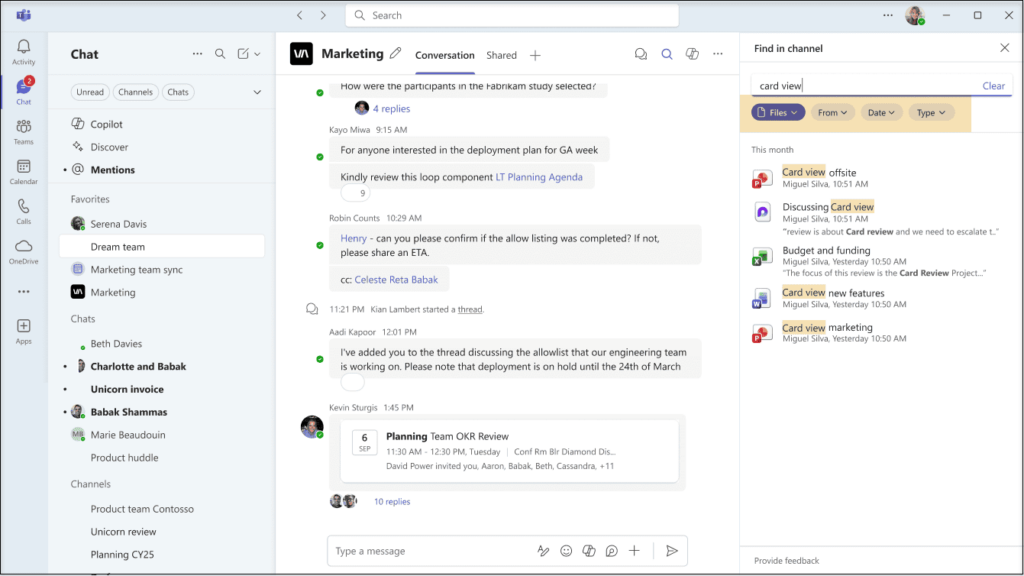
These improvements help make Teams a more reliable place to find shared files, even when channels are active and long running.
Example: How you can use the new filters
Imagine you are looking for a presentation shared in a project channel last month.
- Open the relevant Teams channel and start a search with Ctrl+F or Cmd+F
- Type part of the file name or topic
- Choose File Type to filter for PowerPoint files
- Choose Person to focus on the colleague who shared or edited it
- Set Date to the appropriate month or custom range
Within a few clicks, you can move from a long list of results to a small, relevant set of files that match your criteria.
🔍 File Hunt Challenge In Teams
A File Hunt Challenge can turn this update into a practical learning moment for your team. It encourages better file naming, smarter keyword use, and more consistent habits around where documents are stored so future searches become easier for everyone.
Bringing These Updates Into Your Everyday Teams Experience
Together, these updates help shape a Microsoft Teams experience that feels more focused, more organized, and easier to navigate during busy workdays. Granular channel notifications reduce noise, role-based invites clarify responsibilities for large events, and advanced file discovery makes important documents easier to find when you need them most.

















 Migrate
 Manage
 Migrate Microsoft 365








