


- Key Takeaways
- Microsoft 365 Tenant-To-Tenant Identity Mapping: The Real Work After An M&A Close
- Coexistence, Identity Mapping, And Migration: Three Jobs People Confuse
- What Microsoft’s Native Tooling Maps, And What It Doesn’t
- Native cross-tenant migration coverage by workload
- Why Identity Mapping Is A Decision Problem, Not A CSV
- Identity mapping decision matrix
- What A User Identity Mapping Record Looks Like
- The Tenant-To-Tenant Migration Sequence: Represent, Map, Move, Prove, Cut Over
- Tenant Migration Readiness Checklist (Run Before Each Wave)
- The Management And Reporting Layer That De-Risks The Project
- Which Tenant-To-Tenant Migration Software Handles Reporting Best?
- Native vs. third-party migration tools compared
- Common Tenant Migration Pitfalls And Edge Cases
- The Bottom Line
- Frequently Asked Questions
Key Takeaways
- Microsoft 365 tenant-to-tenant identity mapping pairs each source account, group, and resource with its destination match, so content, permissions, and ownership follow the right person.
- Treat it as a decision problem, not a CSV: collisions, shared mailboxes, service accounts, and do-not-migrate users are where projects break.
- Separate three jobs: coexistence (B2B representation), identity mapping (reconciliation), and data migration (the move). Different tools solve each.
- Microsoft’s native tooling moves mailboxes and OneDrive, plus Teams chats and SharePoint sites in preview; it stamps identity attributes but won’t create accounts.
- Native tooling skips the collaboration layer: Teams channels, Microsoft 365 Groups, Planner, Power Automate, Power BI, Forms, and Viva Engage need a third-party tool.
- Sequence the work identity first, content second, endpoints last: map and license in order, pilot a wave, then cut over the domain.
- Pick software by workload coverage and reporting depth: native for mailbox-plus-OneDrive, a purpose-built tool when Teams or the Power Platform must survive.
The migration dashboard reads 100% complete. On Monday morning, the acquired team can’t find three years of Teams history, two approval flows have gone silent, and a shared mailbox is delivering to the wrong person. Nothing technically failed. The identities were mapped incorrectly, or never mapped at all.
Microsoft 365 Tenant-To-Tenant Identity Mapping: The Real Work After An M&A Close
To map and manage user identities across tenants, build an auditable record that pairs every source account, group, and resource with its destination match, then validate and report on that record before, during, and after each migration wave. Mapping is the prerequisite; the content move follows it.
After an M&A close, the clock running is a transition services agreement (TSA) or an integration deadline, not a quiet IT maintenance window. The first wall most teams hit isn’t moving mailboxes or files. It’s deciding which person in the source tenant equals which account in the destination, and keeping everyone working while that happens.
That is the identity problem, and it is really two problems wearing one coat. The first is mapping: reconciling who-is-who across two directories that were never designed to meet. The second is management and reporting: proving the mapping and the moves actually worked. Get the mapping wrong, and content lands on the wrong accounts, permissions break, and automated workflows fail without anyone noticing. Skip the reporting layer, and you learn about the gaps weeks later, from a queue of support tickets.
This guide covers how to map and manage user identities for a Microsoft 365 tenant-to-tenant (T2T) migration after a merger or acquisition: what Microsoft’s native tooling handles and what it leaves to you, the mapping decisions that actually bite, a migration sequence that holds up, a practical mapping record and readiness checklist, and how to choose software for the management and reporting side.
Coexistence, Identity Mapping, And Migration: Three Jobs People Confuse
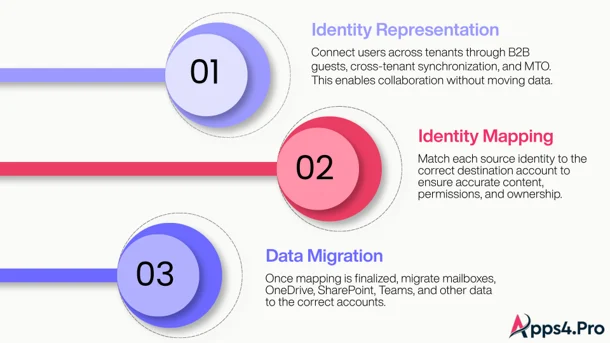
Most confusion in post-merger migrations comes from collapsing three separate jobs into the phrase “identity migration.” They have different goals, different tools, and different timelines. Naming them correctly is half the planning.
1. Identity representation (coexistence): Before anything moves, people from both companies need to find each other, book meetings, and share files. You solve this by representing users from one tenant inside the other, usually as B2B guests. Microsoft Entra cross-tenant synchronization automates creating and updating those B2B accounts across tenants, and a multitenant organization (MTO) improves the Teams and Viva Engage experience across the boundary. This is not a migration. It moves no mailbox and no file. It buys you a working coexistence period while the real migration is planned.
2. Identity mapping (reconciliation): This is the step the headline question is really about. Mapping is the decision record that pairs each source identity with its destination identity so that content, permissions, and ownership follow the right person. A mailbox migrated against the wrong mapping delivers someone’s email to the wrong account.
3. Data migration (the move): Only after mapping is settled does content move: mailboxes, OneDrive, SharePoint, Teams, and the rest. The migration engine reads the mapping and routes each item to the mapped target.
What is tenant-to-tenant identity mapping? It is the process of matching each user, group, and resource in a source Microsoft 365 tenant to its corresponding object in the destination tenant, then recording that pairing so migration tools route mailboxes, files, permissions, and task or workflow ownership to the correct target identity. It is a prerequisite for the move, not the move itself.
Keep these separate and the project gets simpler. Coexistence can run for weeks. Mapping is finalized just before each migration wave. The move happens in scheduled batches. Blur them together, and you end up migrating content before identities are settled, which is the most expensive mistake in this whole exercise.
Key Tenant-To-Tenant Migration Terms, Defined
- UPN (user principal name): a user’s sign-in identity, in email format (user@domain.com). The most reliable attribute to match on.
- MailUser: a mail-enabled object in the target tenant that represents a source user before their mailbox moves. Native mailbox migration requires one per migrating user.
- CTIM (Cross-Tenant Identity Mapping): Microsoft’s tool that maps source users to target users one-to-one and stamps the attributes linking them.
- Cross-tenant synchronization: a Microsoft Entra service that provisions B2B guest accounts across tenants for coexistence. It does not migrate data.
- Cross-Tenant User Data Migration license: the per-user, one-time Microsoft add-on required to move mailboxes and OneDrive between tenants.
What Microsoft’s Native Tooling Maps, And What It Doesn’t
Microsoft does not offer a single button that merges two tenants. What it offers is a set of native cross-tenant capabilities that handle identity and personal data well, and leave the collaboration layer to you. Knowing exactly where that line sits is the most useful thing to settle before you choose tools.
The identity piece is handled by Cross-Tenant Identity Mapping (CTIM). CTIM maps source users to target users one-to-one and stamps the attributes that link them, including ExchangeGuid, ArchiveGuid, and the required proxy and X500 addresses, onto the target objects. Two details matter: CTIM does not create the accounts for you, and identity mapping must run before you assign workload licenses such as E5 to the target users.
The content moves through cross-tenant mailbox migration and cross-tenant OneDrive migration, now coordinated by the Microsoft 365 Migration Orchestrator, which entered worldwide public preview in late 2025. The table below is the coverage map as of October 2026. Preview scope changes often, so confirm against Microsoft Learn before you commit to a plan.
Native cross-tenant migration coverage by workload
|
Workload/task
|
Native cross-tenant status
|
License and key notes
|
|---|---|---|
|
Identity mapping (attribute stamping)
|
Native cross-tenant status
CTIM, available
|
License and key notes
Stamps ExchangeGuid, ArchiveGuid, proxy/X500 to target objects; 1:1; does not create accounts |
|
User mailboxes (Exchange Online)
|
Native cross-tenant status
Generally available
|
License and key notes
Cross-Tenant User Data Migration add-on, per user; user-visible content only (mail, calendar, contacts, tasks, notes)
|
|
OneDrive for Business
|
Native cross-tenant status
Generally available |
License and key notes
Cross-Tenant User Data Migration add-on; one-and-done move, no incremental delta |
|
Teams 1:1 and group chats
|
Native cross-tenant status
Preview (via Orchestrator)
|
License and key notes
No separate license during preview; needs E3/E5 on both tenants
|
|
Teams meetings
|
Native cross-tenant status
Preview (via Orchestrator)
|
License and key notes
Migrated as calendar events; meeting links to the source tenant are not regenerated
|
|
SharePoint sites
|
Native cross-tenant status
Preview (separate path)
|
License and key notes
Cross-Tenant Shared Data Migration license, per 100 GB, Enterprise Agreement customers
|
|
Teams (teams, channels, channel chat)
|
Native cross-tenant status
Not covered
|
License and key notes
Shared/team-level data stays in the source; needs a third-party tool
|
|
Microsoft 365 Groups and group mailboxes
|
Native cross-tenant status
Not covered
|
License and key notes
Needs a third-party tool
|
|
Planner, Power Automate, Power BI, Forms, Viva Engage, Bookings
|
Native cross-tenant status
Not covered
|
License and key notes
Needs a third-party tool |
|
Mailbox and calendar delegate permissions
|
Native cross-tenant status
Not natively supported
|
License and key notes
Reconfigure manually or use a third-party tool
|
Three practical limits flow from this table. First, native OneDrive and SharePoint moves are one-time operations with no delta pass, so late changes after the move are not picked up automatically.
Second, the Orchestrator is powerful but not one-click: CTIM must stay stable through the run, licensing order is strict, and there is a required post-migration cleanup (remove mapping data, remove endpoints, revoke the migration app).
Third, and most important for M&A, everything that makes Teams feel like Teams, the channels, the connected SharePoint sites, the Groups, the Planner boards, lives outside native scope. If collaboration continuity is the goal, native tooling alone will not get you there.
For the native mailbox path specifically, Apps4.Pro’s Exchange mailbox tenant-to-tenant guide walks through the same prerequisites in plain language.
Why Identity Mapping Is A Decision Problem, Not A CSV
Every migration tool, native or third-party, will offer to auto-match users. Native CTIM maps one-to-one. Third-party tools typically auto-match on user principal name (UPN) or display name, with a CSV import for the rest. The mechanics are not the hard part. The hard part is the long tail of objects that do not map cleanly, and the decisions you have to make about them before a single byte moves.
Auto-matching on display name is the most common trap. Two people named “John Smith,” or a service account whose display name collides with a real user, and the tool silently pairs the wrong objects. Treat auto-match as a first draft, then review and lock every mapping, especially for anything that isn’t a plain one-to-one user.
The matrix below covers the cases that cause most post-cutover tickets. Build your mapping record around it.
Identity mapping decision matrix
|
Object/scenario
|
Recommended mapping approach
|
Watch out for
|
|---|---|---|
|
Standard 1:1 user
|
Recommended mapping approach
Auto-match on UPN, then verify and lock
|
Watch out for
Display-name matching misfires on duplicates
|
|
Consolidation (several tenants into one)
|
Recommended mapping approach
Explicit mapping per user; agree a target UPN scheme first
|
Watch out for
Collisions multiply as you add tenants
|
|
Name / UPN collision
|
Recommended mapping approach
Assign a new UPN in the target, map explicitly
|
Watch out for
Never let auto-match resolve a collision
|
|
User already present as a B2B guest
|
Recommended mapping approach
Reconcile to the migrated member account
|
Watch out for
Duplicate accounts and split permissions
|
|
Shared mailbox
|
Recommended mapping approach
Map to a target shared mailbox, not a user
|
Watch out for
Delegates and send-as must be recreated
|
|
Microsoft 365 Group/group mailbox
|
Recommended mapping approach
Pre-create the group, map owners and members
|
Watch out for
Out of native scope; it’s SharePoint and Teams move separately
|
|
Distribution list
|
Recommended mapping approach
Recreate in the target, map members
|
Watch out for
Nested lists and send-as permissions
|
|
Service/automation account
|
Recommended mapping approach
Map explicitly; re-own flows and connections
|
Watch out for
Orphaned Power Automate flows fail silently
|
|
Guest / external user
|
Recommended mapping approach
Re-invite in the target; do not migrate
|
Watch out for
External shares need re-establishing
|
|
Leaver/contractor / do-not-migrate
|
Recommended mapping approach
Exclude from mapping; archive at source
|
Watch out for
Scope creep inflates licensing and risk
|
|
Room/equipment/resource mailbox
|
Recommended mapping approach
Map to a target resource mailbox
|
Watch out for
Booking and calendar-processing policies reset
|
The output of this work is a mapping record, one row per object, that your migration tool reads and your stakeholders can audit. The single most useful column people forget is a decision column: migrate, exclude, merge, or recreate. That column is what turns a messy directory into a defensible plan.
What A User Identity Mapping Record Looks Like
A mapping record is just a structured sheet, but the columns you choose decide whether it survives contact with reality. These are the columns worth having from day one. Most tools, including Apps4.Pro Migration Manager, accept a CSV in roughly this shape for bulk mapping.
Example mapping record
|
Source UPN
|
Object type
|
Target UPN
|
Decision
|
Target license
|
Wave
|
Notes
|
|---|---|---|---|---|---|---|
|
Object type
User
|
Target UPN
|
Decision
Migrate
|
Target license
E5
|
Wave
1
|
Notes
Clean 1:1
|
|
|
Object type
User
|
Target UPN
|
Decision
Migrate
|
Target license
E3
|
Wave
2
|
Notes
Name collision, new UPN assigned
|
|
|
Object type
Shared mailbox
|
Target UPN
|
Decision
Recreate
|
Target license
None
|
Wave
2
|
Notes
Rebuild delegates and send-as
|
|
|
Object type
Service account
|
Target UPN
|
Decision
Migrate
|
Target license
As needed
|
Wave
1
|
Notes
Re-own 3 Power Automate flows
|
|
|
Object type
User
|
Target UPN
—
|
Decision
Exclude
|
Target license
None
|
Wave
—
|
Notes
Offboarding, archive at source
|
Two habits make this record trustworthy. Sort by wave so each batch is self-contained, and keep the decision and notes columns filled for every row, not just the awkward ones. An empty decision cell is an unresolved risk hiding in plain sight.
The Tenant-To-Tenant Migration Sequence: Represent, Map, Move, Prove, Cut Over
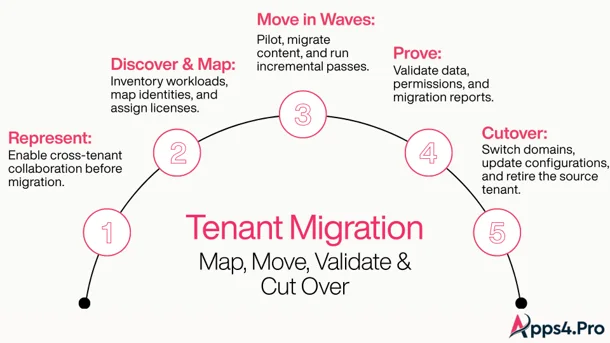
The reliable order is identity first, content second, endpoints last. These five stages map onto the phases most migration platforms, including Microsoft’s native Orchestrator and purpose-built tools, follow.
- Represent (coexistence): Stand up collaboration between the two companies before anything migrates. Configure Microsoft Entra cross-tenant access settings, use cross-tenant synchronization to provision B2B guests, and consider forming a multitenant organization for better Teams and Viva Engage behavior. This stage runs in parallel with planning and can last weeks.
- Goal: people can meet, chat, and share across the boundary on day one.
- Discover and map: Inventory every object on both sides: users, groups, mailboxes, sites, Teams, and flows, then build the mapping record from the decision matrix above. Pre-create the target accounts, because CTIM and most tools map identities but do not provision them. Run identity mapping, and only then assign workload licenses in the target.
- Goal: a locked, auditable mapping and correctly staged target accounts.
- Move in waves: Run a small pilot wave first to validate the mapping end to end. Pre-stage bulk content, then use incremental or delta passes where the tool supports them to shrink the final cutover window. Migrate interdependent workloads together so permissions and ownership stay intact.
- Goal: content in the target, with relationships preserved, and a short final delta.
- Prove (validate and report): Reconcile what migrated against the mapping record using per-workload reports, retry failures, and confirm permissions, ownership, and group memberships. This is the step that separates “the tool said done” from “the business works.”
- Goal: evidence, not assumptions.
- Cutover: Schedule the final delta, then move endpoints. A custom domain can only be verified on one tenant at a time, so the domain cutover is a hard, scheduled event. Update mail routing, reconfigure Outlook profiles and OST files, re-invite external guests, and complete the required cleanup (remove identity-mapping data, migration endpoints, and the migration app).
- Goal: users working natively in the destination tenant, source retired cleanly.
Apps4.Pro frames the same flow as assess, map, migrate, validate, and cutover, which is a useful cross-check: whatever tool you pick, if it skips the map or the validate stage, that work still has to happen somewhere, usually by hand and usually late. Their migration sequence guide sets out a recommended workload order.
Tenant Migration Readiness Checklist (Run Before Each Wave)
Run this check before every migration wave, not just the first. It catches the failures that otherwise surface after cutover.
- [ ] Mapping record locked, with a decision on every row (migrate, exclude, merge, recreate)
- [ ] Name and UPN collisions resolved with explicit target UPNs
- [ ] Target accounts pre-created; identity mapping run before licensing
- [ ] Workload licenses assigned in the target in the correct order
- [ ] Shared mailboxes, resource mailboxes, and distribution lists accounted for
- [ ] Power Automate flows and service accounts mapped and ready to re-own
- [ ] Pilot wave migrated and validated end to end
- [ ] Domain cutover scheduled (a custom domain lives on one tenant at a time)
- [ ] Outlook profile/OST re-creation communicated to users
- [ ] External guests listed for re-invitation in the target
- [ ] Per-workload reporting and retry process confirmed
- [ ] Post-migration cleanup planned (mapping data, endpoints, migration app)
The Management And Reporting Layer That De-Risks The Project
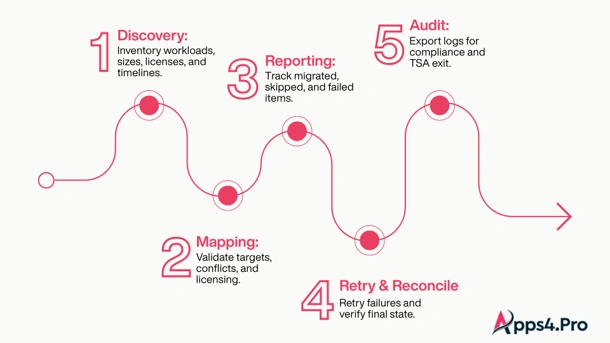
The part of the question that gets the least attention, “what handles the management and reporting side best,” is the part that actually decides whether the migration is defensible. In an M&A context, you usually have to prove to a steering committee, an auditor, or a departing seller’s IT team that nothing was lost. Reporting is how you do that.
When you evaluate any tool, native or third-party, judge it on these five reporting and management capabilities, in roughly this order of value:
- Pre-migration inventory and discovery: A readiness report of users, groups, mailboxes, sites, Teams, and flows, with sizes and counts, before you scope the project. This is what makes your license count and timeline credible rather than guessed.
- Mapping validation: A check that every source object has a locked target, that collisions are resolved, and that licensing order is correct before a wave runs. Microsoft’s Orchestrator enforces a standalone validation step for this reason.
- Per-workload migration reporting: Item-level results for each workload, so you can see exactly what moved, what was skipped, and why. A single “completed” status across mixed workloads hides the failures that generate tickets.
- Retry and reconciliation: The ability to re-run only the failed items against the same mapping, and to reconcile the final state against the pre-migration inventory.
- Post-cutover and audit evidence: Exportable logs that show, object by object, that content and permissions landed correctly, retained for compliance and for the TSA exit.
Native tooling gives you validation and per-workload status for the workloads it covers. Its weakness is breadth: it reports on mailboxes, OneDrive, and the preview workloads, and it is largely PowerShell-driven, with no single dashboard across everything. Purpose-built tools tend to lead with inventory and cross-workload reporting because that is what migration teams buy them for. If management visibility is a hard requirement, weight this layer heavily, because it is where native and third-party tools differ most.
Which Tenant-To-Tenant Migration Software Handles Reporting Best?
There is no single “best” tool, only the best fit for your workload mix and your reporting bar. The honest decision rule is simple.
When native tooling is enough
- The scope is essentially mailboxes plus OneDrive, with maybe SharePoint sites and Teams chats.
- You want data to stay inside the Microsoft cloud and are comfortable with PowerShell.
- Both tenants have the right Microsoft 365 licensing, and you can buy the Cross-Tenant User Data Migration add-on per user.
- A one-time move with no delta pass for files is acceptable.
When you need a third-party tool
- Teams channels and team structure, Microsoft 365 Groups, Planner, Power Automate, Power BI, Forms, or Viva Engage have to survive the move. These are out of native scope.
- You want a dashboard and cross-workload reporting instead of stitching PowerShell output together.
- You need delta/incremental passes, migration waves, or a GUI your team can run without deep Exchange scripting.
- Hybrid or on-premises Exchange, or directory-level coexistence, is in play.
One distinction cuts through most of the choice: does the tool migrate identity, or only map it? ShareGate and Quest can create and license destination users, which is true Entra ID identity migration. Microsoft’s native mailbox and OneDrive path and tools like Apps4.Pro assume the accounts already exist and only map to them. If someone has to build the destination directory, that points you toward an identity-migration tool or Microsoft’s native provisioning, not a content-only mapper.
Native vs. third-party migration tools compared
The table compares the three realistic paths. Treat it as a starting frame; capabilities change, so validate against your own inventory.
|
Option
|
Workload breadth
|
Identity handling
|
Management and reporting
|
and reporting
Licensing model |
|---|---|---|---|---|
|
Microsoft native (CTIM + cross-tenant migration + Orchestrator)
|
Workload breadth
Mailbox and OneDrive; SharePoint sites and Teams chats in preview
|
Identity handling
CTIM: 1:1 mapping and attribute stamping; no account provisioning
|
Management and reporting
Validation and per-workload status; PowerShell-driven, no single dashboard
|
and reporting
Licensing model
Per-user add-on, one-time; separate EA license for SharePoint sites
|
|
Workload breadth
Broad, including Teams chat, Planner, Power Automate, Power BI, Forms, Viva Engage, Bookings
|
Identity handling
Auto-match plus CSV import; 1:1 or bulk; maps existing users, no Entra ID provisioning
|
Management and reporting
Free pre-migration inventory and per-workload reports in a GUI
|
and reporting
Licensing model
One-time purchase
|
|
|
Other third-party suites (ShareGate, BitTitan, Quest, AvePoint and similar)
|
Workload breadth
Broad, varies by product; some add on-prem Exchange and non-Microsoft sources
|
Identity handling
Some add Entra ID identity migration (create, map, and license users)
|
Management and reporting
Reporting and coexistence features; depth varies
|
and reporting
Licensing model
Mostly per-user or subscription
|
Best for / not ideal for
- Microsoft native is best for in-cloud mailbox and OneDrive moves where IT is comfortable with PowerShell. It is not ideal when Teams, Groups, or the Power Platform must move, or when you need a single reporting dashboard.
- Apps4.Pro Migration Manager is best for collaboration-heavy mergers where hard-to-migrate workloads must survive, and you want inventory plus per-workload reporting. It is not the pick if you need Entra ID identity migration or on-premises and non-Microsoft sources.
- Broad third-party suites are best for enterprises wanting identity migration, hybrid/on-prem coverage, or an existing vendor standard. They are not ideal when cost sensitivity favors a one-time, M365-only tool.
For like-for-like detail, Apps4.Pro publishes its own comparisons against ShareGate, BitTitan, Quest, and AvePoint. Read vendor comparisons, from any vendor, as a starting point and verify the specific capabilities you depend on against current documentation and a proof of concept.
Where Apps4.Pro Fits
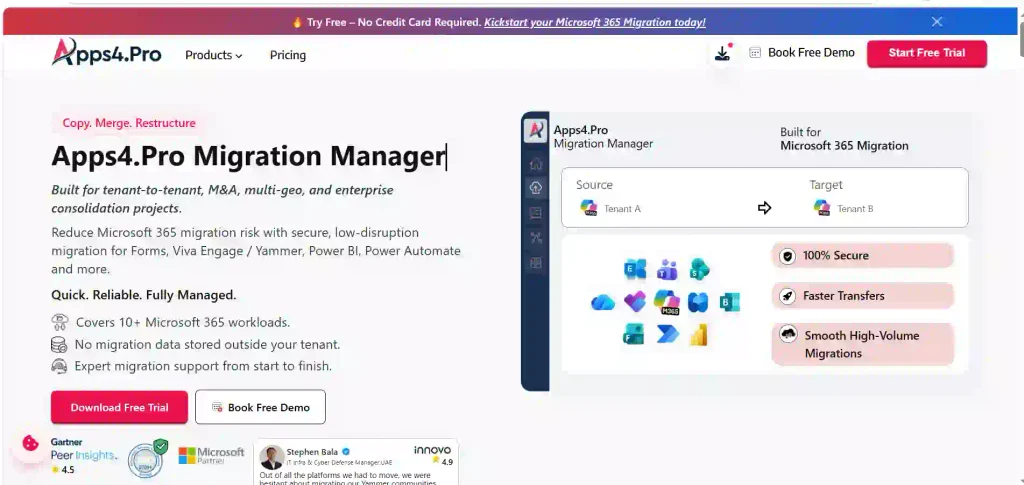
Apps4.Pro Migration Manager is a Microsoft 365 tenant-to-tenant tool built by JiJi Technologies, a Microsoft Solutions Partner. It is worth understanding precisely, because its strengths line up with the native gaps described above rather than duplicating what Microsoft already does well.
On identity, it handles mapping the way most teams want to work: auto-match source to target users, with CSV import for everything that needs an explicit decision, and support for both one-to-one and bulk mapping. Before any move, it can generate a pre-migration inventory report so you can scope the project, and it reports results per workload so you can validate what landed. Its mergers and acquisitions migration flow follows the assess, map, migrate, validate, cutover sequence, with user mapping, group mapping, permission mapping, and ownership updates in the map stage.
Its real differentiator is breadth into the workloads native tooling leaves behind. It migrates Teams chat history, Planner (including Planner Premium), Power Automate flows with connector and environment mapping, Power BI, Microsoft Forms with responses, Viva Engage (Yammer), and Bookings, alongside the standard Exchange, SharePoint, OneDrive, and Teams workloads. For a merger where collaboration continuity is the whole point, that coverage is the difference between a migration that finishes and a business that keeps running. See what gets migrated for the full workload list, and the Power Automate migration guide for how flow and connector ownership is handled.
Be clear about what it does and doesn’t do. It maps and moves content; it does not perform Entra ID identity migration, so it will not create destination accounts or assign Microsoft 365 licenses for you. Those stay with Microsoft’s native identity tooling or another product. Its auto-match also works on display name, so the collision discipline from the decision matrix still applies: review and lock mappings rather than trusting the default. Used for what it is good at, filling the collaboration-layer gap with inventory and per-workload reporting, it is a strong fit for post-merger consolidation. The broader approach is laid out on the Microsoft 365 tenant-to-tenant migration solution page.
Common Tenant Migration Pitfalls And Edge Cases
Most post-cutover fire drills trace back to a handful of predictable issues. Plan for these explicitly.
- Licensing before mapping: Assigning workload licenses (such as E5) to target users before identity mapping runs breaks the native flow. Map first, license second.
- UPN and domain collisions: When consolidating, two users can share a UPN. Decide the target naming scheme early, and never let auto-match resolve a collision.
- A domain lives on one tenant at a time: A custom domain cannot be verified on both the source and destination tenants simultaneously, which makes domain cutover a hard, scheduled event, not a gradual one.
- OneDrive and SharePoint moves are one-and-done: Native cross-tenant file moves have no incremental delta, so content changed after the move is not picked up automatically. Freeze or re-plan late changes.
- A pre-existing target OneDrive blocks the move: Microsoft’s documentation notes that if the user already has a OneDrive site in the destination, the native cross-tenant move fails. Check target provisioning before the wave.
- Very long file paths can block OneDrive moves: Over-long file and folder paths are a known source of cross-tenant OneDrive failures. Run a path-length audit on source accounts before you migrate.
- Teams meeting links don’t regenerate: Existing meeting invites migrate as calendar events, but links pointing to the source tenant won’t automatically become target-tenant links. Communicate this to users.
- Outlook profiles and OST files: After a mailbox moves, users generally need to recreate their Outlook profile and resync, which is a help-desk spike worth staffing for.
- Guests must be re-invited: External and B2B guest access does not migrate; re-establish it in the target.
- Orphaned automation: Power Automate flows and app ownerships that aren’t mapped fail quietly. Inventory and re-own them deliberately.
- Skipping cleanup: After a native migration, leaving identity-mapping data, migration endpoints, and the migration app in place can leave the tenant in an exception state. Cleanup is part of the job, not an afterthought.
The Bottom Line
After an M&A close, mapping and managing user identities is less about tooling mechanics and more about disciplined decisions made in the right order. Separate coexistence from mapping from migration. Build an auditable mapping record that resolves the long tail, not just the clean one-to-one users. Run the sequence identity first, content second, endpoints last. And weight the management and reporting layer heavily, because it is what lets you prove the migration worked.
For tool selection, match the software to your workloads. If the job is mailboxes and OneDrive inside the Microsoft cloud, Microsoft’s native cross-tenant migration and CTIM will do it. If Teams, Planner, Power Automate, Power BI, Forms, or Viva Engage have to survive the move, and you want inventory and cross-workload reporting in one place, a purpose-built tool is the pragmatic choice. Apps4.Pro Migration Manager is built for exactly that collaboration-layer gap, and its mergers and acquisitions migration flow mirrors the assess, map, migrate, validate, cutover sequence described here. A short proof of concept against your real inventory, with a free pre-migration report, will tell you more than any comparison table.

















 Migrate
 Manage
 Migrate Microsoft 365








