


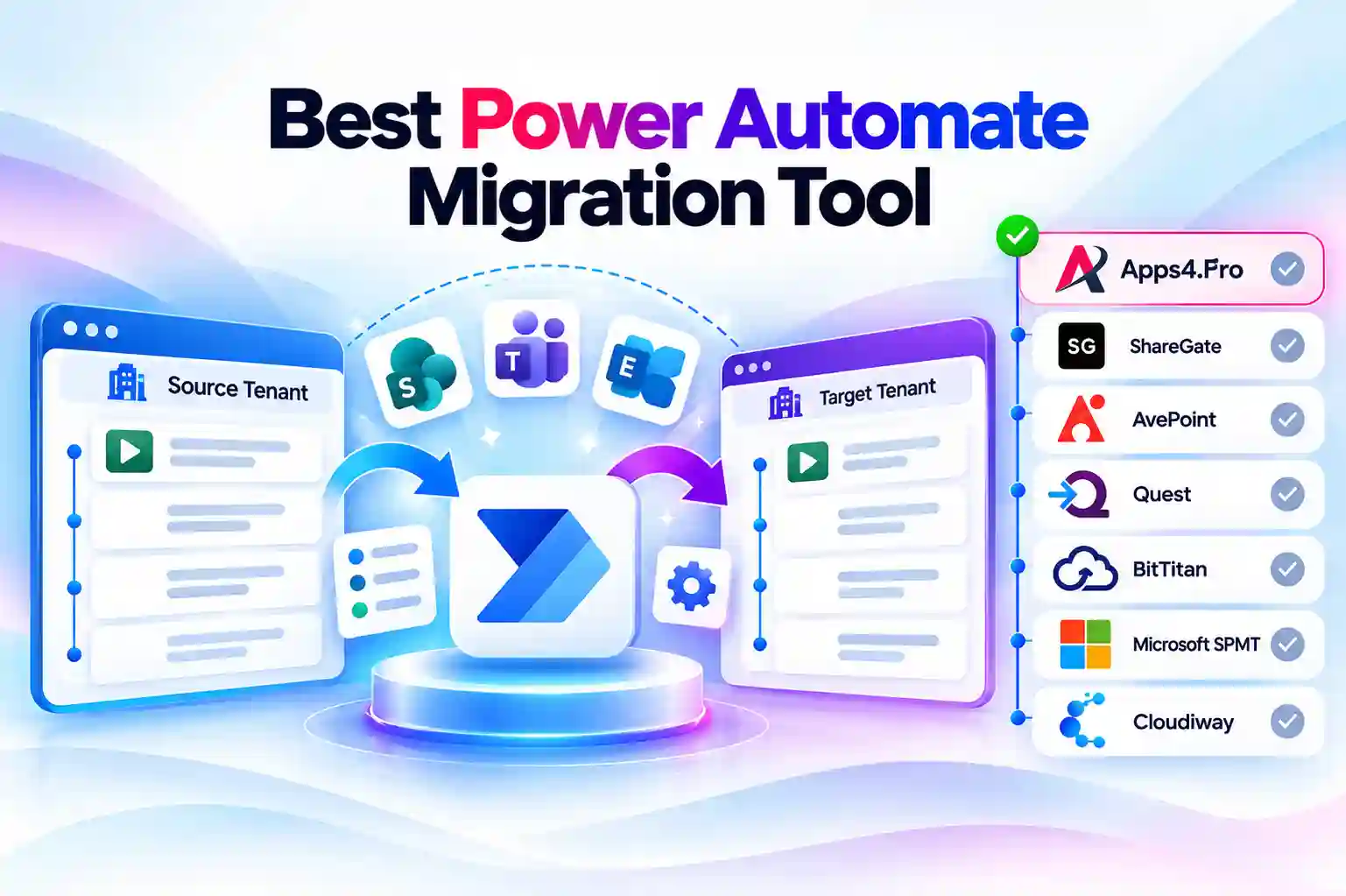
- Quick Answer
- Key Takeaways
- What a Power Automate Migration Has to Handle
- How We Compared These Tools
- Power Automate Migration Options at a Glance
- Power Automate Migration Feature Comparison Matrix
- Which Power Automate Migration Option Fits Your Scenario?
- Apps4.Pro Migration Manager: Best Overall for Migrating User Cloud Flows Between Tenants
- AvePoint Fly for Power Platform: Best for Enterprise Programs Already on Fly
- Quest On Demand Migration: Power Platform Migration in Preview
- Microsoft Native Methods: Export, Import, or Move a Whole Environment
- Migration Tools Without Documented Power Automate Support
- Unique Insight: The Default Environment Problem
- Unique Insight: Who Fixes the Connections?
- Pricing Compared
- How to Choose a Power Automate Migration Tool: A 6-Step Checklist
- Related Comparisons
- Frequently Asked Questions
Quick Answer
Few migration tools move Power Automate flows between Microsoft tenants, and none can carry connections over without someone re-authenticating. Based on each vendor’s documentation:
- Apps4.Pro Migration Manager migrates cloud flows with sharing, flow status, and connectors, and auto-maps the resources flows point to, such as SharePoint sites and lists, Teams channels, Planner plans, and Outlook folders. Flow owners then fix connections through a user link. Desktop flows and run history are not migrated.
- AvePoint Fly for Power Platform documents in-tenant and tenant-to-tenant migration of Power Automate flows with a daily inventory scan, automapping, scheduling, and a progress dashboard, but publishes few details on connections or limits.
- Quest On Demand Migration lists migration of Power Apps and Power Automate with dependencies preserved, but labels the capability “planned/preview” on its own product page.
- Microsoft has no flow-level tenant migration tool. You can export flows as solutions or packages and reimport them, or move a whole Dataverse environment to another tenant, which excludes default, developer, trial, and Teams environments.
This comparison covers Power Automate cloud flows in tenant-to-tenant migration. Teams, Teams Chat, Teams for Education, OneDrive, and Power BI migration are compared in separate guides linked at the end.
Key Takeaways
- Connections never move on their own. Microsoft states that connections are not exported with packages, and that imported flows are turned off by default with new URLs for HTTP-triggered flows (Microsoft Learn, Power Automate blog).
- Microsoft’s tenant-to-tenant environment move supports only production and sandbox environments. “Default, developer, trial, and Teams environments aren’t supported,” and connections, custom connectors, gateways, and security groups must be reconfigured (Microsoft Learn).
- Apps4.Pro migrates cloud flows with sharing, enable/disable status, and auto-mapped resources, but not desktop flows, CRM flows, flow history logs, or environment creation. The flow owner must sign in to restore connections (Apps4.Pro guide).
- AvePoint Fly documents “in-tenant and tenant-to-tenant migration of Power Apps and Power Automate workflows” with inventory scans, automapping, and scheduling (AvePoint Fly for Power Platform).
- Quest’s Power Platform page marks dependency-aware app and flow migration as “planned/preview” while its FAQ says it can migrate Power Automate today, so confirm availability before you plan around it (Quest ODM).
- Flows depend on other workloads. Migrate SharePoint, OneDrive, Teams, Exchange, and Planner first so remapped flows have something to point to.
What a Power Automate Migration Has to Handle
A flow is a set of instructions that points at other things: connections, SharePoint lists, Teams channels, mailboxes, and people. Moving the definition is easy. Making it run in the new tenant is the hard part.
1. Connections and credentials. Every connector needs a connection signed in as a target-tenant identity. No method transfers credentials, so someone, usually the flow owner, must authenticate again.
2. Resource references. Actions reference specific SharePoint sites and lists, Teams and channels, Planner plans and buckets, Outlook folders, and OneDrive files. These must be remapped to their new locations, or the flow fails on its first run.
3. Where flows live. Most user-created flows sit in the default environment and are not in solutions. Microsoft’s environment move does not support the default environment, and solution export only covers flows added to solutions.
4. Owners, sharing, and state. Co-owners, run-only users, and whether each flow was on or off need to carry over, or flows run under the wrong account or not at all.
5. Order and timing. Flows should move after the workloads they depend on and be switched on only after connections are fixed, to avoid duplicate runs against both tenants.
How We Compared These Tools
Which tools are included: tools whose vendors document Power Automate tenant-to-tenant migration, plus Microsoft’s native methods as the baseline. General Microsoft 365 migration tools that do not mention Power Automate are listed at the end.
We compared each option against the same eight criteria:
- Flow types covered (cloud, desktop, solution-aware, non-solution)
- Owners, sharing, and flow state
- Connections and how they are restored
- Remapping of SharePoint, Teams, Planner, Outlook, and other resources
- Environment coverage, including the default environment
- Discovery, inventory, and scheduling
- Documented limitations and availability
- Deployment model and pricing
What this review is: a comparison built from documentation. Sources, in priority order, were vendor documentation and help centers, vendor pricing pages, and Microsoft Learn. We report limitations only when they are documented.
What this review is not: a lab benchmark. We did not run migrations and report no speed numbers of our own.
All prices and capabilities were checked in October 2026 and should be confirmed with the vendor before purchase.
Power Automate Migration Options at a Glance
|
Option |
Flow types |
Connections |
Resource remapping |
Environments |
Status |
Deployment |
Pricing |
|---|---|---|---|---|---|---|---|
|
Apps4.Pro Migration Manager |
Flow types Cloud flows; not desktop or CRM flows |
Connections Owner restores via user link; “Fix All Connection” |
Resource remapping Auto-maps SharePoint, Teams, Planner, Outlook, OneNote, and more |
Environments Across environments; no environment creation |
Status Available |
Deployment SaaS |
Pricing $5,995 per installation (all workloads) |
|
AvePoint Fly for Power Platform |
Flow types Flows (types not stated) |
Connections Not stated |
Resource remapping Automapping from inventory |
Environments Env-to-env and tenant-to-tenant |
Status Available |
Deployment SaaS |
Pricing Quote |
|
Quest On Demand Migration |
Flow types Flows |
Connections Listed as preserved |
Resource remapping Dependencies listed as preserved |
Environments Discovery across environments |
Status Planned/preview |
Deployment SaaS |
Pricing Quote |
|
Microsoft native |
Flow types Solution or package export; environment move |
Connections Not migrated; recreate |
Resource remapping Manual edits |
Environments Production and sandbox only for environment move |
Status Available |
Deployment Admin center, PowerShell |
Pricing No tool cost |
Power Automate Migration Feature Comparison Matrix
“Not stated” means the vendor’s public documentation does not say either way, so confirm it in a proof of concept.
|
Capability |
Apps4.Pro |
AvePoint Fly |
Quest ODM |
Microsoft native |
|---|---|---|---|---|
|
Cloud flows |
Apps4.Pro Yes |
AvePoint Fly Yes |
Quest ODM Yes (planned/preview) |
Microsoft native Yes, via solution or package export |
|
Desktop flows |
Apps4.Pro Not migrated |
AvePoint Fly Not stated |
Quest ODM Not stated |
Microsoft native Inside solutions or environment move |
|
Flows in the default environment |
Apps4.Pro Users’ cloud flows across environments (default not named) |
AvePoint Fly Not stated |
Quest ODM Not stated |
Microsoft native Environment move not supported; export per flow |
|
Owners and sharing |
Apps4.Pro Creators, owners, and sharing with users and groups |
AvePoint Fly Not stated |
Quest ODM Ownership inventoried |
Microsoft native Recreate; users must be in mapping file |
|
Flow on/off state |
Apps4.Pro Yes (enable/disable status) |
AvePoint Fly Not stated |
Quest ODM Not stated |
Microsoft native Imported flows are off by default |
|
Connections |
Apps4.Pro Owner signs in and fixes; bulk “Fix All Connection” |
AvePoint Fly Not stated |
Quest ODM Listed as preserved |
Microsoft native Not migrated; create or map in target |
|
Resource remapping |
Apps4.Pro Environment, connectors, users, groups, Planner, Teams, SharePoint, Outlook, OneNote, Word |
AvePoint Fly Automapping (scope not stated) |
Quest ODM Dependencies listed as preserved |
Microsoft native Manual edits per flow |
|
Run history |
Apps4.Pro Not migrated |
AvePoint Fly Not stated |
Quest ODM Not stated |
Microsoft native Not migrated |
|
Discovery and inventory |
Apps4.Pro Inventory report (users, flows, owners) |
AvePoint Fly Daily scheduled scan |
Quest ODM Discovery and assessment |
Microsoft native Admin center and PowerShell |
|
Scheduling and monitoring |
Apps4.Pro Task monitoring |
AvePoint Fly Schedule or real time; dashboard and reports |
Quest ODM Not stated |
Microsoft native Manual |
Which Power Automate Migration Option Fits Your Scenario?
|
Your scenario |
Shortlist |
|---|---|
|
Merger: user flows across SharePoint, Teams, Planner, and Outlook must keep working |
Shortlist Apps4.Pro |
|
Flows live in the default environment and are not in solutions |
Shortlist Apps4.Pro, or Microsoft package export per flow |
|
Enterprise program already using AvePoint Fly for other workloads |
Shortlist AvePoint Fly for Power Platform |
|
Production or sandbox Dataverse environments with solution-aware flows |
Shortlist Microsoft tenant-to-tenant environment move |
|
A handful of flows and no budget |
Shortlist Microsoft solution or package export and import |
|
Desktop flows |
Shortlist Microsoft solution export or environment move (not covered by Apps4.Pro) |
|
Quest ODM program that wants flows in the same console |
Shortlist Quest ODM (confirm preview status first) |
1. Apps4.Pro Migration Manager: Best Overall for Migrating User Cloud Flows Between Tenants
Apps4.Pro Migration Manager migrates Power Automate cloud flows between tenants with sharing, flow status, and connectors, and auto-maps the SharePoint, Teams, Planner, Outlook, and other resources each flow uses.
Apps4.Pro Migration Manager is built by JiJi Technologies. Its Power Automate guide describes it as a SaaS tool that supports MFA and modern authentication.
Power Automate migration capabilities
Per the Apps4.Pro Power Automate migration guide and best practices article:
- Migrates cloud flows, including sharing with users and groups, flows across environments, connectors, archiving, and enable/disable status.
- Syncs connections, creators, and owners from the source.
- Auto-maps environments, connectors, users, groups, Planner plans and buckets, Teams tags and channels, SharePoint site URLs and lists, calendars, Outlook folders and tasks, and OneNote
- After migration, each flow owner signs in through a user link to sync existing target connections, add new ones, and run “Fix All Connection.”
- The 15-day trial includes an inventory report with user count, flow names, and flow owners.
Documented limitations
- Not migrated: desktop flows, CRM flows, “share flow with SharePoint,” flow history logs, and environment creation.
- End-user action is required: the admin pre-stages the migration, but the flow owner must sign in to restore connections before flows run.
- Related workloads (OneDrive, Teams, SharePoint, Forms, Exchange, and Power BI) should be migrated first.
Pricing
- Power Automate migration limits vary by license tier: Essentials ($5,995) supports up to 50 flows, Growth ($8,995) supports up to 100 flows, and Enterprise ($17,995) supports up to 200 flows. Additional capacity add-on licenses are available. See the Apps4.Pro Pricing Page.
- The license covers all supported workloads (Apps4.Pro licensing).
- A 15-day free trial is available.
Best fit: mergers where many user-built cloud flows in the default environment must keep working against migrated SharePoint, Teams, Planner, and Outlook resources.
Not a fit: estates built mainly on desktop flows, or projects where no flow owners can sign in after migration.
2. AvePoint Fly for Power Platform: Best for Enterprise Programs Already on Fly
AvePoint Fly for Power Platform is a SaaS migration tool for in-tenant and tenant-to-tenant migration of Power Apps and Power Automate flows, with inventory scanning, automapping, and scheduling.
Power Automate migration capabilities
Per AvePoint’s Fly for Power Platform page and product brochure:
- Executes in-tenant and tenant-to-tenant migration of Power Apps and Power Automate flows.
- Moves flows from one Power Platform environment to another, or between tenants.
- A daily scheduled scan inventories environments, apps, and flows, and automapping builds mappings from that inventory.
- Projects define scope, filter policy, method, and schedule; container rules move selected subsets.
- A dashboard tracks status and progress, with executive reports and a single error file across workloads.
Limitations
- AvePoint’s public pages do not state which flow types are supported or how connections, owners, and resource references are handled. A detailed support list exists in AvePoint’s documentation, so ask for it during evaluation.
- Pricing is quote-based.
Pricing
- Quote-based, as part of AvePoint Fly. AvePoint describes content migration as unlimited, with no data caps.
Best fit: enterprises already using AvePoint Fly for Microsoft 365 workloads that want flows in the same platform.
Not a fit: buyers who need published details on connection handling before purchase.
3. Quest On Demand Migration: Power Platform Migration in Preview
Quest On Demand Migration lists Power Apps and Power Automate migration with dependencies, connections, and configurations preserved, but labels dependency-aware migration of apps and flows as “planned/preview.”
Power Automate migration capabilities
Per Quest’s Power Platform migration page:
- Discovery identifies Power Apps and Power Automate flows across environments and builds an inventory of assets, ownership, and usage.
- Assessment reviews scope, dependencies, and readiness before migration.
- States that dependencies, connections, and configurations are preserved so approvals and automations keep running in the target.
- Power Apps and Power Automate are handled as separate workloads from Power BI.
Limitations
- Dependency-aware migration of apps and flows is labeled “planned/preview,” while the FAQ says Quest can migrate Power Automate today. Confirm general availability and scope with Quest.
- No technical limits, supported flow types, or connection process are published for flows.
- There is no public price list.
Pricing
- Quote-based, as part of Quest On Demand Migration.
Best fit: organizations already running a Quest ODM program that can wait for or pilot the preview capability.
Not a fit: projects that need a generally available, documented flow migration today.
4. Microsoft Native Methods: Export, Import, or Move a Whole Environment
Microsoft does not offer a tool that migrates individual users’ flows between tenants. It offers solution and package export and import, and a tenant-to-tenant move for whole Dataverse environments.
What Microsoft documents
- Solution export and import: add flows to a Dataverse solution, export it as a zip, and import it in the target. The solution should include the connection references, environment variables, and tables the flow uses (Microsoft Learn).
- Package export (non-solution flows): export a flow package and import it, selecting or creating connections during import. Connections and credentials are not included in the package (Power Automate blog).
- Tenant-to-tenant environment move: links a production or sandbox environment’s Dataverse organization to the target tenant, keeping the environment URL and name. Users must be listed in a mapping file. Flows should be added to solutions first, and Add-AdminFlowsToSolution can do this in bulk (Microsoft Learn).
Documented limitations
- Default, developer, trial, and Teams environments are not supported by the environment move, and GCC to public cloud moves are not supported.
- Connections, custom connectors, and gateways are not migrated and must be reconfigured. Security groups are not migrated.
- Imported flows are turned off by default, and HTTP-triggered flows get a new URL.
- Migration requests expire after seven days, and a migration can take up to 24 hours.
Community option
The open-source Flows and Power Apps Migrator, shared through the Microsoft 365 PnP community, migrates apps and flows that mainly use SharePoint as a data source and converts SharePoint actions to point to the new location. It is community-supported, not a Microsoft product.
Best fit: solution-aware flows in production or sandbox environments, or a small number of flows moved by hand.
Not a fit: large numbers of personal flows in the default environment that reference SharePoint, Teams, and Outlook resources.
Migration Tools Without Documented Power Automate Support
ShareGate, BitTitan MigrationWiz, Cloudiway, CloudFuze, Kernel, and SysTools do not document Power Automate tenant-to-tenant migration on their public product pages. If you plan to use one of these vendors, ask in writing whether they migrate flows and how connections are restored.
Unique Insight: The Default Environment Problem
Most flows are built by individual users in the default environment and are never added to a solution. That is exactly where Microsoft’s native options are weakest.
|
Where the flow lives |
Microsoft native path |
Third-party path |
|---|---|---|
|
Default environment, not in a solution |
Microsoft native path Export a package per flow, or add to a solution first; environment move not supported |
Third-party path Apps4.Pro migrates users’ cloud flows across environments with resource remapping; confirm default-environment flows in a pilot |
|
Production or sandbox, solution-aware |
Microsoft native path Solution export and import, or tenant-to-tenant environment move |
Third-party path AvePoint Fly (env-to-env and tenant-to-tenant) |
|
Developer or trial environment |
Microsoft native path Environment move not supported |
Third-party path Confirm with vendor |
Unique Insight: Who Fixes the Connections?
Every option ends with someone signing in to recreate connections. What differs is who does it and how much is automated.
|
Option |
How connections are restored |
|---|---|
|
Apps4.Pro |
How connections are restored Flow owners sign in through a user link, sync existing target connections, and run “Fix All Connection”; remaining fixes are made in the Power Automate Connections page |
|
AvePoint Fly |
How connections are restored Not described publicly |
|
Quest ODM |
How connections are restored Listed as preserved; process not described publicly |
|
Microsoft native |
How connections are restored Create connections in the target and select them at import, or create and map connections for every connection reference after an environment move |
Pricing Compared
|
Option |
Pricing model |
Notes |
|---|---|---|
|
Apps4.Pro |
Pricing model $5,995 per installation (one-time) |
Notes Same license covers mail, OneDrive, Teams, SharePoint, Power BI, Power Automate and more |
|
AvePoint Fly |
Pricing model Quote |
Notes Part of the Fly platform |
|
Quest ODM |
Pricing model Quote |
Notes Power Platform workload within On Demand Migration |
|
Microsoft native |
Pricing model No tool cost |
Notes Admin time per flow or environment; destination admin users need valid licenses |
How to Choose a Power Automate Migration Tool: A 6-Step Checklist
- Inventory flows by environment. Separate default-environment flows from solution-aware flows in production, sandbox, and Teams environments.
- List connectors and resources. Record which SharePoint sites, Teams, Planner plans, mailboxes, and custom connectors each flow uses.
- Migrate dependencies first. Move SharePoint, OneDrive, Teams, Exchange, and Planner before flows.
- Plan connection restoration. Decide whether owners or admins will sign in, and brief flow owners before cutover.
- Keep source flows off at cutover. Turn source flows off when target flows are switched on, to avoid duplicate runs.
- Pilot one or two real flows, including one with approvals and one with SharePoint triggers, before the full run.
Related Comparisons
Teams and channel migration: Best Teams Migration Tool Comparison 2026
Teams Chat migration: Best Teams Chat Migration Tools Comparison 2026
Teams for Education migration: Best Teams for Education Migration Tools Compared (2026)
OneDrive migration: Best OneDrive Migration Tool Comparison 2026
Power BI migration: Power BI Migration Tool Comparison 2026
















