


Mailbox permissions are the invisible glue holding collaborative workflows together – executive assistants opening manager inboxes, support teams sending from shared addresses, finance groups reviewing folder-level reports. During a tenant-to-tenant (T2T) migration, these permissions are among the first casualties.
Microsoft’s native cross-tenant migration doesn’t preserve all permission types, leaving IT teams buried in helpdesk tickets the morning after cutover. This guide breaks down the four permission layers in Exchange Online, explains why mailbox permissions migration fails in native T2T, and shows how Apps4.Pro ensures folder-level permissions survive the move – with a clear PowerShell playbook for the rest.
- The Four Permission Layers in Exchange Online
- Why Mailbox Permissions Migration Fails in Native T2T
- The Real-World Impact of Broken Permissions
- How Apps4.Pro Preserves Folder-Level Permissions
- Before You Begin: Prerequisites
- Handling Full Access, Send As, and Send on Behalf with PowerShell
- The Complete Permission Migration Sequence
- Common Pitfalls to Avoid
- Start Your Permission-Safe Migration
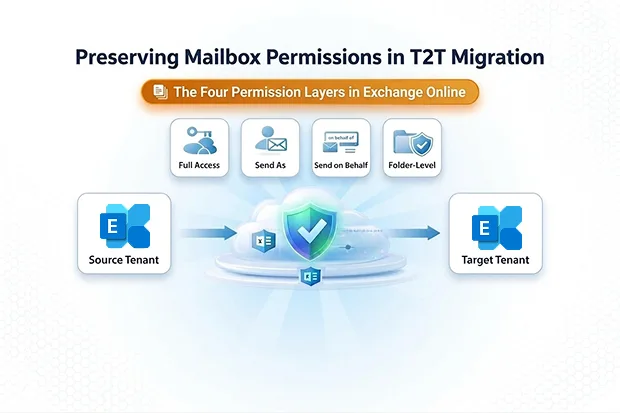
The Four Permission Layers in Exchange Online
| Permission Type | What the Delegate Can Do | Where It’s Stored |
|---|---|---|
| Full Access | Open and manage the entire mailbox | Mailbox store |
| Send As | Send email appearing as the owner | Recipient permission (directory) |
| Send on Behalf | Send email “on behalf of” the owner | AD publicDelegates attribute |
| Folder-Level | Read/edit specific folders (Calendar, Inbox, etc.) | Per-folder ACLs |
Full Access lets a delegate open and manage another user’s entire mailbox – read emails, delete items, and manage folders. Send As lets them send email that appears to come directly from the owner with no “on behalf of” indicator. Both are commonly granted to executive assistants and shared mailbox operators.
Send on Behalf displays “Delegate on behalf of Owner” in the From field. Critically, it’s stored in Active Directory’s publicDelegates attribute – not on the mailbox itself – making it the hardest permission to migrate.
Folder-level permissions grant granular Reviewer, Editor, or custom access to individual folders like Calendar, Inbox, custom project folders, or public folder favorites. These are stored as ACLs on each folder.
Why Mailbox Permissions Migration Fails in Native T2T
Microsoft’s MRS-based cross-tenant orchestrator handles mailbox data reliably, but its permission coverage has significant gaps that are easy to overlook during planning.
Full access send as migration depends entirely on batching both parties together. Full Access and Send As migrate only when both the principal and delegate are moved in the same batch or a matching MailUser already exists in the target tenant. Miss one pair, and the permission vanishes silently. This rigid batching constraint makes reliable mailbox permissions migration extremely difficult at scale – especially for organizations migrating in waves across departments or regions.
Send on Behalf is explicitly not migrated. Microsoft’s own documentation confirms the publicDelegates DN value doesn’t move as part of the mailbox transition. Every Send on Behalf relationship must be manually restamped post-migration.
Folder-level permissions technically migrate, but delegates often appear as “Unknown” user types in the target tenant when objects aren’t properly matched – effectively rendering the permissions broken and unusable.
Native T2T permission handling falls short for any organization with complex delegation structures.
The Real-World Impact of Broken Permissions
When permissions break during a T2T migration, the consequences hit fast:
- Executive assistants lose access overnight. The CEO’s assistant arrives Monday morning unable to open the inbox they’ve managed for years.
- Shared mailboxes become black holes. Teams relying on support@company.com or billing@company.com suddenly can’t send or respond to customers.
- Helpdesk tickets surge. Permission issues are the hardest for end users to self-diagnose, leading to a flood of vague tickets post-migration.
- Compliance and audit risks. Broken Send As audit trails may create regulatory exposure.
- Calendar collaboration fractures. “Unknown” user entries mean managers can’t see team availability and assistants can’t book meetings.
How Apps4.Pro Preserves Folder-Level Permissions
Apps4.Pro Migration Manager addresses the area native T2T most frequently breaks: folder-level permissions.
Correct User Mapping Across Tenants
The native orchestrator often leaves folder ACLs in a broken state, with delegates appearing as “Unknown” users in the target tenant. Apps4.Pro solves this by migrating folder-level permissions with correct user mapping – whether your migration involves UPN changes, domain name changes, or one-to-one identity matching. Reviewer, Editor, and custom access roles on Calendar, Inbox, custom folders, and subfolder structures carry over cleanly to the target.
Shared Mailbox Delegation
Shared mailboxes are a high-pain-point scenario in any T2T migration. Teams that depend on shared mailboxes for customer support, billing, or departmental communication need folder-level access to function from day one. Apps4.Pro migrates shared mailbox data and folder-level permissions together, ensuring delegates retain their configured access to every folder within the shared mailbox immediately after migration.
Complete Data Coverage in a Single Pass
Alongside folder permissions, Apps4.Pro migrates all core mailbox data – emails, calendar items, contacts, tasks, and server-side rules – for user mailboxes, shared mailboxes, archive mailboxes, and group mailboxes. Incremental migration captures any changes made during the migration window in subsequent sync passes without duplicating data. This means your data migration and folder-level permission preservation happen together without layering on additional tools.
For step-by-step configuration details, see the Apps4.Pro Mailbox Migration Support Guide.
Before You Begin: Prerequisites
Before running any permission audit or remediation scripts, ensure the following are in place:
- Exchange Online PowerShell module installed and updated on your admin workstation. Use Install-Module ExchangeOnlineManagement if not already present.
- Admin roles: You need Exchange Administrator or Global Administrator rights in both the source and target tenants.
- Dual-tenant connectivity: Open two PowerShell sessions – one connected to the source tenant, one to the target – so you can export and apply without session switching delays.
- UPN mapping file: If user principal names change between tenants (e.g., user@contoso.com → user@fabrikam.com), prepare a CSV mapping file in advance. Your remediation scripts will reference this to translate source identities to target identities.
Handling Full Access, Send As, and Send on Behalf with PowerShell
For the three mailbox-level permission types, PowerShell gives you full control – no batching constraints, no silent failures, no dependency on migration wave sequencing. Follow this four-step playbook to cover every scenario.
Step 1: Audit Before Migration
Export every delegation relationship to CSV before a single mailbox moves:
- Full Access: Run Get-MailboxPermission and filter for FullAccess rights, excluding inherited entries.
- Send As: Run Get-RecipientPermission and filter for SendAs rights.
- Send on Behalf: Filter Get-Mailbox results where GrantSendOnBehalfTo is not null.
- Folder-level: Run Get-MailboxFolderPermission across key folders like Calendar and Inbox.
Export each to a dedicated CSV. These files become your validation checklist and your remediation script input.
Step 2: Build Remediation Scripts in Advance
Don’t wait until cutover night. Prepare parameterized PowerShell scripts that read from your pre-migration CSVs and apply permissions in the target tenant:
- Full Access: Add-MailboxPermission -Identity <principal> -User <delegate> -AccessRights FullAccess
- Send As: Add-RecipientPermission -Identity <principal> -Trustee <delegate> -AccessRights SendAs
- Send on Behalf: Set-Mailbox <principal> -GrantSendOnBehalfTo <delegate>
If UPNs change between tenants, ensure your scripts reference the mapping file to translate source identities to target identities before applying permissions.
Test these scripts against your pilot batch before running them at scale.
Step 3: Pilot and Validate
Pilot with permission-heavy users first – executive assistants, shared mailbox operators, cross-department delegates. After migration, re-run your audit scripts against the target tenant and diff against your pre-migration baseline. Fix discrepancies before users log in on cutover day.
Step 4: Communicate with End Users
Inform delegates and mailbox owners about the migration timeline. Even with perfect execution, Outlook clients may need to remove and re-add shared mailbox profiles. A simple pre-migration email with instructions prevents unnecessary support tickets.
The Complete Permission Migration Sequence
| Action | Tool |
|---|---|
| 1. Export all four permission types to CSV | PowerShell |
| 2. Run mailbox migration with folder-level permissions | Apps4.Pro |
| 3. Apply Full Access permissions in target tenant | PowerShell |
| 4 .Apply Send As permissions in target tenant | PowerShell |
| 5. Apply Send on Behalf permissions in target tenant | PowerShell |
| 6. Validate all four types against pre-migration baseline | PowerShell |
| 7. Communicate cutover completion to end users | Email / Teams |
Common Pitfalls to Avoid
Even with the right tools and scripts, these mistakes can derail your mailbox permissions migration:
- Running remediation scripts before all users are migrated. If a delegate hasn’t landed in the target tenant yet, your Add-MailboxPermission command will fail silently or throw an error. Run permission scripts only after confirming both principal and delegate exist in the target.
- Forgetting UPN mapping when domains change. If source UPNs (user@contoso.com) differ from target UPNs (user@fabrikam.com), your scripts will fail unless you translate identities using a mapping file.
- Ignoring nested group permissions. Some organizations grant Full Access or Send As to security groups rather than individual users. Your audit must capture group-based permissions and expand group membership for accurate remediation.
- Skipping folder-level validation. IT teams often validate Full Access and Send As but forget to check folder-level ACLs. Always verify Calendar and Inbox permissions post-migration – these are the most user-visible and the most common source of complaints.
Start Your Permission-Safe Migration
This approach gives you predictable, repeatable results. Apps4.Pro handles data and folder-level permissions in one clean pass. PowerShell handles the three mailbox-level permission types with full control and no dependency on batching order.
Ready to start? Apps4.Pro offers a 15 days free trial – migrate your first batch with folder-level permissions intact. Visit Apps4.Pro Migration Manager or contact sales@apps4.pro to get started.

















 Migrate
 Manage
 Migrate Microsoft 365








