


- What Is “Stale” or “Orphaned” Content?
- The Illusion of Data Size
- Version History: The Hidden Multiplier
- Abandoned Teams and Ownerless Workspaces
- Orphaned and Overgrown OneDrive Environments
- Checked-Out Files: Small Issue, Real Delay
- Why Microsoft Doesn’t Fix This for You
- Why Your Tenant Gets Messy: Governance Issues That Surface During Migration
- How Stale Content Quietly Erodes Migration Margins
- What a Mature Pre-Migration Strategy Looks Like
- Migrate With Intent, Not Assumption
Before diving into tenant-to-tenant Migration timelines, or checklists, pause for a moment:
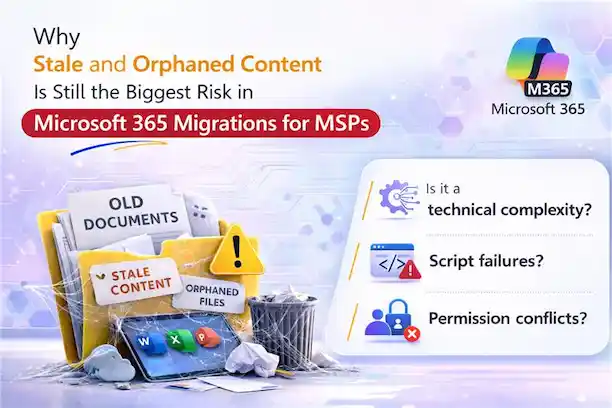
What really slows down most Microsoft 365 migrations:
- Is it a technical complexity?
- Script failures?
- Permission conflicts?
Usually, no.
In MSP-led migrations, projects rarely fail because something breaks. They slip because something quieter increases scope long before the first migration wave begins.
It starts with a common assumption:
Everything in the tenant deserves to move.
So, into scope go:
- Inactive OneDrive accounts
- Old project Teams
- Sites untouched for years
- Libraries carrying hundreds of document versions
They don’t raise alarms. They don’t look risky. They seem normal.
But behind the scenes, they:
- Increase data volume
- Prolong timelines
- Raise licensing and storage requirements
- Add validation effort
By the time this becomes visible, storage estimates shift, migration windows widen, and margins begin to narrow.
The real question is not whether your tools will run.
It’s whether the data you’re moving still carries business value.
That’s where the risk truly begins.
What Is “Stale” or “Orphaned” Content?
Inside a Microsoft 365 tenant, stale or orphaned content includes assets that no longer serve an active purpose, such as:
- Files owned by users who have left
- Content inside abandoned Teams or Groups
- Inactive or unassigned OneDrive accounts
- Documents permanently checked out
- Libraries with excessive version history
- Sites or workspaces with no accountable owner
One stale item alone isn’t a problem. But when you add them up? Your storage balloons, your migration gets more complex, and your costs skyrocket.
The Illusion of Data Size
Migration sizing often begins with storage totals and user counts. But storage does not equal value.
A tenant reporting 12 TB of data may have 30–40% that is inactive, duplicated, or obsolete. Without deeper analysis, all of it gets included in scope.
The result:
- More data than necessary
- Higher-than-expected budgets
- Increased validation effort
- Timelines that become harder to control
By mid-project, storage projections often jump 30%, exposing how much unnecessary data you’re moving. For you, it’s not just numbers – it’s wasted time, effort, and risk to client trust.
Version History: The Hidden Multiplier
Even when stale content is identified, version history often goes unnoticed.
When SharePoint libraries exceed roughly 300 versions per document, storage can grow up to 4.5 times the logical file size. Across dozens of libraries, that multiplier significantly increases migration payload.
This creates:
- Pressure on target-tenant storage
- Licensing tier upgrades
- Unexpected overage costs
In Teams-connected environments, every Team carries a SharePoint site – and often deep version history.
You’re not just migrating files.
You’re migrating years of accumulated history, much of which may no longer be required.
Abandoned Teams and Ownerless Workspaces
An abandoned project Team may show no recent activity, but it is far from empty.
In Microsoft Teams, a dormant Team still includes:
- A connected SharePoint site
- A Microsoft 365 Group mailbox
- Planner boards and OneNote notebooks
- Channel tabs linked to files, dashboards, or apps
- Guest access and layered permissions
- Private and shared channels
Private and shared channels often create separate SharePoint site collections with independent permissions and storage footprints.
Even if no one has used the Team for years, its infrastructure remains fully provisioned. During migration, tools automatically include the Team, its connected sites, mailbox, channel sites, and configurations simply because they exist.
These are not empty folders.
They are complete collaboration environments.
Each dormant Team adds structural complexity, validation effort, and migration scope -often without delivering any current business value.
Orphaned and Overgrown OneDrive Environments
In OneDrive for Business, what looks simple on the surface often hides years of unmanaged user behavior.
Behind each drive may be:
- Deeply nested folder structures approaching path limits
- Files shared externally to personal or unknown email accounts
- “Anyone with the link” sharing still active
- Unique permissions scattered across folders
- Large files and heavy version histories inflating storage
- Orphaned drives belonging to former employees
When users leave but their OneDrive remains provisioned, the organization continues paying for storage, licensing, and retention coverage. Migrating these environments without review carries forward unnecessary cost, compliance exposure, and ownership confusion.
OneDrive clutter is not cosmetic.
At scale, it becomes operational and financial risk embedded directly into your migration scope.
Checked-Out Files: Small Issue, Real Delay
Permanently checked-out documents are easy to overlook but disruptive during tenant-to-tenant migration.
They can:
- Fail migration batches
- Trigger permission errors
- Require manual intervention
One library with dozens of locked files can force entire migration waves to be re-run. Hours are lost – not due to complexity, but preparation gaps.
The platform works.
The content wasn’t ready.
Why Microsoft Doesn’t Fix This for You
Microsoft 365 is designed for collaboration, not pre-migration cleanup.
There is no native system that:
- Flags stale content
- Reduces version sprawl
- Enforces archival before migration
- Cleans up ownerless workspaces
Microsoft 365 Migration tools move what exists, whether it still holds value or not.
The responsibility for cleanup falls on you.
Why Your Tenant Gets Messy: Governance Issues That Surface During Migration
Most tenants don’t become cluttered overnight. They drift over years through:
- New hires
- Department initiatives
- Reorganizations
- Mergers and acquisitions
Each change creates new Teams, sites, and data – rarely paired with lifecycle controls.
In many environments you inherit, policies for expiration, version limits, ownership, and archival were never enforced consistently.
Migration simply exposes years of unmanaged growth.
You are not just moving to a tenant.
You’re inheriting years of unmanaged content and hidden risks.
How Stale Content Quietly Erodes Migration Margins
When stale content isn’t addressed early, the impact appears gradually:
- Migration waves slow down
- Re-runs increase
- Licensing costs climb
- Storage projections lose accuracy
- Validation cycles multiply
- Margins tighten
These are not dramatic failures. They are steady inefficiencies that make the project heavier than it needs to be.
Ignoring stale content is not a minor oversight.
It is an operational and financial risk.
What a Mature Pre-Migration Strategy Looks Like
A disciplined approach shifts focus from moving everything to evaluating everything.
Before migration begins:
- Audit inactive accounts and confirm business ownership.
- Identify and reduce excessive version history.
- Archive or exclude abandoned Teams and Groups.
- Resolve checked-out files and permission issues.
- Use structured discovery tools rather than relying solely on manual scripts.
In short:
Audit → Reduce → Migrate
Filtering for value upfront makes the entire project lighter, faster, and more predictable.
Migrate With Intent, Not Assumption
Migration is not a data copy exercise. It is a decision-making process.
The question is no longer:
“How do we move everything?”
The better question is:
“What deserves to move?”
When you filter for value:
- Costs stabilize
- Storage aligns with real usage
- Timelines shorten
- Failure rates decrease
- Engineer workload improves
- Stakeholder confidence increases
Most importantly:
You migrate business value – not digital leftovers.
The difference between copying data and delivering transformation often starts with what you choose not to move.

















 Migrate
 Manage
 Migrate Microsoft 365








