


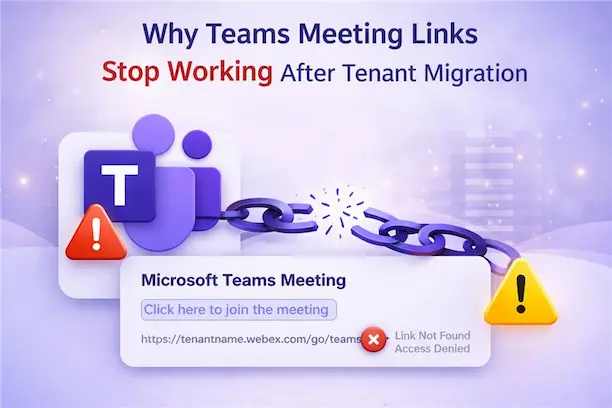
- The silent risk that hits MSPs when teams calls suddenly fail
- The Hidden Failure: “It was working on Friday…”
- The Impact: It’s More Than a Tech Issue
- Why This Happens: The Tenant & Identity Bind
- What About the Cross-Tenant Migration Orchestrator?
- The Secondary Impact: Source Tenant Teams Degradation During Coexistence
- The Real-World Cost
- The Root Cause
- Prioritised Mitigation Steps (What MSPs Should Do)
- Protect Meeting Continuity Before Cutover
The silent risk that hits MSPs when teams calls suddenly fail
Tenant-to-tenant migrations often check all the boxes such as mailboxes moved, DNS updated, data in place.
But there’s a silent risk waiting in the final mile: legacy Teams meeting links that stop working.
Because each Teams meeting URL is permanently tied to the original tenant and organizer identity, cutover can quietly break recurring board meetings, leadership syncs, and customer calls.
MSPs must treat meeting continuity as a first-class migration workstream.
Otherwise, what looks like a technical success on Friday can turn into an executive-grade disaster on Monday – boardrooms dark, helpdesks overwhelmed, and margins evaporating under reactive support hours.
This blog cuts through the jargon to explain why this happens and exactly what MSPs can do to prevent post-migration chaos.
The Hidden Failure: “It was working on Friday…”
Imagine this: You’ve managed a migration with military precision. All mailboxes are migrated, users can log on, and systems look green.
Then Monday arrives.
“The CEO’s weekly board meeting link isn’t working. Everyone’s stuck in the lobby, and she’s furious.”
Or a customer’s recurring monthly call just silently fails. Suddenly, your perfect migration is under fire.
This scenario is far more common than most MSPs expect.
In Microsoft community discussions, administrators frequently report the same post-migration experience: users attempting to join Teams meetings created before migration are stuck in the lobby because the original organizer identity is still tied to the source tenant.
Microsoft support clarifies that this behavior is expected.
Teams meetings are bound to the original tenant and organizer identity, so existing meeting URLs cannot be rewritten or automatically migrated across tenants.
In other words, the meeting link on the invitation still points to the old tenant where the meeting was created.
If that tenant is disabled or removed, the link simply stops working. What looked like a smooth migration weekend now becomes a Monday IT crisis.
The Impact: It’s More Than a Tech Issue
This isn’t a simple helpdesk ticket, it’s a business continuity nightmare. Every minute an executive or customer call fails costs money and trust.
For MSPs, the stakes are significant:
- Executive escalations:
When a board meeting or leadership review call never starts, confidence in the migration and in the MSP drops immediately.
- Customer disruptions:
Recurring client meetings (project reviews, support calls, etc.) failing can break SLAs and damage the customer relationship.
- Helpdesk overload:
A flood of “Join link not working” tickets overwhelm support teams, forcing costly emergency fixes.
- Reputation damage:
The migration was declared complete until a critical meeting breaks. Clients remember the disruption, not the clean cutover report.
- Margin erosion:
Recreating meetings, handling escalations, extending support windows, and running emergency validation sessions all consume hours that were never scoped.
Broken meetings transform what looks like a technical success into a visible business failure.
When the C-suite can’t start their Monday meeting, the migration isn’t successful in their eyes, regardless of what the migration dashboard shows.
Why This Happens: The Tenant & Identity Bind
To solve the problem, you must understand the architecture behind it.
A Teams meeting invitation is not just a calendar entry. It is a service-generated object inside Microsoft Teams, with embedded identity and tenant references.
Each meeting URL contains identifiers similar to:
Two critical values are embedded inside that link:
- Tid – The tenant ID
- Oid – The organizer’s object ID
These identifiers permanently bind the meeting to:
- The original Azure AD (Entra ID) tenant
- The specific user object that created it
When you move a mailbox to a new tenant, the calendar entries go along, but the meeting metadata does not automatically reassign to the target tenant.
The link still points back to the old tenant’s service.
- URLs not updated cross-tenant:
Microsoft’s documentation explicitly warns that “the meeting URL isn’t updated when items migrate cross-tenant”, so you must remove and recreate Teams meetings after migration. There is no automatic back-end fix.
- Identity Ownership Does Not Transfer
Every meeting “belongs” to the organizer’s identity in the source tenant.
After migration:
- The user in the target tenant is technically a new identity object.
- Even if the email address looks the same, the object ID is different.
- The meeting remains owned by the original identity.
If the source user is disabled or deleted, the meeting can no longer validate the organizer relationship.
From the service perspective, the meeting owner no longer exists.
- Recurring meetings especially fragile:
Recurring meetings are like many mini meetings under one series.
They look fine on the calendar, but their backend join links each carry that old-tenant binding.
If the source tenant is ever removed, that entire series vanishes. Hundreds of future occurrences can be lost in one blow.
What About the Cross-Tenant Migration Orchestrator?
Even Microsoft’s new migration orchestrator (in preview) doesn’t magically solve this: it requires that mailbox migration succeed first, and even then, the join URLs remain pointing to the old tenant.
The orchestrator focuses on moving chat and mailbox content; meeting link rebinding isn’t addressed.
As a result, many MSPs end up writing their own PowerShell or Graph scripts to re-invite or recreate meetings after migration. But proactive planning is far better than retroactive repair.
The Secondary Impact: Source Tenant Teams Degradation During Coexistence
Meeting link failure is not the only post-migration side effect.
In coexistence scenarios, users may temporarily need to access Microsoft Teams in the source tenant after their mailbox has already been migrated. This is where another architectural dependency surfaces.
Once the Exchange Online mailbox is moved to the target tenant, Teams in the source tenant loses access to mailbox-backed services. Users may begin to notice:
- The Calendar app disappears inside Teams
- Profile pictures fail to update
- Public team search and discovery stops working
- Meeting scheduling capabilities degrade
Microsoft Teams is not a standalone service. It relies heavily on Exchange Online for:
- Calendar integration
- Presence and availability data
- Profile information
- Meeting scheduling
When the mailbox migrates, Teams in the source tenant becomes disconnected from its Exchange dependency. The user object may still exist, but the mailbox no longer does.
From a service perspective, Teams is now operating without a required backend component.
This behavior is expected during cross-tenant migrations, but it frequently surprises end users who assume they can continue using source-tenant Teams normally during transition.
If coexistence is required for example, phased workload migration or staggered decommissioning users may find the source tenant’s Teams environment partially functional and unpredictable.
The result is confusion:
- “Why is my calendar missing?”
- “Why can’t I update my photo?”
- “Why can’t I find that public team anymore?”
Without proactive communication, users interpret this as a service outage rather than an architectural dependency limitation.
The Real-World Cost
These risks isn’t just theoretical.
MSPs consistently report a surge of post-cutover support tickets related to failed meeting links. Executive calls do not start. Recurring client sessions stall in the lobby. Leadership teams demand immediate answers.
The technical migration may be complete, but operational continuity is suddenly in question.
Every hour spent firefighting was not in the original project scope. Emergency troubleshooting, meeting recreation, and reactive communications consume time that erodes margin and stretches delivery teams beyond plan.
Consider a recurring weekly update call with a key client. It was created months before migration and scheduled for 11:00 AM on the first Monday post-cutover.
If that call silently fails, it looks like you broke the client. Sales teams cringe. Contract renewals could hang in the balance. For an MSP, that’s a direct hit to reputation.
From the client’s perspective, the migration “broke” their workflow — even if the infrastructure was technically migrated correctly.
Internal disruption can be equally severe.
Several MSPs describe post-migration scenarios where dedicated escalation bridges were opened immediately after cutover to manually recreate recurring meetings and resend invitations at scale ,simply to restore normal business rhythm.
That effort is reactive, unplanned, and margin destructive.
This issue shifts your focus from controlled execution to crisis management.
It inflates costs, consumes goodwill, and reframes what should have been a successful migration into a visible operational failure.
Because in the end, customers do not evaluate migration success by server logs or dashboards.
They evaluate it by whether their Monday meeting started on time.
The Root Cause
At its core, the issue is simple:
- A Teams meeting is created inside Microsoft Teams.
- The join link contains the original tenant ID and organizer identity.
- That identity does not transfer during cross-tenant migration.
- The link is not dynamically rewritten.
Migration moves mailboxes.
It does not reassign meeting ownership at the service layer.
Think of it this way:
You moved the office.
But the access code still belongs to the old building.
Prioritised Mitigation Steps (What MSPs Should Do)
A generic instruction like “fix Teams after migration” is not a strategy.
Meeting continuity requires a deliberate, phased plan. Below is a structured approach MSPs can use to reduce risk and prevent post-cutover disruption.
1️⃣ Discovery: Identify High-Risk Meetings Before Migration
You cannot protect what you have not identified.
- Use PowerShell or Microsoft Graph to scan calendars for online meetings (isOnlineMeeting=true) or join URLs containing teams.microsoft.com/l/meetup-join.
- Prioritize recurring meetings.
- Flag executive, board-level, and customer-facing series.
- Review long-running weekly or monthly meetings created months (or years) ago.
Share findings with leadership stakeholders. Critical meeting owners should be informed in advance that recreation may be required post-cutover.
Discovery transforms a hidden risk into a controlled workstream.
2️⃣ Pre-Migration Communication & Transition Planning
Technical preparation alone is insufficient. Communication prevents confusion.
Limit new risk exposure
- Encourage users to avoid creating new long-term recurring Teams meetings immediately before cutover.
Plan coexistence carefully
- Consider maintaining limited access to the source tenant temporarily so users can join legacy meetings if necessary.
- Provide clear guidance on which account to use when accessing legacy versus new meetings.
Policy considerations
- Where appropriate, temporarily adjust meeting policies (e.g., lobby bypass settings) to reduce disruption during the transition window.
Clear communication reduces support load dramatically.
3️⃣ Migration Execution Discipline
During cutover:
- Migrate mailboxes before decommissioning source identities.
- Do not immediately delete or fully dismantle the source tenant.
- Disable accounts first; retain them long enough to validate meeting continuity.
Even when using Microsoft’s cross-tenant capabilities within Microsoft 365, mailbox migration success does not automatically guarantee meeting rebinding.
Treat meeting validation as a separate checkpoint — not an assumption.
4️⃣ Post-Migration Validation
Immediately after cutover:
- Test critical recurring meetings.
- Validate organizer start capability.
- Confirm external attendee access.
- Identify series that fail before users discover them.
For large tenants, scripting can accelerate remediation by automating recreation and cancellation of affected invites.
Proactive validation prevents executive-level surprises.
5️⃣ Controlled Recreation & Clear Communication
Where failures are identified:
- Recreate affected meeting series in the target tenant.
- Cancel legacy invites cleanly.
- Send updated invitations with clear messaging.
Communicate transparently with end users:
“Teams meeting links created before [cutover date] may reference the legacy tenant. Critical recurring meetings will be reissued by IT.”
Proactive messaging prevents blame-driven escalation.
6️⃣ Staged Source Tenant Decommission
The final and most overlooked step.
Do not remove the source tenant until you are confident:
- No critical meetings depend on it.
- Recurring series have been validated or recreated.
- Leadership sign-off is complete.
In some cases, maintaining source identities in a disabled state during a grace period is safer than immediate deletion.
Decommissioning is a phase, not an event.
By prioritizing discovery, validation, and staged decommissioning, MSPs convert meeting continuity from an unpredictable risk into a managed checklist.
The difference between chaos and control is not tooling.
It is planning.
Protect Meeting Continuity Before Cutover
Tenant migrations are complex enough without introducing avoidable meeting failures.
Make meeting continuity a visible, documented workstream in your migration plan, not an afterthought.
If you are an MSP preparing for a tenant-to-tenant migration:
- Conduct a recurring meeting inventory before cutover.
- Allocate structured validation time on Day 2.
- Plan a controlled remediation path for legacy links.
- Delay source decommission until continuity is confirmed.
For larger environments, automation becomes critical.
Solutions such as Apps4.Pro Migration Manager capabilities can assist by recreating meetings in the target tenant as copies, reducing manual effort and minimizing disruption. Since Teams meeting links remain tenant-bound by design within Microsoft, structured recreation is often the safest path to continuity.
The cost of proactive planning is predictable.
The cost of a failed executive meeting at 8:00 AM on Monday is not.
The real question is not whether meetings will be affected.
It is whether you have planned for them.
Start planning for meetings, not just mailboxes.

















 Migrate
 Manage
 Migrate Microsoft 365








