


- What Cross Tenant Orchestrator (Public Preview) Does Well
- Important Limitation: Teams Structure and SharePoint Architecture
- What Happens If MSPs Overlook This?
- Why This Matters During Public Preview
- Best Practice for MSPs Using Cross Tenant Orchestrator (Public Preview)
- Strategic Takeaway
- If You Need Full Teams Migration Coverage
Microsoft’s Cross Tenant Orchestrator is now available in Public Preview, offering a native path for Microsoft 365 tenant to tenant migrations.
If you’re managing a merger or tenant consolidation, this changes how you approach the migration. It simplifies core workloads like:
- Exchange Online mailboxes
- OneDrive for Business
- Teams chats
That’s meaningful progress. But here’s where you need to pause.
With any Public Preview release, what’s documented doesn’t always match what happens once you’re delivering in production, especially if Microsoft Teams is heavily used in the source tenant.
And if you’ve handled even one Teams heavy migration, you already know this:
Teams is rarely the simple workload.
It’s where the complexity shows up.
It’s where structure, permissions, and collaboration dependencies start to matter.
And that’s usually where the pressure shifts back to you.
As the delivery partner, that pressure doesn’t land on the tool instead, it lands on your scope, your timeline, and your credibility.
What Cross Tenant Orchestrator (Public Preview) Does Well
Let’s start with what works.
In its current Public Preview scope, Cross Tenant Orchestrator is built to handle the identity layer effectively:
- Cross-tenant user identity transitions
- Exchange Online mailbox migration
- OneDrive content migration
- Direct Teams chats
If your client’s primary concern is email continuity and personal file storage, this can be more than enough.
At the identity and mailbox level, the foundation is solid.
In its current Public Preview scope, Cross Tenant Orchestrator functions primarily as an identity and personal workload migration solution, not a full collaboration architecture migration solution
But here’s where you need to think carefully.
Most modern Microsoft 365 environments don’t operate primarily through Outlook or OneDrive.
They operate inside Teams.
Departments collaborate in channels, files are accessed through Teams and Projects live in shared workspaces.
When Teams becomes the primary workspace, “migration success” is no longer judged at the identity layer.
It’s judged at the collaboration layer.
And that’s where expectations must be managed early before you begin.
Important Limitation: Teams Structure and SharePoint Architecture
Microsoft Teams is not a standalone service.
It’s a collaboration layer built on top of multiple Microsoft 365 services, including:
- Microsoft 365 Groups
- SharePoint Online
- Planner
- OneNote
- Channel-level permissions
- Third-party app integrations
When you migrate Microsoft Teams, you’re not moving a single workload. You’re moving a connected architecture.
If that architecture isn’t mapped before migration, it can’t be reconstructed accurately after.
Behind every Team:
- A SharePoint site is automatically provisioned
- Standard channels map to folders inside the Documents library
- Private and shared channels create separate SharePoint site collections
That structure is what makes Teams work the way your client expects.
As of the current Public Preview scope, Cross Tenant Orchestrator does not automatically recreate or migrate:
- Teams and channel structures
- Channel conversation history
- Private and shared channel SharePoint sites
- Planner plans connected to Teams
- Channel tabs and integrations
- SharePoint-to-Team structural relationships
This isn’t a flaw.
It reflects the defined scope of the preview release.
But here’s what matters for you.
If Teams is central to your client’s daily operations, that collaboration layer does not move automatically.
And if it’s not planned for separately, the gap shows up after migration, not before.
That’s why this limitation needs to be understood early, not discovered later.
What Happens If MSPs Overlook This?
If you migrate users but don’t recreate the Teams collaboration architecture, the issue won’t show up in your migration report.
It shows up the moment users log in.
And it usually starts like this.
1️⃣ Where Are Our Teams?
Users sign in and immediately notice:
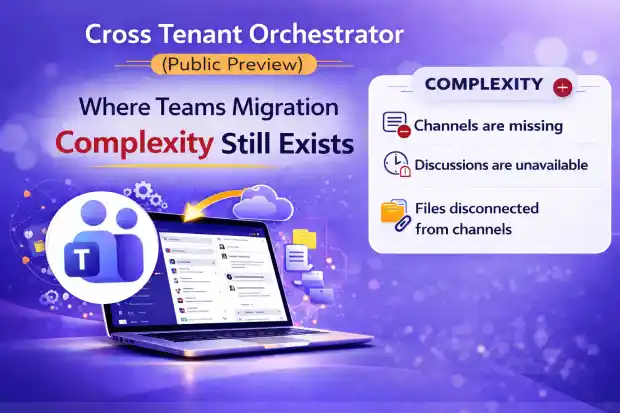
- Channels are missing
- Historical discussions are unavailable
- Project collaboration history appears gone
Even if mail and files were migrated successfully.
From your perspective, workloads moved. From their perspective, their workspace disappeared.
And in migration projects, perception often defines success more than technical completion.
That gap is where friction begins.
2️⃣ Files Lose Context
Files may still exist in SharePoint. They may even be migrated correctly.
But if the Team structure isn’t rebuilt:
- Files are no longer connected to their channels
- Permissions don’t always align
- Users can’t find documents through Teams
Technically, nothing is lost.
Operationally, it feels like data loss.
And when users say, “We can’t find our files,” you don’t get to explain architecture first.
You have to restore confidence first.
3️Teams ⃣ Private and Shared Channels Become a Hidden Risk
Private and shared channels create separate SharePoint site collections.
If these aren’t identified and migrated properly:
- Sensitive departmental data may remain in the source tenant
- Access structures break
- Permissions drift
- Compliance exposure increases
The problem is, this doesn’t usually surface on Day One.
It surfaces weeks later — when someone needs something urgently.
That’s when the migration conversation reopens.
And reopened migration conversations rarely come with additional budget.
4️ Planner and Tabs Stop Functioning
Teams often includes:
- Planner boards
- OneNote tabs
- Third-party app integrations
These are tied to the Team’s structure.
If the structure isn’t rebuilt correctly, these tools don’t reconnect automatically in the target tenant.
For project-driven teams, that means:
- Task tracking disappears
- Embedded workflows break
- Teams feels incomplete
And once Teams feels incomplete, the migration feels incomplete
Why This Matters During Public Preview
Public Preview releases serve an important purpose.
They are designed to:
- Validate functionality
- Gather feedback
- Establish baseline capabilities
They are not always built to cover every workload scenario, especially in complex, production scale environments.
And that distinction matters when you’re the one delivering the migration.
If you choose to use a preview tool in a live tenant to tenant project, you carry the responsibility for how it performs in the real world, not how it’s described in documentation.
In production environments, scope clarity matters more than feature availability.
That means you need to:
- Clearly define what is in scope
- Document what is not included
- Set expectations with your client before migration begins
Because once users log in, “it’s still in preview” is not a recovery strategy.
If scope isn’t clarified early, the risk doesn’t stay with the tool.
It shifts to you.
And in tenant to tenant migrations, unmanaged expectations are often more damaging than technical limitations.
Best Practice for MSPs Using Cross Tenant Orchestrator (Public Preview)
If you decide to use Cross Tenant Orchestrator during Public Preview, the key is not avoiding risk.
It’s managing it deliberately.
Before migration begins:
✔ Conduct a Teams Architecture Inventory
Don’t assume Teams is “just another workload.”
Map it intentionally.
Identify:
- All Teams
- Channel structures
- Private and shared channels
- Linked SharePoint site collections
- Planner plans and embedded integrations
If you don’t understand the collaboration structure before migration, you can’t control the outcome after.
And uncontrolled outcomes are what create post-migration escalations.
✔ Define Scope in Your SOW
Be explicit.
State clearly whether your engagement includes:
- Recreating Teams structures
- Migrating channel conversations
- Handling private and shared channel site collections
- Migrating Planner plans
- Rebuilding tabs and integrations
If it’s not documented, it will be assumed.
And assumptions are where disputes begin.
✔ Educate the Client Early
Before migration starts, explain:
- What the Public Preview tool covers
- What it does not cover
- What requires additional tooling or planning
- The business impact of not rebuilding the collaboration layer
This isn’t about protecting yourself.
It’s about aligning expectations before users log in.
Because once users log in, perception forms quickly.
And resetting perception after go-live is far harder than setting expectations before it.
Strategic Takeaway
Cross Tenant Orchestrator (Public Preview) is a meaningful step forward for identity and core workload migration.
However, in its current scope, it does not fully migrate Microsoft Teams collaboration architecture or the SharePoint dependencies behind it.
If Teams is mission-critical for your client, you need to plan beyond mailbox and OneDrive migration.
Because when users lose their collaborative workspace, even temporarily, the migration is perceived as incomplete.
And once a migration is perceived as incomplete, recovery becomes reputational, not technical.
If You Need Full Teams Migration Coverage
If your project requires:
- Recreating Teams and channel structures
- Migrating channel conversations
- Handling private and shared channel site collections
- Preserving Planner plans and tab integrations
- Maintaining SharePoint-to-Team relationships
You’ll need tooling that specifically addresses the collaboration layer.
When full Teams collaboration fidelity is required, MSPs typically need a specialized Teams and SharePoint migration solution designed to move structure, history, and dependencies together.
The key is choosing a solution that aligns with your client’s collaboration footprint.
Because once Teams becomes the primary workspace, identity migration alone is no longer enough.

















 Migrate
 Manage
 Migrate Microsoft 365








