


Why Microsoft Teams Migrations Really Fail
If you’ve handled even one serious Teams migration, you’ve seen the pattern.
The project looks simple during assessment. The SOW (Statement of Work) is signed. Everyone feels confident.
Then halfway through, “unknown” items start appearing from everywhere.
It’s rarely the cutover weekend that causes damage to a migration. The real problem happens much earlier – when scoping is based on a surface level Microsoft Teams inventory.
Team counts, storage size, and a few administrative reports appear to be clean. But underneath that spreadsheet sits hidden complexity.
Private channels, shared channels, separate SharePoint sites, Planner boards, Office tabs, OneNote, Version history, etc.
That gap between what you think exists and what actually exists is what destroys timelines, margins, and trust.
This guide walks through eight M365 Teams items MSPs routinely miss and how to surface them before they become mid-project surprises.
1. Teams Private and Shared Channels
Hidden environments inside each team.
On paper, a team appears as a single entity with multiple channels.
In reality, private and shared channels behave like mini environments. They have separate membership, separate permissions, and, critically, separate SharePoint sites.
These channels often contain the most sensitive conversations in the tenant: HR matters, legal discussions, finance topics, and executive coordination.
Many of these are overlooked in basic reports, especially in environments where administrators struggle to identify hidden teams during discovery.
If your discovery only counts total Team channels without breaking them down by type, you’re underestimating scope. Each private or shared channel introduces another site, another permission model, and another migration variable.
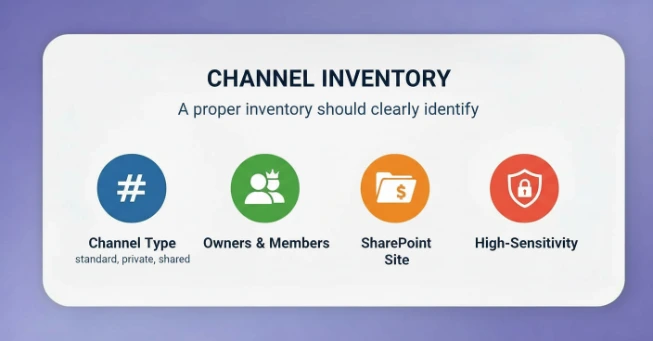
A proper inventory should clearly identify:
- Channel type (standard, private, shared)
- Owners and members
- Associated SharePoint site
- Any high-sensitivity usage
Once you map this properly, the real complexity becomes visible.
2.Teams Connected SharePoint Sites
Microsoft Teams is the interface. SharePoint holds the reality.
When an assessment says “Teams: 1 TB,” that number alone is meaningless.
What matters is structure.
Some MSPs attempt to document this using a Microsoft Excel inventory template, but spreadsheets alone cannot reveal structural dependencies across Teams and SharePoint.
Each Team connects to a SharePoint site. Each private or shared channel may create its own site. Inside those sites are document libraries, custom columns, unique permissions, retention policies, and years of accumulated history.
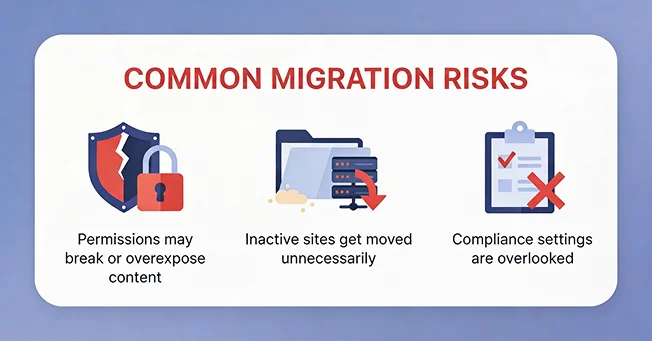
If you migrate blindly:
- Permissions may break or overexpose content
- Inactive sites get moved unnecessarily
- Compliance settings are overlooked
A serious inventory maps Teams and channels directly to their SharePoint sites, reviews library structure, and evaluates permission complexity.
3. Channel Tabs and Apps
Where the real work happens.
Ask users where they work in Microsoft Teams.
They rarely say “files” or “chat.” They say:
“Our Planner board.”
“That pinned Excel.”
“The dashboard tab.”
Tabs are not decoration. They are operational front ends.
Most assessments review installed apps at the tenant level but ignore how they’re used inside channels. That’s how you end up with broken Planner boards, dead website links, or disconnected Power BI dashboards after migration.
From the user’s perspective, the data may still exist, but their workflow is broken.
Inventory should identify every tab inside critical teams, what it points to, and whether it can migrate as is, requires reconfiguration, or must be redesigned.

This turns “post-go-live chaos” into a planned decision.
4. Teams Channel Conversation History
Expectation versus reality.
This is one of the most uncomfortable areas in Microsoft Teams migrations.
Most users assume their entire message history will come across. MSPs know it’s not always that simple.
When this conversation is avoided during scoping, it resurfaces later under pressure.
If history matters for compliance, legal retention, or operational continuity, it must be identified early. If it doesn’t need full preservation, that decision should still be documented clearly.
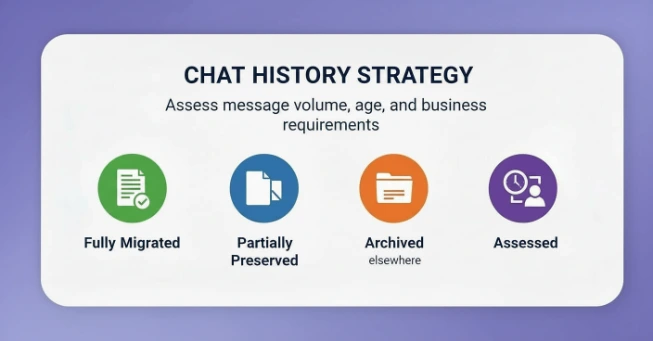
Inventory should assess message volume, age, and business requirements, then define explicitly whether history will be fully migrated, partially preserved, or archived elsewhere.
Clarity here prevents conflict later.
5. Teams Membership and Permissions
Who actually has access?
A team with 50 members may look straightforward.
But membership might include security groups, dynamic rules, guests, and indirect access layers.
Without visibility into how access is structured, migrations can result in excessive permissions or lock users out of critical content.
Orphaned teams with no active owner are especially dangerous because when something breaks, no one feels responsible for fixing it. So are environments with heavy guest usage that haven’t been reviewed in years.
Inventory should clearly document owners, members, guests, and the logic behind membership (manual, group-based, dynamic). It should also flag inactive or orphaned teams for decision-making.
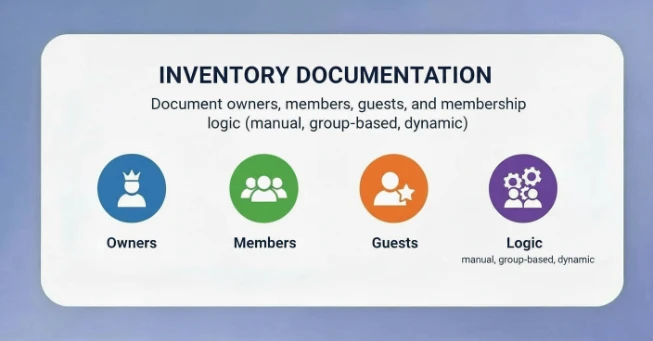
Migration is the wrong time to discover access confusion.
6. Cross Workload Dependencies
Teams is the hub, not the whole system
Teams often connect to Power BI dashboards, Power Apps, Power Automate flows, and external connectors.
Users don’t think in workloads. They think in workflows.
If discovery is done workload by workload instead of workflow by workflow, fragile dependencies are missed. After the tenant-to-tenant Teams migration, flows referencing old URLs fail, dashboards disconnect, and bots stop posting.
Technically, the data moved. Operationally, the system broke.
A proper inventory identifies connected reports, apps, flows, and bots and defines how each will be handled and tested.
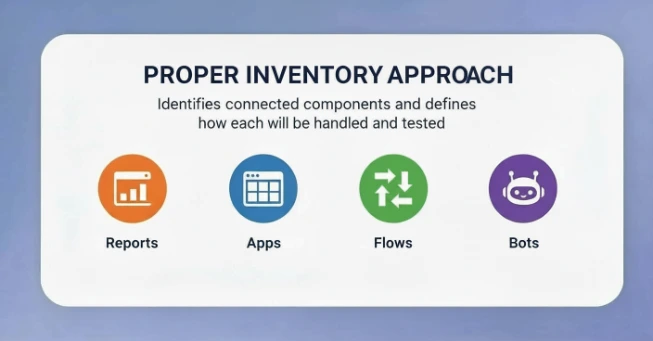
That’s the difference between “we’ll test things” and a structured validation plan.
7. Unsupported or Legacy Apps
The edge cases that cause escalation
Every tenant contains oddities. Legacy bots. Old connectors. One-off custom apps built years ago.
They don’t always appear clearly in reports. But they absolutely appear when they stop working.
If discovered late, clients expect them to be fixed within scope.
A mature inventory identifies these workloads early, evaluates supportability, and frames them as design decisions migrate, rebuild, redesign, or decommission.
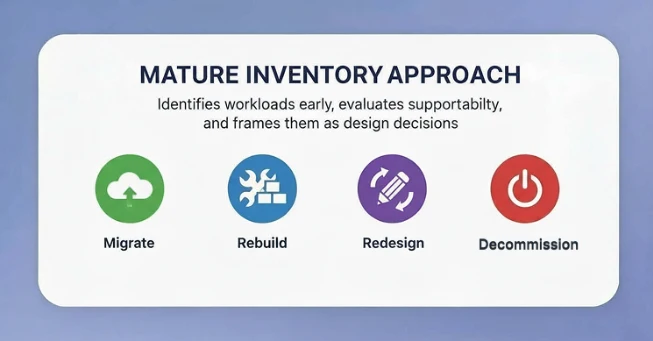
Surprises become agreements instead of conflicts.
8. File Version History
The silent safety net
File version history rarely appears in scoping documents.
But it absolutely appears when something goes wrong.
Users assume they can roll back files. If migration truncates or removes file version history, they may not notice immediately, but they will when they need it most.
For key libraries, inventory should confirm versioning configuration, retention depth, and business reliance on historical versions.
It should also align tool capability with business expectations: full history, limited history, or current version only.
When version history is handled correctly, users never notice, and that’s a good thing.
When it isn’t, you’ll hear about it the first time someone needs to roll something back.
Why Native Tools Leave Gaps
Microsoft admin centres provide visibility but not relational understanding.
They show counts. They don’t show dependencies.
They separate insights across portals. They don’t give a tenant wide operational map.
That’s how assessments look complete while missing structural risk.
Closing the Gap Before It Costs You
MS Teams migrations don’t collapse suddenly.
They unravel when MSPs scope based on incomplete visibility and discover the real complexity too late to adjust cleanly.
If pre-migration inventory becomes a structured deliverable instead of a quick export, you protect:
- Margins
- Timelines
- SLAs (Service Level Agreements)
- Reputation
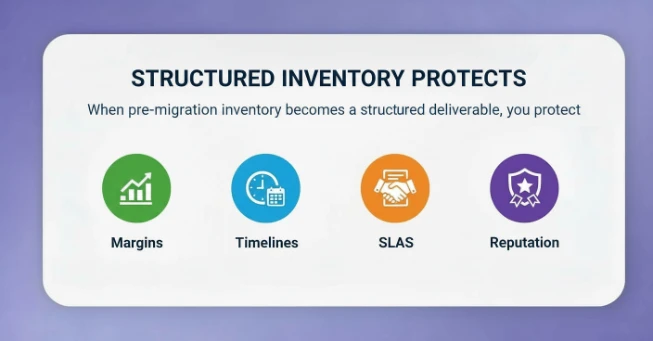
The difference between a stressful migration and a controlled one is rarely the tool.
It’s the clarity before you begin.
Turn This Inventory into a Repeatable Playbook
Manually building this level of inventory with scripts, exports, and spreadsheets is possible.
But it’s slow. It’s inconsistent. And it doesn’t scale across multiple projects.
If you want predictable migrations, the inventory cannot be improvised each time. It must be systematic.
Apps4.Pro Migration Manager turns pre-migration discovery into a structured, repeatable process.
With a single scan, you get tenant-wide visibility into:
- Teams, channels, and private/shared channels, including their separate SharePoint sites and memberships
- Tabs, apps, Planner boards, OneNote, website tabs, and other embedded workloads
- Permissions, guest access, and version history across Teams
- connected SharePoint sites
- Cross workload dependencies that typically surface only mid-project
Instead of discovering hidden scope during migration, you see it before you commit timelines and pricing.
That changes the conversation with your client before the project even starts.
You walk into every engagement with:
- A complete structural map
- Realistic timelines
- Defined decisions on edge cases
- Fewer surprises during cutover
Inventory stops being a reactive exercise.
It becomes a competitive advantage.

















 Migrate
 Manage
 Migrate Microsoft 365








