


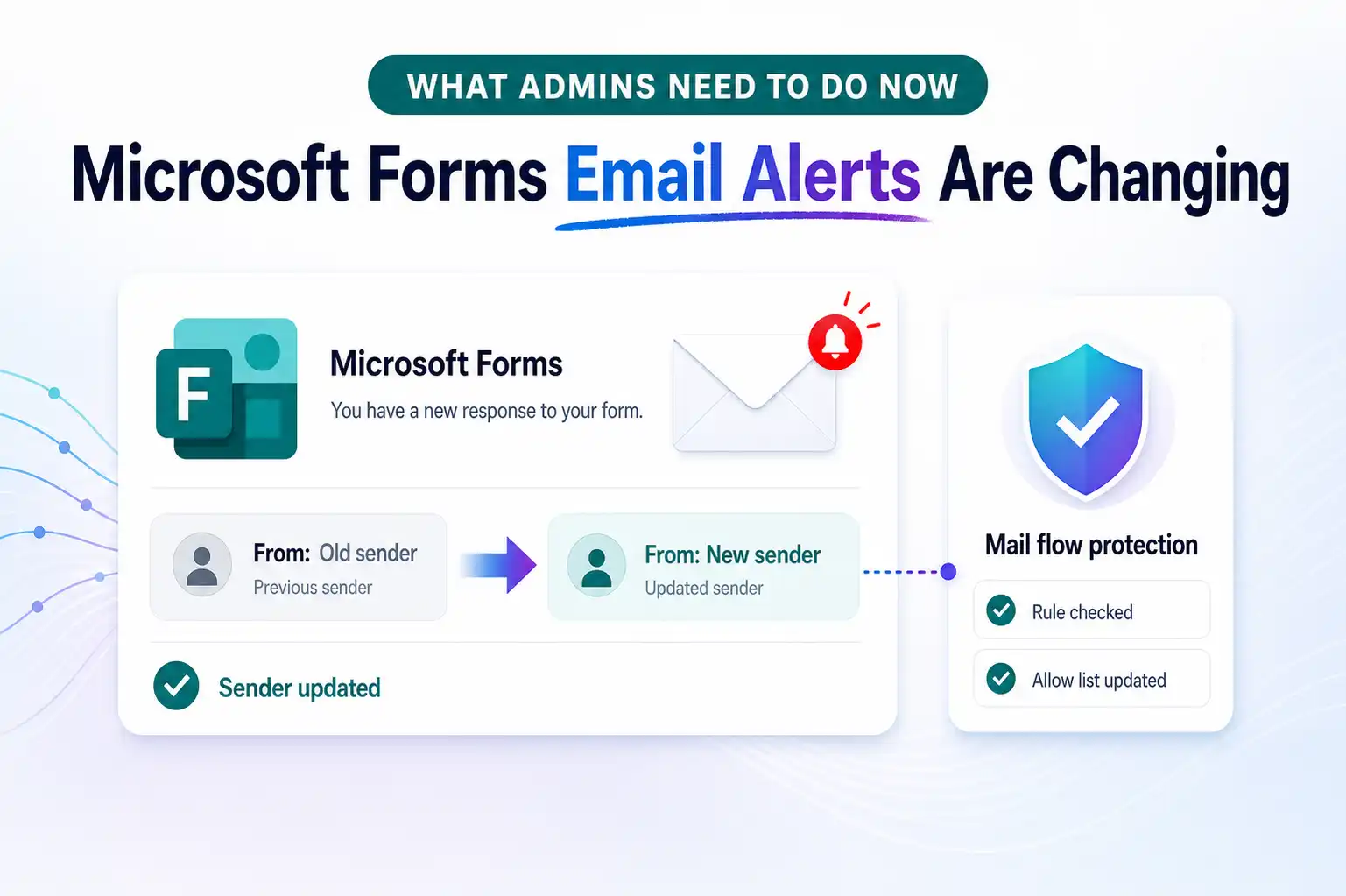
A small email sender change in Microsoft Forms can create bigger issues than many teams expect. When notifications stop reaching inboxes, form responses can be missed, follow-ups can slow down, and important submissions may go unnoticed.
This update deserves attention because Microsoft Forms automated emails will no longer come from the sender address many organizations have already trusted, filtered, or built mail rules around.
For Microsoft 365 admins, IT teams, and security professionals, this is the kind of backend change that can quietly affect day-to-day operations. It impacts response receipts, new response alerts, and other automated notifications tied to Microsoft Forms.
New Microsoft Forms Sender Address
Microsoft Forms automated notifications will now come from no-reply@forms.mail.microsoft instead of maccount@microsoft.com.
This updated sender address applies to several Forms-generated emails that users and admins rely on regularly.
- Response receipt emails
- New response notifications
- Forms response monitoring updates
- Other automated Microsoft Forms email alerts connected to notification workflows
Any workflow, allow list, or filtering setup built around the old sender address should be reviewed carefully.
Peek on Email rule checking for the new sender address: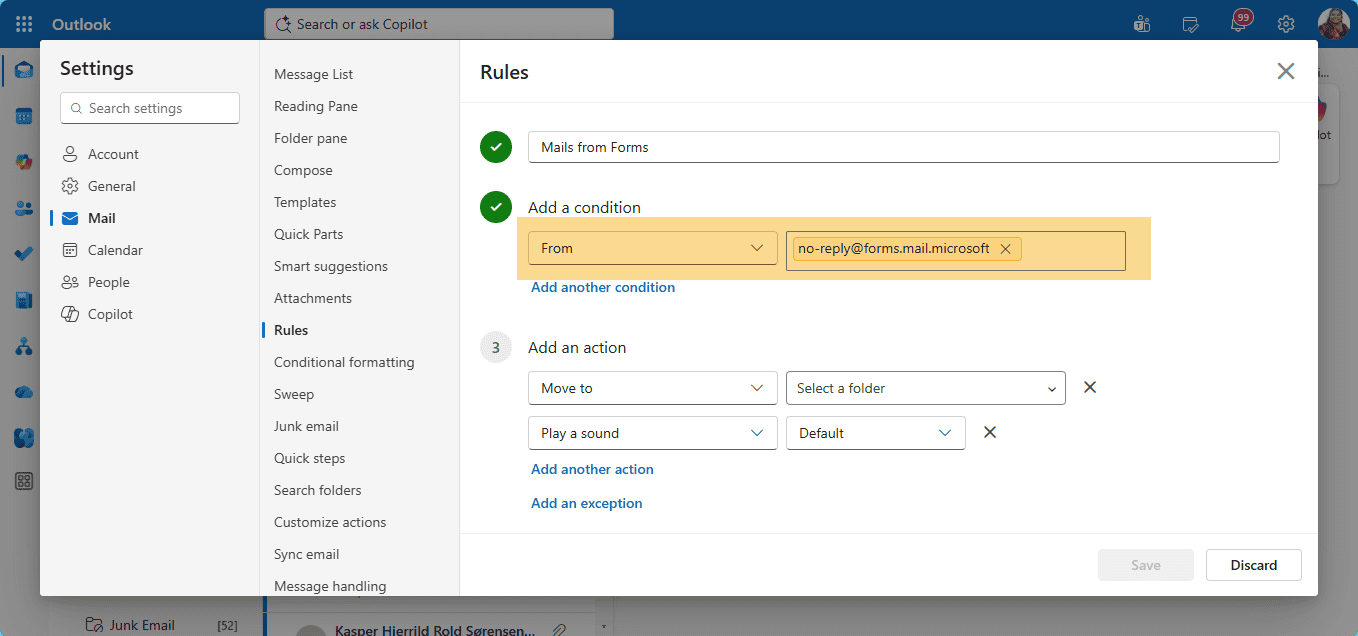
What Stays the Same: BYOD Support
One important detail remains unchanged. Microsoft still supports Bring Your Own Domain (BYOD) for product-generated emails when this is configured by a tenant admin.
That means organizations using branded email experiences can continue to send supported Microsoft 365 product emails through their own approved domain.
This is especially helpful for businesses that want stronger branding, better trust, and more recognizable notification emails for users.
- Custom domain support remains available for supported Microsoft 365 product emails
- Tenant admins can continue managing product email domain settings
- Branded notification delivery can still support a more professional user experience
📩 Forms Notification Check-In
Share a short internal update asking form owners whether they are still receiving response receipts and new response alerts without interruption. This can help surface issues early, before missed notifications start affecting business processes.
A short prompt like this works well:
- Are you receiving all Microsoft Forms notifications as expected?
- Have any recent form alerts gone to junk, quarantine, or another folder?
- Do you use mailbox rules or shared inboxes for form responses?
This kind of lightweight check-in helps identify gaps while showing that notification reliability is being actively managed.
Who Depends On These Forms Emails Today
This update affects any organization that uses Microsoft Forms automated email notifications and has rules, policies, or filters tied to the older sender address.
The impact is not limited to Forms alone. It can also extend into Exchange Online, email security policies, mailbox rules, and anti-spam configurations that depend on sender-based logic.
The most likely areas affected include:
- Microsoft Forms notification workflows
- Exchange Online mail flow rules
- Mailbox rules that sort or move Forms notifications
- Safe sender and allow lists in mail security configurations
- Anti-spam and filtering policies that reference the previous sender address
If those settings still point to maccount@microsoft.com, they may no longer behave as intended once notifications start arriving from the new address.
What Will Change In Your Environment
Once this update is active, Microsoft Forms emails will start using the new sender address for automated notifications.
That includes the emails users often depend on to confirm submissions, track incoming responses, and monitor form activity.
Here is what will change:
- Automated emails will be sent from no-reply@forms.mail.microsoft instead of maccount@microsoft.com
- Response receipts will use the new sender address
- New response notifications will use the new sender address
- Forms monitoring updates will use the new sender address
- Admins in supported environments can configure notification emails aligned to this updated sender behavior
This is a sender-level change, but its impact can be operational if existing rules and policies are not updated.
⚙️ Microsoft 365 Notification Health Review
Position this as a quick review of Microsoft Forms and related email delivery settings. The goal is to confirm that business-critical notifications are still reaching the right people.
Suggested review focus:
- Existing mail flow rules for Forms notifications
- Safe sender entries and allow lists
- Shared mailbox or help desk routing rules
- Notification delivery consistency for form owners
This kind of check can reduce support issues and improve confidence in Microsoft 365 notification workflows.
Action Items For Microsoft 365 Admins
This update does not require panic, but it does require attention. A few focused checks can prevent unnecessary mail flow issues and missed Forms alerts.
1. Review And Update Mail Flow Rules
Start by identifying any mail flow rules, transport rules, or mailbox rules that explicitly reference maccount@microsoft.com.
If a rule depends on the old sender address, it should be updated to recognize no-reply@forms.mail.microsoft instead.
Key places to review:
- Exchange Online transport rules
- Shared mailbox rules
- Outlook inbox rules
- Notification sorting logic
- Any automated routing conditions tied to the old sender
2. Adjust Email Filtering And Safe Sender Lists
If Microsoft Forms emails were previously trusted through an allow list or safe sender setup, those entries should be updated to include the new sender address.
This is especially important in environments with stricter anti-spam controls, secure mail gateways, or layered email security policies.
Recommended checks:
- Safe sender lists
- Anti-spam allow entries
- Quarantine exceptions where appropriate
- Third-party filtering tools that inspect sender identity
Adding the new sender address where relevant can help reduce the risk of valid notifications being misclassified.
3. Validate BYOD And Domain Settings
If custom email domain settings are used for Microsoft 365 product emails, this is a good time to confirm that everything is still configured correctly.
Microsoft’s official guidance explains how supported product emails can use a domain within the organization instead of a Microsoft default external address.
4. Communicate With End Users And Support Teams
A short internal notice can prevent confusion. Users who notice a new sender address may otherwise assume the email is suspicious or unrelated to Forms activity.
Help desk and support teams should also know about the change so they can quickly respond to cases involving missing notifications or mail delivery questions.
A useful internal note can include:
- The new sender address
- The reason for the change
- A reminder to check junk or filtered folders
- Guidance on reporting missing form notifications
🧩 Forms Alert Validation Campaign
Create a short internal validation activity using a live Microsoft Form. Ask a few users or stakeholders to submit a response and confirm whether the expected notifications are received properly.
This can help verify whether:
- Response receipts are delivered
- New response notifications reach form owners
- Filtering rules still behave correctly
- Shared mailbox workflows remain intact
This kind of structured check helps teams spot issues quickly and strengthens confidence in Microsoft Forms alert reliability.
📌 Helpful Microsoft Documentation Links
These links help support the update with trusted Microsoft documentation and gives a direct path to admin guidance.
















