


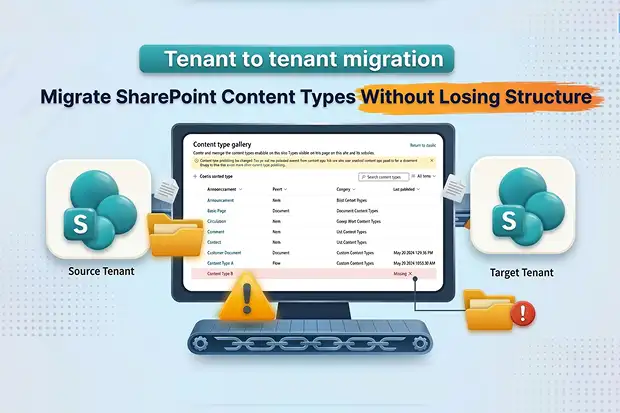
Content types define how information is organized, labeled, and managed across SharePoint Online. During a tenant to tenant migration, they are one of the first things that can quietly break and one of the last things teams think to check.
A successful SharePoint content type migration requires more than copying files. It means preserving the content type hierarchy, recreating site columns with correct field types and settings, and deciding how to handle Content Type Hub syndication in the target tenant. If content types are missing or misconfigured after cutover, lists and libraries lose their structure, views stop working, and metadata-driven workflows fail without warning.
This guide covers what breaks during content type migration, how Content Type Hub and site-level types differ, how to handle site columns, and the steps to preserve your information architecture. For the full migration project plan, see our Microsoft SharePoint to SharePoint Online migration guide.
- Why Content Types Break During Migration
- Content Type Hub vs. Site-Level Content Types
- Why This Matters for Migration
- How Content Type Inheritance Works – and What Breaks
- Site Columns Migration – The Foundation Content Types Depend On
- Step-by-Step: How to Migrate Content Types Between Tenants
- Common Mistakes That Break Content Type Migration
- Frequently Asked Questions
Why Content Types Break During Migration
Content types rely on a chain of dependencies that must all be intact in the target tenant. The most common reasons they break during migration:
- Content type IDs do not match. SharePoint identifies content types by a hierarchical ID, not by name. If a content type is recreated in the target with a new ID instead of the original, SharePoint treats it as a different content type entirely – even if the name and columns look identical.
- Site columns are missing or mismatched. Content types reference site columns by internal name. If a site column does not exist in the target or exists with a different field type (for example, single-line text instead of managed metadata), the content type either fails to create or behaves incorrectly.
- Content Type Hub syndication is not set up. Content types published from the Content Type Hub in the source tenant do not automatically exist in the target. If the target has no hub or the hub has not published the same content types – lists that depended on hub-syndicated types will lose their structure.
- Inheritance chains are broken. A child content type that inherits columns from a parent will break if the parent is not migrated first, or if the parent arrives with a different ID.
Content Type Hub vs. Site-Level Content Types
SharePoint Online manages content types in two places, and the distinction matters during migration.
Content Type Hub (Tenant-Level)
The Content-Type Hub available through the SharePoint Admin Center’s Content Type Gallery – is a centralized location where content types are created and published across all site collections in the tenant. When a content type is published from the hub, it syncs automatically to subscribing sites.
Hub-published content types are read-only at the site level. Sites cannot modify the columns or settings of a hub content type locally changes must be made at the hub and re-published.
Site-Level Content Types
Site content types are created directly within a site collection. They are only available within that site and its subsites. They can be freely modified by site owners without affecting other site collections.
Why This Matters for Migration
| Aspect | Content Type Hub | Site-Level |
|---|---|---|
| Scope | Entire tenant | Single site collection |
| Editable at site level | No (read-only) | Yes |
| Migration approach | Recreate in target hub, then publish | Recreate in target site collection |
| ID preservation | Critical – all subscribing sites depend on it | Important for list/library references |
| Risk if missed | Every subscribing site loses structure | Only the local site is affected |
During content type hub migration, the target hub must have the same content types published before site migrations begin. If sites arrive first, SharePoint may create duplicates or fail to link list content types back to the hub. Some migration tools attempt to merge hub content types by name at the destination, which can silently skip column updates if the hub’s read-only constraint is not handled correctly.
How Content Type Inheritance Works – and What Breaks
SharePoint content types follow a parent-child inheritance model. Every custom content type inherits from a built-in parent (such as Document or Item) or from another custom content type.
The inheritance chain is encoded in the content type ID – for example, 0x0101 is Document, and a custom child appends to that ID. If the parent does not exist in the target when the child is created, the child fails to deploy or loses its inherited columns. Migration tools that recreate content types by name without preserving the full ID hierarchy produce types that look correct but behave differently.
The rule: Always migrate parent content types before their children, and always preserve the original content type ID.
Site Columns Migration – The Foundation Content Types Depend On
Content types are only as reliable as the site columns they reference. Site columns migration SharePoint projects must happen before or alongside content type migration never after.
What Can Go Wrong with Site Columns
- Field type mismatch
A managed metadata column recreated as a text column loses its term store connection – views, filters, and workflows that depend on managed metadata behavior will fail.
- Internal name confusion
SharePoint references columns by internal name, not display name. A column created with a different internal name will not be found by content types that reference the original.
- Lookup columns pointing to wrong lists
Lookup columns store a source list ID that does not exist in the target. Without re-mapping, they return empty values or errors.
- Choice and calculated columns
Missing choice options creates orphaned values. Calculated columns break if referenced columns are renamed or not yet created.
Migration Order
- Term store and managed metadata – recreate term groups, term sets, and terms in the target tenant’s term store.
- Site columns – recreate all site columns with matching internal names, field types, and settings.
- Content types – recreate content types in the correct parent-child order, referencing the site columns already in place.
- Lists and libraries – migrate list structures that reference these content types.
- Content – migrate the actual items and documents.
This order aligns with your broader SharePoint metadata migration planning. Content types and site columns are part of the same metadata layer – migrating one without the other produces incomplete results. The step-by-step section below expands each of these phases with specific actions and validation checkpoints.
Step-by-Step: How to Migrate Content Types Between Tenants
1. Inventory All Content Types and Site Columns
Export content types from every site collection in scope, including their IDs, parent IDs, associated site columns, and whether they originate from the Content Type Hub or are site-level. PowerShell (Get-PnPContentType, Get-PnPField) or migration reporting tools can generate this inventory.
2. Identify Content Type Hub Dependencies
Determine which content types in your source are published from the Content Type Hub and which sites subscribe to them. Any site that uses hub-published content types will need those types available in the target hub before migration.
3. Recreate the Term Store in the Target
Managed metadata columns depend on the term store. Recreate term groups, term sets, and terms in the target tenant before creating any site columns that reference them.
4. Recreate Site Columns in the Target
Create site columns in the target with matching internal names, field types, default values, and settings. Pay special attention to managed metadata columns, lookup columns, and calculated fields.
5. Recreate Content Types in Parent-Child Order
Start with top-level custom content types, then their children. Preserve original content type IDs to maintain the inheritance chain and ensure lists and libraries recognize them correctly.
6. Publish Hub Content Types in the Target
If the source uses Content Type Hub syndication, create and publish the same content types in the target tenant’s hub. Wait for synchronization to complete before migrating sites that depend on these types.
7. Migrate Lists, Libraries, and Document Libraries
With content types and columns in place, migrate list and library structures. Ensure each list enables the correct content types and that the default content type is set properly. This step connects directly to your SharePoint document library migration and SharePoint list migration planning.
8. Validate After Migration
Confirm content types appear in list settings with all columns present, views show expected fields, and workflows referencing content type conditions still trigger. Compare content type IDs between source and target.
Common Mistakes That Break Content Type Migration
Recreating content types by name instead of ID. Two content types with the same name but different IDs are entirely separate objects. Lists linked to the original ID will not recognize the new one.
Migrating content types before site columns exist. The content type skips missing columns silently – it looks right in the gallery but is missing fields in every list that uses it.
Ignoring Content Type Hub timing. If hub types are not published in the target before sites migrate, the migrated sites lose their content type references or create disconnected local duplicates.
Skipping lookup column re-mapping. Lookup columns store a source list ID that does not exist in the target. Without re-mapping, they return empty values or errors.
Not testing with real content. A content type can look correct in settings but fail when documents are uploaded – especially if managed metadata columns lost their term store connection.
Preserve Your Content-Type Architecture with Apps4.Pro
Manually recreating content types, site columns, and hub syndication across tenants is tedious and error-prone – especially when managing dozens of site collections with overlapping content type hierarchies.
Apps4.Pro Migration Manager simplifies this process by handling content type and site column migration as part of a structured tenant-to-tenant SharePoint migration. It maintains content type hierarchy and migration order, so dependencies are resolved before content arrives. Built-in reporting shows exactly which content types, columns, and hub subscriptions were migrated and flags anything that needs attention before users notice.
👉 Start Your SharePoint Migration with Apps4.Pro

















 Migrate
 Manage
 Migrate Microsoft 365








