


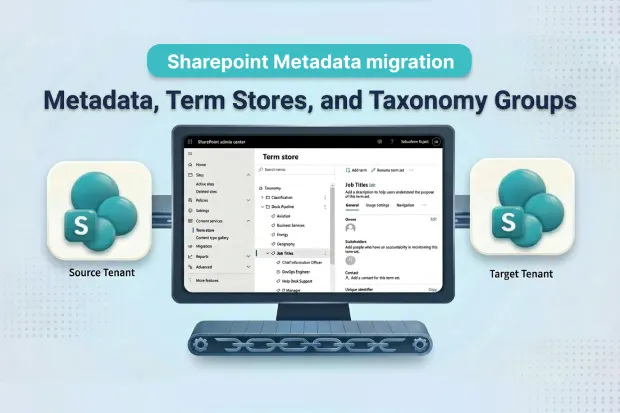
SharePoint metadata migration involves more than moving files from one environment to another. As part of a broader SharePoint online data migration, It also requires preserving managed metadata, term stores, taxonomy groups, and column relationships that keep content searchable and organized.
If managed metadata is not migrated correctly, SharePoint lists and libraries can lose classification, managed metadata columns can break, and users may struggle to find content after cutover.
This guide explains how SharePoint managed metadata migration works, why it is complex, what to prepare before migration, and how to avoid common post-migration issues. For a broader view of site structure, content, metadata, and permissions, see our SharePoint migration guide
- What Is SharePoint Managed Metadata?
- Why SharePoint Metadata Migration Is Complex
- Pre-Migration Checklist for SharePoint Metadata Migration
- Managed Metadata Column Behavior After Migration
- Columns That Reference Global Term Sets
- Columns That Reference Site-Level Term Sets
- Common Post-Migration Issues
- How Apps4.Pro Helps with SharePoint Metadata Migration
- Frequently Asked Questions
What Is SharePoint Managed Metadata?
Managed metadata in SharePoint is the taxonomy framework used to classify and organize content. It includes:
- Term Store – the central location that holds taxonomy data, accessed via the SharePoint Admin Center under Content services > Term store
- Term Groups – collections of related term sets
- Term Sets – organized groups of related terms (these can be open or closed – closed term sets restrict users to existing values only, which matters during migration if terms are missing on the target)
- Terms – the labels users apply to documents and list items
Managed metadata columns in SharePoint depend on this taxonomy structure. If the term store is not migrated correctly, those columns may lose their values or stop working as expected.
Why SharePoint Metadata Migration Is Complex
A SharePoint taxonomy migration is more complex than a file migration because content depends on metadata structure, column bindings, and permissions.
Common challenges include:
- Global and site-level term groups behave differently during migration
- Managed metadata columns depend on valid term references and matching GUIDs
- Taxonomy and content must be migrated in the right sequence, taxonomy first
- Closed term sets will reject values if the corresponding terms are missing on the target
- Metadata-heavy migrations often need extra validation passes
If taxonomy is missing or incomplete on the target, managed metadata columns can appear blank, show incorrect values, or fail entirely.
Pre-Migration Checklist for SharePoint Metadata Migration
Before you begin your managed metadata migration, complete these prerequisite steps in order:
Step 1: Audit Your Term Store
- Open the SharePoint Admin Center and navigate to Content services > Term store.
- Document all term groups, term sets, and terms, including their hierarchy and any custom properties.
- Identify which term groups are global (managed at the tenant level) and which are site-collection specific (local term sets).
- Note any deprecated or unused term sets that can be cleaned up before migration.
You can also use PnP PowerShell to export your taxonomy for review:
Export-PnPTermGroupToXml -Identity “YourTermGroup” -Out “TermGroupBackup.xml”
This gives you a structured backup and a clear map of what needs to migrate.
Step 2: Clean Up Metadata Before Migration
Remove deprecated terms, duplicate term sets, and outdated taxonomy before cutover. Migrating unnecessary taxonomy adds complexity and increases the chance of conflicts on the target. A clean term store migrates faster and validates more easily.
Step 3: Set Up Permissions and Roles
This is where many migrations fail silently. Different levels of term store migration require different roles:
| Migration Scope | Required Role |
|---|---|
| Site-level term groups | SharePoint Administrator with Delegated Permission + Term Store Administrator |
| Global-level term groups | Term Store Administrator (in addition to SharePoint Administrator) |
| Full tenant migration | Global Administrator or SharePoint Administrator + Term Store Administrator |
Proof point from Apps4.Pro’s support documentation: The Apps4.Pro Migration Manager support guide explicitly states that the “Term Store Administrator” role is required for both the Source and Target Connector Accounts when migrating term groups.
Additionally, the “Migrate Global Term Groups” setting must be enabled before initiating the migration. Without both of these, global taxonomy groups simply won’t transfer.
To assign the Term Store Administrator role in SharePoint Online:
- Go to the SharePoint Admin Center > Content services > Term store.
- Select the term store at the top of the tree view.
- Under Term store admins, add the migration account for both source and target tenants.
Step 4: Migrate Taxonomy Before Content
Always migrate the term store structure first, then migrate lists, libraries, and documents. This ensures managed metadata columns have valid terms to reference on the target. Most migration failures involving metadata columns trace back to content being migrated before its supporting taxonomy was in place.
Managed Metadata Column Behavior After Migration
One of the most overlooked aspects of term store migration is how managed metadata columns behave on the target.
Columns That Reference Global Term Sets
If you migrated global term groups successfully (using the Term Store Administrator role + “Migrate Global Term Groups” setting), these columns should function normally. The term set binding is re-established on the target, and users can continue tagging content as expected.
Columns That Reference Site-Level Term Sets
Site-level term groups are migrated as part of the site collection migration. As long as the local term store is present on the target site, these columns will retain their values and functionality.
Common Post-Migration Issues
| Issue | Cause |
|---|---|
| Blank values | Content was migrated before the related taxonomy structure |
| Incorrect labels or GUID-style values | Broken or mismatched term references between source and target |
| Managed Metadata Service errors | Missing destination setup or incomplete metadata configuration |
| Missing managed metadata columns | Supporting features, column definitions, or content types were not fully preserved |
Because of these risks, post-migration validation is essential for SharePoint lists, libraries, and content types that use managed metadata.
How Apps4.Pro Helps with SharePoint Metadata Migration
Apps4.Pro Migration Manager helps reduce the most common SharePoint metadata migration problems by keeping taxonomy, metadata, and content aligned during tenant-to-tenant migration.
It supports migration of:
- Site-level and global term groups (with the “Migrate Global Term Groups” toggle)
- Managed metadata columns with intact term references
- Site columns and content types
- List and library settings including views and configurations
- Version history
- Permissions at site, list, and item levels
- Incremental migration for ongoing changes during phased rollouts
- Validation reporting after migration to flag broken metadata early
Rather than requiring administrators to manually rebuild taxonomy or re-link columns, Apps4.Pro handles the alignment between term store structure and column bindings automatically. This helps reduce the risk of broken metadata columns and incomplete taxonomy relationships after cutover.
Start Your SharePoint Metadata Migration Today
A successful SharePoint metadata migration protects the taxonomy, classification, and searchability that your organization depends on. With the right preparation, proper roles, a verified default term store, and a clear migration sequence, you can move your entire managed metadata infrastructure without breaking a single column.
Apps4.Pro Migration Manager migrate your SharePoint site, including term stores, taxonomy groups, metadata columns, and permissions, with zero data loss and zero downtime.
Get Started with SharePoint Migration Using Apps4.Pro

















 Migrate
 Manage
 Migrate Microsoft 365








