


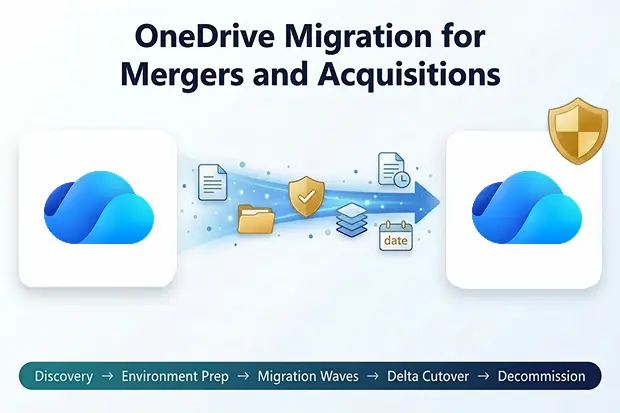
Mergers and acquisitions create one of the most time-sensitive scenarios for Microsoft OneDrive migration. Unlike routine tenant consolidations, M&A-driven migrations work against Transition Service Agreement deadlines. If cutovers slip, the acquiring organization may need to continue paying for licenses and services in a tenant it no longer plans to keep.
This guide explains how OneDrive tenant to tenant migration works during mergers and acquisitions. It covers how TSA deadlines shape planning, which OneDrive specific risks to assess early, how to handle unlicensed or departed employee accounts, and how to use delta migration for phased cutover with minimal disruption.
For a broader overview of tooling, see our Microsoft OneDrive migration tool guide. For common platform constraints that affect cross-tenant moves, review the cross-tenant OneDrive migration limitations.
- Why Mergers and Acquisitions Are Different from Routine Migration
- OneDrive Workload Inventory: What to Assess Before Migration
- Handling Unlicensed and Departed Employee Accounts
- Delta Migration for Phased Cutover
- Why This Matters for M&A
- Preserve Your OneDrive Data Architecture with Apps4.Pro
- OneDrive M&A Migration FAQ
Why Mergers and Acquisitions Are Different from Routine Migration
A standard tenant consolidation can take months of careful planning. M&A integration rarely has that luxury.
Transition Service Agreements Set the Clock
A Transition Service Agreement is a contract between the acquiring and divesting organizations. It defines how long the acquiring company can continue using the divesting company’s Microsoft 365 tenants, licenses, and services – typically 90 to 180 days.
Every day beyond the TSA deadline incurs cost. The divesting organization charges for continued license usage, and some agreements include penalty clauses for overruns. This makes the TSA expiration the single most important milestone in M&A migration planning – a contractual deadline the entire project works backward from.
The M&A Migration Timeline
| Phase | Typical Window | Key Activities |
|---|---|---|
| Day 0–14 | Discovery | Workload inventory, user mapping, license audit, TSA review |
| Day 15–30 | Environment prep | Target tenant configuration, identity mapping, pilot group selection |
| Day 31–90 | Migration waves | Phased OneDrive migration by department or geography |
| Day 91–120 | Delta sync and cutover | Final delta passes, DNS changes, user communication |
| Day 121–TSA deadline | Decommission | Source tenant cleanup, license release, TSA closeout |
The compressed timeline means IT teams cannot afford to discover problems with mid-migration. Every OneDrive-specific risk must be identified and mitigated during discovery not during wave 3 of a 5-wave migration.
OneDrive Workload Inventory: What to Assess Before Migration
Before migrating a single file, inventory the OneDrive environment across the source tenant.
- Total data volume per user. OneDrive accounts range from near empty to users storing 500GB+. Large accounts take significantly longer to migrate and may require dedicated migration windows.
- Active vs. inactive accounts. Identify which OneDrive accounts belong to current employees, which belong to employees who have already departed, and which are tied to unlicensed or disabled accounts. Departed employee accounts are often the most neglected and the most at risk. For handling these, see our unlicensed OneDrive accounts archiving policy guide.
- Sharing links and external sharing. OneDrive files shared via direct links, organization-wide links, or external sharing will break after migration unless explicitly re-mapped. External sharing is particularly risky – shared links pointing to the source tenant domain will stop working immediately after cutover.
- Files with compliance holds or retention policies. Litigation holds, retention labels, and DLP policies applied in the source tenant do not transfer. These must be recreated in the target before content arrives to maintain compliance continuity.
- Sync client connections. Every user running OneDrive Sync on their desktop will lose their sync connection during migration. Plan for re-authentication and re-sync; this is the most visible user disruption in any OneDrive migration.
OneDrive-Specific Migration Risks in M&A
OneDrive migrations carry risks that do not apply to SharePoint sites or Exchange mailboxes. These are the ones that catch M&A IT teams off guard.
Metadata Loss
OneDrive stores file metadata – Created By, Modified By, Created Date, Modified Date that migration tools may not preserve. If metadata is lost, every file in the target appears to have been created by the migration service account on the migration date. This creates audit trail gaps, compliance exposure, and user confusion when they cannot sort files by original date.
Permission Breaks
OneDrive permissions are tied to Azure AD identities in the source tenant. During tenant-to-tenant migration, every permission folder-level sharing, file-level sharing, shared links must be re-mapped to the corresponding identity in the target tenant. If identity mapping is incomplete or incorrect, users lose access to files they previously owned or shared. The Microsoft 365 migration checklist covers identity mapping across all workloads.
Version History Gaps
OneDrive libraries can be configured to store up to 50,000 major versions per file, though the default is 500. Most OneDrive migration tools either skip version history entirely or migrate only a limited number of versions. For regulated industries where version history constitutes a compliance record, this gap can be a deal-breaker. Confirm your migration tool’s version handling before the first pilot migration.
OneNote Embedded in OneDrive
OneNote stored in OneDrive are not standard files – they are folder structures with proprietary one section files. Migration tools that treat them as regular folders may produce corrupted notebooks in the target. Test OneNote file migration separately during the pilot phase.
Large File and Path Length Failures
Files exceeding 250GB or paths exceeding 400 characters will fail silently in most migration tools. M&A environments often contain legacy files with deeply nested folder structures that exceed these limits. Identify and remediate these before migration begins.
Handling Unlicensed and Departed Employee Accounts
M&A scenarios almost always include OneDrive accounts that belong to employees who left the divesting organization before or during the acquisition. These accounts present a unique challenge.
When a user’s Microsoft 365 license is removed, their OneDrive enters a 30-day grace period before deletion begins. If the TSA timeline extends beyond this window – or if accounts were unlicensed before the acquisition closed, OneDrive data merger acquisition teams’ risk permanent data loss.
The approach:
- Audit all unlicensed accounts immediately during discovery. Identify which have active OneDrive data and which are empty.
- Temporarily re-license critical accounts to prevent deletion during the migration window. Factor this cost into the TSA budget.
- Migrate or archive before decommission. Every unlicensed account with business data must either be migrated to the target tenant or archived. Our unlicensed OneDrive accounts archiving policy guide covers the archiving workflow in detail.
- Document chain of custody. For compliance purposes, record which accounts were migrated, which were archived, and which were intentionally abandoned.
Delta Migration for Phased Cutover
Migrating all OneDrive accounts in a single cutover weekend is rarely feasible in M&A scenarios, especially when dealing with thousands of users across multiple geographies. Delta migration solves this.
How Delta Migration Works
- Initial pass: Migrate the bulk of each user’s OneDrive content to the target tenant days or weeks before their cutover date. Users continue working in the source tenant during this period.
- Delta passes: Run incremental syncs that capture only files changed since the initial pass. Multiple delta passes can run daily, leading up to cutover.
- Final delta and cutover: On the user’s cutover date, run a final delta pass to capture last-minute changes, then redirect the user to the target tenant. The gap between the final delta and cutover should be under 4 hours to minimize data drift.
Concrete example: A user with 15GB in OneDrive -the initial pass moves 14.8GB over a weekend. Over the next 5 business days, three delta passes capture 200MB of changes. On cutover morning, the final delta takes under 10 minutes. The user re-authenticates and their OneDrive is immediately usable with all files in place.
Apps4.Pro Migration Manager supports incremental migration as part of the migration flow. After completing the initial migration, Delta migration passes can be run as needed to capture newly added or updated data. This approach helps keep source and target in sync while giving IT teams full control over when each sync is executed.
Why This Matters for M&A
Delta migration allows IT teams to spread the migration workload across the TSA window rather than compressing everything into a single weekend. It also reduces user disruption as the time cutover happens, 95%+ of data is already in the target, so the final sync is fast, and the user’s OneDrive is immediately usable.
Migration wave planning tip: Group users by department, geography, or business unit. Migrate departments with fewer cross-team dependencies first. Save the most interconnected teams – those with heavy cross-OneDrive sharing for later waves when identity mapping and sharing re-configuration are proven.
Pre-Migration Checklist for M&A OneDrive Migration
Use this checklist before starting your first OneDrive data migration wave.
Discovery and Planning
- TSA deadline confirmed and documented
- Source tenant OneDrive data volume assessed per user
- Active, inactive, and unlicensed accounts identified and categorized
- Files with path lengths exceeding 400 characters remediated
- Compliance holds, retention policies, and OneNote notebooks documented
Environment Preparation
- Target tenant OneDrive provisioned for all in-scope users
- Identity mapping completed – source to target Azure AD accounts
- Licensing confirmed in target; unlicensed source accounts re-licensed or archived
- Sharing policies and retention labels recreated in target tenant
Migration Execution
- Pilot migration completed with 5–10 representative users
- Metadata, version history, permissions, and OneNote integrity validated
- Delta migration schedule established per wave
- User communication sent with cutover dates and re-sync instructions
Post-Migration Validation
- File counts match between source and target for each migrated user
- Sharing links and OneDrive Sync client functional in target
- Source accounts decommissioned after validation window
Preserve Your OneDrive Data Architecture with Apps4.Pro
Instead of managing identity mapping spreadsheets, delta sync scheduling, and metadata preservation through separate scripts, Apps4.Pro Migration Manager consolidates the entire OneDrive migration workflow into a single tool.
It preserves file metadata including Created By and Modified Date, ensuring your audit trail remains intact after migration. Identity re-mapping between source and target tenants is handled seamlessly. Incremental migration passes can be performed across waves to keep data in sync throughout the transition. Any failed items are clearly surfaced with detailed error insights rather than generic failure codes.
For M&A teams operating under TSA pressure, the built-in reporting shows exactly how much data has moved, what remains, and whether the project is on track to meet the deadline.
For post-migration troubleshooting and user support workflows, see our OneDrive migration support guide.

















 Migrate
 Manage
 Migrate Microsoft 365








