


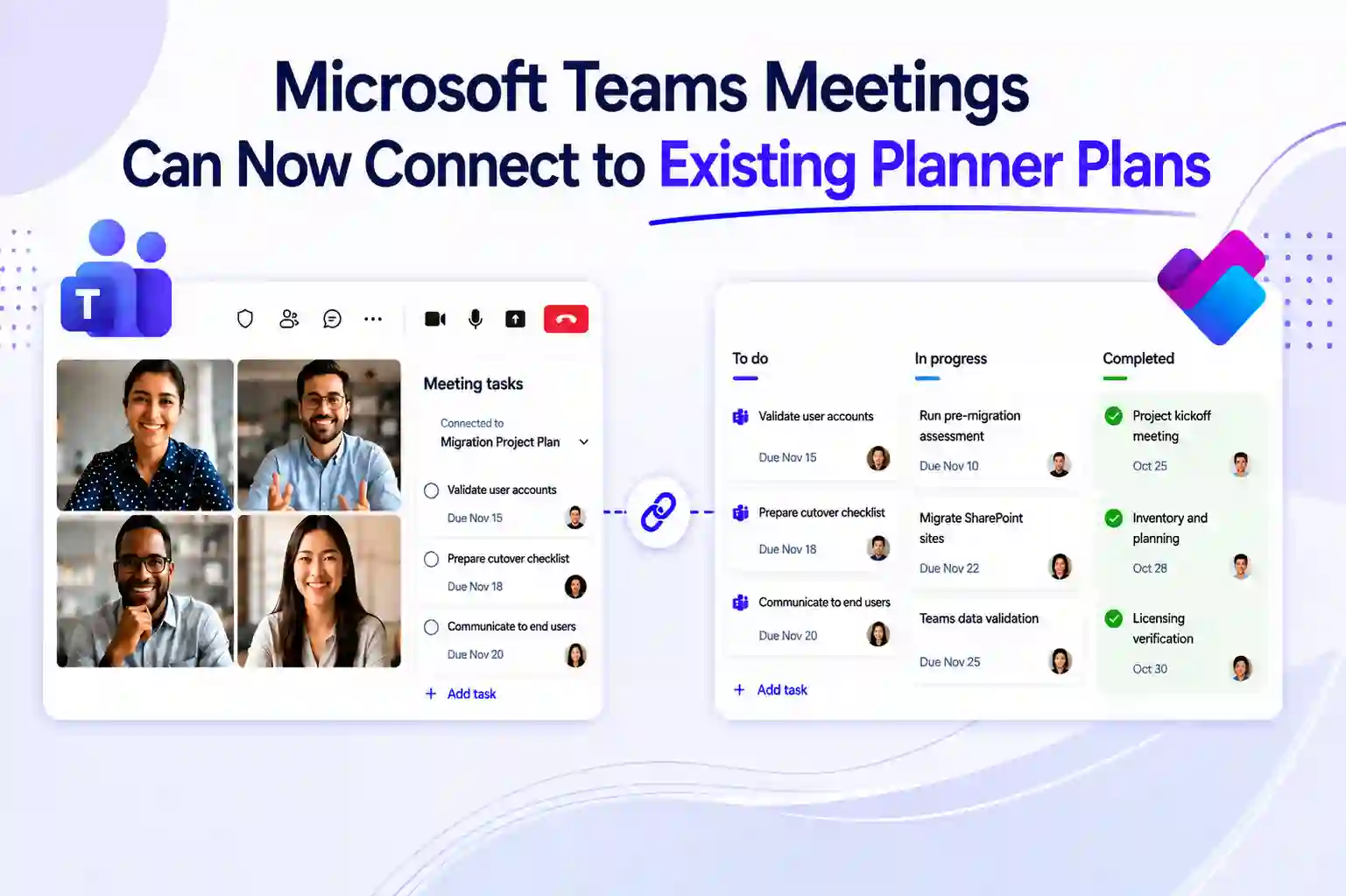
Keeping track of meeting action items can quickly become difficult when tasks are spread across several Planner plans. This new Microsoft Teams capability helps bring more structure to the way meeting follow-ups are managed.
You can now connect a Microsoft Teams meeting to an existing Microsoft Planner plan. Instead of creating a separate plan for every meeting, tasks from recurring meetings, project reviews, and working sessions can be added to the plan already used for the project.
This makes it easier to keep action items, task owners, due dates, and project work in one place.
Why This Teams Planner Update Matters
When meeting tasks are stored in separate plans, it can be harder to see the full picture of a project. Important follow-ups may be missed, task ownership can become unclear, and teams may need to switch between multiple Planner plans to understand progress.
Connecting Teams meetings to an existing Planner plan helps create a more organized Microsoft 365 task management experience.
This update can help you:
- Keep meeting action items within the correct project plan
- Reduce the number of separate Planner plans created for the same initiative
- Improve visibility into tasks, owners, and deadlines
- Keep recurring meeting follow-ups connected to ongoing project work
- Support better project coordination across Microsoft Teams and Planner
Whether you are managing a migration project, a customer implementation, an internal IT initiative, or a weekly delivery meeting, keeping tasks in one Planner plan can make project tracking simpler.
Connect Meeting Tasks to One Shared Planner Plan
When setting up or managing a Microsoft Teams meeting, you can choose an existing Microsoft Planner plan for meeting-related tasks.
Once a Planner plan is selected, tasks created during the meeting can be added directly to that plan. This allows your meeting follow-ups to sit alongside the work that your team is already tracking.
If you do not select an existing plan, Teams can continue with the default behavior of creating a new Planner plan for meeting tasks.
This can be especially helpful for recurring meetings connected to:
- Microsoft 365 tenant-to-tenant migration projects
- SharePoint migration and modernization initiatives
- Microsoft Teams governance programs
- Customer onboarding activities
- IT integration work during mergers and acquisitions
- Project status meetings and delivery reviews
- Ongoing service management discussions
For example, if you manage a Microsoft 365 migration project, you can connect weekly migration meetings to the main migration Planner plan. Any follow-up actions from those meetings can then be tracked alongside cutover tasks, validation activities, user communication tasks, and post-migration support actions.
🔍 Spot the Hidden Planner Problem
Meeting tasks often look manageable at first. However, over time, separate Planner plans can make it difficult to understand where work is being tracked.
Use this section to encourage readers to assess their own environment.
Consider this question:
How many Planner plans are created for one project in your Microsoft 365 environment?
You can also invite readers to review whether recurring meetings are creating separate task lists that are not connected to the main project plan.
- Check how many meeting-related Planner plans exist for active projects
- Identify whether task ownership is visible across all project work
- Review whether meeting actions are being missed or duplicated
- Consider connecting recurring meetings to the main Planner plan for the project
Facilitator Can Help Capture Meeting Actions
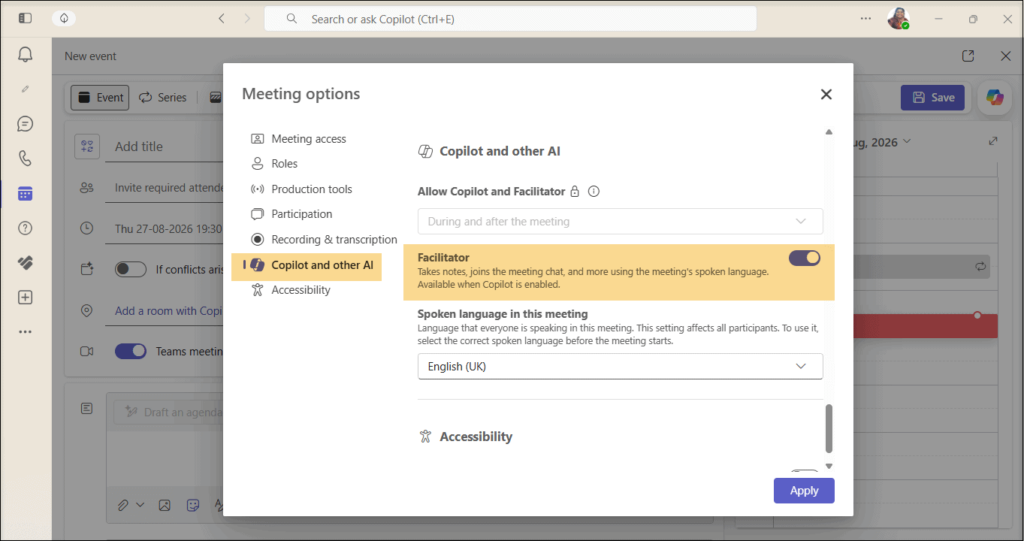
Microsoft Teams Facilitator can help capture action items and follow-up tasks during meetings. It uses AI-generated notes to identify key discussions, decisions, and tasks that may need attention.
When a Teams meeting is connected to an existing Planner plan, Facilitator can create tasks in that selected plan when it is enabled. This helps keep AI-generated meeting follow-ups connected to the wider project workflow.
You can also create tasks manually if Facilitator is not enabled.
This flexibility allows you to choose the task-management approach that works best for your organization.
You can:
- Use Facilitator to support AI-assisted action-item capture
- Create and assign tasks manually during or after meetings
- Select an existing Planner plan for each project or workstream
- Keep meeting tasks connected to project milestones and deadlines
- Maintain a clear record of actions discussed during recurring meetings
For teams handling complex projects, such as Microsoft 365 migrations or IT transformation programs, automated action tracking can help reduce the risk of important follow-ups being forgotten after a meeting.
Facilitator setting in Microsoft Teams meeting options:
🧠 Show the Task Management Difference
A simple before-and-after example can help readers understand the value of this update.
Before connecting meetings to an existing Planner plan, tasks from each meeting may be stored in separate locations. Your team may need to review several plans to find action items, update task status, and check ownership.
After connecting meetings to the main project Planner plan, meeting actions can become part of the same task-management workflow.
Before:
- Weekly meetings create separate Planner plans
- Tasks are spread across different plans
- Project managers need to search for meeting actions
- Team members may not see the latest follow-ups
After:
- Recurring meetings connect to an existing Planner plan
- Meeting tasks are stored with project tasks
- Owners and due dates are easier to review
- Project status becomes easier to manage from one location
This format can also be used as a LinkedIn carousel, infographic, short video, or internal Microsoft 365 adoption resource.
What Microsoft 365 Admins Should Review
The new capability is available by default. However, you may still want to review how Teams meeting tasks are managed across your organization.
A consistent approach can help users understand when they should create a new Planner plan and when they should connect a meeting to an existing one.
Consider reviewing the following areas:
- Confirm that Microsoft Teams, Microsoft Planner, and Microsoft Loop are enabled in your Microsoft 365 tenant
- Decide whether Facilitator should be enabled for AI-assisted meeting task creation
- Update internal guidance for project meetings, recurring meetings, and task tracking
- Help users understand how to choose the right Planner plan for their meetings
- Prepare helpdesk teams to answer questions about Teams and Planner task management
- Review task-management practices for high-priority projects and workstreams
Existing Planner plans are not changed by this capability. The improvement is focused on how new meeting-related tasks can be organized moving forward.
Better Task Governance for Recurring Meetings
Recurring meetings often generate important actions that affect project timelines, workloads, and delivery outcomes. When these actions are not connected to the main project plan, it can become difficult to manage them effectively.
By linking a Microsoft Teams meeting to an existing Planner plan, you can keep meeting follow-ups in the same place as the rest of the project work.
This can be valuable when managing:
- Weekly project governance meetings
- Migration readiness and cutover calls
- Customer delivery reviews
- IT service management meetings
- Department planning sessions
- Risk and issue review meetings
- Cross-functional implementation discussions
Keeping meeting tasks and project tasks together makes it easier to see how discussions translate into work that needs to be completed.
You can quickly review:
- Tasks created from recent meetings
- The people responsible for each follow-up
- Due dates and task priorities
- Overdue actions requiring attention
- How meeting decisions affect the overall project plan
- Progress across the wider project workstream
For project managers and IT teams, this can support stronger accountability and reduce the need to search across multiple Microsoft Planner plans.
💬 Identify Your Biggest Follow-Up Challenge
Meeting follow-up can be one of the most common project-management challenges. Even when discussions are productive, task ownership and completion can become unclear after the meeting ends.
Use the following poll question in a LinkedIn post, internal Microsoft Teams community, or Microsoft 365 adoption campaign.
What is your biggest challenge with meeting follow-up tasks?
- Tasks are forgotten after meetings
- Task owners are not clearly assigned
- Work is spread across too many tools or plans
- Planner plans become difficult to manage
- Due dates are not followed consistently
The answers can help identify whether teams need better guidance, stronger Planner governance, or more consistent use of Microsoft Teams meeting task-management capabilities.
Final Thoughts
Connecting Microsoft Teams meetings to existing Planner plans gives you a more practical way to manage meeting follow-ups. Instead of creating disconnected task plans for the same project, you can keep actions, owners, and deadlines within one shared Planner workspace.
For Microsoft 365 administrators, project managers, MSPs, and IT delivery teams, this can help improve task visibility, strengthen accountability, and create a more consistent approach to meeting follow-up management.
When Teams meetings, Planner plans, and project workflows are connected, it becomes easier to move from discussion to action without losing important tasks along the way.
Learn More from Microsoft
Explore these official Microsoft resources to understand how Teams, Planner, Facilitator, and Loop task lists support connected meeting follow-ups.
















