


In many Microsoft Teams meetings, valuable time is lost while people search for information, switch between applications, or wait for someone to find an answer.
The Microsoft Teams Facilitator capability, powered by Microsoft 365 Copilot (Premium), is designed to reduce these moments. It provides relevant, contextual answers directly in the meeting chat so you can keep moving toward decisions without unnecessary delays.
This article walks you through what Facilitator does, how it works inside Teams meetings, and what you as an IT admin, business leader, or meeting organizer should consider before rolling it out.
- What Is Microsoft Teams Facilitator?
- How Facilitator Works in Live Teams Meetings
- Where You Can Use Facilitator
- Access Requirements for Using Copilot Facilitator
- How to enable Facilitator in Teams meetings
- Why This Matters For Meeting Productivity
- Admin Controls and Compliance
- Recommended Next Steps For IT And Business Leaders
- Final Thoughts
What Is Microsoft Teams Facilitator?
Microsoft Teams Facilitator is an AI assistant for meetings that proactively detects knowledge gaps and posts web search-based answers directly to the Teams meeting chat.
Instead of relying on participants to search the web manually, Facilitator interprets questions and surfaces information aligned to the meeting context.
Key capabilities:
- Identifies implicit and explicit information needs during Teams meetings.
- Uses Copilot web search to find relevant answers from the public web.
- Posts responses inline in the Teams meeting chat for all participants.
- Helps keep attention on meeting outcomes rather than searching for information.
How Facilitator Works in Live Teams Meetings
After Facilitator is enabled for a meeting, it continuously monitors the conversation and chat for questions or signs of uncertainty.
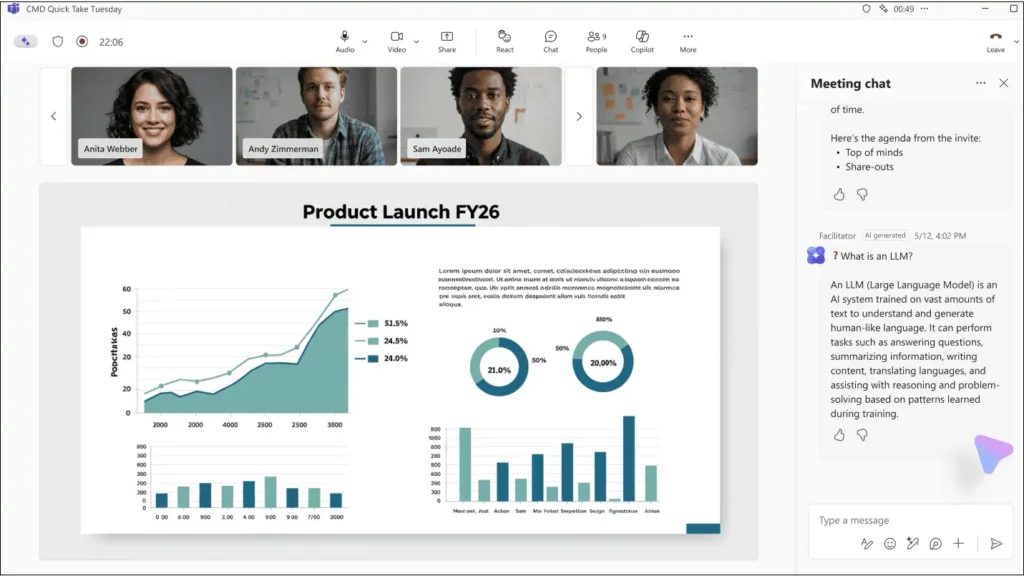
When it detects a factual question that is not answered by participants, Facilitator triggers a web search via Copilot and posts a concise response in the meeting chat.
In practice, this looks like:
- Observing meeting conversation and chat for questions or unclear information.
- Performing a web search when a relevant knowledge gap is identified.
- Posting an AI generated answer in the meeting chat for everyone to see.
- Responding infrequently, typically less than once per meeting.
- Focusing on questions connected to the current agenda and discussion.
Facilitator in Teams Meeting
Where You Can Use Facilitator
Facilitator is designed for standard Microsoft Teams meetings in environments where Copilot is part of your collaboration experience.
It is not available in all meeting types and it depends on existing Copilot and web search configurations.
Supported scenarios:
- Standard Microsoft Teams meetings.
- Meetings that include external or cross-tenant participants.
- Participants without Copilot licenses can still view Facilitator responses once it is enabled.
Not supported:
- Calls in Teams.
- Webinars and town halls.
📌 For more information, refer: Microsoft 365 Copilot documentation
Access Requirements for Using Copilot Facilitator
Facilitator is associated with Microsoft 365 Copilot (Premium), but not every participant needs a license for the feature to be useful in the meeting.
The most important requirement is that someone with the appropriate license enables Facilitator for that meeting.
Licensing and enablement details:
- At least one user with Microsoft 365 Copilot (Premium) must enable Facilitator for the meeting.
- Once Facilitator is enabled, all participants present in the meeting can see its responses in chat.
- Facilitator is not enabled by default and must be added manually to each meeting.
Control for users:
- Any user can remove Facilitator from the meeting if they no longer want proactive responses.
- When Facilitator is removed, it stops generating answers for that meeting.
How to enable Facilitator in Teams meetings
To add Facilitator to a meeting during scheduling:
- Select Add Facilitator in the meeting scheduling form.
- Select Options
 > Copilot and other AI
  in the scheduling form. Then, turn on the Facilitator toggle.
 - During the meeting, Facilitator can also be added by selecting More actions

> Turn on Facilitator in the meeting controls.
 - After a Teams meeting, go to the meeting chat where Facilitator ➜ select Recap at the top ➜ select Notes to view AI-generated notes from the meeting.
 > Copilot and other AI
  in the scheduling form. Then, turn on the Facilitator toggle.
 in the meeting controls.
🔍 “Ask The Meeting Copilot” Segment
One simple way to help colleagues understand and experience the value of Facilitator is to design a short “Ask the Meeting Copilot” segment in recurring meetings.
How you can run this segment:
- Reserve 3 to 5 minutes at the end of project or status meetings.
- Encourage participants to ask quick factual questions related to the meeting agenda.
- Let Facilitator respond in the meeting chat and capture any follow up tasks that arise.
This practice builds familiarity with AI assistance in Microsoft Teams, showcases how Copilot can support meetings, and helps reinforce the role of Facilitator as a trusted helper rather than a background feature.
Why This Matters For Meeting Productivity
Meetings often slow down when participants need to confirm facts, check definitions, or search for supporting information in other applications.
Facilitator is intended to reduce these micro interruptions and provide a more streamlined path from questions to answers.
Productivity benefits you can expect:
- Less time spent switching out of Teams to search the web.
- More consistent access to relevant factual information for all participants.
- Better alignment on the facts that underpin decisions.
- Support for faster decision making in cross functional and cross tenant meetings.
For organizations already investing in Microsoft 365 Copilot, Facilitator extends the value of AI beyond documents and emails into live collaboration and meeting experiences.
Admin Controls and Compliance
Facilitator does more than change the meeting interface. It adds a new layer of AI based processing to meeting content, which matters for data protection, compliance, and risk management.
Understanding what controls exist and its compliance risks will help you decide whether and how to adopt it.
Admin and configuration controls
Available admin and configuration controls:
- Facilitator depends on the Copilot web search setting, so if web content access is disabled, Facilitator cannot generate responses.
- Admins can disable Facilitator at the tenant level through appropriate configuration.
For more information, refer “How to allow Facilitator for meetings”. - Individual users can disable Facilitator for a specific meeting by removing it.
Compliance and risk considerations
Compliance and risk considerations include:
- Facilitator introduces a new way for AI to interact with meeting content.
- It changes how meeting data is processed in real time to support generative AI responses.
- Clear communication and documentation are important, especially if you operate in regulated industries or under strict governance frameworks.
📌 Helpful Microsoft documentation: Microsoft Teams security and compliance overview
💡 AI In Meetings – Governance Q&A Clinic
To build confidence around Facilitator and other Copilot features, you can host a recurring “AI in Meetings – Governance Q&A Clinic” together with your security and compliance stakeholders.
Suggested format:
- Schedule a 30-minute session for IT, compliance, and business stakeholders.
- Demonstrate Facilitator in a test meeting so everyone can see how it behaves.
- Explain how data is processed, which admin controls are available, and how users can disable the feature if needed.
- Capture questions and concerns and use them to update your internal guidelines and FAQs.
By doing this, you move AI discussions out of abstract theory and into a practical, visible context that directly relates to everyday Teams meetings.
Recommended Next Steps For IT And Business Leaders
You do not need to take immediate action for your environment to remain stable, but it is wise to prepare for the introduction of Facilitator as part of your Microsoft 365 Copilot strategy.
A proactive approach will help you avoid confusion and make sure users experience Facilitator as a helpful enhancement rather than a surprise.
Recommended actions:
- Review Copilot web search and Facilitator configuration to ensure they align with your AI usage policies.
- Update internal documentation and training for Microsoft Teams to reflect the new meeting experience.
- Inform helpdesk, adoption leads, and power users about how Facilitator behaves in meeting chats.
- Consider piloting Facilitator in selected departments or meeting types before broader rollout.
📌 For additional information, refer “Microsoft Teams IT admin documentation”.
Final Thoughts
Microsoft Teams Facilitator represents a step toward making meetings more intelligent and supportive for everyone involved.
By using AI to identify and resolve knowledge gaps in real time, it helps turn meetings into spaces where information flows more smoothly and decisions are easier to make. If you are adopting Microsoft 365 Copilot, including Facilitator in your governance, training, and rollout plans will help you create a meeting environment where AI is seen as a reliable partner in collaboration.
















