


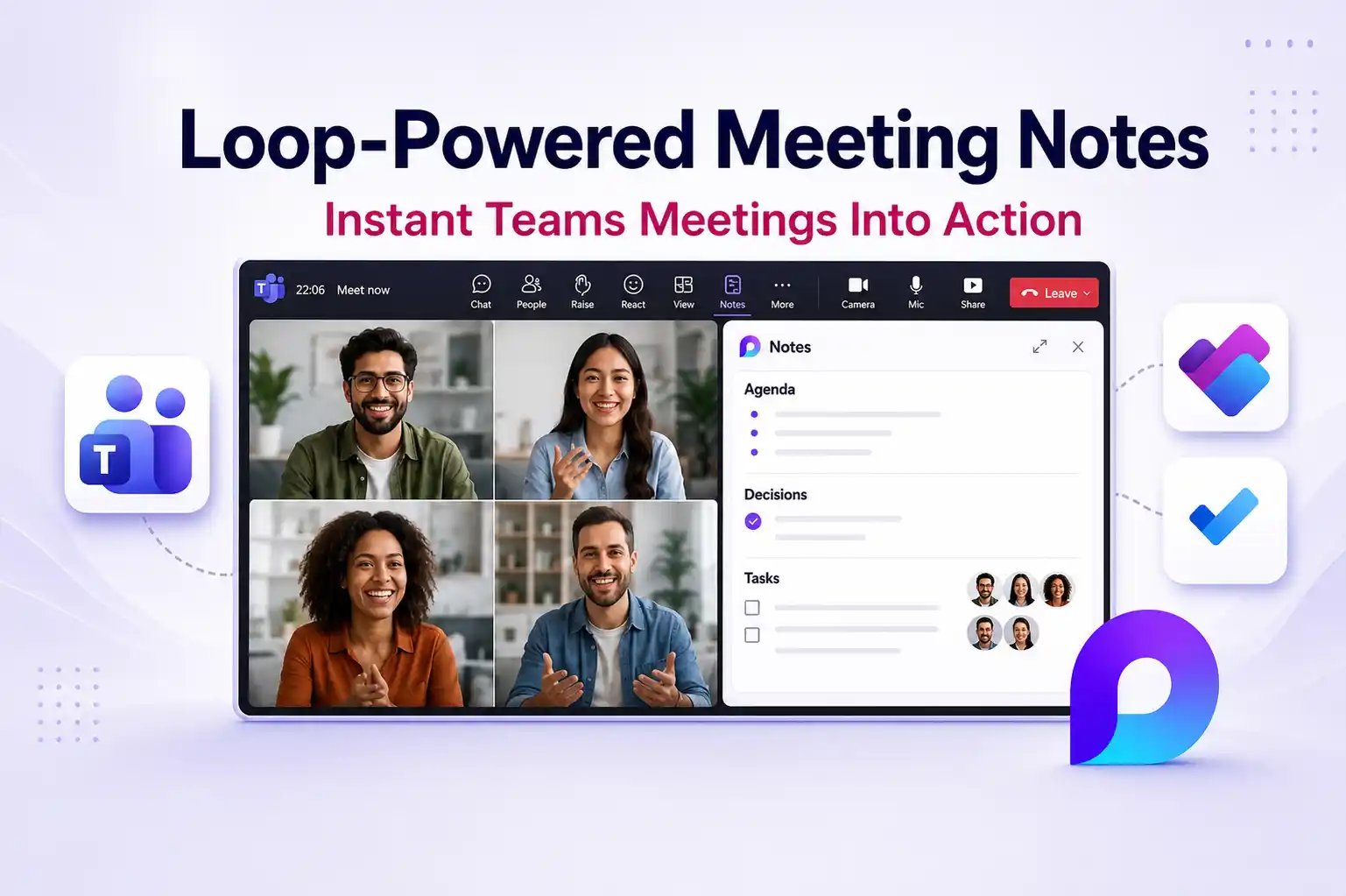
When an instant meeting ends and nothing is written down, important decisions and action items can disappear quickly.
With the new Loop powered meeting notes for instant meetings in Microsoft Teams, every Meet now session and chat-based call can create a clear, shared record of agendas, decisions, and tasks that stays in sync across Teams, Loop, Planner, and To Do. This update helps you capture what matters during fast moving conversations and keep work visible after everyone leaves the meeting.
For your Microsoft 365 environment, this change turns everyday spontaneous meetings into structured, trackable collaboration without adding extra tools or complicated processes.
- What’s new in Microsoft Teams instant meetings
- How Loop based meeting notes work in Teams
- Turning meeting notes into actionable tasks
- Where you find and use instant meeting notes
- Sharing and access: CSL vs PSL in Teams meeting notes
- Admin controls and configuration for Teams meeting notes
- Key takeaways for Microsoft 365 customers
What’s new in Microsoft Teams instant meetings
Microsoft Teams now includes meeting notes for instant meetings that use Loop components directly in the meeting experience.
You can:
- Add meeting notes by selecting the Notes button in the meeting controls.
- Work in a right-side pane that shows agendas, notes, and tasks while the meeting is running.
- Open the same notes in the Loop app in your browser for more editing and sharing options.
This update is part of Microsoft’s broader investment in Teams collaboration and Microsoft 365 connected experiences.
Microsoft 365 references
- Microsoft 365 Roadmap reference: Follow Microsoft 365 Roadmap ID 541831
- Official documentation: Settings management for Loop functionality in Teams
How Loop based meeting notes work in Teams
Teams meeting notes for instant meetings are Loop components, so they stay portable and up to date wherever you work.
In practice, this means:
- Notes stay synchronized between Teams meetings, Teams chats, and the Loop web app.
- Multiple people can co-author in real time, add sections, and refine the content together.
- The same Loop component can be reused across conversations and workspaces without breaking the link.
This approach supports modern Microsoft Loop collaboration, where content is componentized and easy to surface in different places across Microsoft 365.
🔗 Loop First Stand Ups
You can encourage this idea inside your organization:
- Create a standard Loop meeting notes template for daily or weekly stand ups.
- Use Meet now for quick stand-up style syncs and capture updates directly into the same Loop notes component.
- Share the Loop component inside key Teams channels so people who do not attend still see updates in one place.
Turning meeting notes into actionable tasks
One of the most valuable parts of this update is the connection between meeting notes, Planner, and Microsoft To Do.
With Loop powered meeting notes in Teams:
- You can create and assign tasks directly from the notes pane while discussions are happening.
- Tasks automatically sync with Planner and To Do so your work hubs show the latest action items.
- Assignees receive email notifications that reinforce ownership and follow up.
This supports Microsoft Teams task management and meeting productivity by reducing manual task creation after the meeting.
📌 For further reading, refer Microsoft Official documentation: Loop admin configuration in Microsoft 365
✅ Action Only Recap Messages
You can promote a simple recap habit:
- At the end of an instant meeting, review the notes and identify decisions and actions.
- Post a short recap with the key actions from the Loop notes into the Teams chat for that meeting.
- Add a consistent tag such as “MeetingRecap” to make these messages easy to search later.
Where you find and use instant meeting notes
Once this capability is available, meeting notes become part of the natural workflow in instant meetings.
During the meeting:
- You open the Notes pane from the meeting controls and start capturing agendas, decisions, and actions.

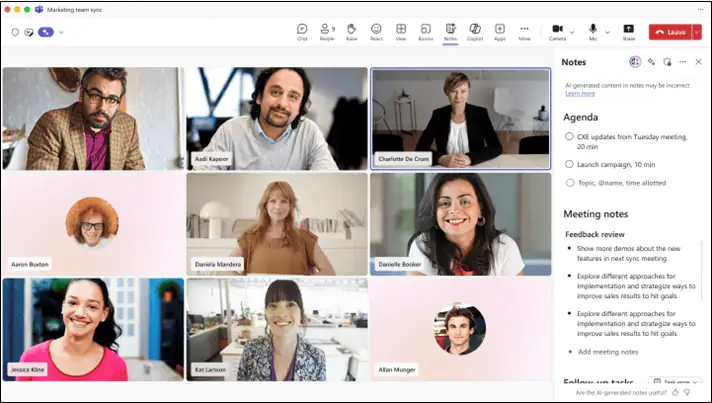
- You work side by side with others in the pane, keeping the discussion and notes in the same view.
After the meeting:
- You return to the Recap tab and open the Notes section to see everything that was captured.

- You can open the Loop component in the browser to continue editing or share the content more widely.
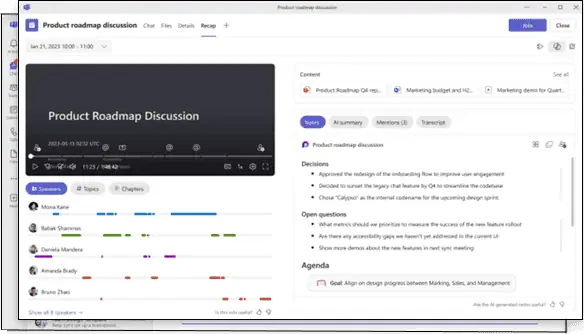
This supports Teams meeting lifecycle management and makes it easier to keep collaboration content connected from meeting to follow up.
💬 Notes First Meeting Culture
You can support a notes first approach inside your teams:
- Begin every instant meeting by opening the Notes pane and setting a simple agenda line.
- Assign one person in each meeting to watch the notes and ensure decisions and actions are captured.
- Ask participants to review the Recap tab before planning a follow up meeting, so they build on existing information.
Sharing and access: CSL vs PSL in Teams meeting notes
When meeting notes are created, Microsoft Teams uses your SharePoint link settings to determine who can access the notes.
By default:
- A new meeting notes file uses a Company Shareable Link (CSL) so people inside your organization can access it based on your default policies.
- If your tenant is configured to use People Specific Links (PSL) as the default, only people on the original meeting invite can open the notes file.
There are a few important access behavior details:
- People who join via a forwarded invitation or through nudges might need to request access when PSL is the default.
- You may want to review SharePoint sharing policies to ensure meeting notes behave correctly for different meeting types.
Microsoft Official references for further exploring:
🔐 Role Based Notes Access Review
You can support better governance with a simple review pattern:
- Map common meeting types such as project reviews, leadership meetings, and operations reviews to preferred link settings like CSL or PSL.
- Use SharePoint reports to occasionally review who has access to sensitive meeting notes and adjust where needed.
- Train meeting organizers to use PSL for conversations that involve confidential or compliance related topics.
Admin controls and configuration for Teams meeting notes
For Microsoft 365 administrators, instant meeting notes are available without extra configuration, but you still have control for governance and compliance.
Admin impact:
- No additional admin action is required to turn on instant meeting notes for Teams.
- The feature relies on Loop functionality and your existing SharePoint sharing defaults.
Suggested admin steps:
- Review your SharePoint sharing defaults so you know how CSL and PSL behave for meeting notes.
- Update internal documentation and helpdesk guidance to explain the new meeting notes experience in Teams.
- Decide whether you want to centrally manage Loop meeting notes with PowerShell for specific scenarios.
PowerShell control from Microsoft guidance:
- Set-SPOTenant -IsCollabMeetingNotesFluidEnabled (boolean)
Current limitation:
Meeting notes are not available for Teams calls such as direct person to person calls outside the instant meeting experience.
Key takeaways for Microsoft 365 customers
This update helps you:
- Turn instant Teams meetings into structured, reusable records of agendas, decisions, and tasks.
- Use Loop components to support flexible, portable collaboration across Teams and the Loop app.
- Connect meeting actions directly to Planner and Microsoft To Do to reduce manual follow up work.
- Align meeting notes access with SharePoint sharing policies and your governance requirements.
For Microsoft 365 environments that rely heavily on Teams, Loop, and Planner, Loop powered meeting notes for instant meetings are an important step toward building a more connected, accountable, and transparent meeting culture.
📌 Official Microsoft documentation references
Use these Microsoft references to validate the rollout details, Loop configuration, sharing settings, and Teams admin controls discussed above.
















