


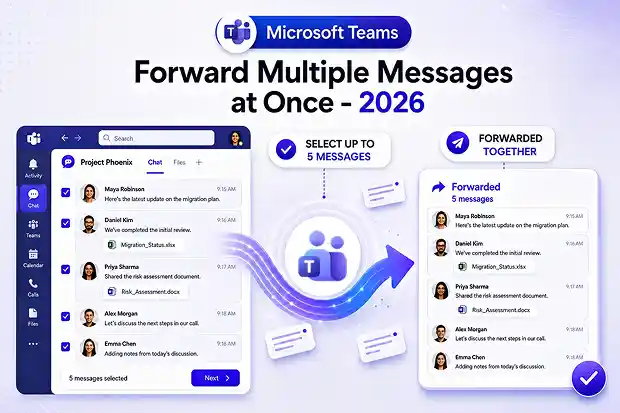
Microsoft is introducing a new Teams enhancement called Multi-Select Forward, allowing users to forward multiple messages at once.
Have you ever needed to share part of a conversation with someone, but ended up forwarding each message one by one? It can be messy, time-consuming, and can easily break the flow of conversation.
With Multi-Select Forward, users can select up to five messages from a chat or channel and forward them together as a single message. The messages remain in their original order, helping preserve the full context of the conversation.
Why Multi-Select Forward Matters for Teams Users
Forwarding messages one at a time in Microsoft Teams has not always been the smoothest experience. You select a message, forward it, return to the conversation, choose the next one, and repeat the process. By the end, the recipient often has to piece the conversation together manually.
Multi-Select Forward solves this in a much simpler way. Instead of forwarding messages individually, users can select multiple messages and send them together while keeping the original order and context intact.
This is especially useful when escalating an issue, handing over work, or adding someone new to an ongoing discussion. The relevant messages arrive as one clear, structured update that is easier to read and follow.
Built in response to user feedback, this feature addresses a common Teams frustration and makes sharing conversation context faster, cleaner, and more effective
How to Forward Multiple Messages in Microsoft Teams
Microsoft Teams makes this feature easy to use because it is built into the same message action menu you already use for forwarding individual messages.
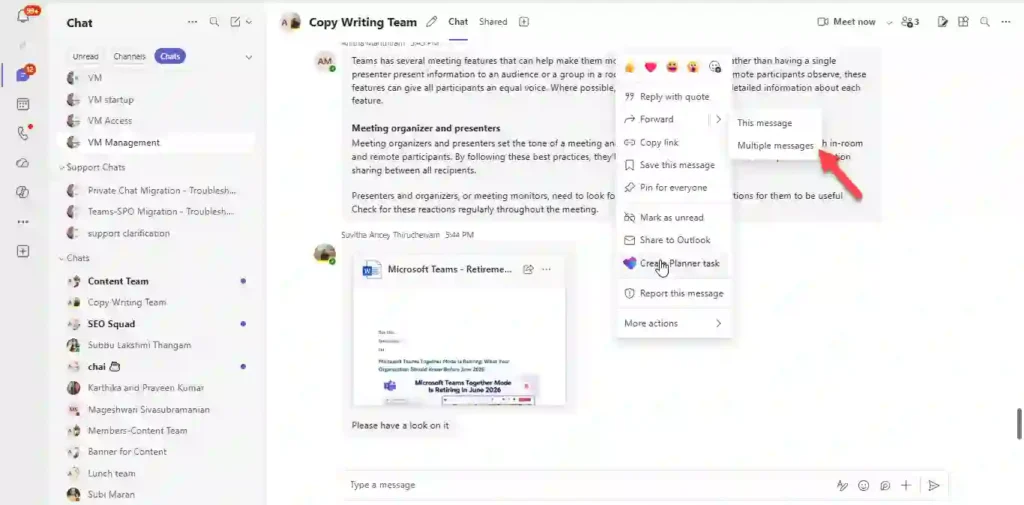
- To forward multiple messages, open the chat or channel where the messages are located. Then select More options on a message and choose Forward > Multiple messages.
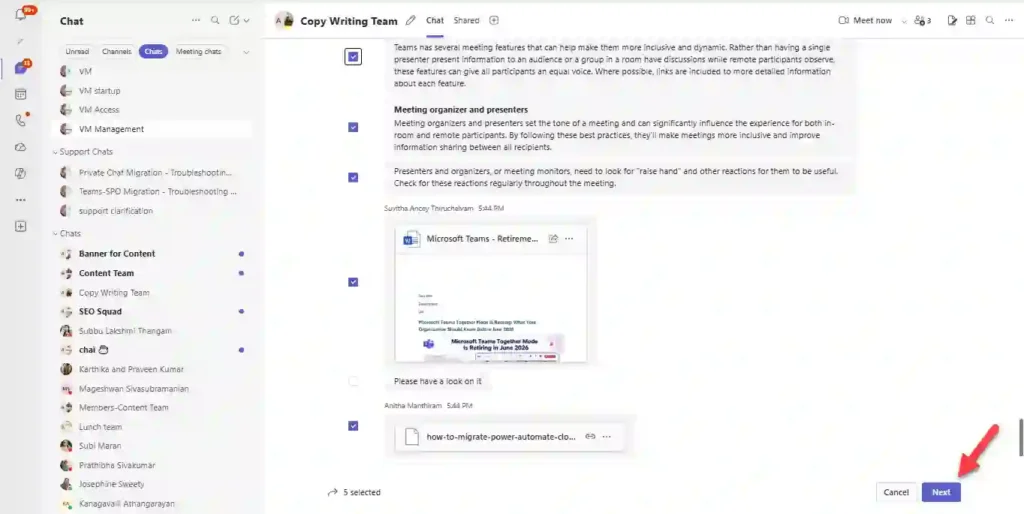
- Next, select the messages you want to forward. You can choose up to five messages from the conversation. After selecting the messages, click Next.
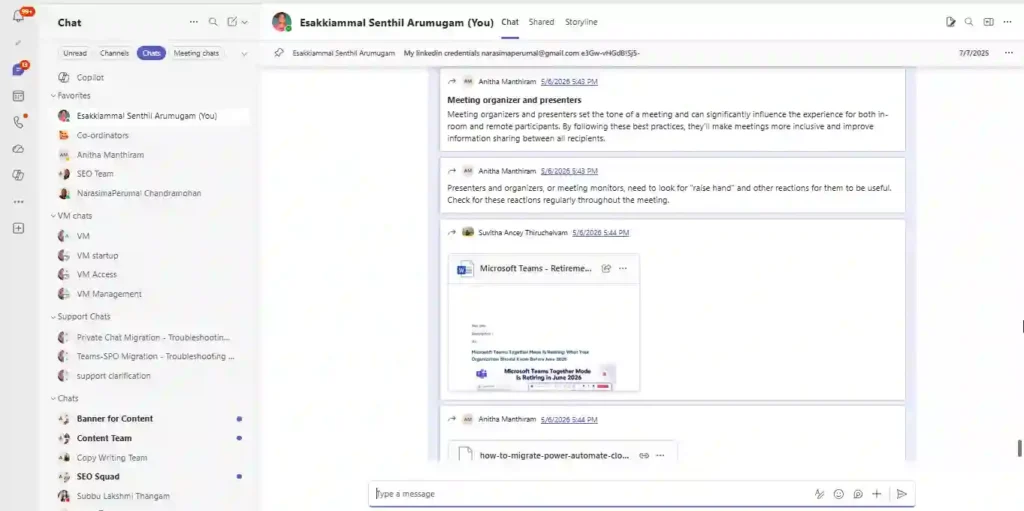
- Teams will bundle the selected messages together and forward them as a single message.
On mobile, users cannot forward multiple messages yet. However, they can still view bundled forwarded messages that were sent from Teams on desktop or web.
What IT Admins Need to Do
Good news for IT admins: there is nothing to configure for Multi-Select Forward in Microsoft Teams.
The feature will be enabled by default , and no admin action is required before or after deployment.
Compliance Considerations
Microsoft has not identified specific compliance considerations tied to this change. Still, organizations should review their own internal policies as appropriate.
Final Thoughts: A Small Change with Big Productivity Gains
Multi-Select Forward may seem like a small Teams update, but it can make everyday collaboration noticeably smoother.
By allowing users to forward multiple messages together, Teams reduces fragmented sharing, preserves conversation context, and makes it easier for recipients to follow the full story without piecing together separate messages.
For end users, this means less repetitive forwarding and cleaner communication. For teams, it means faster handoffs, clearer escalations, and more efficient collaboration across chats and channels.

















 Migrate
 Manage
 Migrate Microsoft 365








